
Before proceeding, you must stop the Channel by deactivating the checkbox. Stopping the channel will also stop the engine.
Changing the name of a Layer will change the name of the Layer in the user interface. Use less than 8 characters for the Just Play Lite user interface, otherwise, the name will be shortened.
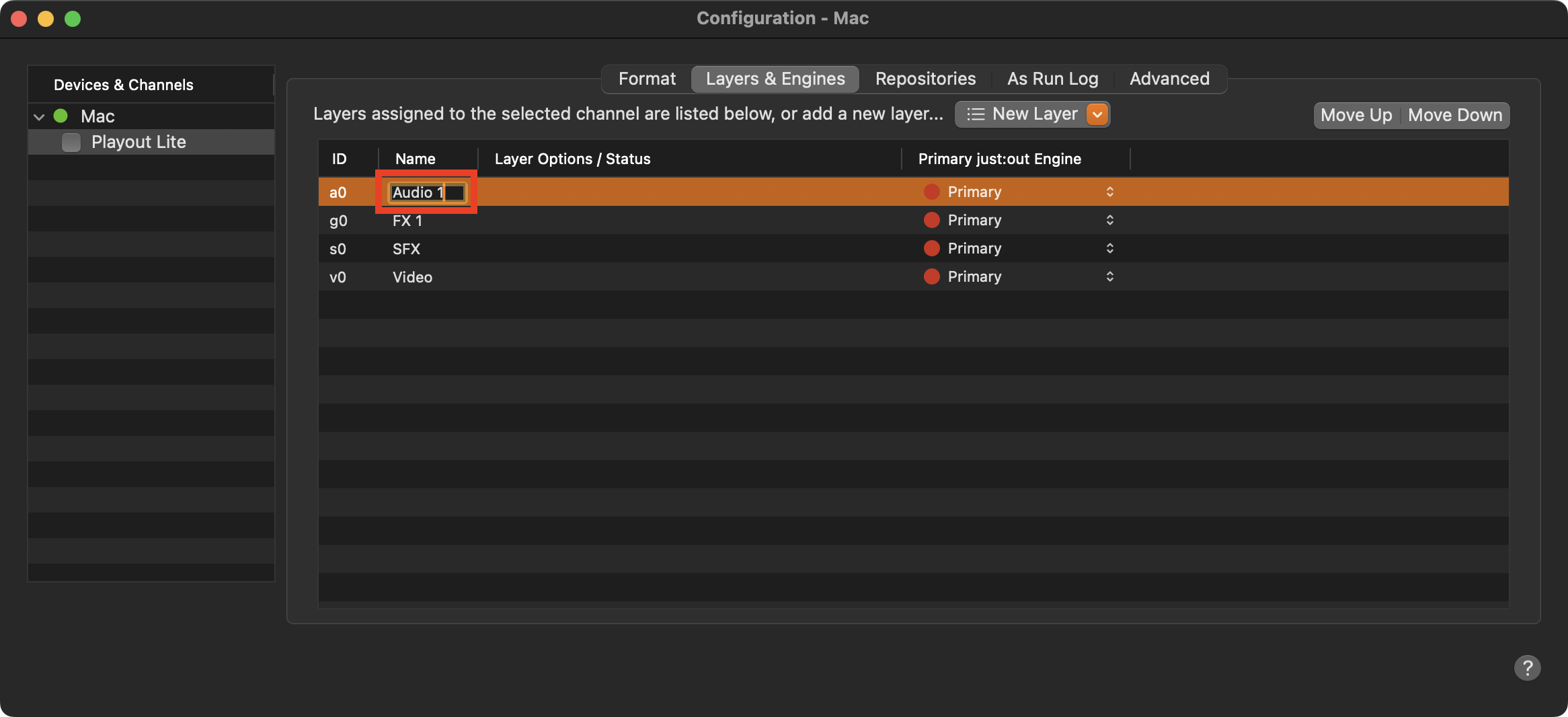
Stop the Channel by deactivating the checkbox in front of it. Stopping a Channel will also stop the playout engine and therefore the final output.
Select the Channel in the “Devices & Channels” list.
Click on the “Layers & Engines” tab.
Click on a Layer name.
Enter a new name and press the “Enter” key afterward.
Activate the checkbox in front of the Channel to start it again and to take over the changes you made.