
Before proceeding, you must stop the Channel by deactivating the checkbox. Stopping the channel will also stop the engine.
A Channel can “pass-thru” a live signal, or play out a Fill+Key signal (SDI and NDI® only). The functionality may differ, depending on the used video device. Please refer to the dedicated Chapter Live Input Signal Handling for more information regarding this.
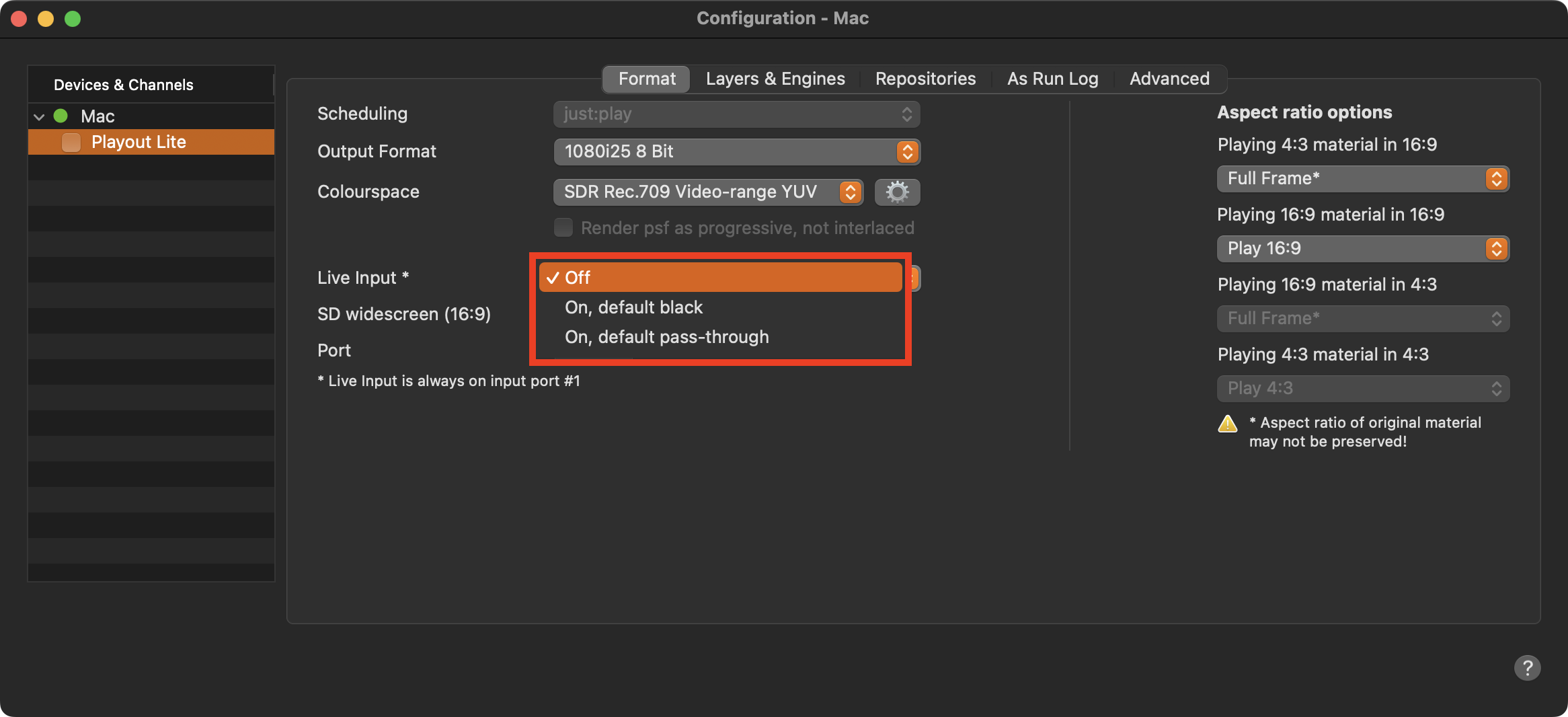
Activate Live Input
Stop the Channel by unchecking the checkbox in front of it. Stopping a Channel will also stop the playout engine and therefore the final output.
Select the Channel in the “Devices & Channels” list.
Click on the “Format” tab.
Select the desired method in the “Live Input” drop-down menu. The methods are explained below.
Activate the checkbox in front of the Channel to start it again and to take over the changes you just made.
Live Input Methods
Off: Select this setting for a simple video only playout server without the ability to pass-thru an incoming signal, or in case you would like to play out using Fill+Key. The default output is black.
On, default black: Select this setting in case there is a live signal available, that you would like to “pass-thru” to the available outputs while a live event is scheduled. The default output is black in case nothing is playing in the timeline.
On, default pass-thru: Select this setting in case there is a live signal available which you would like to “pass-thru” to the available outputs while a live event is scheduled. The default output is the live signal in case no Playlist is currently playing in the timeline.
The ability to switch to a live source is also available when using one of the available streaming formats.
Activate Fill+Key
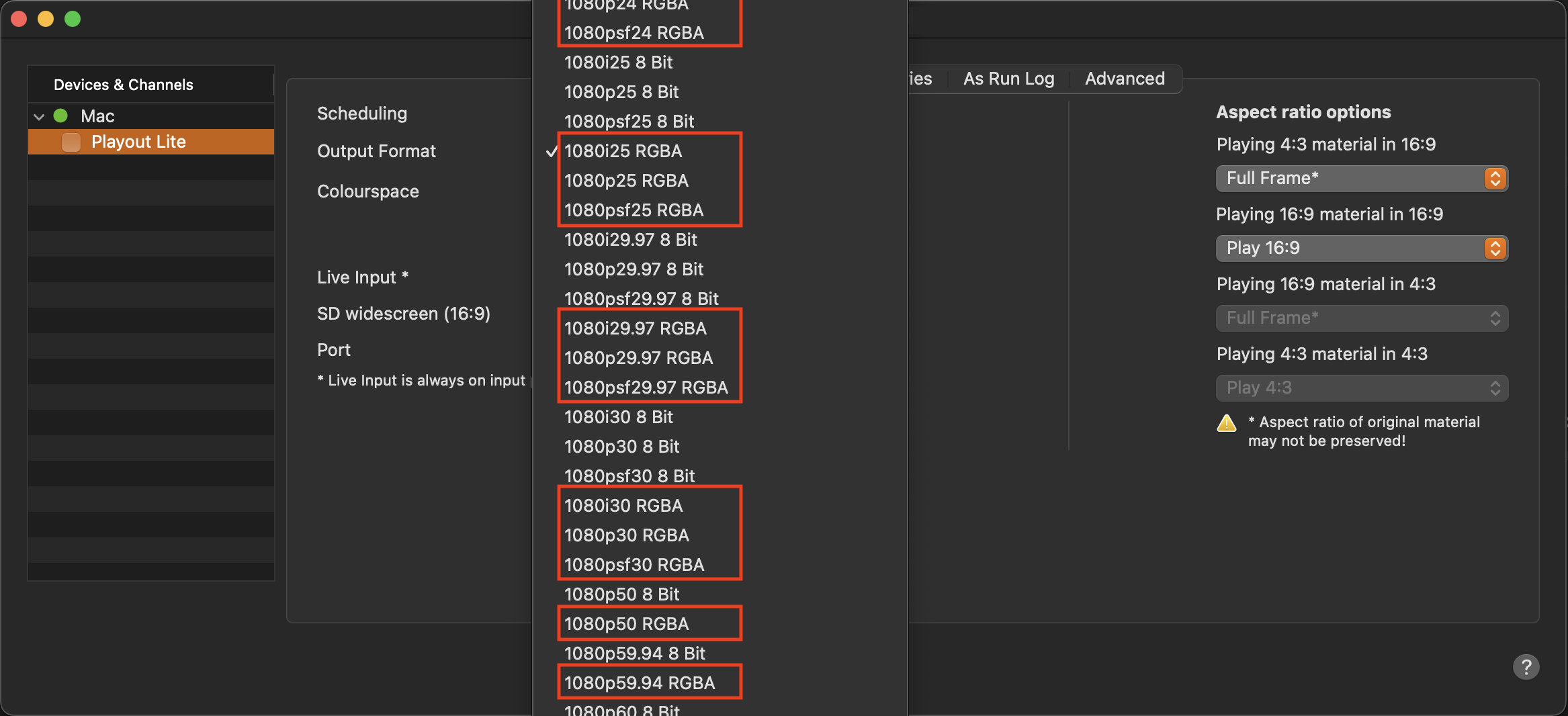
Stop the Channel by unchecking the checkbox in front of it. Stopping a Channel will also stop the playout engine and therefore the final output.
Select the Channel in the “Devices & Channels” list.
Click on the “Format” tab.
Select “OFF” under “Live Input”.
Under “Output Format” select the format you would like to use for your Channel and make sure, to select “RGBA” instead of “8- or 10-Bit”. This allows the engine to process and therefore to output the alpha channel information on a separate SDI output or NDI® stream.
Activate the checkbox in front of the Channel to start it again and to take over the changes you just made.