
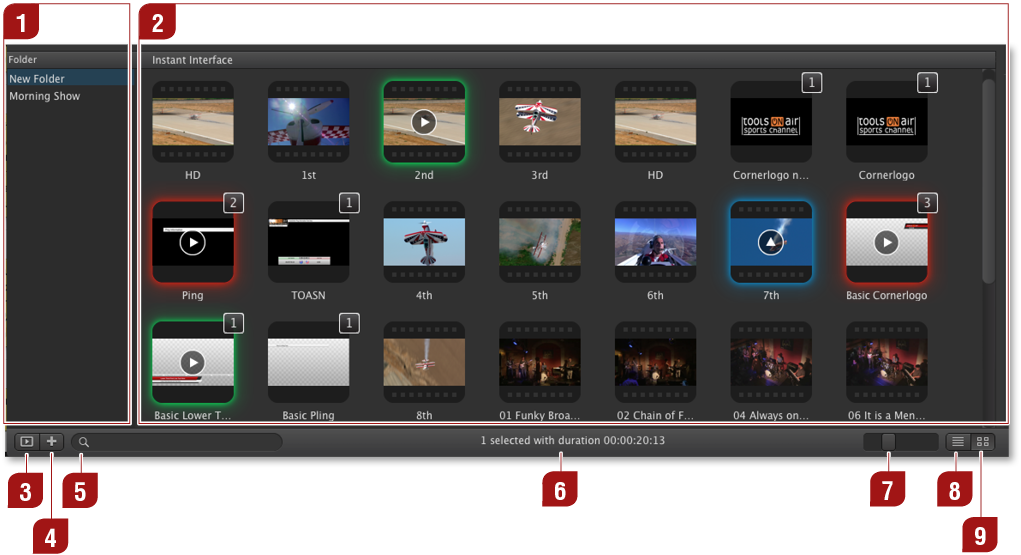
Folder List: You can create folders to organize files. Click the "+" button in the lower left to add a folder – or press the backspace key to remove a selected folder.
Poster Frames: Shows the content of the selected folder, where each element is displayed with its poster frame. The different symbols and colors are explained in the next chapter.
Folder List Button: Click this button to hide or show the folder list.
Add Folder: Click this button to add a folder. Use the inspector to rename folders.
Search Field: Allows you to search for files in the workbench.
Item Count: Shows the number of items selected in the workbench as well as the total length of the selected elements.
Poster Frame Size: This slider adjusts the poster frame size.
List View: Activates the "List View" mode of the workbench (as seen in the previous chapters).
Poster View: Activates the "Poster View" mode of the workbench (as seen in the previous figure).