Just Live & Just Play v1.8 · v.1.8 legacy documentation

7.1 Using The Installation Disk Image

→ Download Just Live/Just Play from our helpdesk (account required), then open the downloaded disk image and follow these instructions:

→ Download Just Live/Just Play from our helpdesk (account required), then open the downloaded disk image and follow these instructions:

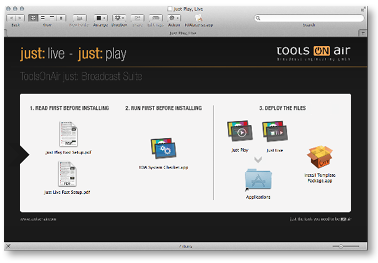
7.1 Using The Installation Disk Image screenshot

A quick overview of the setup and installation procedures can be found in → Just Live Fast Setup or  → Just Play Fast Setup , although all aspects of the installation/setup are described in this admin user manual.

  1. Make sure to run the "TOA System Checker" application. If you did configure your system(s) according to the previous chapters, no warnings and errors should be listed here. If there are issues, fix them BEFORE proceeding further with the installation.
  2. Drag and drop the "Just Play" or the "Just Live" icon onto the "Applications" folder icon shown in this window. 
  3. Double click on the "Install Template Package" icon to install the optional real time graphics template package into the user's "Pictures" folder.
  4. After the installation has finished the applications are located at "/Applications/Just Play" or "/Applications/ Just Live". When using different machines you have to repeat the installation on each machine. The next page contains details about this procedure.

The installation provides a fully functional demo of just:out and the playout will display a watermark. You have to acquire a licence to disable the watermark. Please → contact us directly.