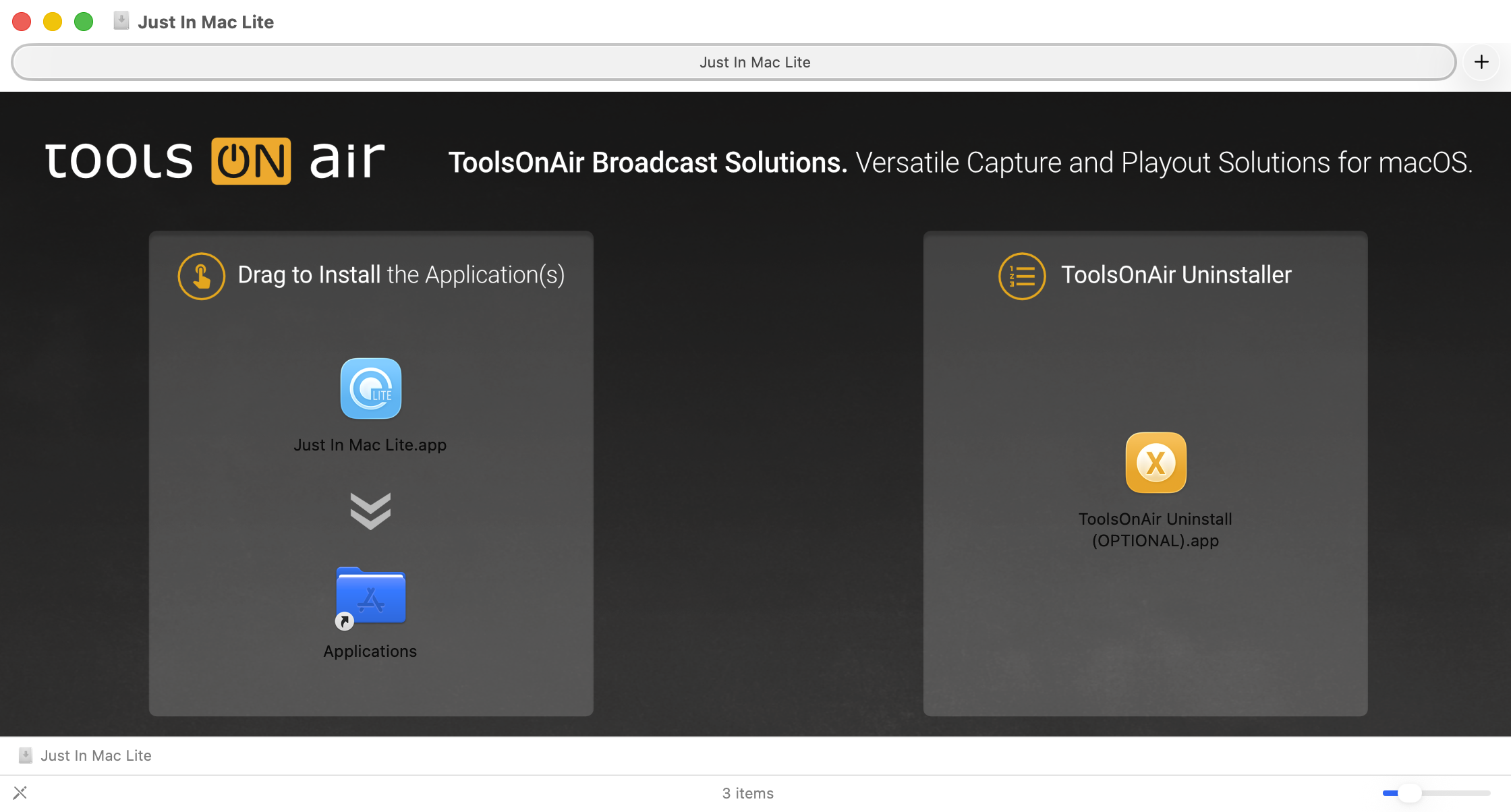
Before using or upgrading to Just In Mac Lite 2026, please note the following changes and macOS requirements:
Changes/Adjustments
Supported macOS Versions and Apple Hardware
The Just In Mac Lite application has been further improved to accommodate the latest macOS features and is fully macOS Sequoia (15.7.x) and macOS Tahoe (26.x) certified.
Important Update: The Just In Mac Lite 2026 application is optimized exclusively for Apple silicon hardware (M1-M5) to provide you with the best performance and experience.
By fully transitioning to the Apple silicon platform, we ensure optimal performance, stability, and compatibility with the latest advancements.
If you are planning to deploy the Just In Mac Lite application on qualified INTEL-based Macs (MacPro7,1 or Macmini8,1) please consider using version 2025.1!
Nevertheless, we will, of course, continue to support our customers who still have certified Intel-based Macs running qualified versions of Just In Mac Lite.
Online License Activation:
The Just In Mac Lite 2026 application uses an online license system for activating, deactivating, and checking your license status. So, for any online activation process to work, you will need online access. Please ensure that this is available before starting the one-time online activation process.
Installation of Apple Pro Video Formats (TOA Installer image)
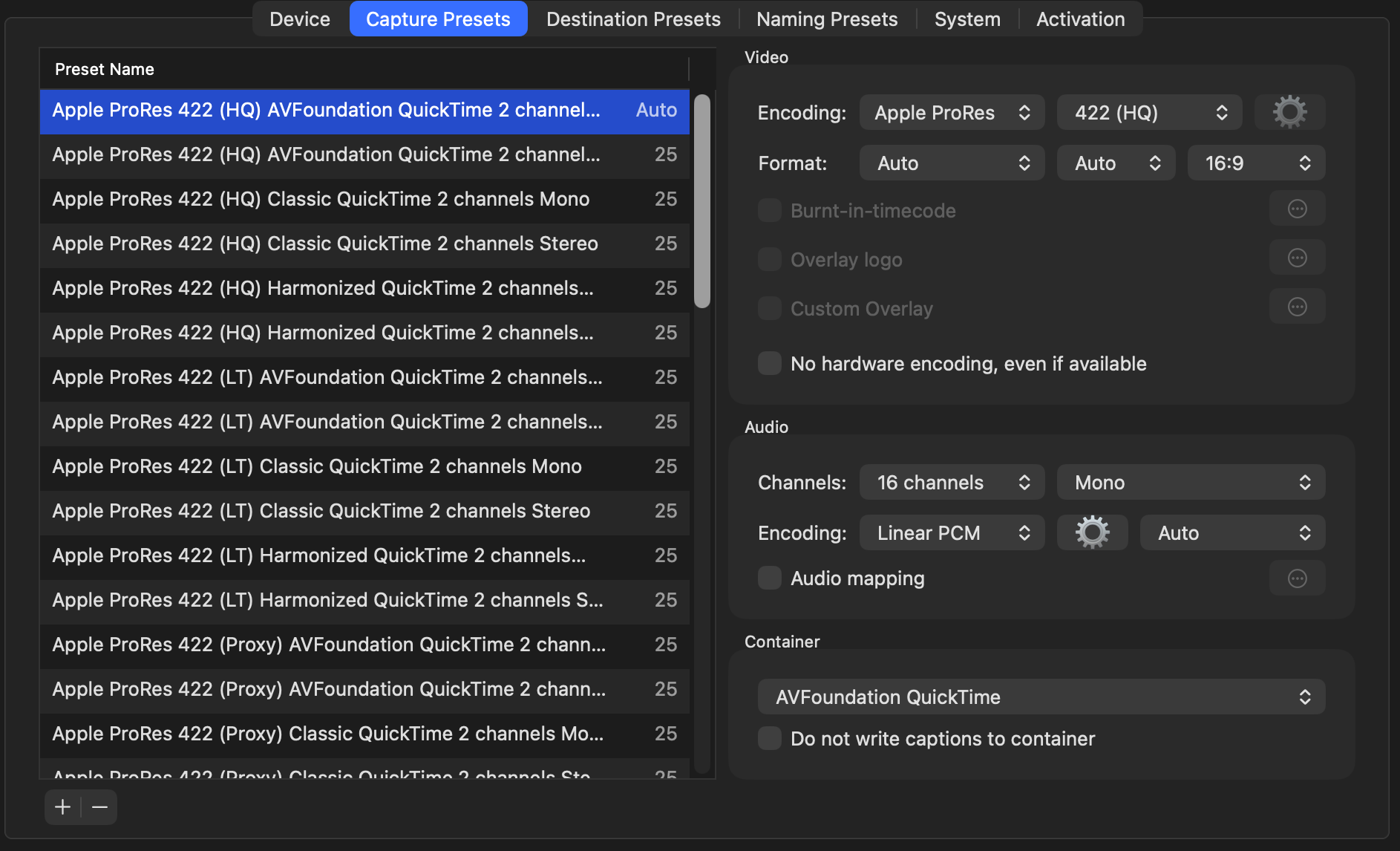
Please ensure to download and install the Apple Pro Video Formats from Apple’s website, as they provide support for the listed codecs (see screenshot below) used to capture files with the Just In Mac Lite 2026.x application, to ensure compatibility with professional video workflows.
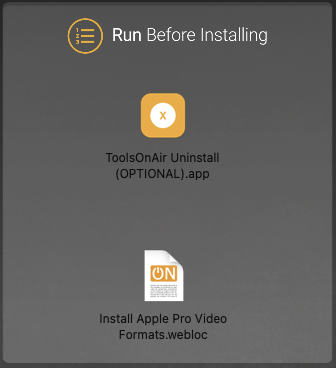
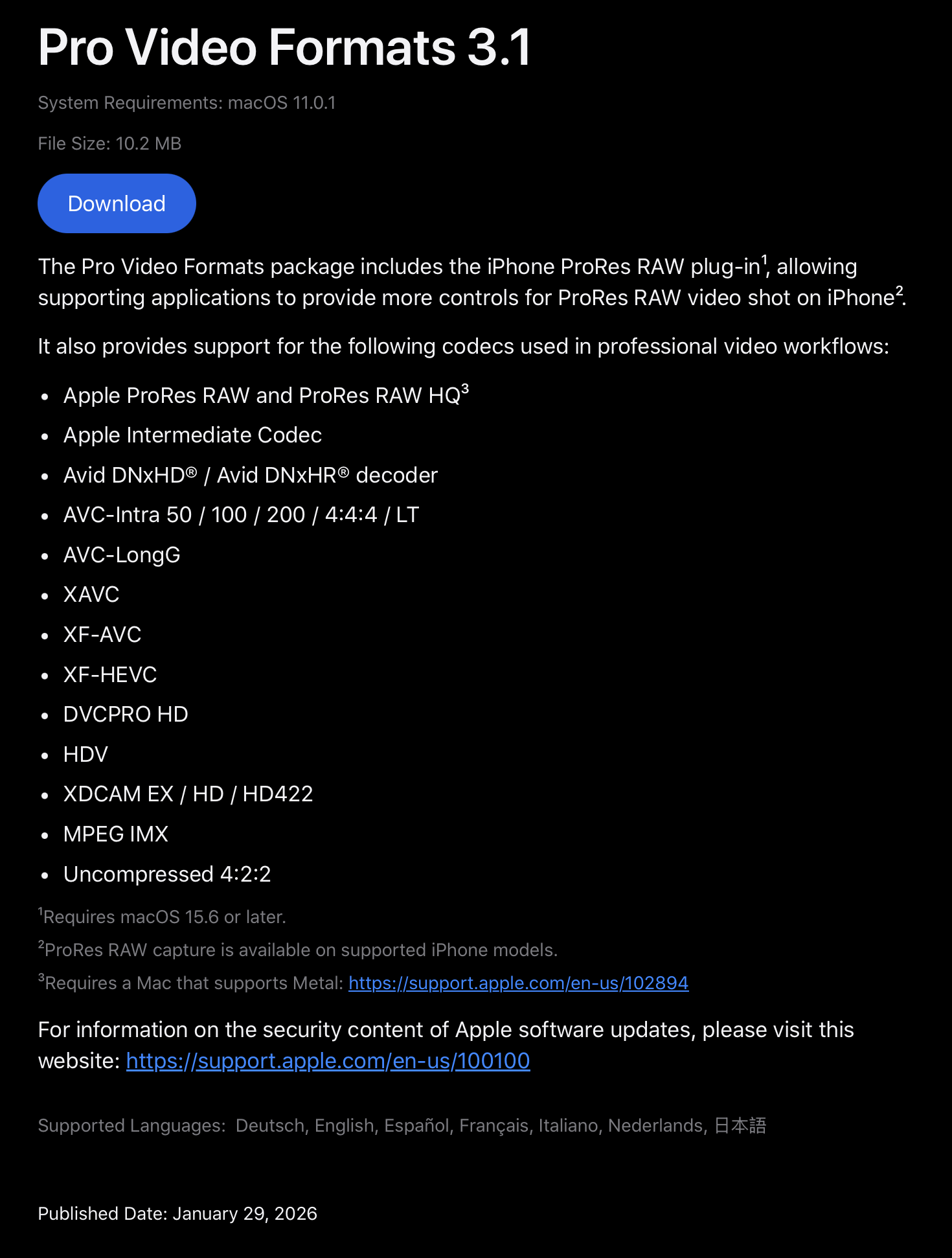
If this has been done previously, then no action is required. The Apple Pro Video Formats codecs can be found at: “/Library/Video/Professional Video Workflow Plug-Ins”.
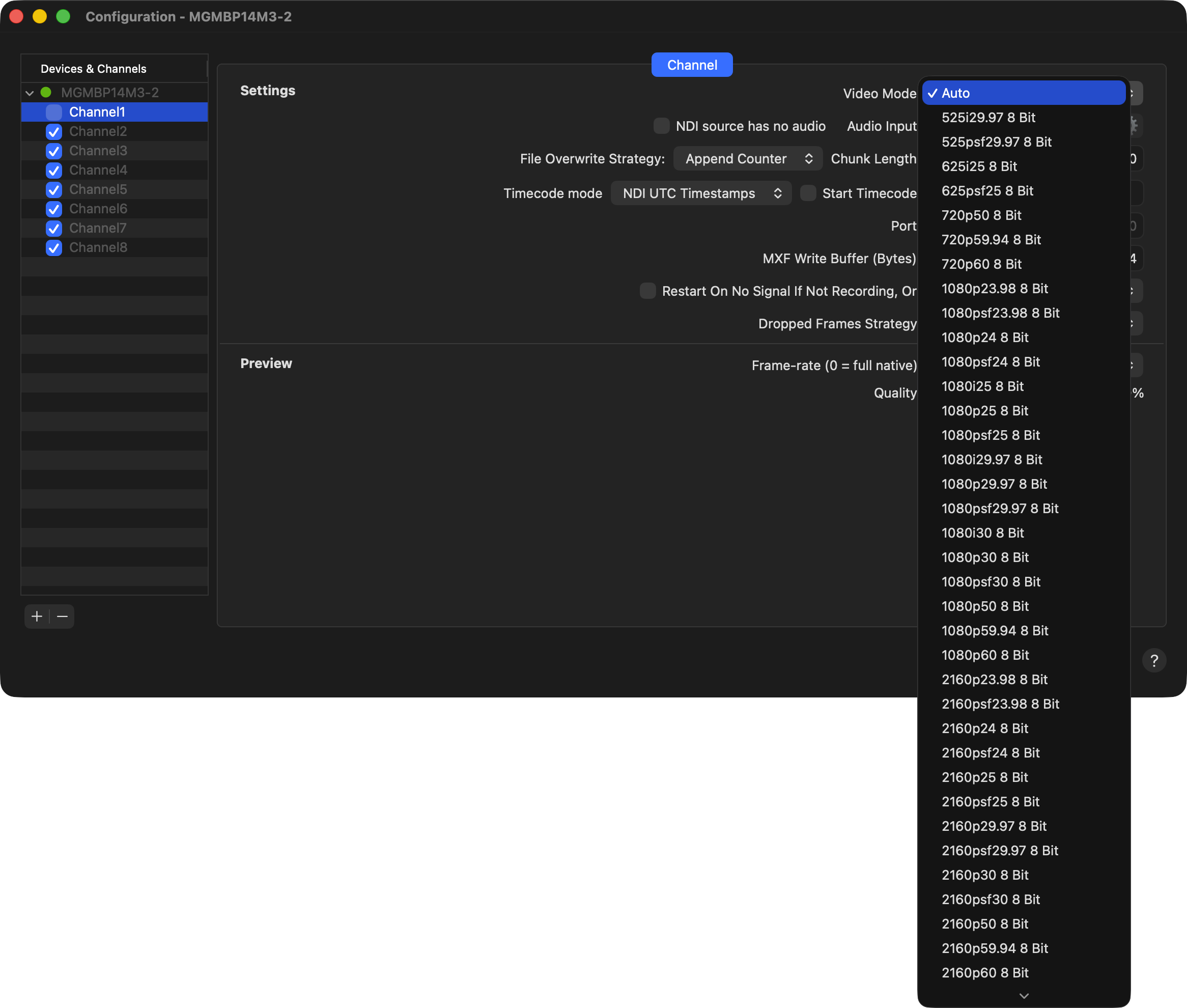
Just In Mac Lite 2026 introduces the Automatic Signal Format Detection (Auto mode). Rather than statically assigning each channel to a fixed input format, channels can now automatically detect the incoming SDI or IP signal and configure themselves accordingly. In combination with the newly redesigned capture preset architecture, this enables a far more dynamic, adaptable, and future-ready capture workflow for operators.
Customers upgrading from previous versions (6.5 or 2025.x) will retain their original configuration to ensure a smooth transition. Changing the Video Mode and Capture Presets to take full advantage of the Auto Mode, just needs a switch from the previously selected video mode to “Auto”. The same logic applies to Capture Presets.
Supported Blackmagic Design DeckLink Drivers
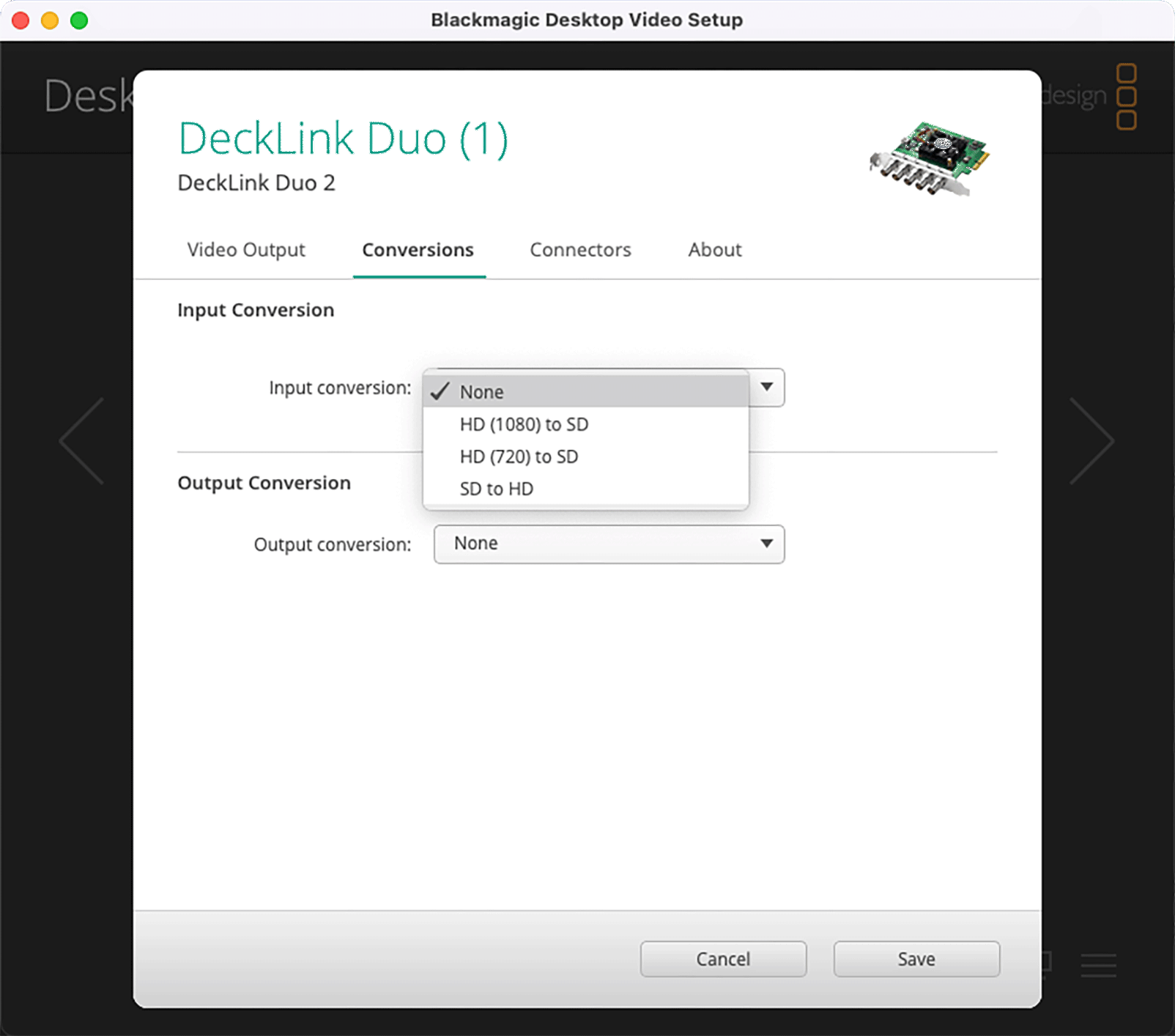
The Just In Mac Lite 2026.0 application fully supports the new generation of Blackmagic Design Desktop Video drivers 16.0 and higher. If you are running a lower version, please update accordingly.
When using Blackmagic Design I/O cards please ensure that the “Input Conversion” settings is set to “None” as any other settings might interfere with the correct channel input acquisition process.
New “Local Network” Settings within macOS Sequoia/macOS Tahoe
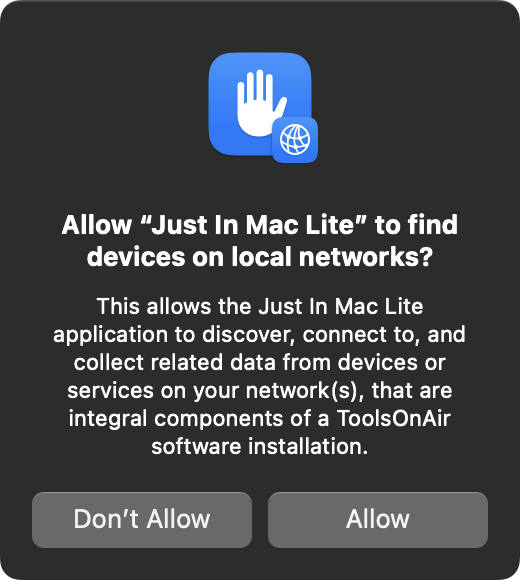
The new Local Network Security feature in macOS Sequoia (15.x.x) and macOS Tahoe (26.x.x) enhances privacy and control by allowing users to manage which apps can access their local network. This feature addresses concerns over unmonitored network access, providing an extra layer of security by ensuring that only trusted applications have access to local network resources, such as printers, file-sharing devices, and other computers. In macOS Sequoia/macOS Tahoe, users are prompted when an application attempts to access the local network for the first time, enabling them to allow or deny access (“System Settings → Privacy & Security → Local Network”).
When running the Just In Mac Lite application for the first time on macOS Sequoia/macOS Tahoe, you will be asked to allow it to discover and connect to devices or other applications on your network. Please click on the “Allow” button to ensure the application to connect to devices or other application on your networks.
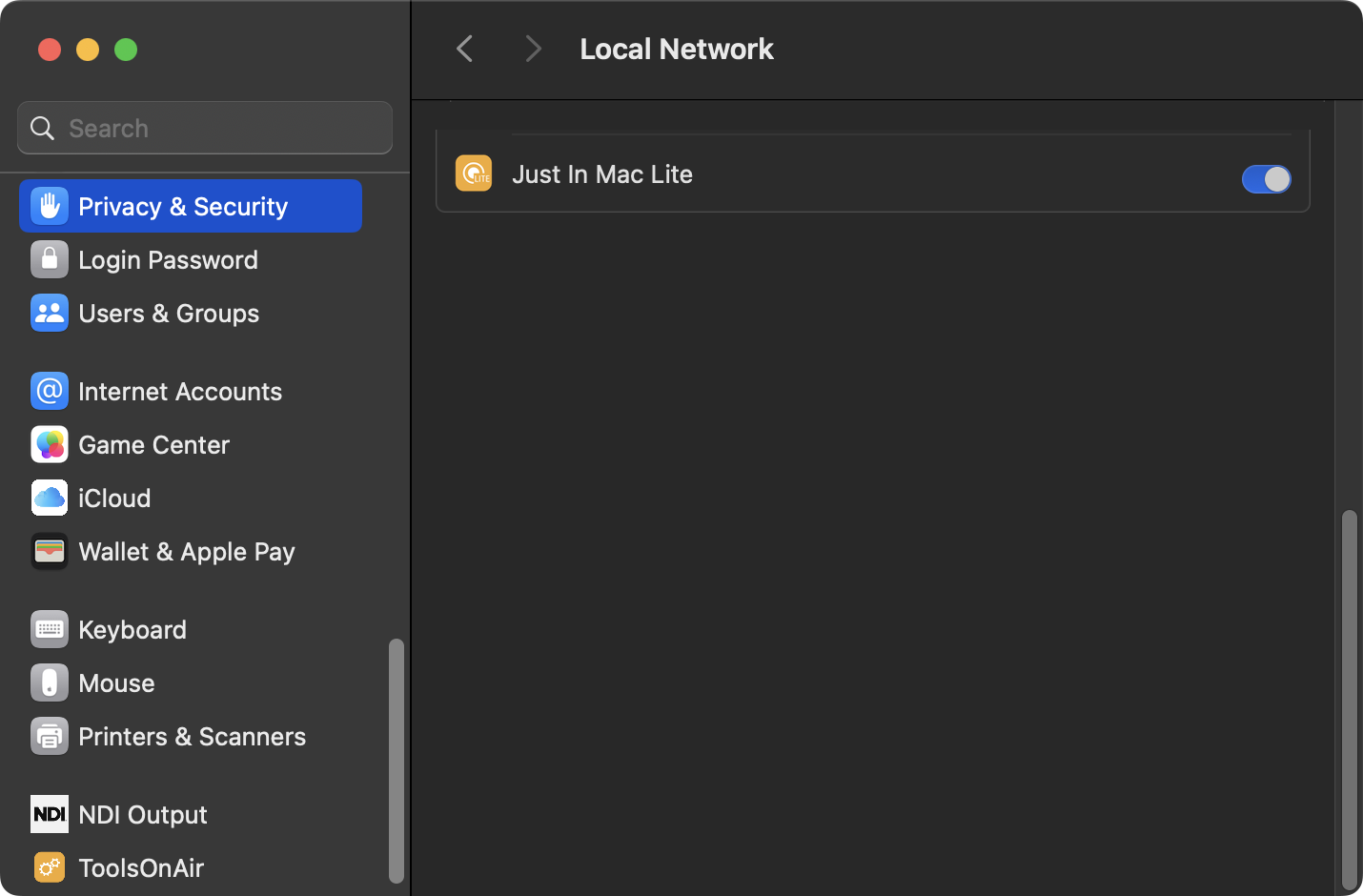
To double-check the connection status, go to “System Settings → Privacy & Security → Local Network” and ensure that Just In Mac Lite is enabled.
ToolsOnAir Uninstaller
Additionally, an improved Uninstaller application is available within the Just In Mac Lite 2026 installation DMG file. Use this utility if you need to restart the configuration from scratch or to completely remove Just In Mac Lite 2026 from your system.