
Before proceeding, you must stop the Channel by deactivating the checkbox. Stopping the channel will also stop the playout.
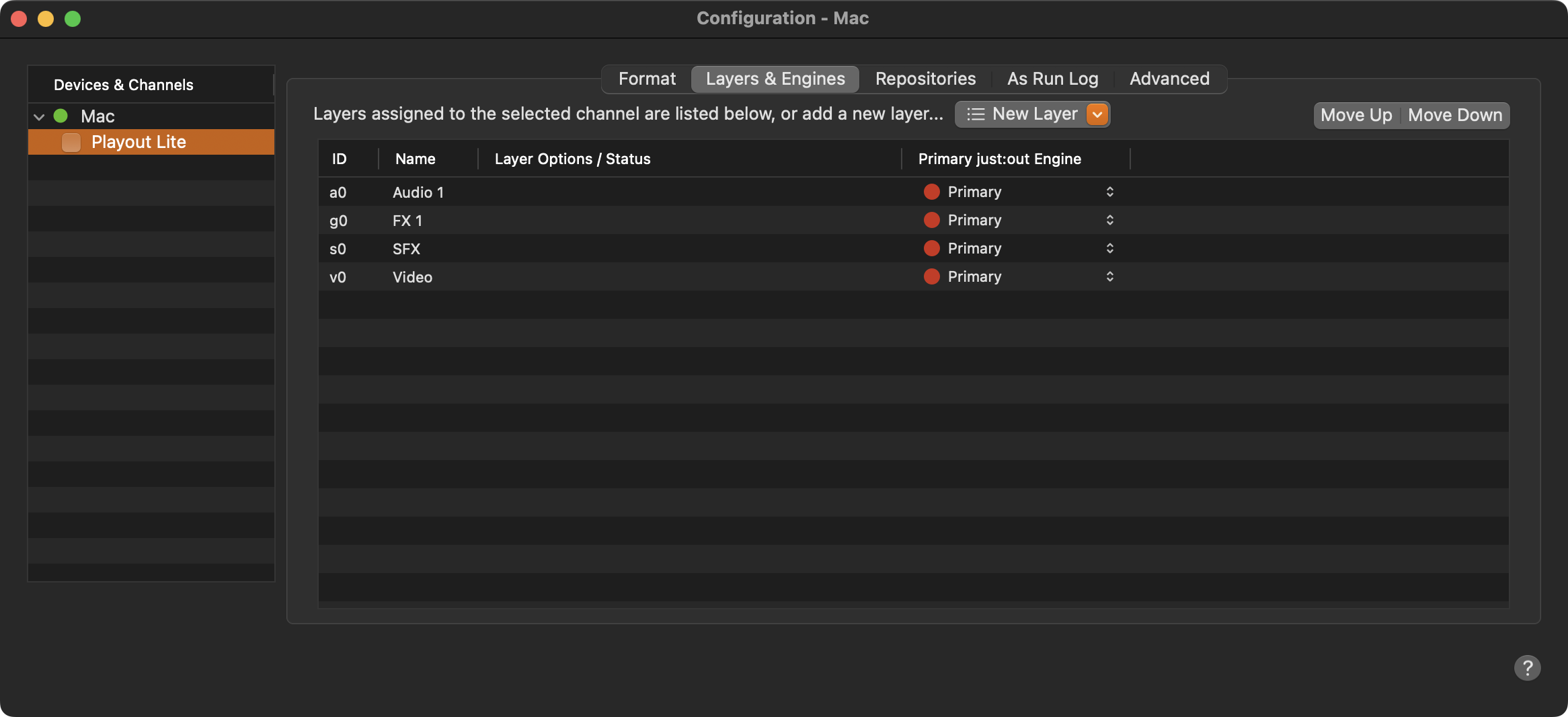
New Layer: Allows to add an available but not activated layer to the channel.
Move Up/Down: Move the selected Layer up or down. The final visual output will be in the order defined here (top to bottom).
ID: Unique ID, used to identify the Layer within the XML Playlists.
Name: Name of a Layer. Double-click to change it. The Layer names will be displayed in the Just Play Lite NDI. Use less than four characters for the Just Play Lite NDI user interface, otherwise the name will be shortened.
Layer Options / Status: Once an Infinite Graphic has been defined in the Inspector of the Just Play Lite NDI user interface, the chosen graphics element is shown here.
Just Out Engine: Shows the name of the Playout Engine.
Playlists which have been created before a Layer has been added will show the new Layer, but you will not be able to add elements to it. Create a new Playlist to use the new Layer.
Removing a Layer
Make sure you have selected the Channel in the Channel List.
Click on the Layer you would like to remove.
Press the backspace key.
Confirm the warning dialogue to remove the Layer. This cannot be undone.
Adding a Layer
Make sure you have selected the Channel in the Channel List.
Click on the New Layer and choose one of the available layers you can add to your channel.
Assign your engine to the new layer.