
It is possible to customize the user interface using the “View” menu and the mouse, to adjust the size of some parts of the user interface.
The View Menu
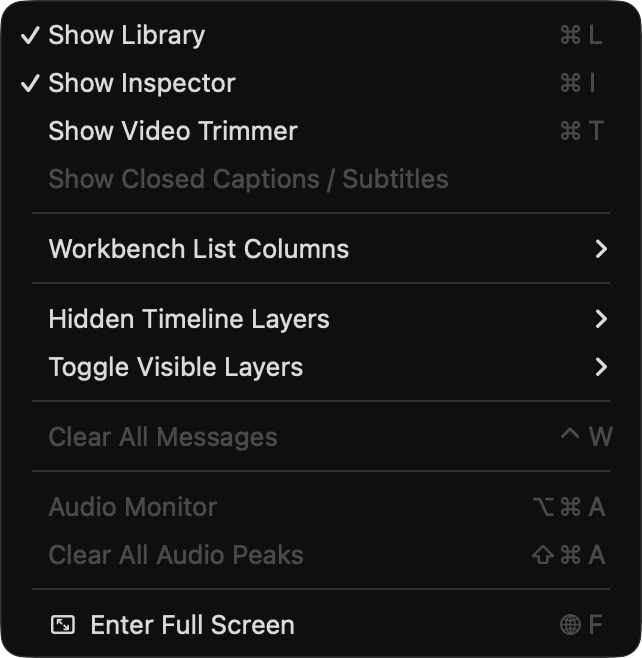
Show Library/Inspector/Timeline/Video Trimmer: Show or hide the main areas of the user interface.
Workbench List Columns: Show or hide Workbench list columns. You can also show or hide all columns at once.
Hidden Timeline Layers: Show or hide Timeline Layers. Depending on the configuration of your system administrator, the content of this menu may look different from the one shown here.
Toggle Visibility Layers: Shows the control and keyboard shortcuts, to toggle the visibility of the available Layers.
Enter Full Screen: Brings the user interface into Full Screen mode
Collapsable Library and Inspector
You can collapse the Library and Inspector by clicking on the close button “X”, to gain more space. When collapsed, small icons will still be displayed, allowing quick access to the Library and Inspector tabs of your choice.

Open the Library and Inspector

Collapsed Library and Inspector

While closed, the remaining control area shows the available tabs, with the last used tab highlighted.
Using the Mouse to change the Size of an Area
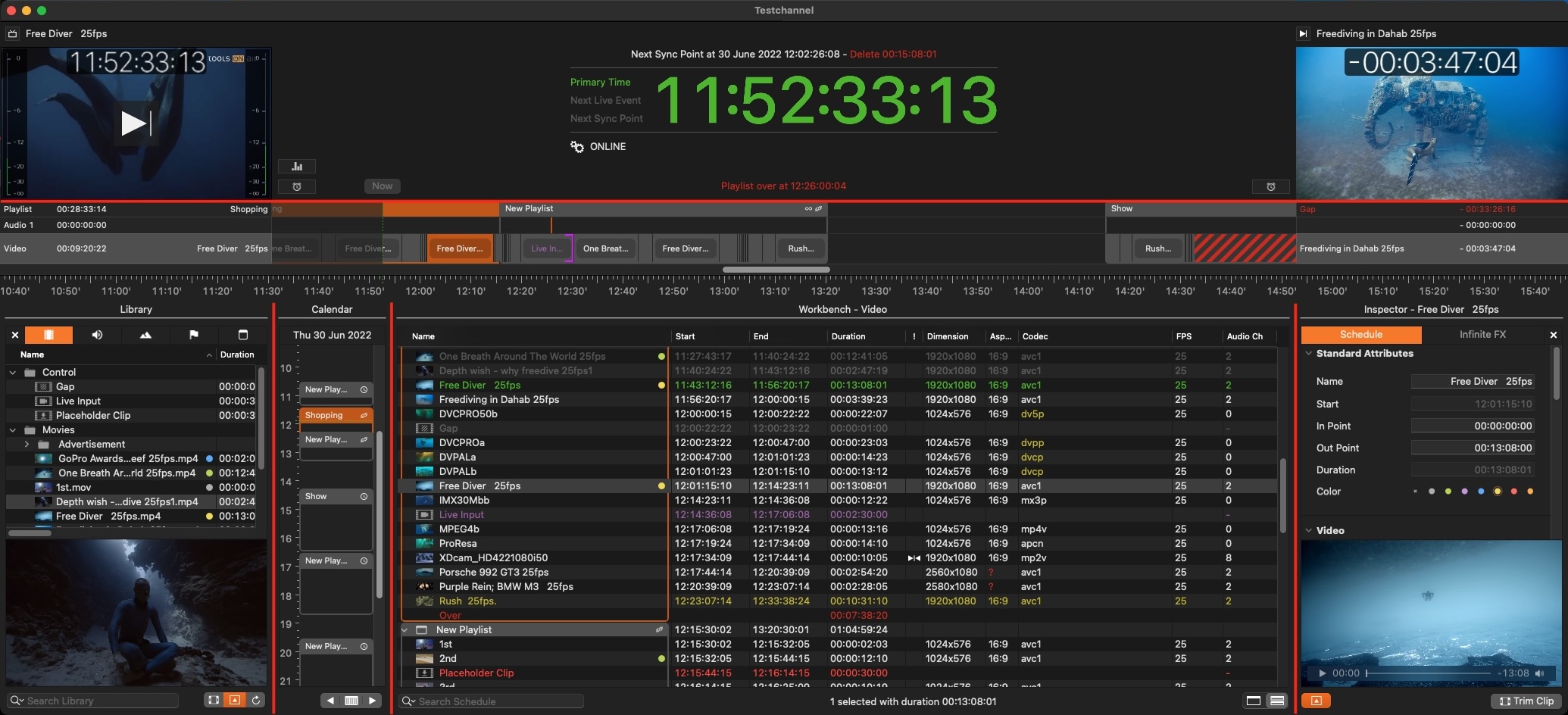
Use the trim handles shown in red to adjust the size of the Control Area, Library, Calendar View and Inspector.
Using the Mouse to change the Timeline Zoom Level
Click the scroll bar and move the mouse to the left and right to change the zoom level of the Calendar View.
Click the scroll bar and move the mouse up and down to change the zoom level of the Timeline.