
Before proceeding, you must stop the Channel by deactivating the checkbox. Stopping the channel will also stop the playout.
Defining the Repository Folders of a Channel
Just Play Lite NDI as well as the internal playout engine are looking for Videos, Audio, Graphics and previously saved Playlists in the Repository folders defined for the Channel. While you can define as many Repository folders as you want, the priority while playing Movies, Audio or Graphics is from top to bottom. So, if there are two Video repository folders defined, the engine will look for the Video in the first repository folder first, and will only look in the second repository folder if it cannot be found in the first one. This can be useful in case the first repository is the local disk and the second one is a centralized storage.
Adding a Repository
Stop the Channel by deactivating the checkbox in front of it. Stopping a Channel will also stop the playout engine and therefore the final output.
Select the Channel in the “Devices & Channels” list.
Click on the “Repositories” tab.
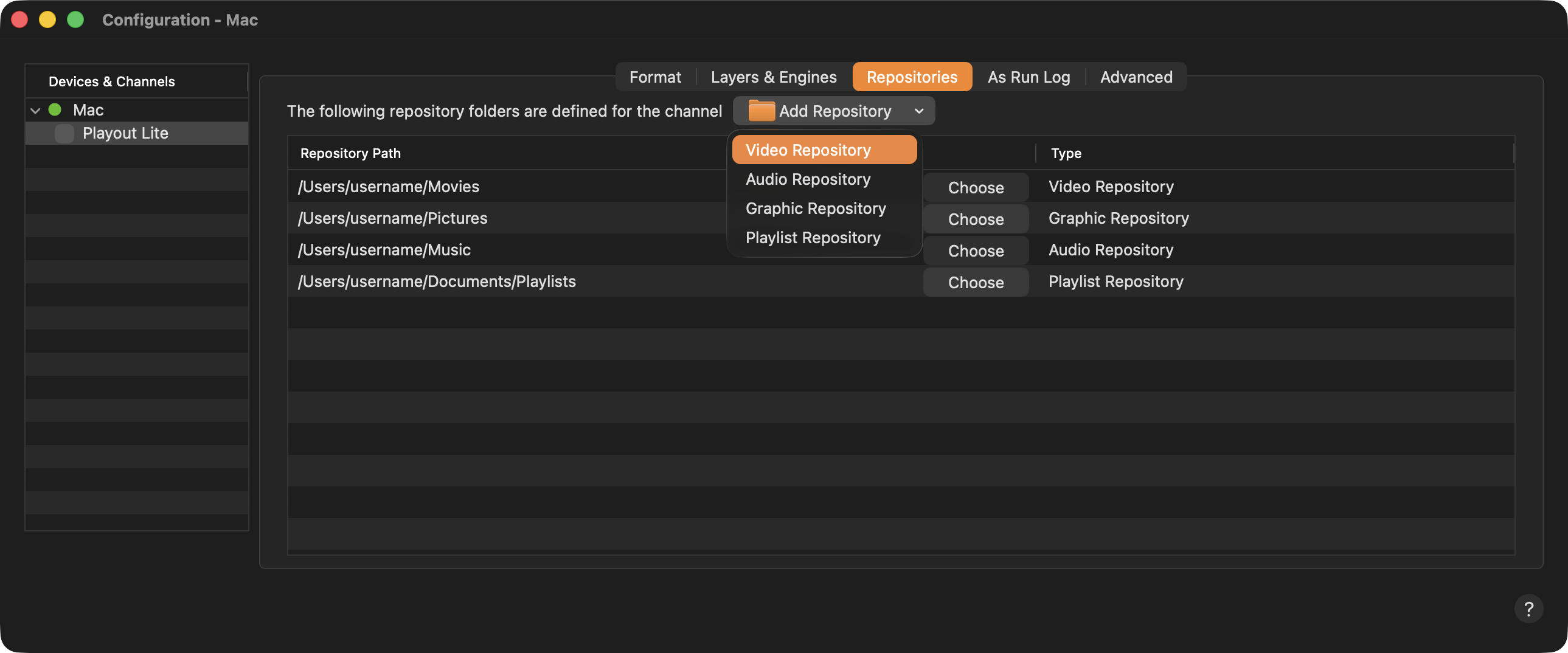
Click on the “Add Repository” dropdown menu and select one of the options. A Finder window opens which allows you to define the path of the Repository.
Path: The Path is displayed and can also be edited directly.
Choose Button: Please see “Changing a Repository” below.
Repository: This shows which type of Repository it is.
Activate the checkbox in front of the Channel to start the Channel and to take over the changes you just made.
Removing a Repository
Stop the Channel by deactivating the checkbox in front of it. Stopping a Channel will also stop the playout engine and therefore the final output.
Select the Channel in the “Devices & Channels” list.
Click on the “Repositories” tab.
Click on the “Repository” you would like to remove.
Press the “Backspace” key.
Confirm the warning dialog to remove the Repository. This cannot be undone.
Activate the checkbox in front of the Channel to start the Channel and to take over the changes you just made.
Changing a Repository
Stop the Channel by deactivating the checkbox in front of it. Stopping a Channel will also stop the playout engine and therefore the final output.
Select the Channel in the “Devices & Channels” list.
Click on the “Repositories” tab.
Click on the “Choose” button of the Repository you would like to change.
Select the new folder for the Repository in the file chooser. Click “Choose” to confirm.
Activate the checkbox in front of the Channel to start the Channel and to take over the changes you just made.
If a defined Repository folder is not available, a warning will appear which informs about this issue after starting Just Play Lite NDI.
In Just Play Lite NDI, the Library, the Videos, Audio, Graphic and Playlist tabs are visible no matter if a Repository folder has been configured for the particular media or not.