
Channel States
While working on the rundown, the Just Play Lite NDI user interface can show the current playout position (Primary Time Mode) or show the playout how it was/will be in the past/future (Edit Mode).
Primary Time Mode
The Timecode is GREEN (🟢) and follows the real time.

This mode is the default mode when Just Play Lite NDI is started.
In Primary Time Mode you can watch the current playout.
The Timecode and the CTI’s are GREEN (🟢) and synchronized with the playout engine's time, which means that the user interface reflects the current playout position.
In Primary Time Mode, dragging items within the Timeline and altering the duration of Graphic elements within the Timeline is not possible. Nevertheless, it is possible to change the attributes of any item in the Inspector, as long as it is not in the past.
You can edit the Rundown in the Workbench area by dragging and dropping elements (i.e., adding/deleting elements or changing their position independent of the time mode).
In Primary Time Mode, the On Air Preview shows the current output.
Edit Mode
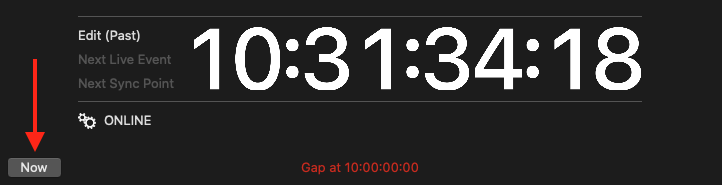
The Timecode is WHITE and shows the position of the CTI.

“Leaving” the current playout position activates Edit Mode.
The Timecode is WHITE and there is an additional white CTI, which shows the current Preview position. The whole user interface reflects the status of the playout like it would be at the displayed time.
There is also a green CTI, which shows the current playout position.
The Edit Mode will either show the Past or the Future. A small text above the Timecode display informs about that.
In Edit Mode, dragging items within the Timeline and altering the duration of Graphic elements within the Timeline is possible.
The ability to jump to the next element in the rundown is not available in Edit mode.
All elements are grayed out in case Edit Mode shows the past.
Switching Modes
Switching from Primary Time Mode to Edit Mode
Drag the Timeline's ruler, double-click an element in the Calendar View, Workbench or Timeline, or change the day in the Calendar View to activate Edit Mode. There are certain functions (like the ability to drag and drop elements in the Timeline) that are only available in Edit Mode.
Switching from Edit Mode to Primary Time Mode
Click the Now button. You are now back in Primary Time mode. This will also highlight the Video Layer automatically.
Functions of Edit Mode
Scrubbing the Timeline
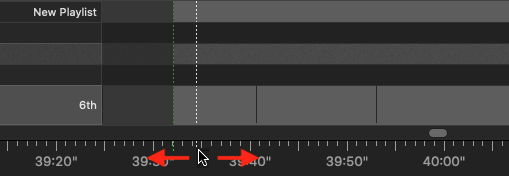
To preview Videos, drag and scrub the Timeline ruler to watch a frame-accurate preview in the On Air Preview. It is not possible to preview Audio files or real-time Graphic elements.
Changing the Position of Video Elements in the Timeline
To change the position of a video in the Timeline, simply drag and drop it within the Playlist in the Timeline.
Changing the Duration of Graphic Elements (optional)
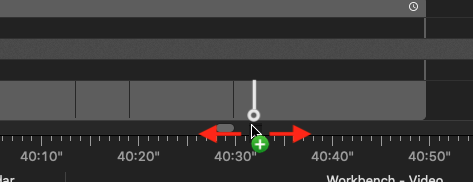
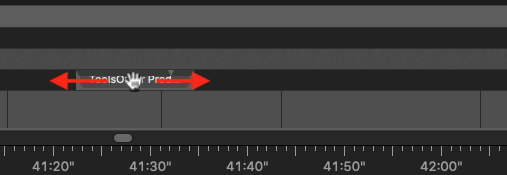
In Edit Mode, you can change the length of a graphic element (which has at least one stop frame) by moving the mouse pointer to the beginning/end of the graphic element and dragging the start/endpoint. Note that graphic elements snap to the start/endpoints of items in the Video Layer.
Changing the Position of an Audio or Graphics Element
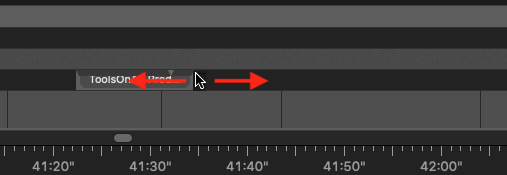
In Edit Mode, you can change the position of elements. Hover the mouse pointer over the middle of the element, then drag and drop it to another layer and/or another point of time on the same layer. Note that such elements snap to the start/endpoints of items in the Video Layer.
Additional Timecode Information
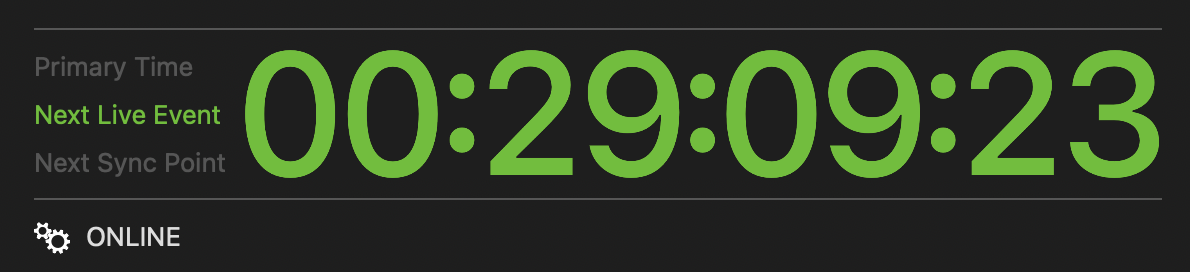
The Timecode Display provides additional information like the a count down to the next Live Event, or a countdown to the next Sync Point. Click on the Timecode to toggle through the three Timecode fields.