
If a user has scheduled a Rundown for a certain day using the Just Play Lite NDI user interface, the whole day (including all Playlists) can be saved and reused again. Once saved, it can be moved to the Playlist Repository folder, and from there it can be reused using drag and drop, or it can be saved for several days at once using the “Import Rundown” function of Just Play Lite NDI.
A daily Playlist contains the content of all Playlists where the start time is on the selected day.
A Playlist that starts (even just one frame) before midnight will not be part of the full day rundown export.
A Playlist where the start time is at the previous day will be part of the full day rundown export, even in case most of the Playlist is playing out the next day.
Exporting a Full-Day Rundown
In Just Play Lite NDI select “File - Export Rundown”.
A dialog window with a “Calendar” will be shown.
Select the “Day” you would like to export.
Click on the “Export” button.
Enter a name for the Rundown and save it to your desired destination.
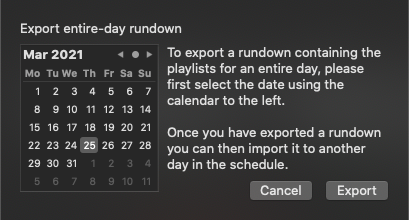
Save the day to the Repository of a Just Play Lite NDI user interface to allow all users with access to this Repository to use this Rundown.
Importing a Full-Day Rundown
In Just Play Lite NDI select “File → Import Rundown”.
Click.”Choose” to select a previously saved Full-Day Rundown.
Select the file and click on “Import”.
Select a single day or – while holding the “Shift” key – a day range that (will import the selected day to the selected days in the Calendar).
Click on “Import” to import the selected Playlist for the selected day(s).
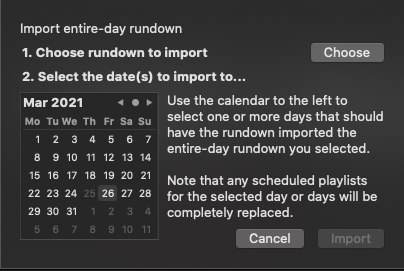
If there is already another Playlist scheduled on a certain day, the imported full-day Rundown will be rejected completely for that day.