
The Control Area provides information about the currently selected Channel.

“On Air” View
In "Primary Time Mode": Shows the current On Air output including video and graphics and the “Jump To …” button (see description below) as an overlay, in case the mouse is over the window.
In “Edit Mode”: Displays the frame of the CTI position after double-clicking on an element or while scrubbing in the Timeline.
Overlay Configuration Buttons: Next to the On Air window, you will find two configuration buttons that allow defining Timecode and Audio Bar Overlay-related functions
“Next” View: Displays the poster frame of the upcoming element of the selected layer.
Overlay Configuration Button: On the left side of the Next View there is a configuration button that allows defining Timecode Overlay related functions.
Timecode: Displays Timecode with additional information. Clicking the Timecode toggles between three modes.
Mode 1: “Primary Time Mode” or “Edit Mode” CTI position
Mode 2: “Next Live Event In” – shows the remaining time to the next Live Event in relation to the current position of the CTI.
Mode 3: “Next Sync Point In” – shows the remaining time to the next sync point defined in the rundown in relation to the current position of the CTI.
If there is a sync point defined within the next 24 hours, it will be shown above the Timecode. Double-click the sync point information to jump to that time.
Engine Status:
Engine: Shows “ONLINE” to indicate, that the built-in engine is correctly started and playing out.
“Now” Button: This button is only available while working in Edit Mode. Click on this button to leave Edit Mode and to synchronize the Timeline, the Calendar view and the Workbench with the current Playout position.
Rundown Warnings: The system examines the Playlists four hours ahead for faults like gaps between two Playlists, placeholder items, overlaps of Playlists as well and unscheduled areas at the end of a Playlist. A warning referring to the first problem in your rundown will be shown. The warning also contains the time point when the issue occurs.
The “Jump to … “ buttons
There are three buttons shown as overlay in the On Air window
Icon | Function | Dependency |
|---|---|---|
 | Press this button to jump to the next available element in the Video track, (or end the last). | None |
 | Press this button to end the currently playing element and to jump to the selected element in the Video track. The skipped elements are not deleted but reordered, so they play after the currently playing element. | The selected element must be in the currently playing playlist, and this playlist can not be Locked. |
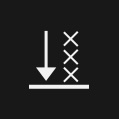 | Press this button to end the currently playing element and to jump to the selected element in the Video track. The skipped elements are removed from the rundown, which can not be undone | The selected element must be in the currently playing playlist, and this playlist can not be Locked. |
Pressing one of the buttons above shortens the currently playing element and therefore all graphics (except the one on the infinite layer) playing currently, as well as all graphics starting later on the same clip, will be cleared/not played. Note that any following items and Playlists may be rescheduled for an earlier start time. Any timed and chained Playlists (except locked Playlists) could also be rescheduled.