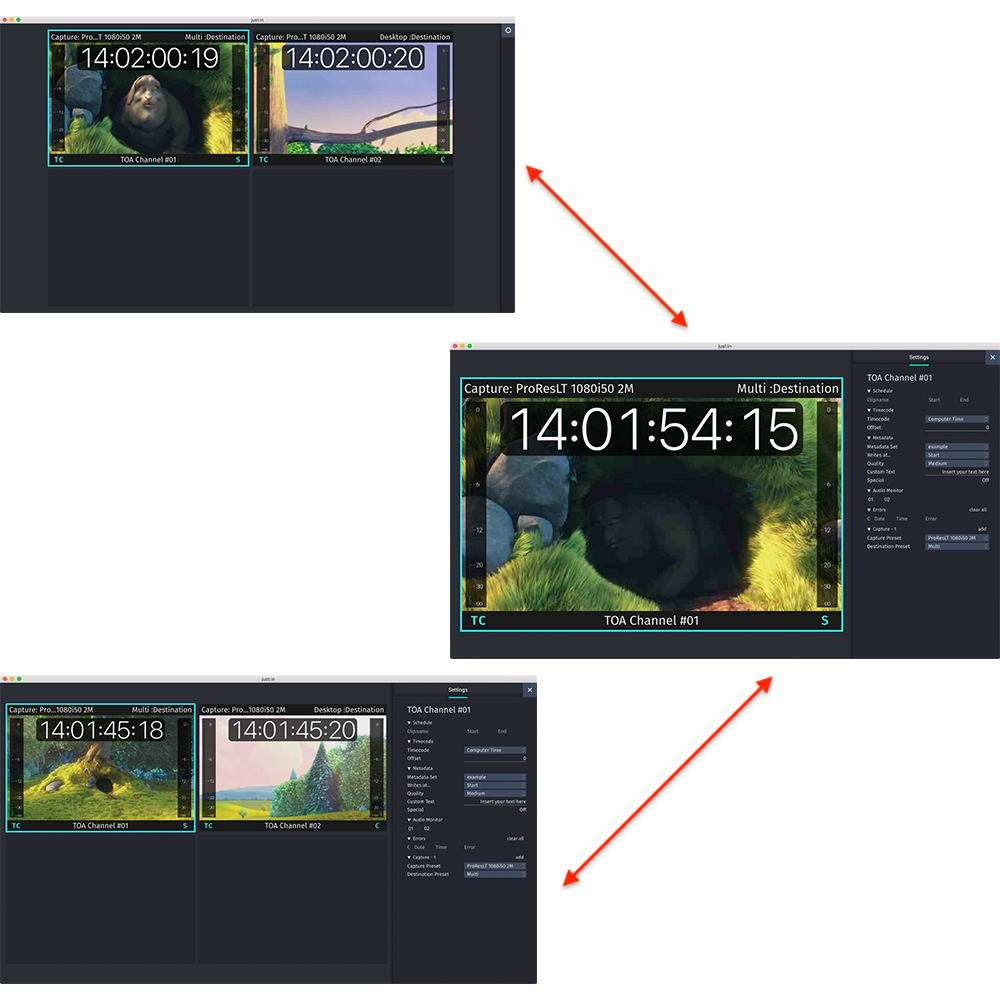
The Just In User Interface offers three different interface setups, each one has its own advantages.
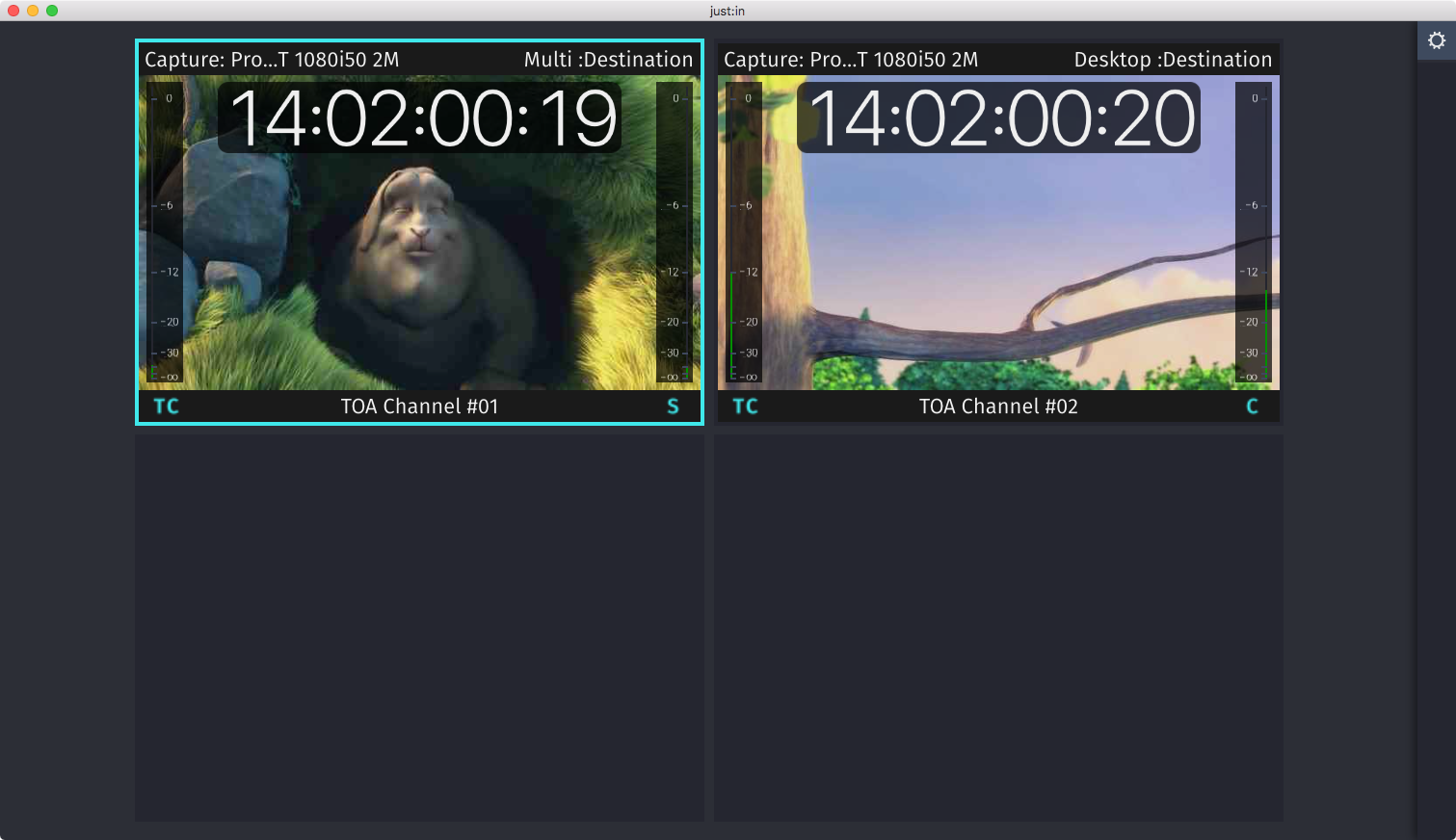
Mode 1: Channel View Mode
- Offers a clean view of all your Channel Views while using the maximum size possible (depending on the number of Channels).
- You may change the Timecode and Capture Mode at any time.
- The Inspector can be opened with the button in the top right corner – or by using the shortcut command + I.
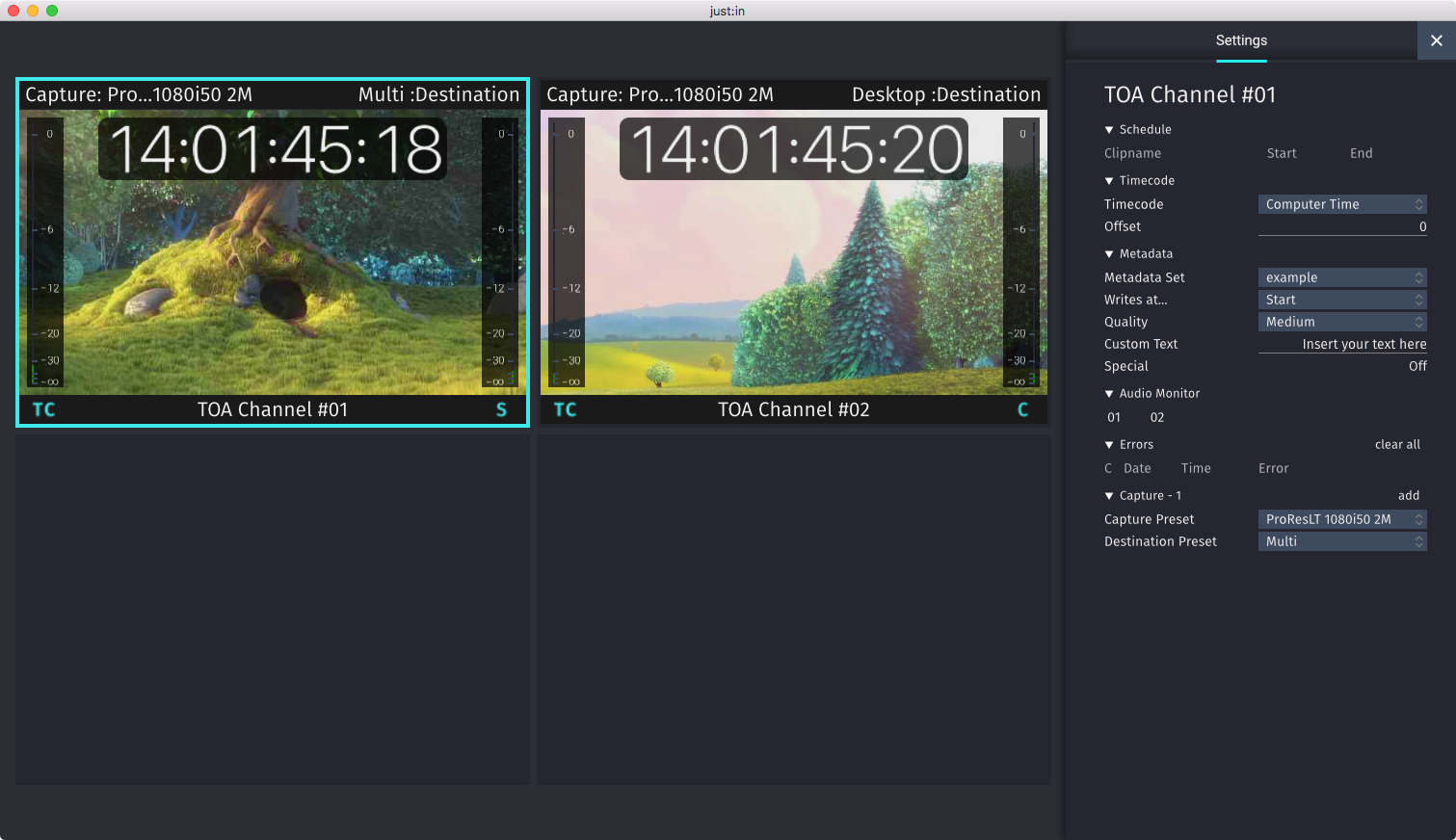
Mode 2: Channel and Inspector View Mode
- Shows all Channel Views and the Inspector.
- You can use the Inspector at any time, while loosing some space for the Channel Views.
- In some situations this View Mode is mandatory, for example when using the Batch Capture Mode.
Mode 3: Single Channel View Mode
- The Single Channel View Mode offers the maximum size for the currently selected Channel.
- You can switch to the Single Channel View Mode by selecting a Channel View and then pressing the spacebar – or by double clicking the Channel View.