
While it is possible to enter a Name for each Capture in the Just In User Interface manually, Naming Conventions can be used to speed up the naming process rapidly. From automatic file numbering to timestamps and user customized variables – Naming Presets provide file naming in an efficient and straightforward way. They are defined per Engine and are available for all Channels of the particular engine.
Overview
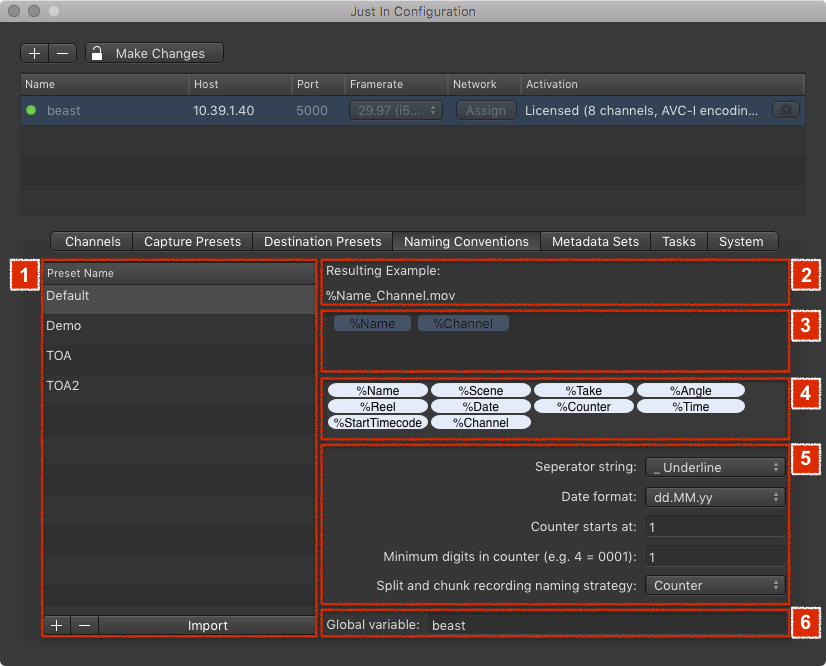
- Naming Preset List: lists all available Naming Presets for the currently selected Engine. Use the plus and minus buttons at the bottom to add and remove Naming Presets.
- Resulting Example: shows the resulting filename.
- Variable Drop Zone: drag and drop Variables from the Variable List onto this field to create your custom Naming Preset.
- Variable List: lists available Variables to create your custom Naming Presets. Drag and drop a Variable onto the Variable Drop Zone to create your custom Naming Preset.
- Naming Preset Settings
- Separator string: the separator which will be used between the Variables.
- Date format: the date format which will be used for the %Date Variable.
- Counter starts at: starting number for the %Counter Variable.
- Minimum digits in counter: sets the number of digits when a Counter is used. For example when you set the number of digits to 4, any Counter will have four digits (0001, 0002, 0003…)
- Split and chunk recording naming strategy: choose what happens with the naming of files captured in Crash Mode.
- Counter: every chunk's filename gets a static counter Variable
- Respect Time and Date flags: the Variables %Date and %Time will be respected.
- Global Variable: fixed Variable which is put in front of the filename.
Working with Presets
Adding a New Naming Preset
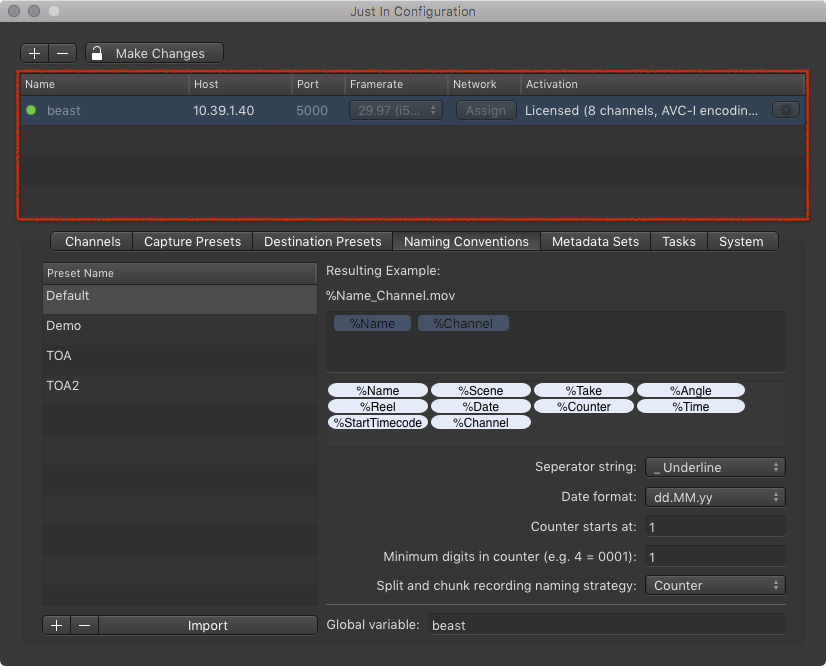
- In the Engine List select the Engine.
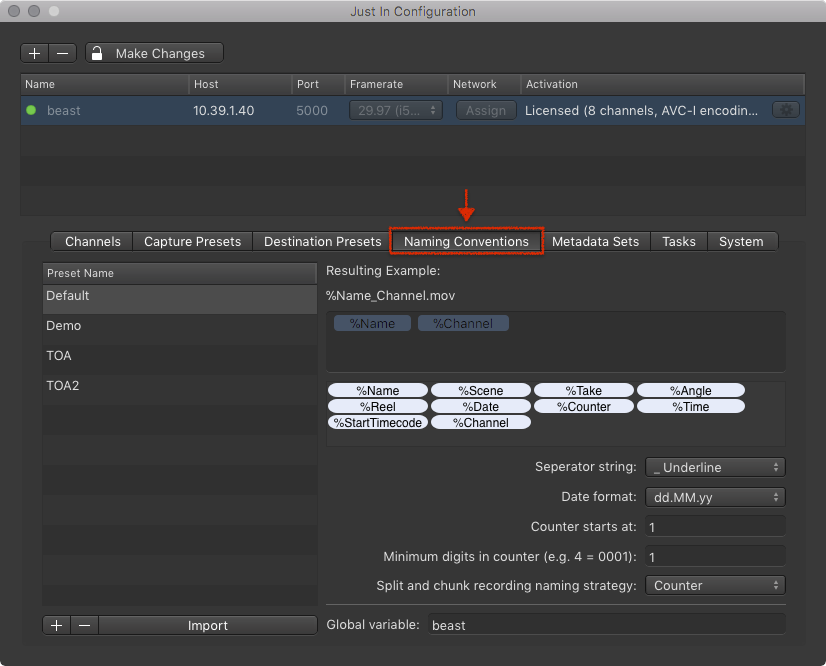
- Click on the Naming Conventions tab.
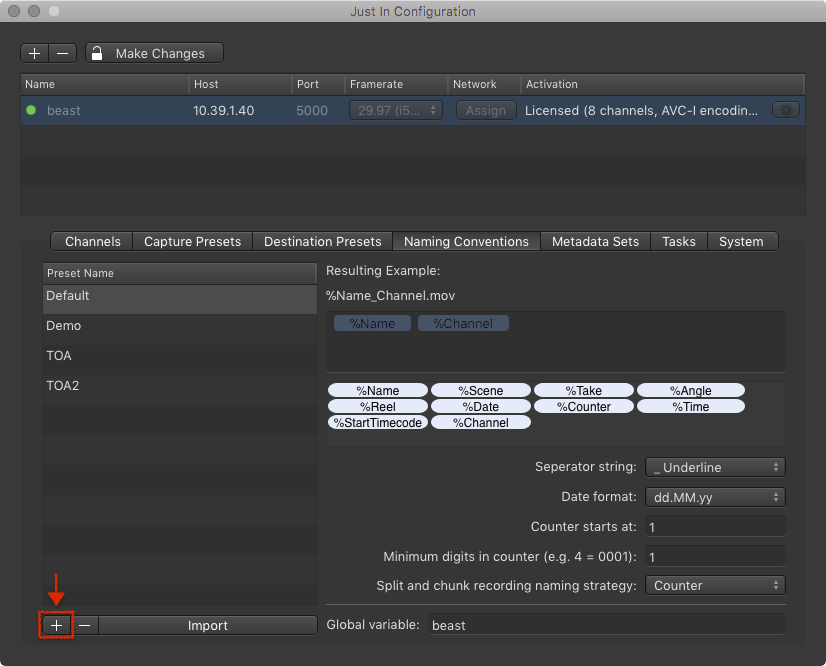
- Press the plus button below the Naming Preset List.
- A new entry appears in the list. Double click it and enter the name for your new Naming Preset.
- Press the return key to accept the name.
- Configure the Naming Preset accordingly to your needs.

Removing a Naming Preset
- In the Engine List select the Engine.
- Click on the Naming Conventions tab.
- Select the Naming Preset in the Naming Preset List.
- Press the minus button below the Naming Preset List. This cannot be undone.
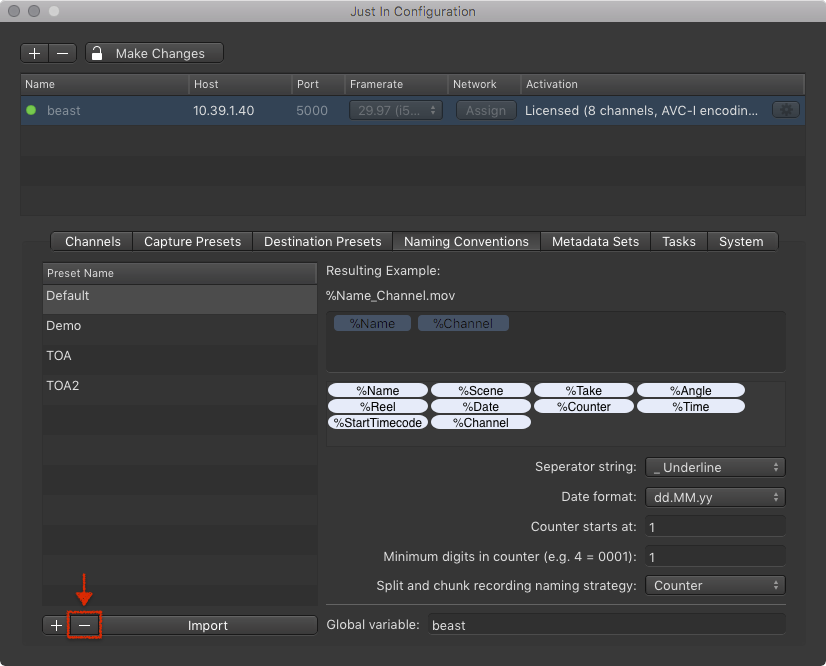
Importing a Naming Preset
You can import Capture Presets which have been created in Just In Engine Mac.
- In the Engine List select the Engine.
- Click on the Naming Conventions tab.
- Press the Import button below the Naming Preset List.
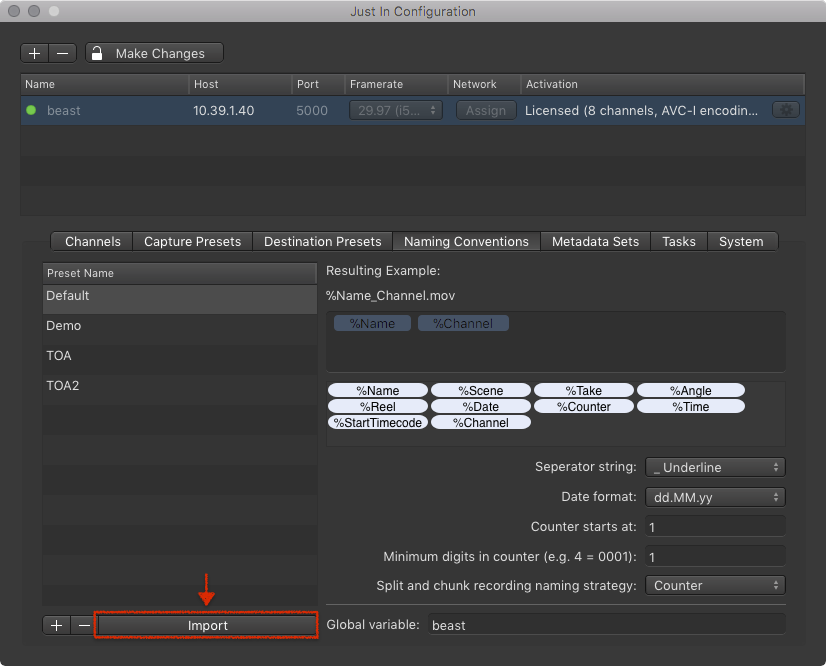
- Select the Capture Preset you want to import.
Configuring a Naming Preset
Adding Static Text to a Naming Preset
- In the Engine List select the Engine.
- Click on the Naming Conventions tab.
- Select the Naming Preset you want to configure in the Naming Preset List.

- Click on an empty area in the Variable Drop Zone.
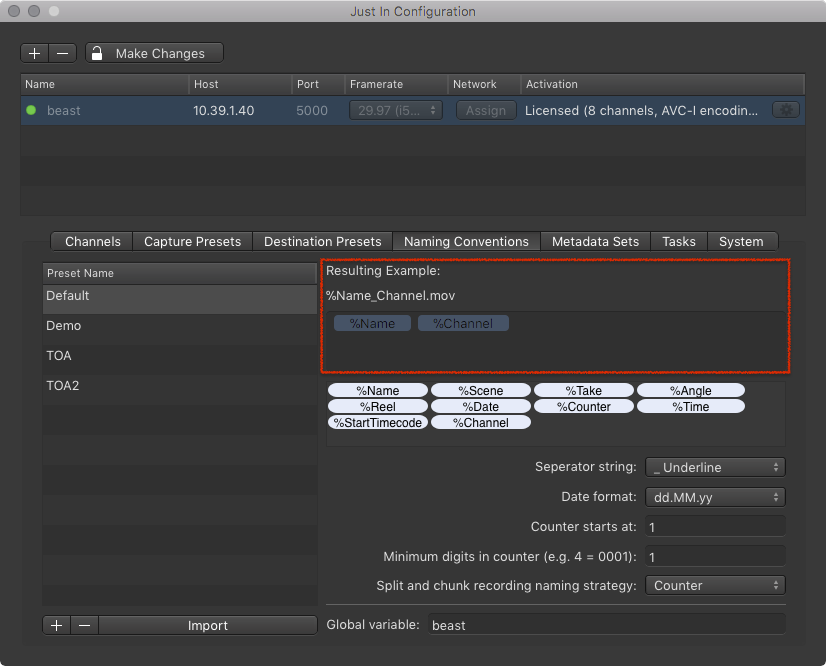
- Type your text and press the enter key.
- The static text appears as a pale blue element in the Variable Drop Zone.
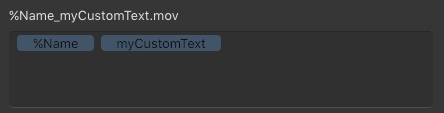
Adding Custom Variables to a Naming Preset
You can add your own Variables to a Naming Preset. Customized Variables will be displayed as additional fields in the Just In User Interface the Clip section.
- In the Engine List select the Engine.
- Click on the Naming Conventions tab.
- Select the Naming Preset you want to configure in the Naming Preset List.
- Click on an empty area in the Variable Drop Zone.
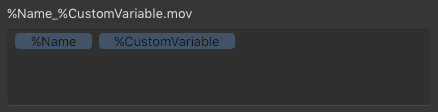
- Type "%" (without quotes) followed by your custom Variable Name and press the enter key.
- The custom Variable appears as a pale blue element in the Variable Drop Zone.
Removing Variables or Static Text
- In the Engine List select the Engine.
- Click on the Naming Conventions tab.
- Select the Naming Preset you want to configure in the Naming Preset List.
- Click on the Variable or the Static Text in the Variable Drop Zone.
- It will light up in bright blue color.

- Press the backspace key to remove the Variable. This cannot be undone.
Reordering Variables or Static Text
- In the Engine List select the Engine.
- Click on the Naming Conventions tab.
- Select the Naming Preset you want to configure in the Naming Preset List.
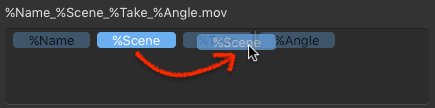
- In the Variable Drop Zone drag the Variable or the Static Text and drop it at the desired position.
Renaming Variables or Static Text
- In the Engine List select the Engine.
- Click on the Naming Conventions tab.
- Select the Naming Preset you want to configure in the Naming Preset List.
- In the Variable Drop Zone double click the Variable or the Static Text.
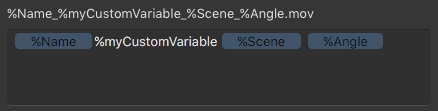
- Change the name and press the enter key.
Editing the Global Variable
- In the Engine List select the Engine.
- Click on the Naming Conventions tab.
- Select the Naming Preset you want to configure in the Naming Preset List.
- At the bottom of the configuration area you find the Global Variable.
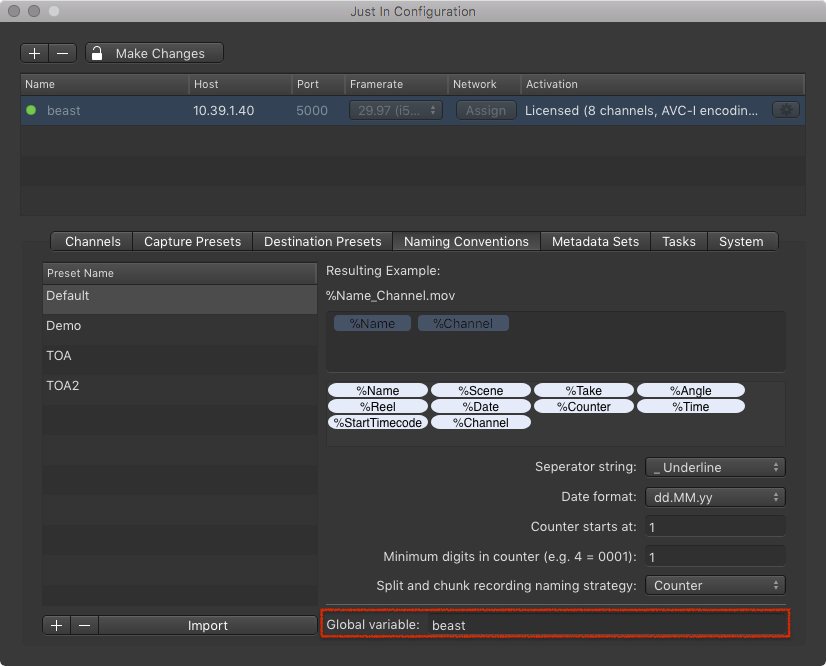
- Change the Variable accordingly to your needs. It will be put in front of each filename which is created by the Engine.