
Destination Presets contain settings about the desired write locations of the Recordings and Metadata files. Before you can do Recordings with the Just In User Interface you need to create one or multiple Destination Presets. After defining Presets you can quickly access them in the Just In User Interface. This speeds up the Recording process and helps to keep things organized.
To make any changes you need to click on the Make Changes button in the upper left and enter the admin password.
Overview

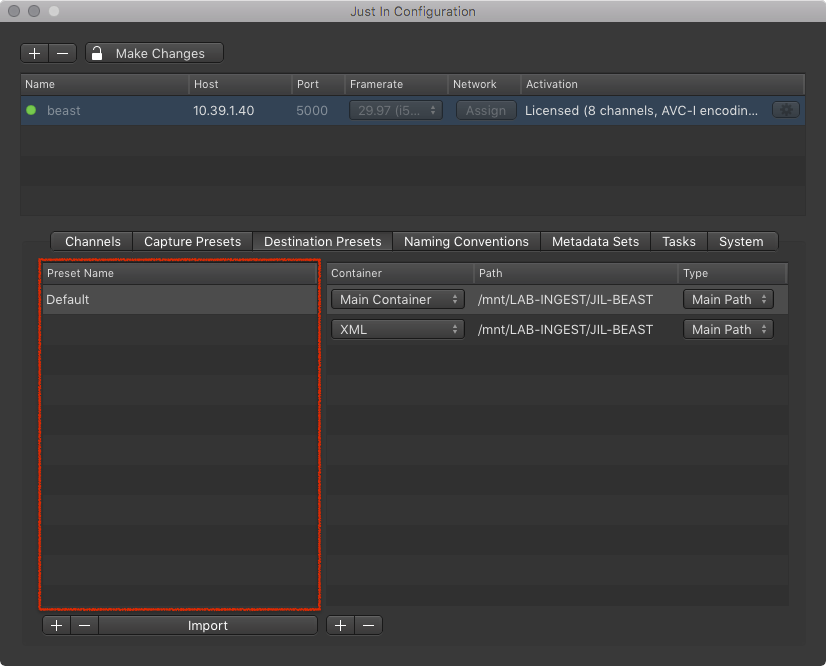
- Destination Preset List: shows all available Destination Presets. Use the buttons below to add, remove and import Presets.
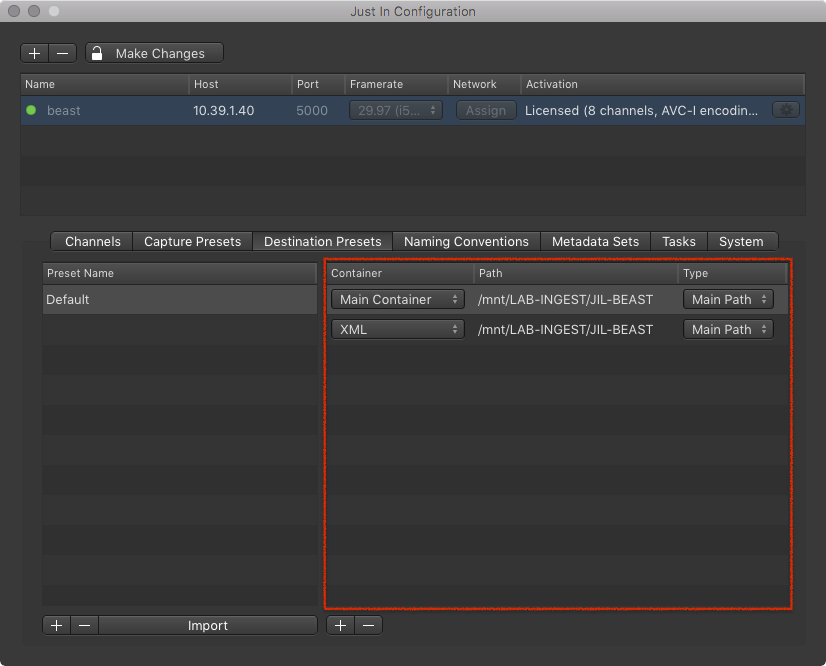
- Destination Preset Configuration: allows you to define your Destination Preset.
Adding a Destination Preset
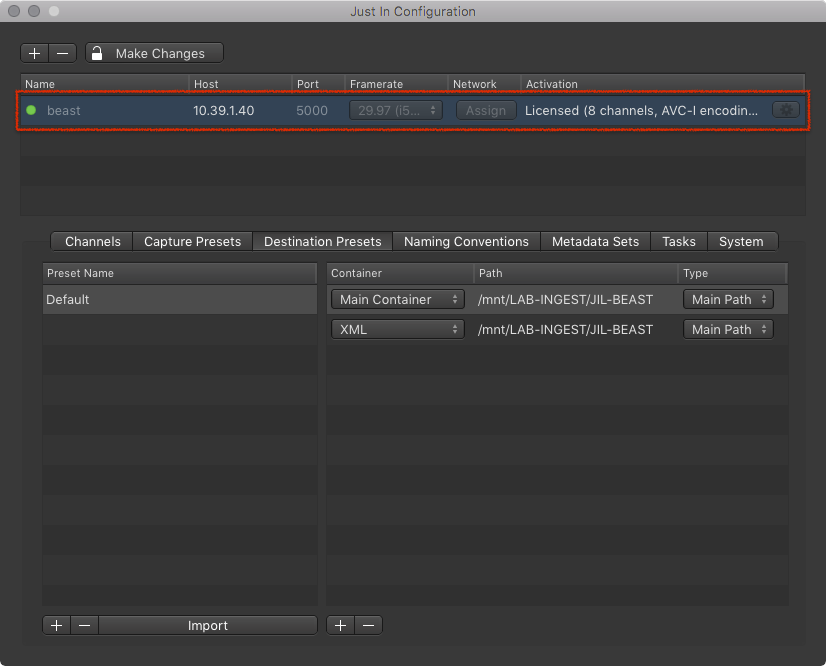
- In the Engine List select the Engine.
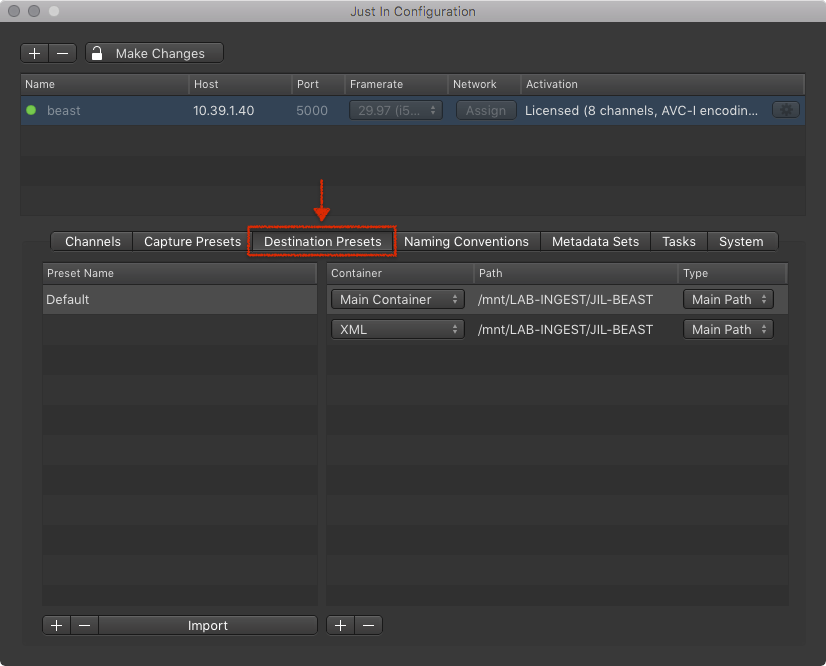
- Click on the Destination Presets tab.
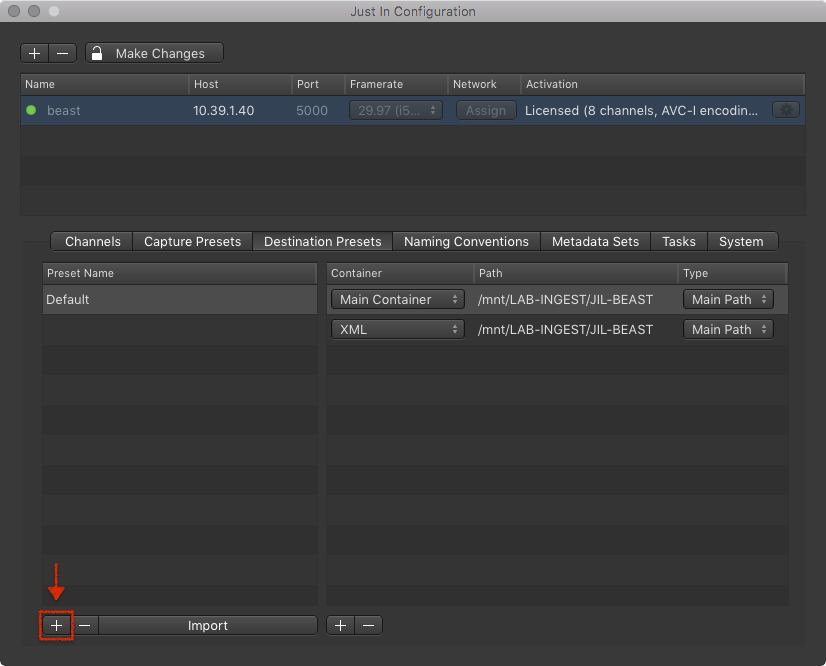
- Below the Destination Preset List press the plus button to add a Destination Preset.
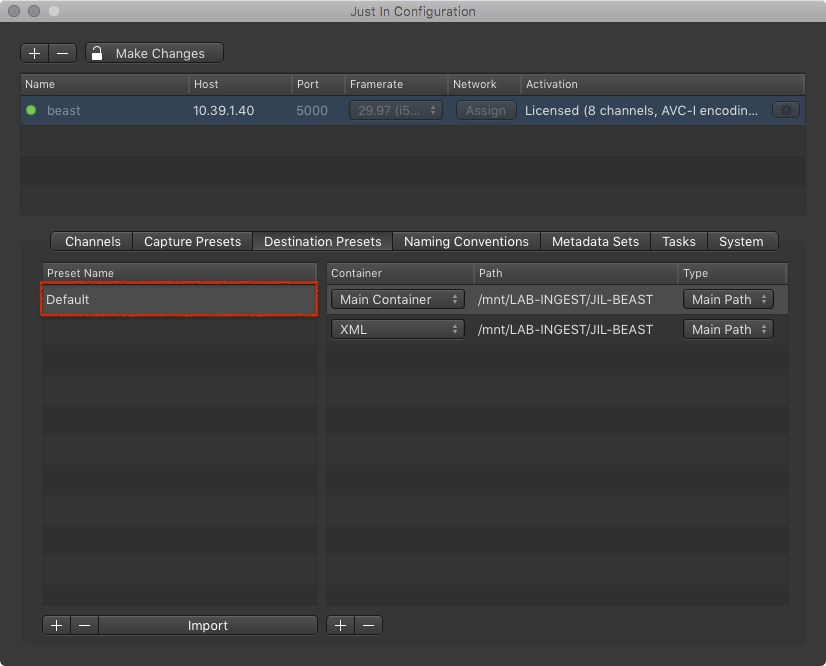
- A new Destination Preset has been added to the list. You may change the Destination Preset name by double clicking it. After entering the name, press the enter key to accept the name.
Adding a Container to a Destination Preset
To the right of the Destination Preset List you can find a table which allows you to define one or multiple destinations. A destination consists of a Container Type, a Path and a Path Type.
- Make sure you have at least one Destination Preset.
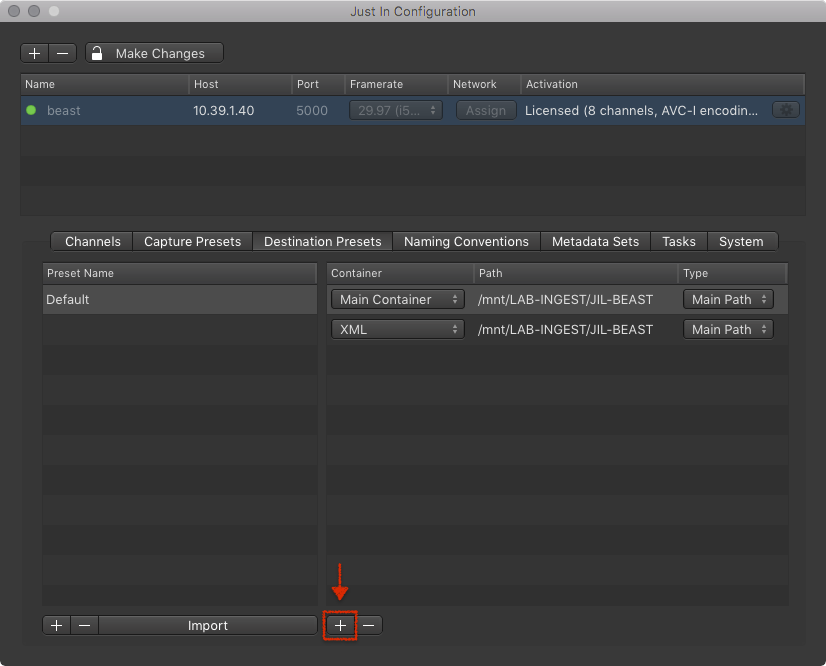
- Below the Destination List press the plus button to add a new destination.
- Select a Container type.
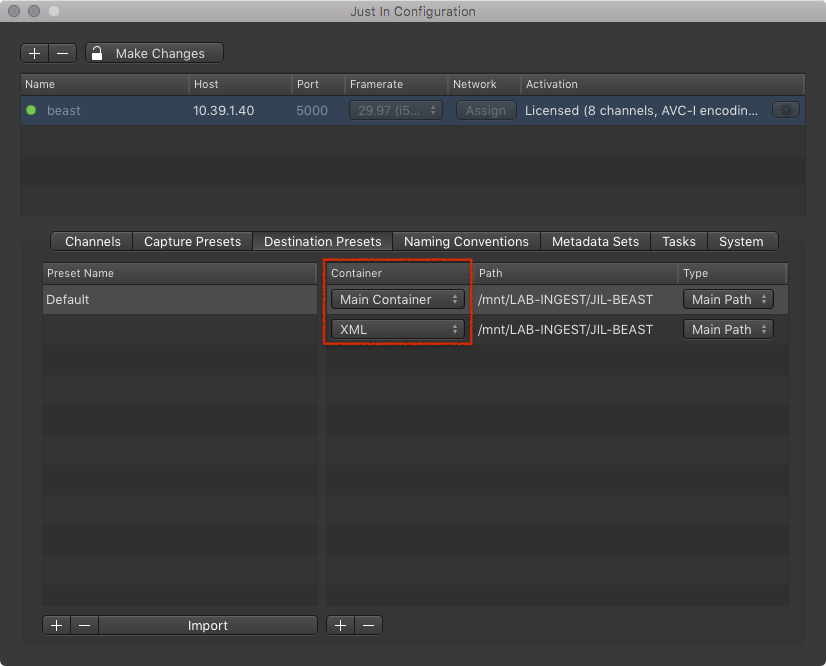
- Main Container: writes the Recording to the specified path. You may create multiple Main Container paths so that multiple files get written at the same time without requiring additional CPU power (fallback cases).
- XML: writes a sidecar XML file to the specified path.
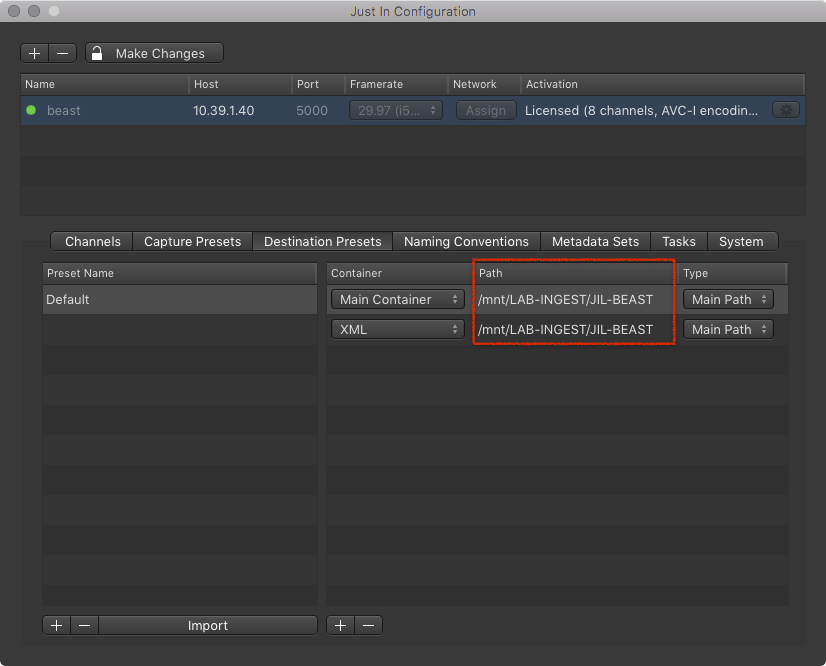
- Define a Path for the Container(s). You must enter a Path on the Just In Engine Linux system, not a local path on your Mac.
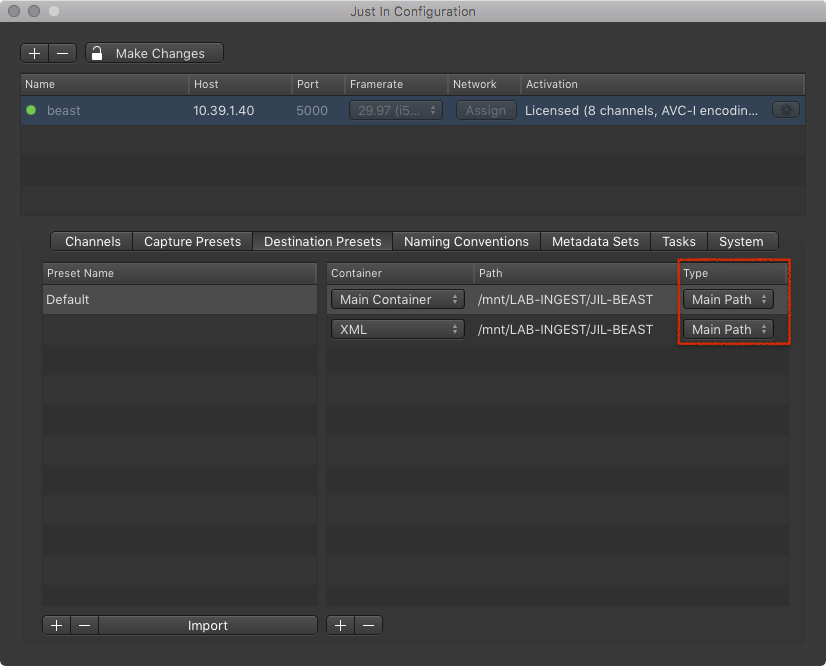
- Currently there's only one Path Type.
Editing a Destination Preset
- In the Engine List select the Engine.
- Click on the Destination Presets tab.
- In the Destination Preset List select the Destination Preset you want to edit.
- Edit the Destination Preset. Changes will be saved automatically.
Removing a Destination Preset
- In the Engine List select the Engine.
- Click on the Destination Presets tab.
- In the Destination Preset List select the Destination Preset you want to remove.
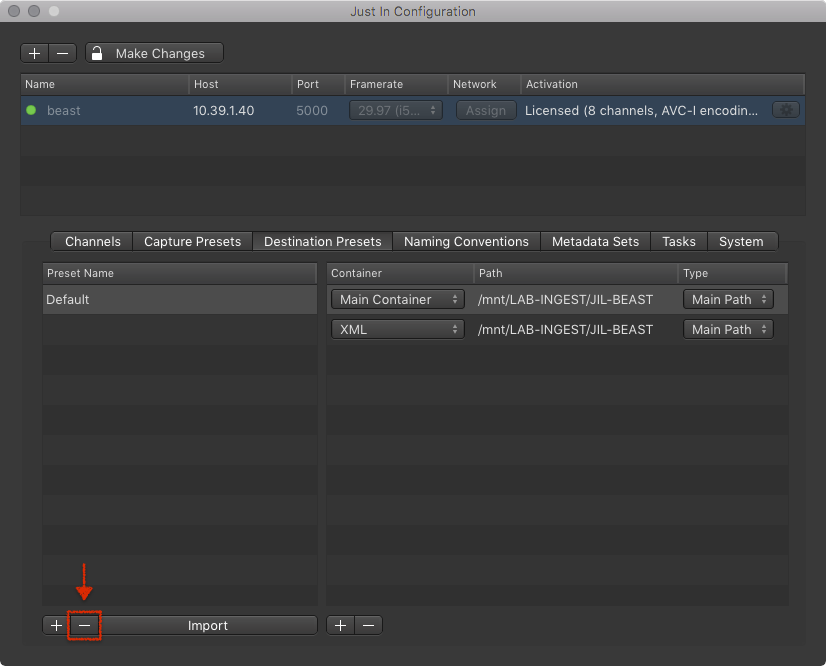
- Below the Destination Preset List press the minus button to remove the selected Destination Preset.
Removing a Container from a Destination Preset
- In the Engine List select the Engine.
- Click on the Destination Presets tab.
- In the Destination Preset List select the Destination Preset you want to remove.
- In the Container List select the Container you want to remove.
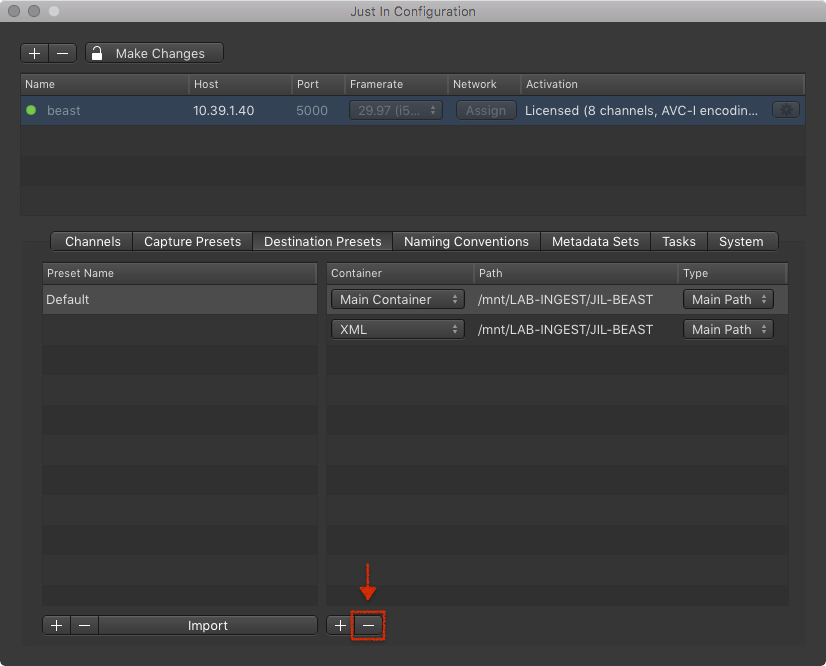
- Below the Container List press the minus button to remove the selected Container.
Importing a Destination Preset
You can import Destination Presets which have been created in Just In Engine Mac.
- In the Engine List select the Engine.
- Click on the Destination Presets tab.
- Below the Destination Presets List press the Import button.

- Select the Destination Preset you want to import.