
Preface
In the lower area of a Channel View the current status of the Channel may be displayed.
Types
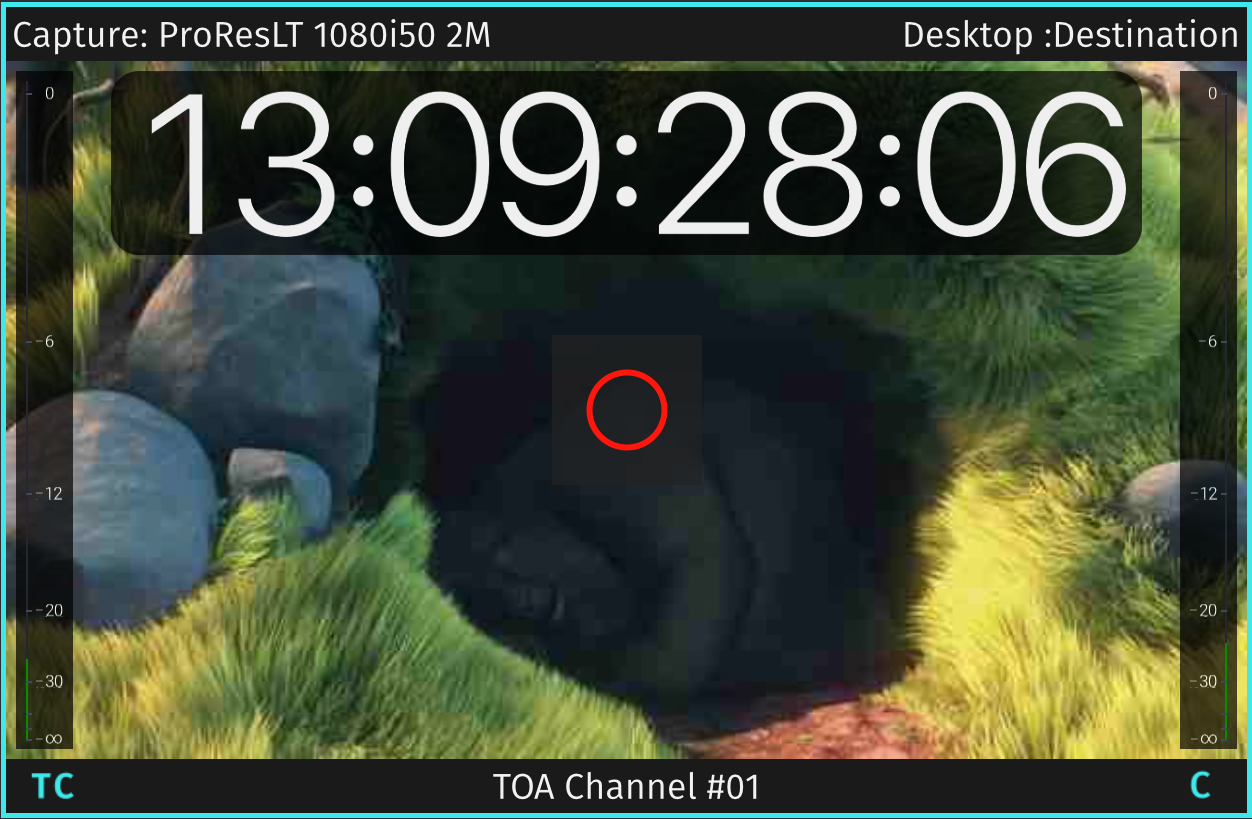
All Clear / No Overlay
If the Channel is set up properly and there are no errors from previous Recordings, the Status Overlay will not be shown.
No Connection
Can be related to a network connectivity problem or simply because Just In Engine is not running. Verify the connection between the Just In User Interface and Just In Engine.

Recording
The Status Overlay notifies about a Recording in progress. This means things are going ok.

Recording with visible Channel Buffer
The Channel Buffer status appears automatically next to the Recording info when it gets over 50 frames (= encoded frames). A high Channel Buffer usually means that the storage may not be fast enough. The Channel Buffer is also displayed in the Just In Engine Diagnostics window.


Recording with Error(s)
If errors occurred during a Recording which did not necessarily lead to a Recording stop, yellow triangles will appear and more information can be found in the Inspector or the Channel Log.

No Preset
This can be because of an unsupported video mode (XDCAM, DNxHD) or because there is no Capture- and/or Destination Preset selected.

Path Collision
This error message appears when two or more Capture IDs are pointing to the same destination.

Error(s)
This Status Overlay will be displayed for various errors. Open the Inspector or the Channel Log for further details. A write error usually means that the recording destination is not accessible. Encoding errors usually mean that the machine running Just In Engine is not able to encode fast enough. In this case we recommend to reduce system load by any of the following means:
- reduce the number of Channels.
- change the Codec.
- reduce CPU load generated by other processes running on the same machine.
- reduce the preview quality.


No Signal
Either there is no Video signal or you chose the wrong Video mode.
