
Preface
Just In allows you to create a custom Sidecar XML file for each Capture. Those sidecar files contain Metadata which can be completely user defined. The sidecar files can then be used for further workflow processing.
Overview
Here is a rough outline on how it works:
- You select a (previously defined) Metadata Set in the Inspector.
- You enter your Metadata and start the Recording.
- Just In starts recording and writes a corresponding Sidecar XML file to a user defined location (= the XML Path defined in the Destination Preset).
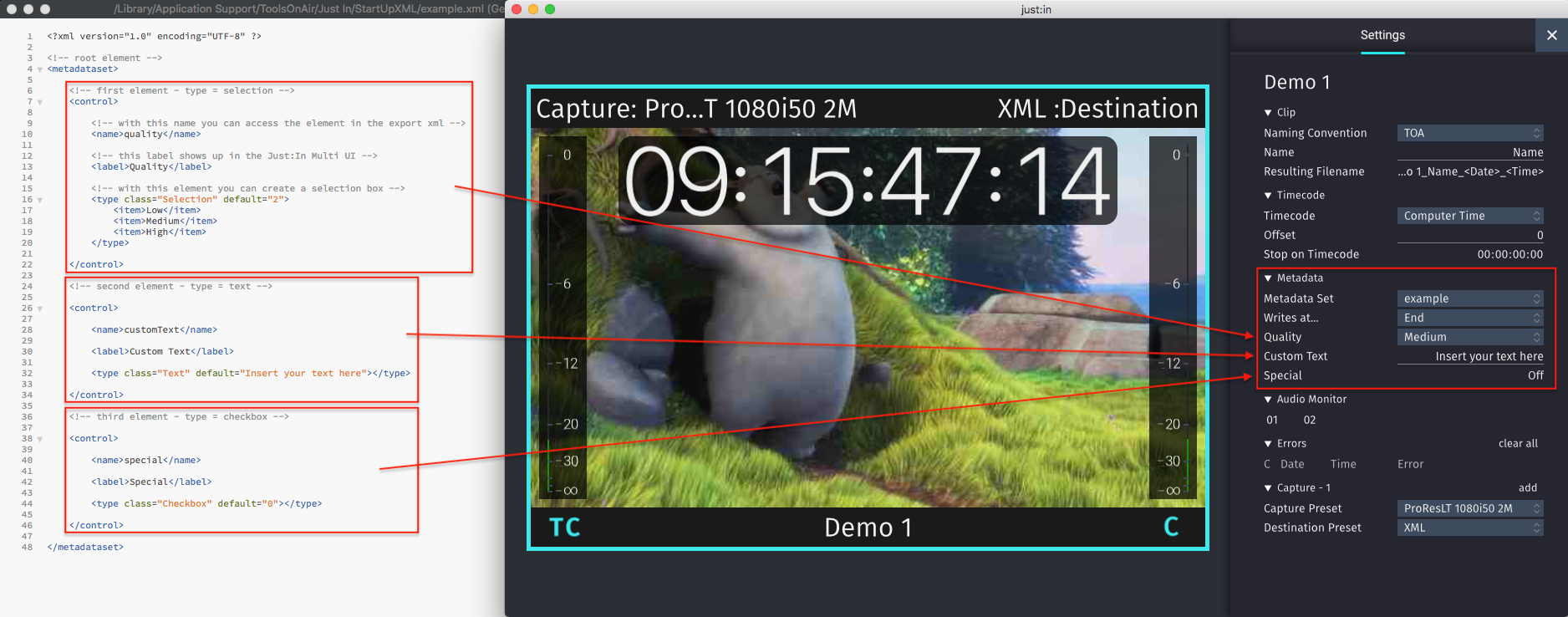
This figure shows how the included example would be displayed in the Inspector. The naming, the number and the type of Metadata Fields is completely user definable.

Getting Started with the Example XML
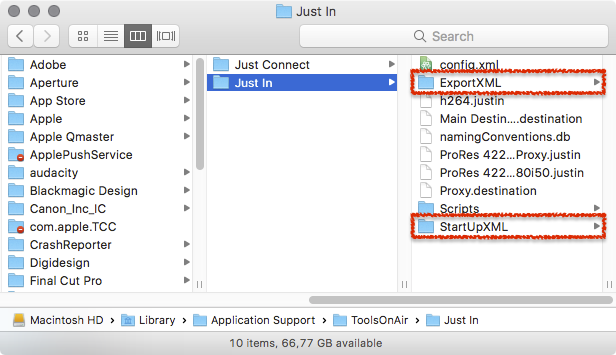
ToolsOnAir provides an example XML file with the Just In installer, which can be adapted to your needs. These XMLs are stored in the folder /Library/Application Support/ToolsOnAir/Just In.
- StartUpXML: contains the XML files which will be listed under Metadata in the Inspector of the Just In user interface.
- ExportXML: contains the XML files which will be used by Just In Engine to create the actual Sidecar XML files.
StartUpXML Folder: XML Metadata Sets
- The folder StartUpXML contains the XML files which will be listed under Metadata in the Inspector of the Just In user interface.
- This folder contains a file named example.xml which can be adapted to your needs.
This figure shows how the example.xml would be displayed in the user interface of Just In.
Metadata Types
There are three Metadata Types:
- Selection: drop-down box, containing several, user definable <item> elements.
- Text: text field.
- Checkbox: checkbox, can either be off ("0") or on ("1").
Resetting a Metadata Field Value after each Recording
Add the following attribute to the <control> node in the StartUpXML to reset a Metadata Field's value after each Recording.
<control resetAfterRecord="1">
Example
<!-- first element - type = selection -->
	<control resetAfterRecord="1">

 <!-- with this name you can access the element in the export xml -->
 <name>quality</name>

 <!-- this label shows up in the Just In Multi UI -->
 <label>Quality</label>

 <!-- with this element you can create a selection box -->
 <type class="Selection" default="2">
 <item>Low</item>
 <item>Medium</item>
 <item>High</item>
 </type>

</control>
Adding a XML Metadata Set
- Go to the folder /Library/Application Support/ToolsOnAir/Just In/StartUpXML.
- Duplicate the file example.xml and rename it to a name of your choice.
- Open the previously duplicated XML in a plain text editor.
- Edit the XML accordingly to your needs.
- Save the XML file.
- Create a XML Export Template for the Metadata Set, as explained below.
ExportXML Folder: XML Sidecar Templates
- The folder ExportXML contains the XML files which will be used by Just In Engine to create the output Sidecar XML files.
- This folder contains a file named example.xml which can be adapted to your needs.
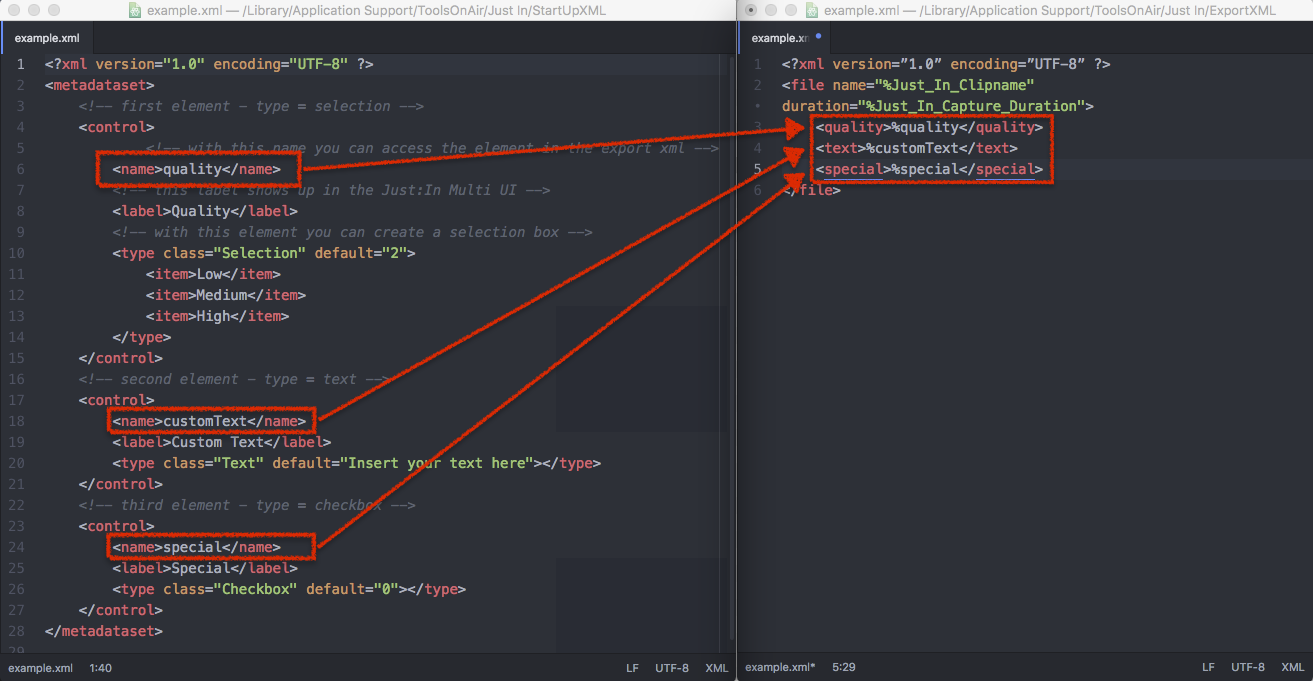
This figure shows how the StartUpXML and the ExportXML templates correlate to each other.
- Each <control> node of the StartUpXML contains a <name> node which must to be represented in the ExportXML template.
- Each <name> node contains a placeholder for the actual data which is entered in the Metadata fields in the Inspector if Just In. Just In Engine will output the Sidecar XML file with the corresponding data.
Adding a XML Export Template
- Go to the folder /Library/Application Support/ToolsOnAir/Just In/ExportXML.
- Duplicate the file example.xml and rename it to a name of your choice.
- Open the previously duplicated XML in a plain text editor.
- Add all nodes to the Export XML which you did create in the XML Metadata Set before.
- Save the XML file.
- Launch Just In Engine and Just In.
- Select the Metadata Set in the Inspector and do your Recordings.
Preparing the Destination Preset of the XML Sidecar File
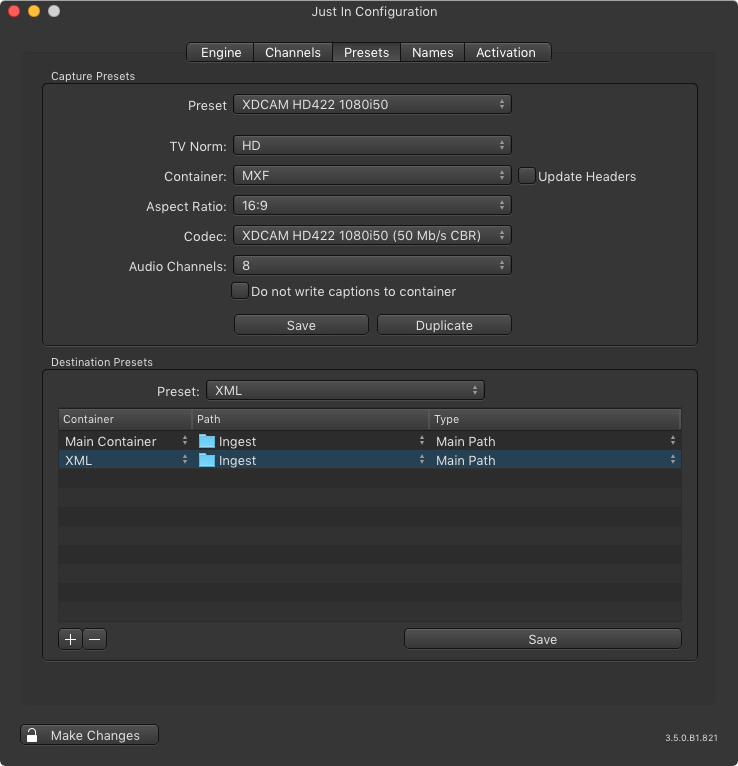
Before you can use customized XML Sidecar files you need to prepare your Destination Preset(s) accordingly.
- Open Just In Engine.
- Go to the Preferences.
- Switch to the Presets tab.
- Under the Destination Presets, add a new XML Container.
- Select a Path and a Type.
- Save the Preset.
XML Sidecar File Write Process
You can decide whether the XML Sidecar files will be written at the Start or the End of a Recording. Select the one which suffices your needs.


XML Sidecar Files for Just In linux
You can use the same XML (StartUp and Export) files for Just In linux. Just follow the steps above and then import the XML files as described here.