
Tasks are Post-Record-Scripts which can execute custom UNIX shell commands at the start and/or end of the Recording.
- As UNIX shell scripts can work on a very deep system level, ToolsOnAir does not take any responsibility for improperly written shell scripts.
- Tasks may limit the performance of the Just In Engine Linux system. When using Tasks always test them thoroughly before going into production or critical environments. Contact your ToolsOnAir reseller or use our support system if you need assistance.
Overview
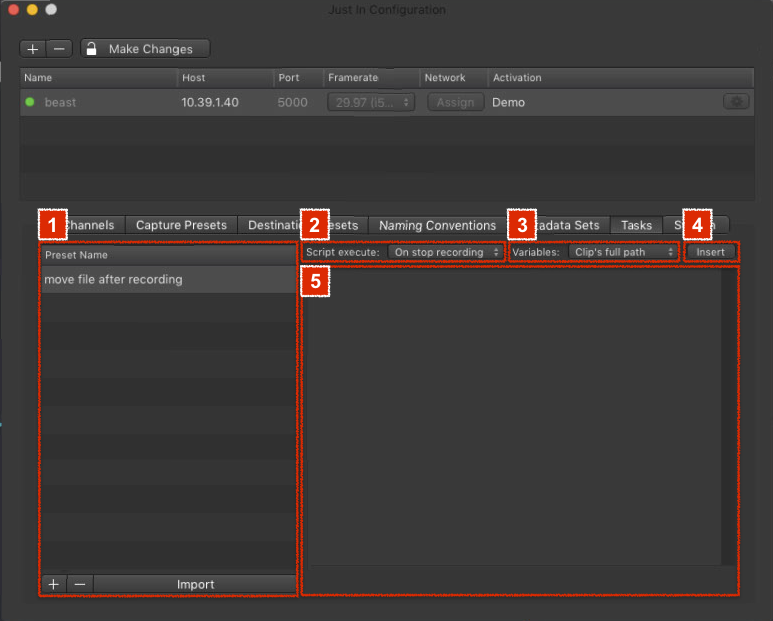
- Tasks Presets List: lists all available Tasks Presets for the currently selected Engine. Use the plus and minus buttons at the bottom to add and remove Tasks Presets.
- Script execute: defines when a Script is being executed – either at the start or the end of a Recording. You can also define one Script for the start and another one for the end of a Recording.
- Variables: allows you to choose from a set of predefined Variables which can be added to the script by pressing the Insert button.
- Insert button: adds the Variable to the Script which you need to select in the Variables drop down menu.
- Script Editor: allows you to edit the Script.
Adding a New Task
- In the Engine List select the Engine.
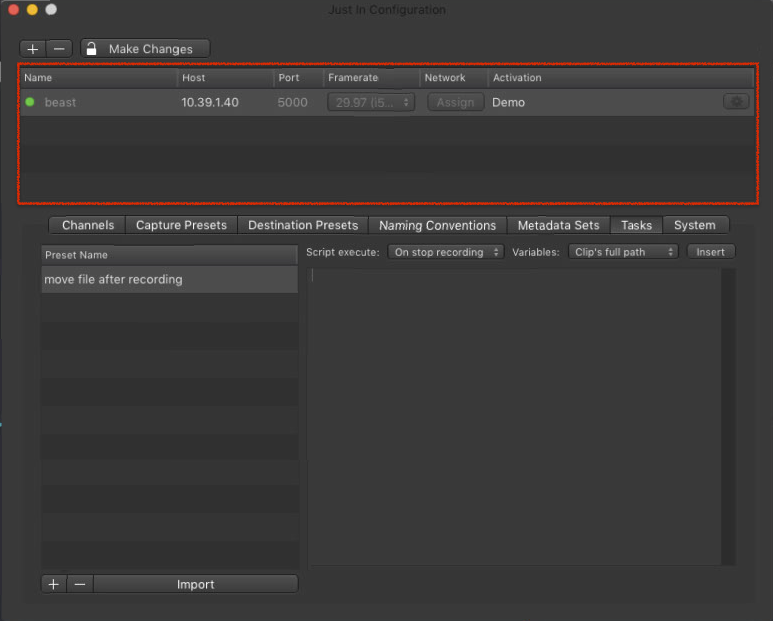
- Click on the Tasks tab.

- Press the plus button below the Tasks Preset List.
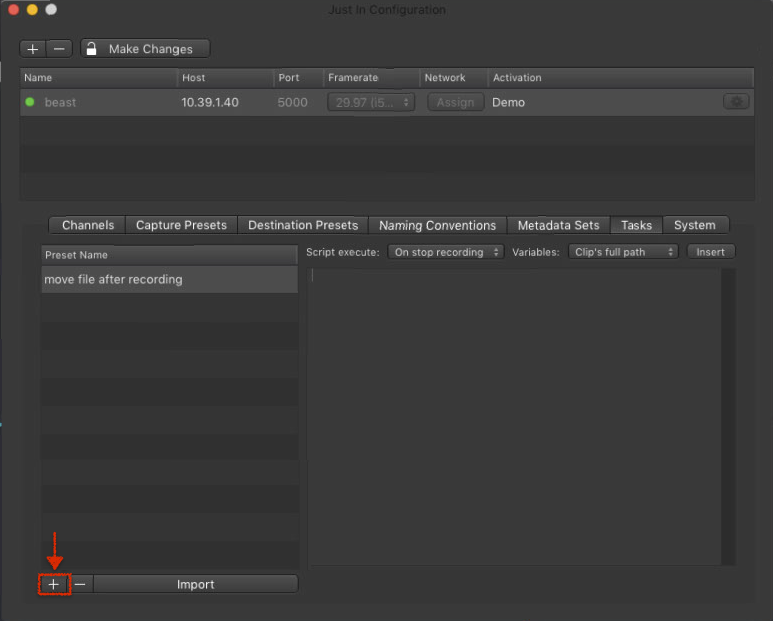
- A new entry appears in the list. Double click it and enter the name for your new Tasks Preset.
- Press the return key to accept the name.
- Configure the Tasks Preset accordingly to your needs (as described below).
Removing a Task
- In the Engine List select the Engine.
- Click on the Tasks tab.
- Select the Tasks Preset in the Tasks Preset List.

- Press the minus button below the Tasks Preset List. This cannot be undone.
Importing a Naming Preset
You can import Tasks Presets which have been created in Just In Engine Mac.
- In the Engine List select the Engine.
- Click on the Tasks tab.
- Press the Import button below the Tasks Preset List.

- Select the Tasks Preset you want to import.
Configuring a Task
- In the Engine List select the Engine.
- Click on the Tasks tab.
- Select the Tasks Preset in the Tasks Preset List.
- Select a Script execution type.

Edit the Script accordingly to your needs in the Script Editor.
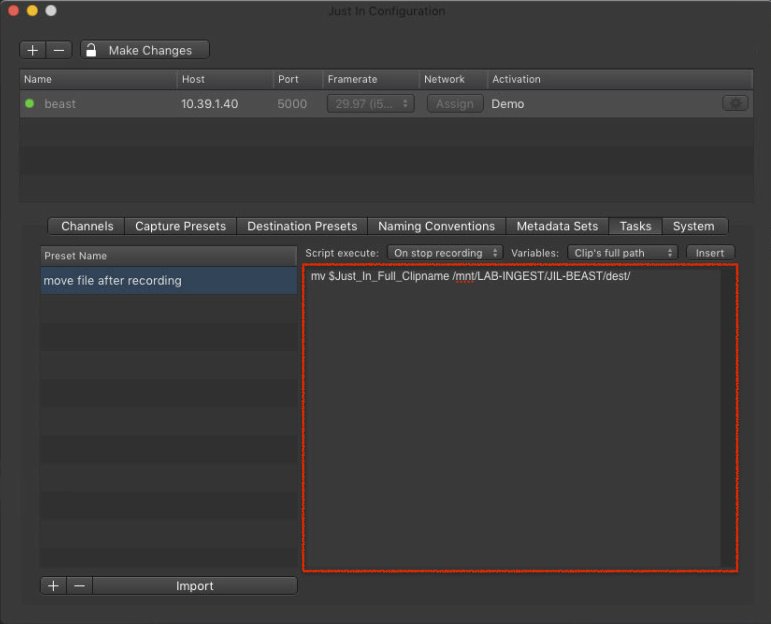
Make sure you are using straight quotes when editing the Script. The Script has to be UNIX shell script conform.
- While editing the Script add one or multiple Variables to the Script.

- Changes are saved automatically.
Example Task
This exemplary Script moves the currently recorded file to another folder at the end of the Recording.

Debugging Scripts
If your Scripts should create any error, echo or info output it will be logged in the Channel Logs. They are located at /var/log/justconnect on the Just In Engine Linux system.