
In this chapter you will learn how to add, connect to, edit and remove Channels in the Just In User Interface.
What is a Channel?
A Channel is a virtual representation of a single input of your Video Capture Device. Depending on the number of Capture Devices and the number of inputs each device offers, you may configure one or multiple Channels.
Before connecting to a Channel using the Just In User Interface it is mandatory that the Channel is configured and running in Just In Engine. Refer to the Just In Engine Mac or Just In Engine Linux user manual if you have not yet configured the Channel(s).
Adding a Channel
- Open Just In.
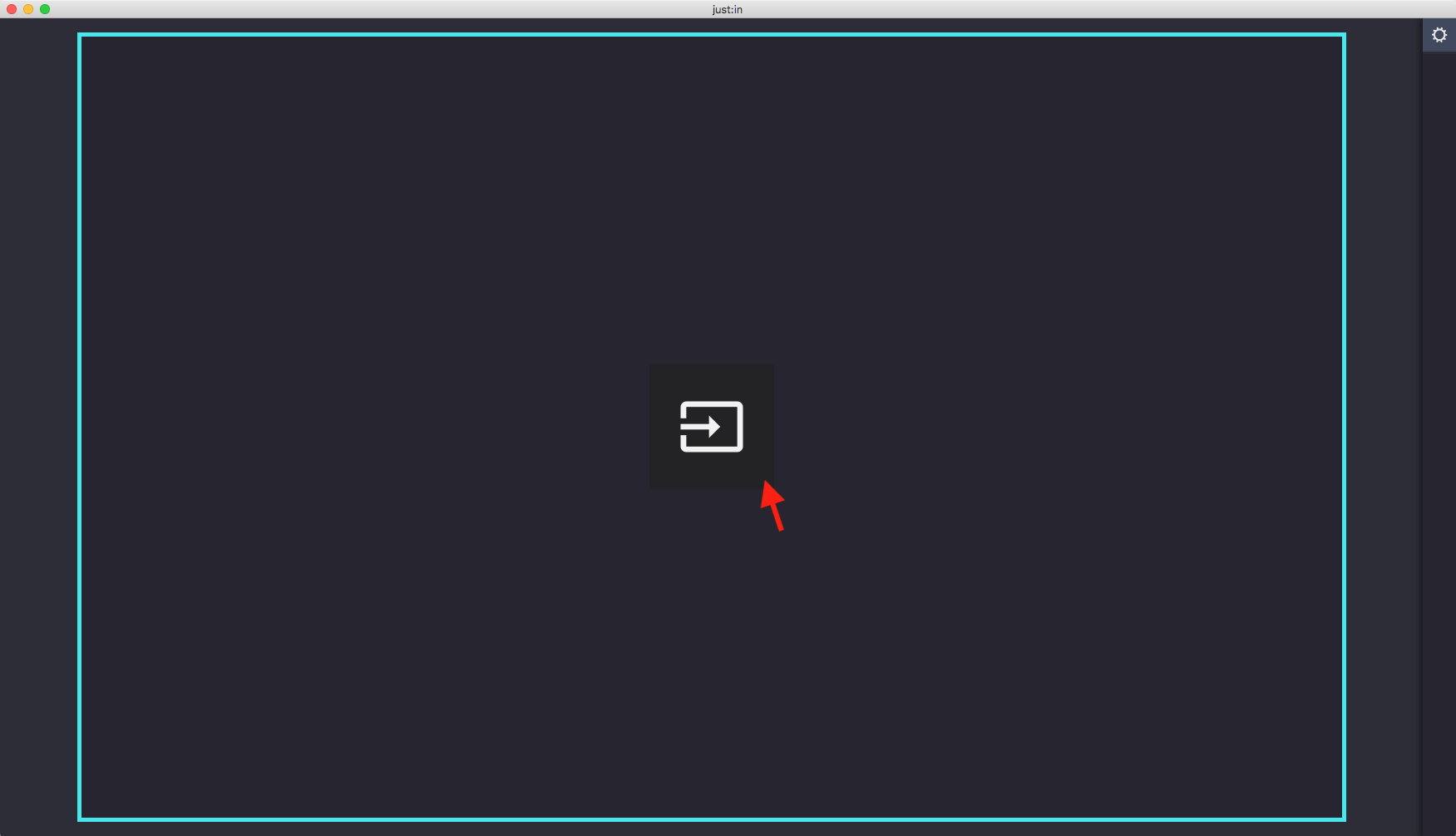
- Open the Connections Window by selecting the menu command Channel → Connections or use the shortcut command + K. You can also click on the Connections Window button in the center while hovering above a Channel View.
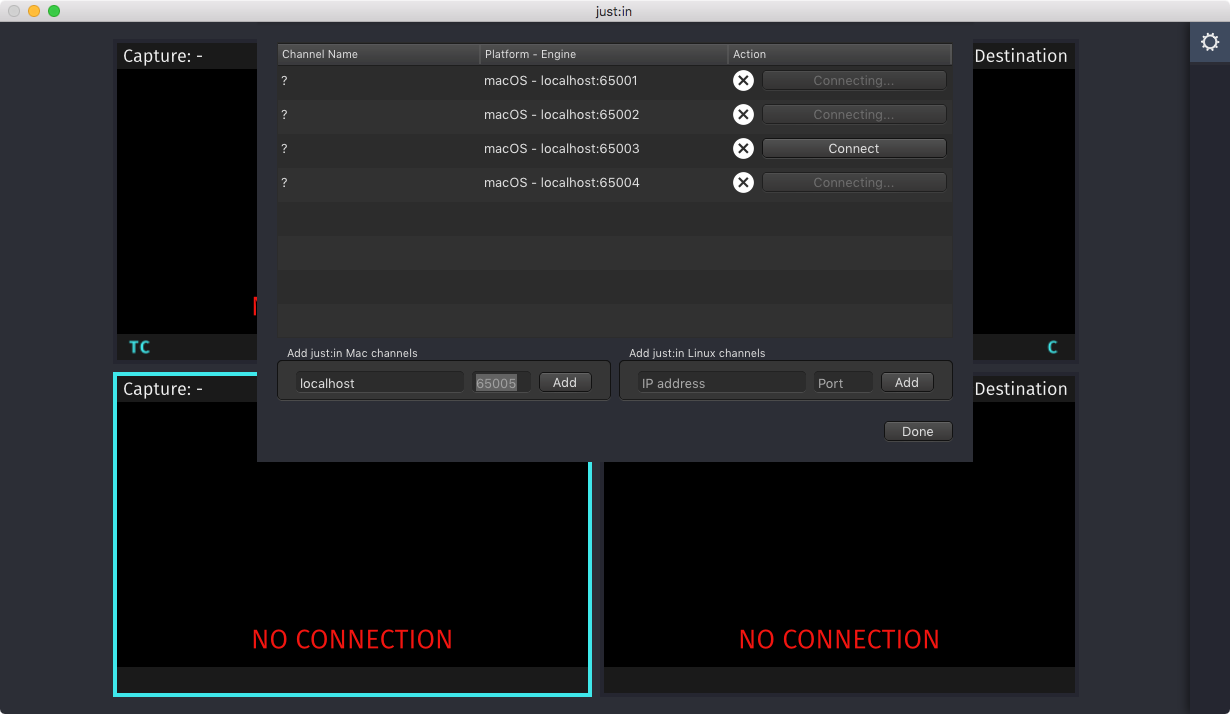
- In the lower area enter the IP Address and the Port of the desired Mac- or Linux-Channel. Press the Add button afterwards.

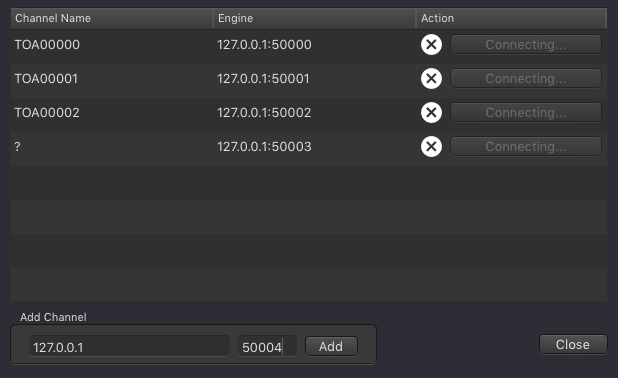
The Channel will be added to the Channel List. The actual Channel Name is only available once the Channel has been connected to. Before connecting to a Channel a question mark will be shown.
When adding multiple Channels they usually have consecutive Port numbers (50000, 50001, 50002 and so on). The Just In Connections Window automatically increases the Port number after each press of the Add button.
You may now connect to the Channel by following the steps below.
Connecting to a Channel
- Open Just In.
Open the Connections Window by selecting the menu command Channel → Connections or use the shortcut command + K. You can also click on the Connections Window button in the center while hovering above a Channel View.
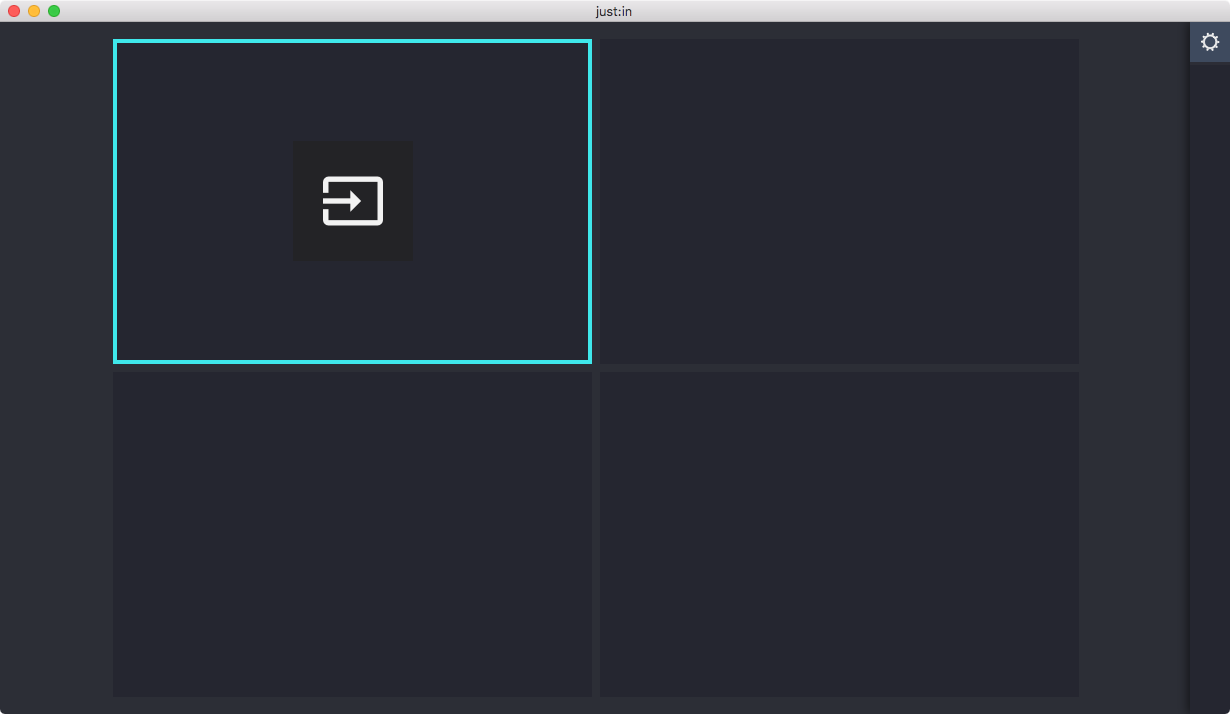
If there are multiple Channel Views select the Channel View first and then press the Connections Window button to connect a Channel to this particular Channel View. You can still reorder the Channel Views later by drag & drop, as described in the chapter Managing Channel Views.
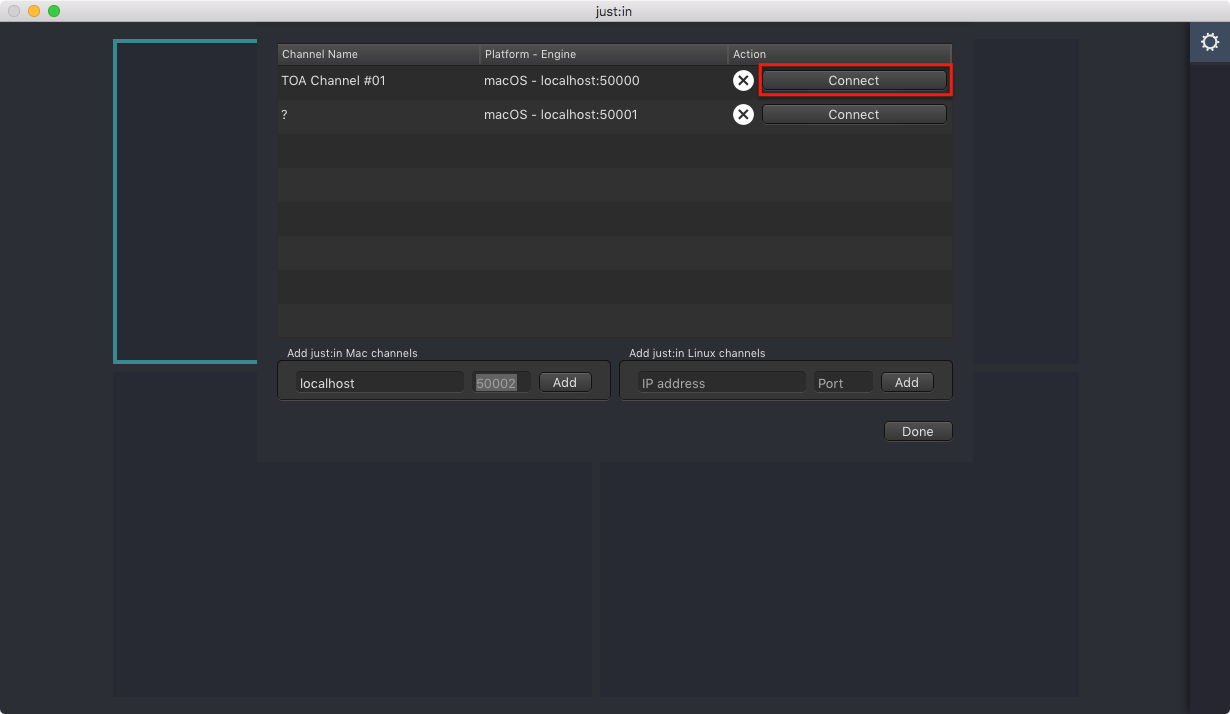
- The Connections Window appears. Press the Connect button of the desired Channel to connect to it.
- Repeat steps 2 and 3 for all Channels you would like to control with this User Interface.
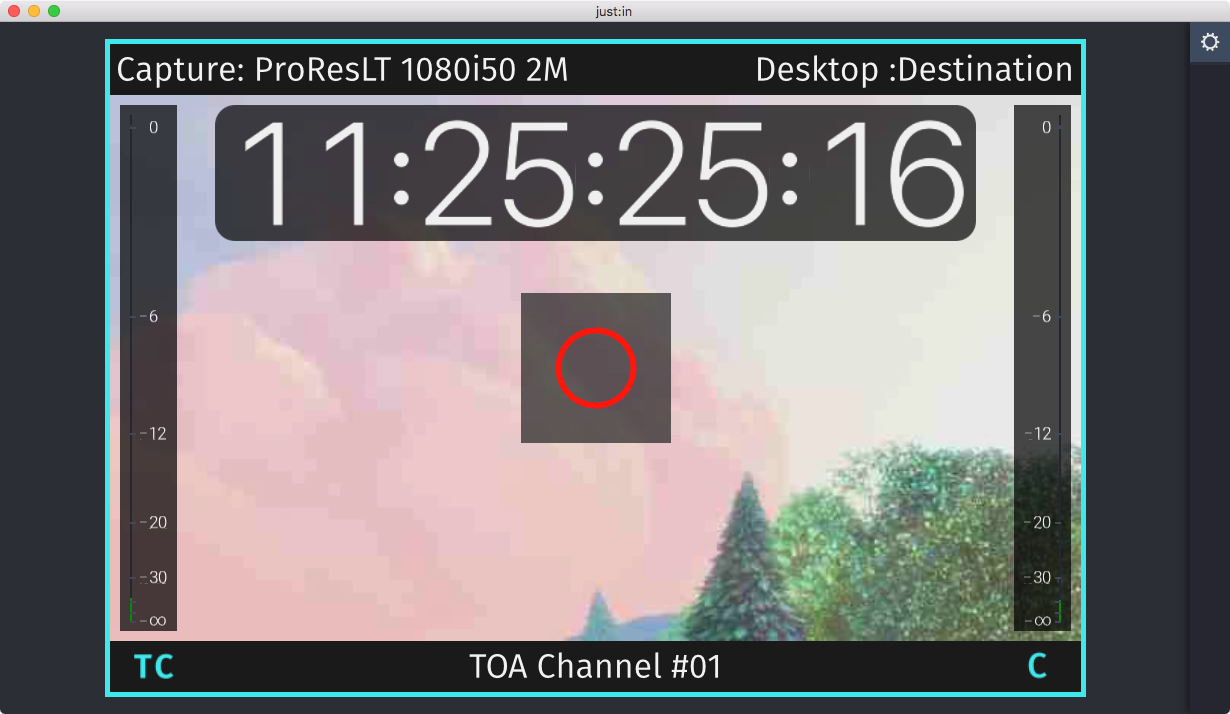
- The Channel Preview should now be shown and you are ready to use the Channel.
Problems when connecting to a Channel
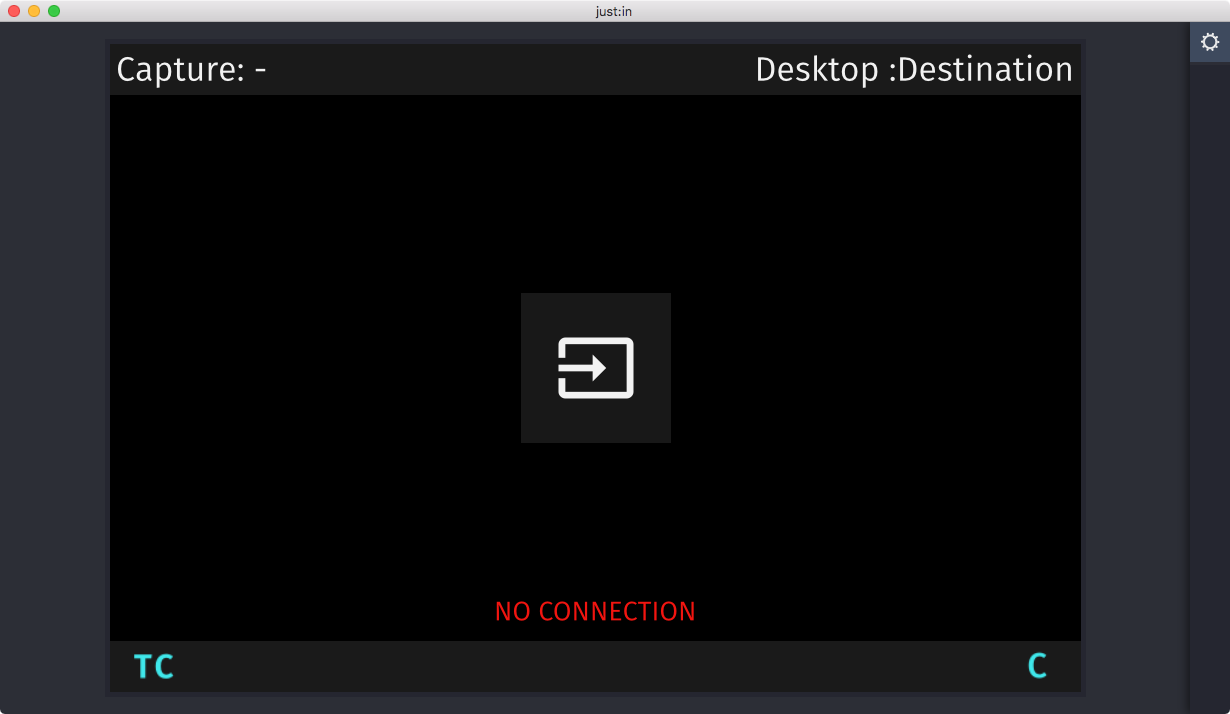
If you get this warning double check your IP-Address and Port number as well as the configuration of Just In Engine and the network. Also read the troubleshooting info at the end of this chapter.
Disconnecting from a Channel
- Open Just In.
- Optional: if there are multiple Channel Views, first select the View you want the Channel to be disconnected from.
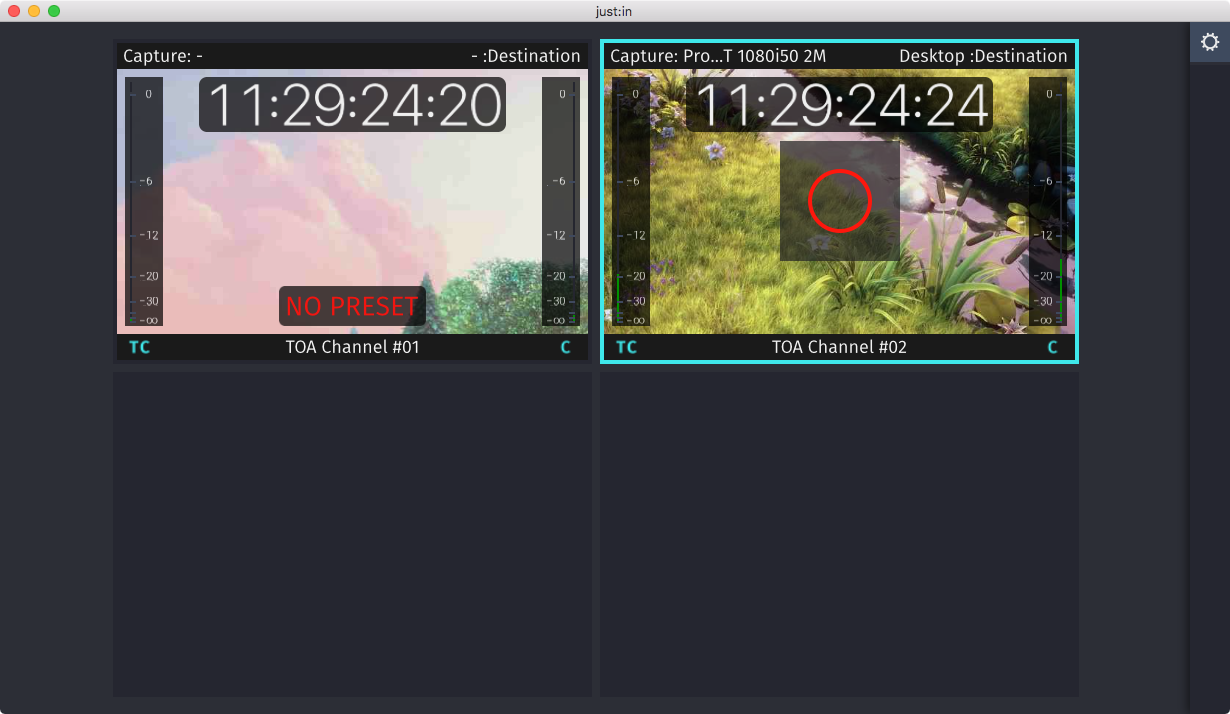
- Select the menu command Channel → Disconnect or use the shortcut command + shift + D.
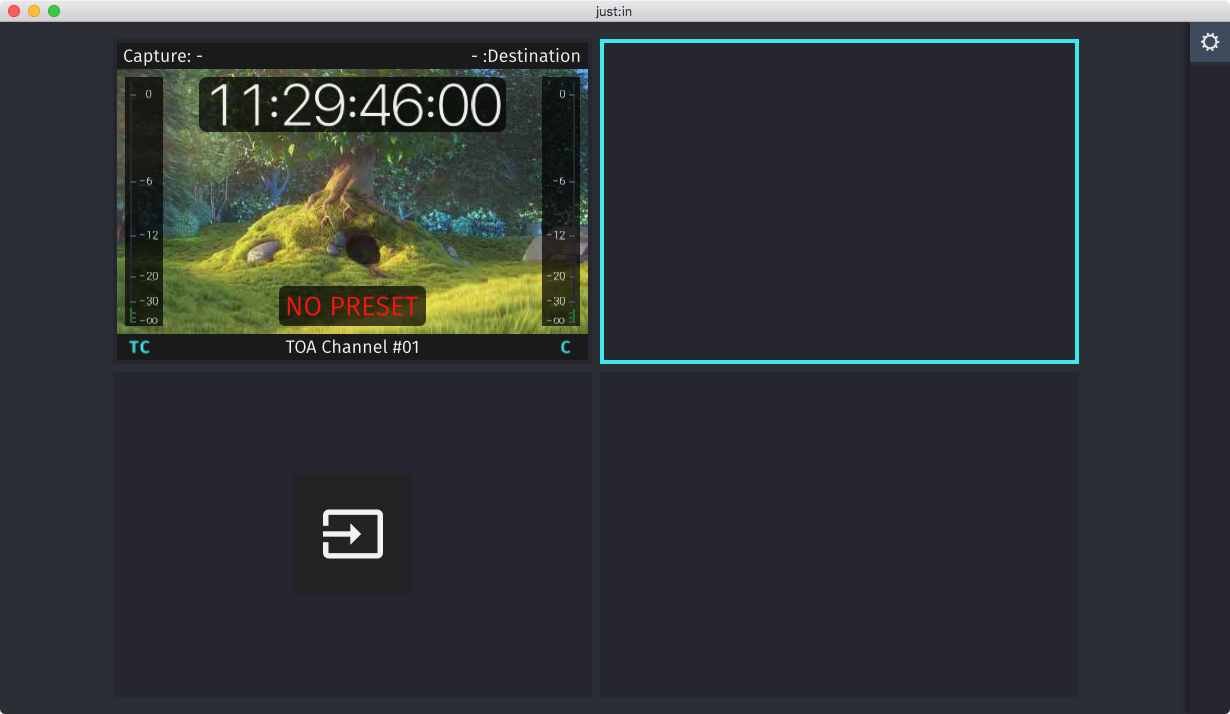
- You may now connect another Channel to the View.
Removing a Channel in the Connections Window
Before removing a Channel using the Just In User Interface it is strongly recommended to disconnect from the Channel first – as described above. Failing to do so may result in a ghost Channel in the User Interface.
- Open Just In.
- Open the Connections Window by selecting the menu command Channel → Connections or use the shortcut command + K.
- Click on the X button of the appropriate Channel to remove it from the Channel Manager. This cannot be undone.

Pending Channel Connections in the Connections Window
Before removing a Channel using the Just In User Interface it is strongly recommended to disconnect from the Channel first – as described above. Failing to do so may result in a ghost Channel in the User Interface.
When a Channel connection cannot yet be established or has been interrupted, the Connections Window will display Connecting… on the particular Channels. Wait for the Channels to be online or read the troubleshooting information below.
Troubleshooting
Connecting to a Channel may not immediately work when Just In Engine is not properly configured or reachable. There may be other reasons, the most common ones are listed here.
Removing "Ghost Channels" from the Connections Window
The Channel List in the Connections Window may display Channels which cannot be removed anymore. If such a ghost Channel appears, follow those steps:
- Dismiss any error message.
- Split the Channel View.
- Switch to another free Channel View.
- Join the Channel View.
- Open the Connections Window.
- Delete the appropriate Channel.
Optionally you can also hard-reset the Just In User Interface settings. Please note that this step removes all entries in the Connections Window, disconnects all Channel Views and resets the Just In User Interface Preferences.
- Close the Just In User Interface.
- Open the Terminal app on your Mac.
- Enter defaults delete com.toolsonair.Just-In
- Press the enter key.
- Relaunch the Just In User Interface.
Wrong IP Address and/or Port
Consult your system administrator for further information. If you have configured the network by yourself, verify that everything is set up correctly.
Just In Engine isn't running and/or Channels aren't enabled in Just In Engine
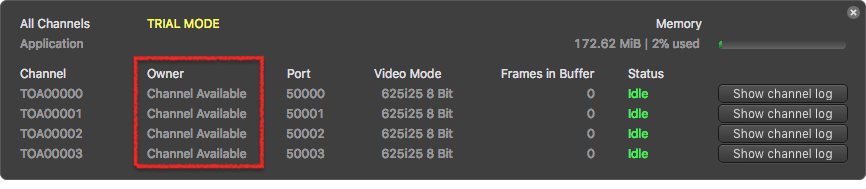
Verify that Just In Engine has been started and that the desired Channels are enabled. You can see if a Channel is enabled by looking at the Channel List in the Just In Engine Preferences. Also verify that the particular Channels you want to connect to are not occupied by another Just In User Interface client.

Just In Engine not reachable
Verify that the network connection has been set up properly. Consult your system administrator for further information. If you have configured the network by yourself, verify that everything is set up correctly.
Unstable Video Preview and/or Connection Losses
There may be network connection issues. Use a stable and fast network connection between the Just In User Interface and Just In Engine. Do not use a WiFi connection.