Before proceeding, you must stop the Channel by deactivating the checkbox. Stopping the channel will also stop the Just Live Lite NDI engine output.
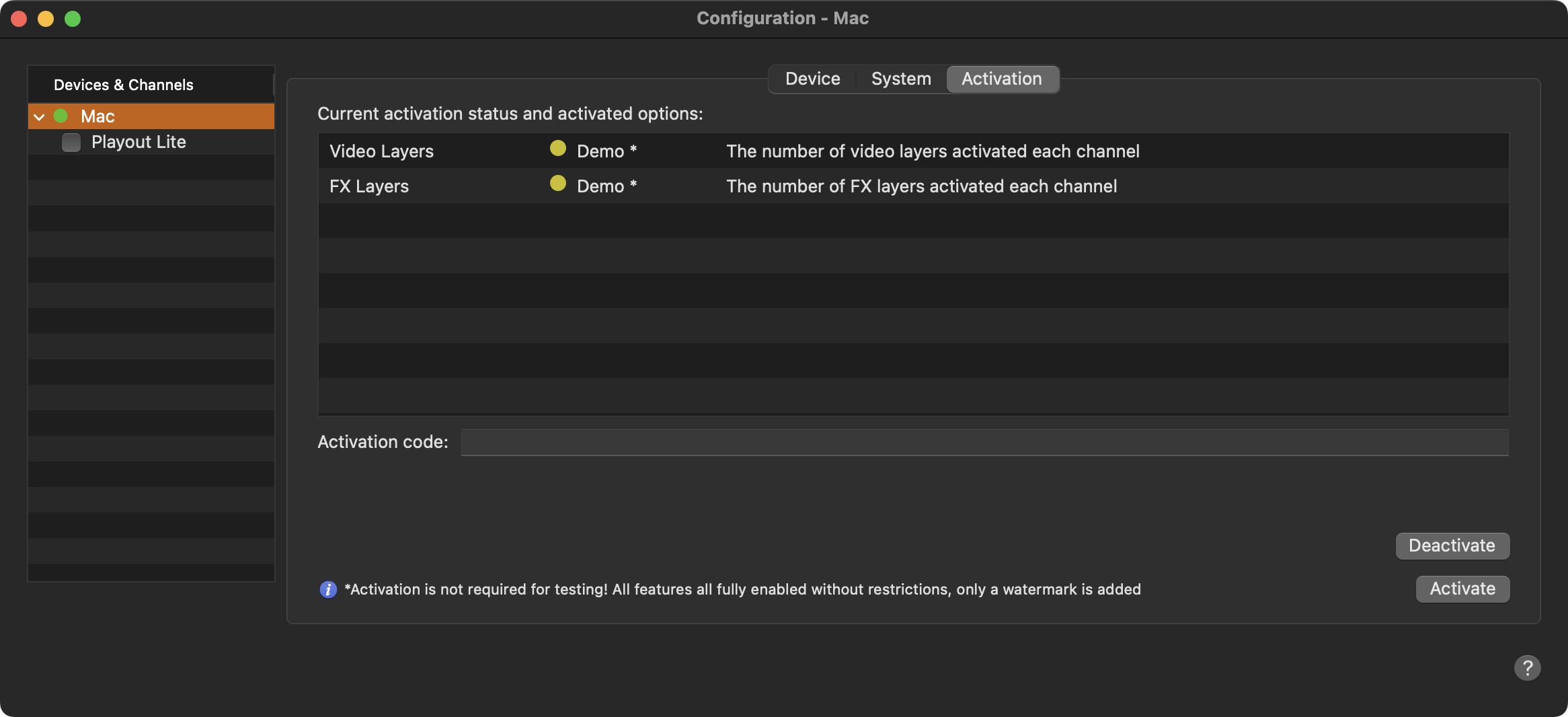
The “Activation” tab shows you the activation status of the selected Device.
Activate the Channel
Please keep in mind that an activation is not required for testing and that all features are fully enabled without restrictions. Only a watermark is added to the final broadcast output.
Stop the Channel which is related to the Device you would like to activate, by deactivating the checkbox in front of it. Stopping a Channel will also stop the Just Live Lite NDI playout engine and therefore the final output.
Select the Device you would like to activate.
Click on the “Activation” tab.
Copy and paste the received Activation Key into the “Activation code” field and press the “Activate” button.
Verify the activated options and expiration dates.
Start the Channel to verify the successful activation.
Your activation key will activate one (1) Video Layer and one (1) FX Layer, while all other tracks remain the same.
Deactivate the Channel
Stop the Channel which is related to the Device you would like to deactivate, by deactivating the checkbox in front of it. Stopping a Channel will also stop the Just Live Lite NDI playout engine and therefore the final output.
Select the Device you would like to deactivate.
Click on the “Activation” tab.
Press the “Deactivate” button and confirm the following request, to remove the license from this machine and move it to another. Once done, activate the other machine with the same license code you used to activate this channel.
An unlicensed trial version has all features enabled and has no restrictions in terms of functionality. An unlicensed trial Channel displays a full screen ToolsOnAir watermark every nine (9) seconds for the duration of one (1) second.
Internet Access
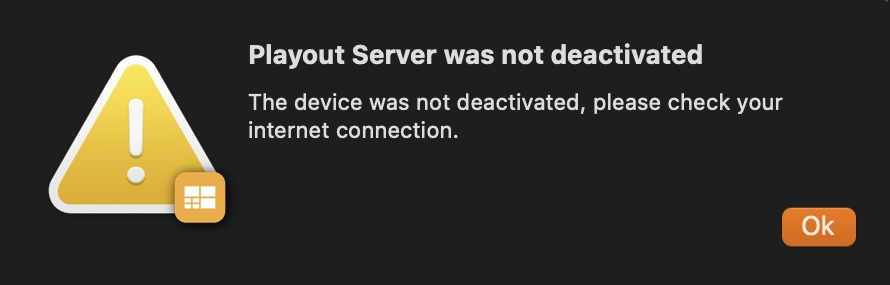
Internet access is required to Activate or Deactivate a license, otherwise a warning will be shown, and the license status does not change.