
Version 2026.x of our Lite playout solutions supports macOS Tahoe (26.x) on Apple silicon-based Mac minis, Mac Studios and Mac Pros.
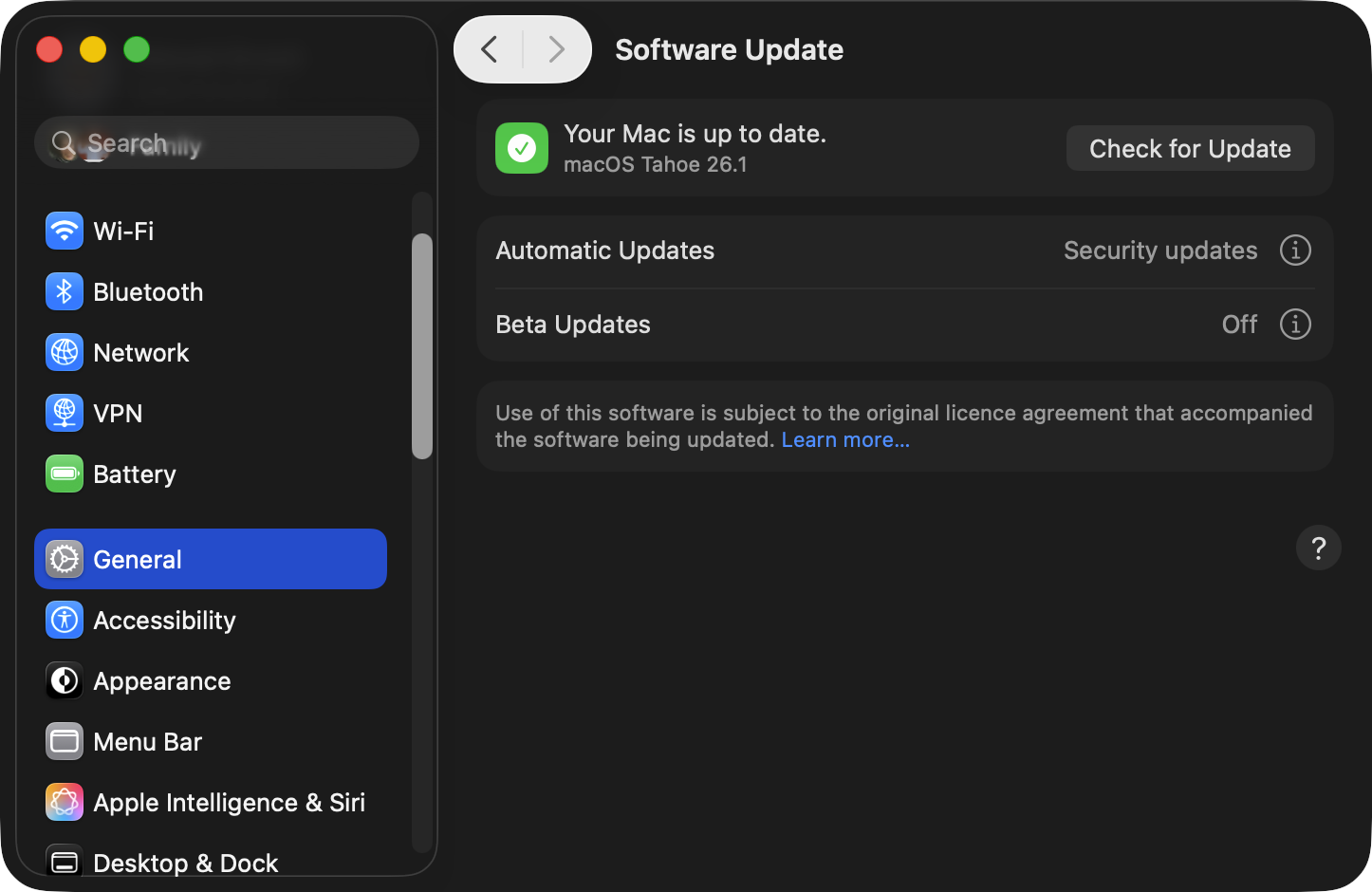
We recommend a basic installation of the operating system. Once the macOS installation has completed, install all updates that are available through Apple's Software Update. Then configure the macOS as described below.
Do not install any additional applications on the Playout machine(s). Those could be: Stats, Dropbox, Adobe CC, Notification Center widgets, Dashboard widgets, Google (the GoogleSoftwareUpdateDaemon causes issues) or any other background daemons.
Use an admin user account for installation and the same account while using our applications.
Once the playout application has been started, never change one of the settings described in this chapter. Changing any OS related setting during playout can harm the final output.
Configuring the macOS System Preferences/Settings
The System Preferences/Settings may look different on your system and may offer more/fewer functions, depending on the macOS version and the hardware you are using.
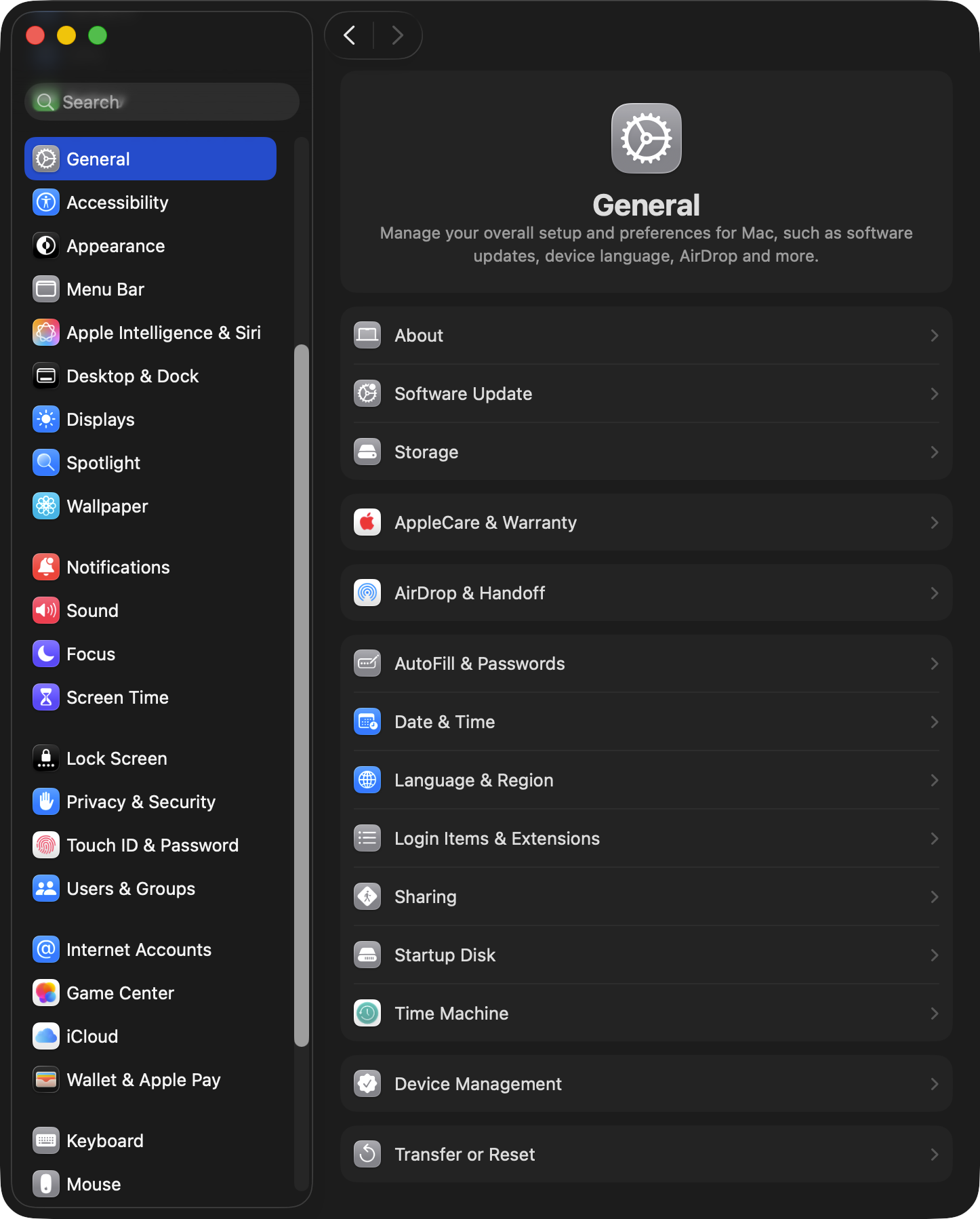
General
 |
|
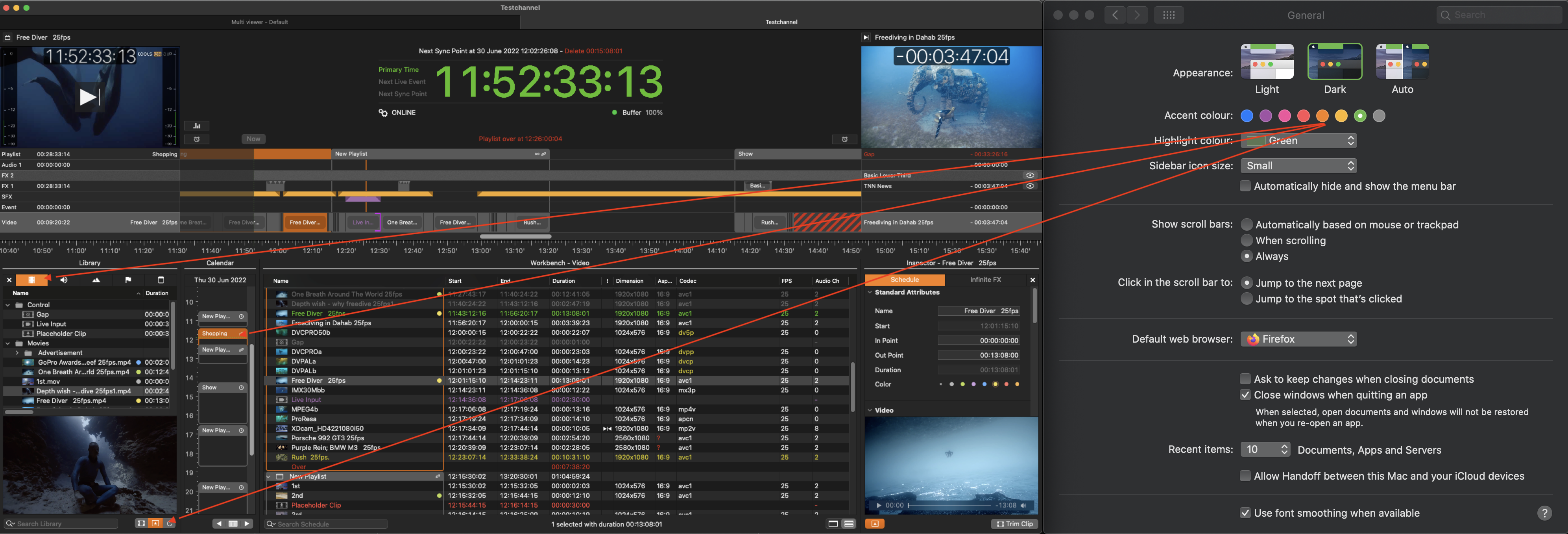
General/Date and Time Format
Please verify that your macOS Date & Time settings are compatible with the Gregorian Calendar format (Gregorian date formats include the following: “ddmonyy”, “ddmonyyyy”, “mm/dd/yy”, or “mm/dd/yyyy”). Using the Gregorian calendar ensures consistency and accuracy in the Date header, avoiding misinterpretation, synchronization, and activation errors. This is crucial for our Playout solutions to fetch and process the correct Start/Stop Date and Time information.
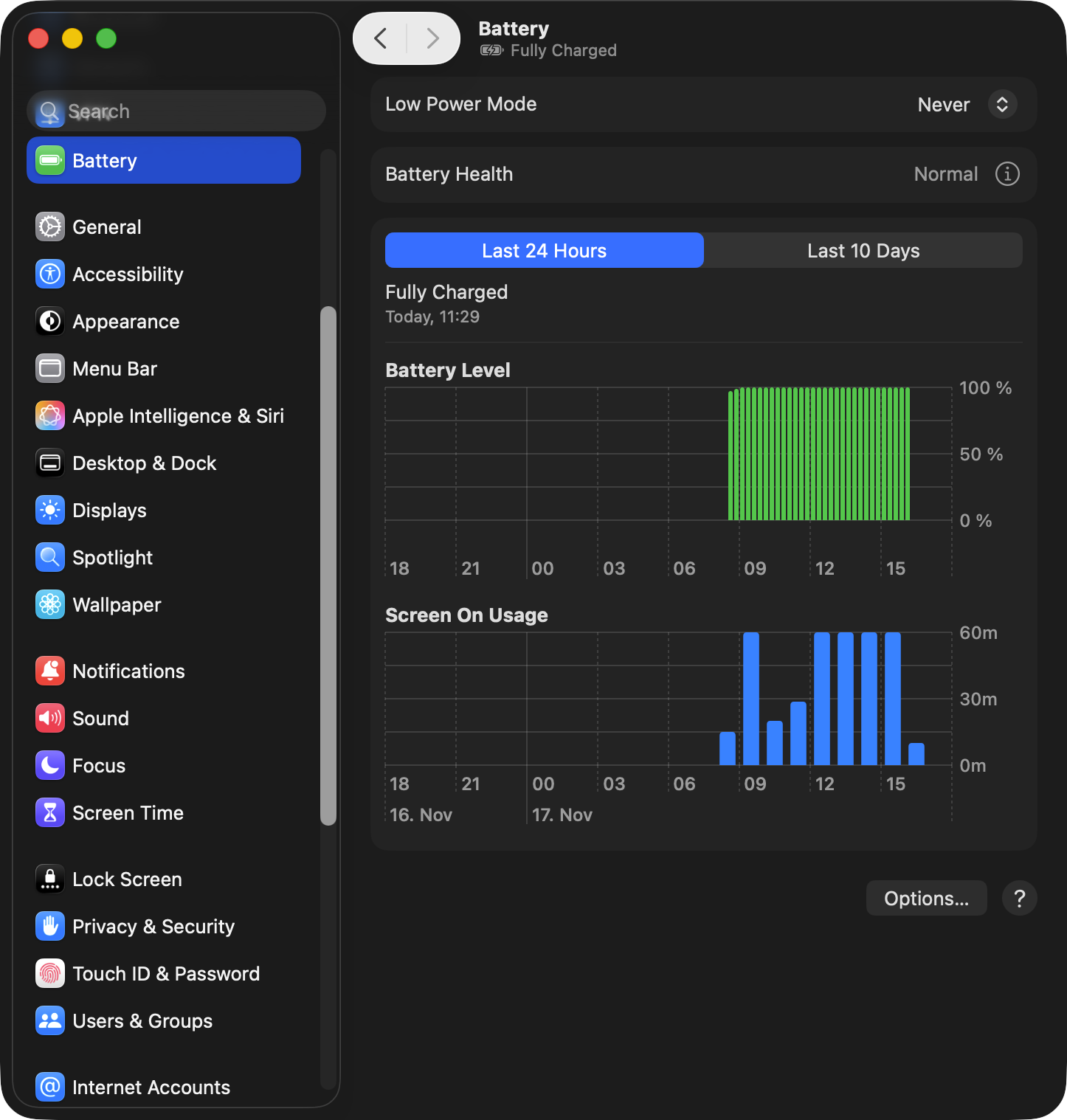
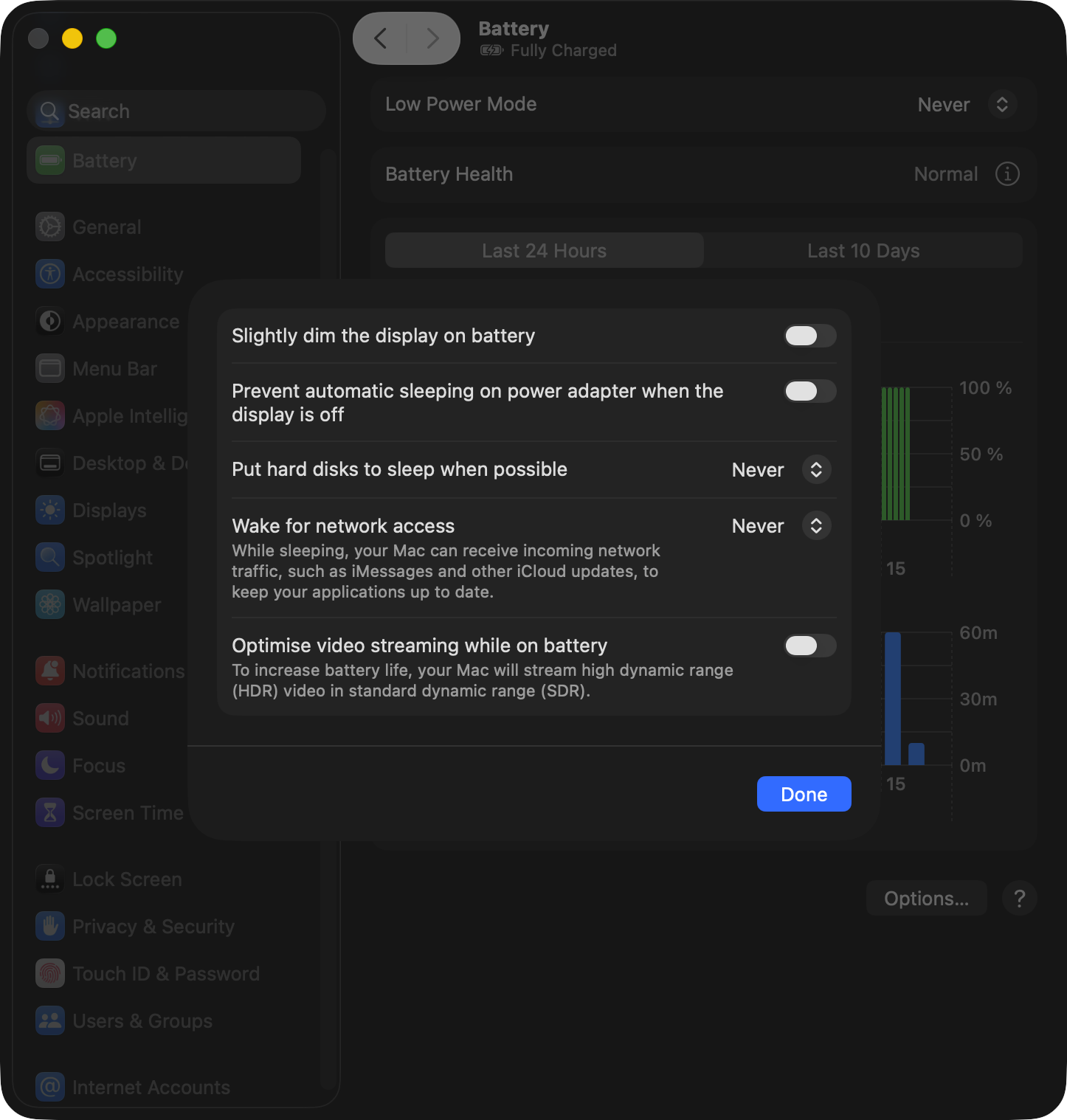
Battery / Battery Options
In the Battery panel, set “Low Power Mode” to “Never” and then click on the “Options…” button to open the Battery options panel. In this panel, set all options to either “Off” (sliders) or “Never”.
 |  |
Wallpaper / Screen Saver / Lock Screen Settings
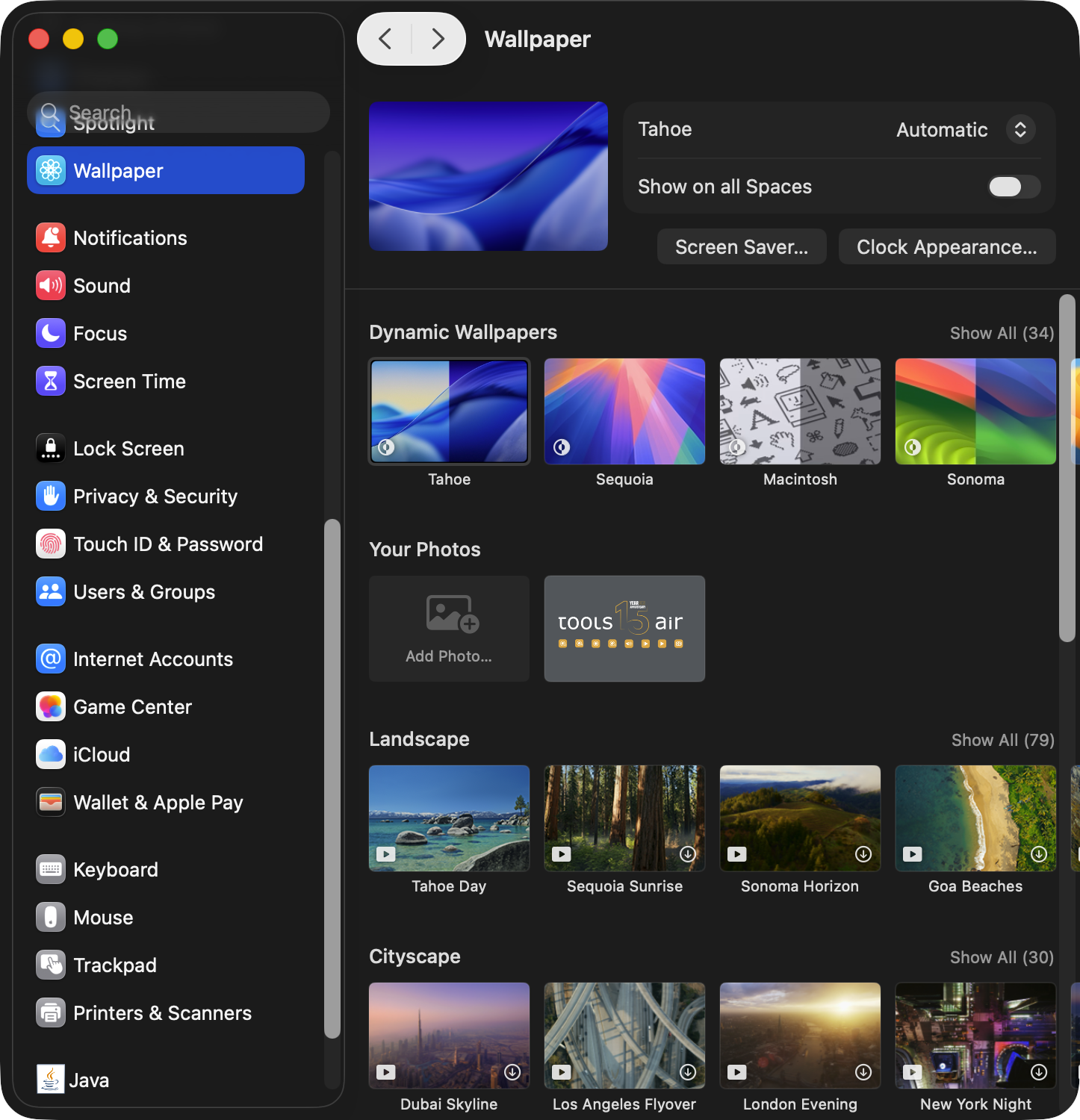 | Select the Wallpaper panel and click the “Screen Saver” button to adjust the required settings. Select Screen Saver panel and click on the “Lock Screen Settings…” button to adjust the required settings. Set the “Start Screen Saver…” option to “Never” and click the “Done” button. |
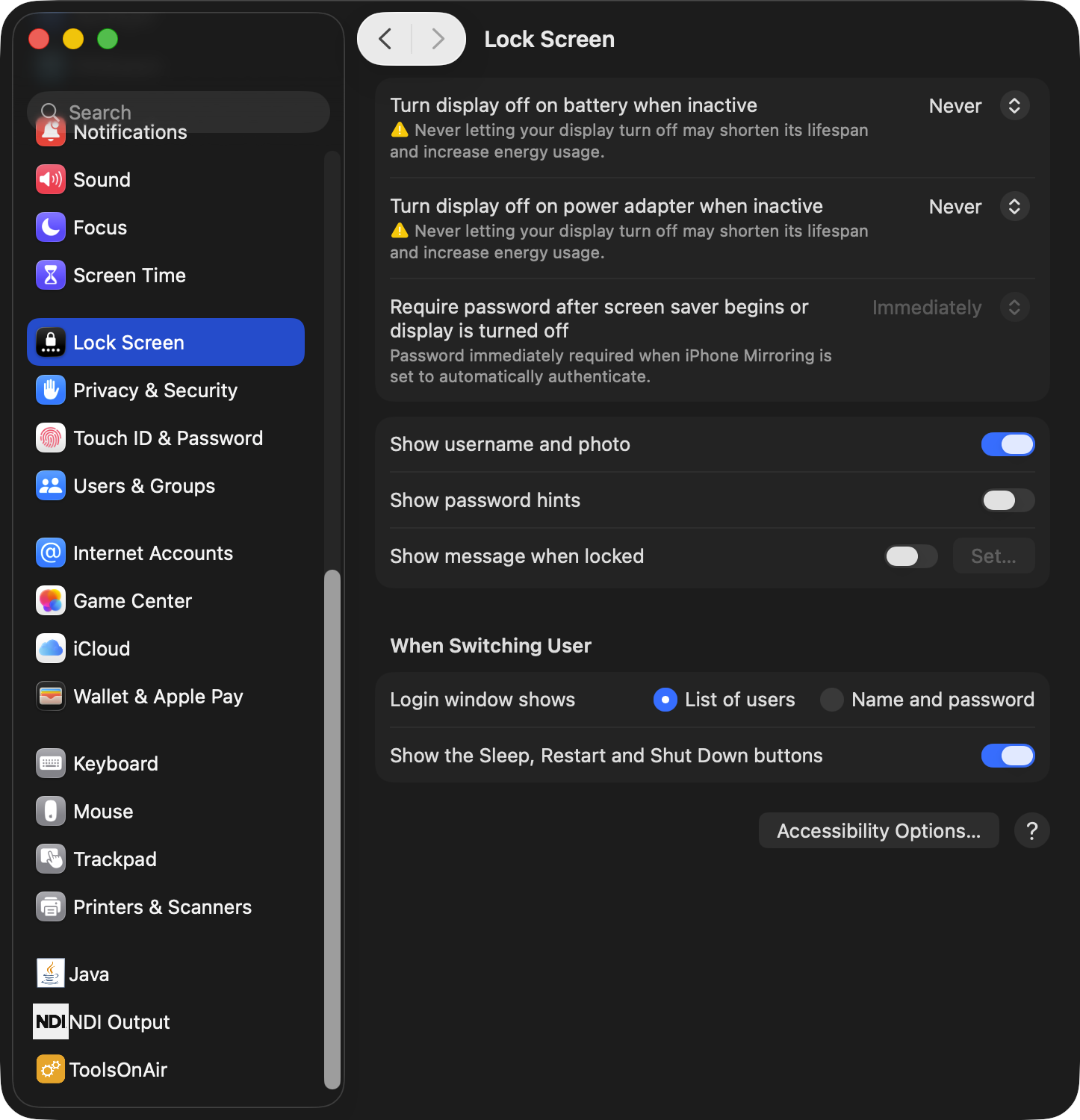 | Next, select the “Lock Screen” panel and set the “Turn display off on battery when inactive”, “Turn display off on power adapter when active” settings to “Never”. |
Privacy & Security
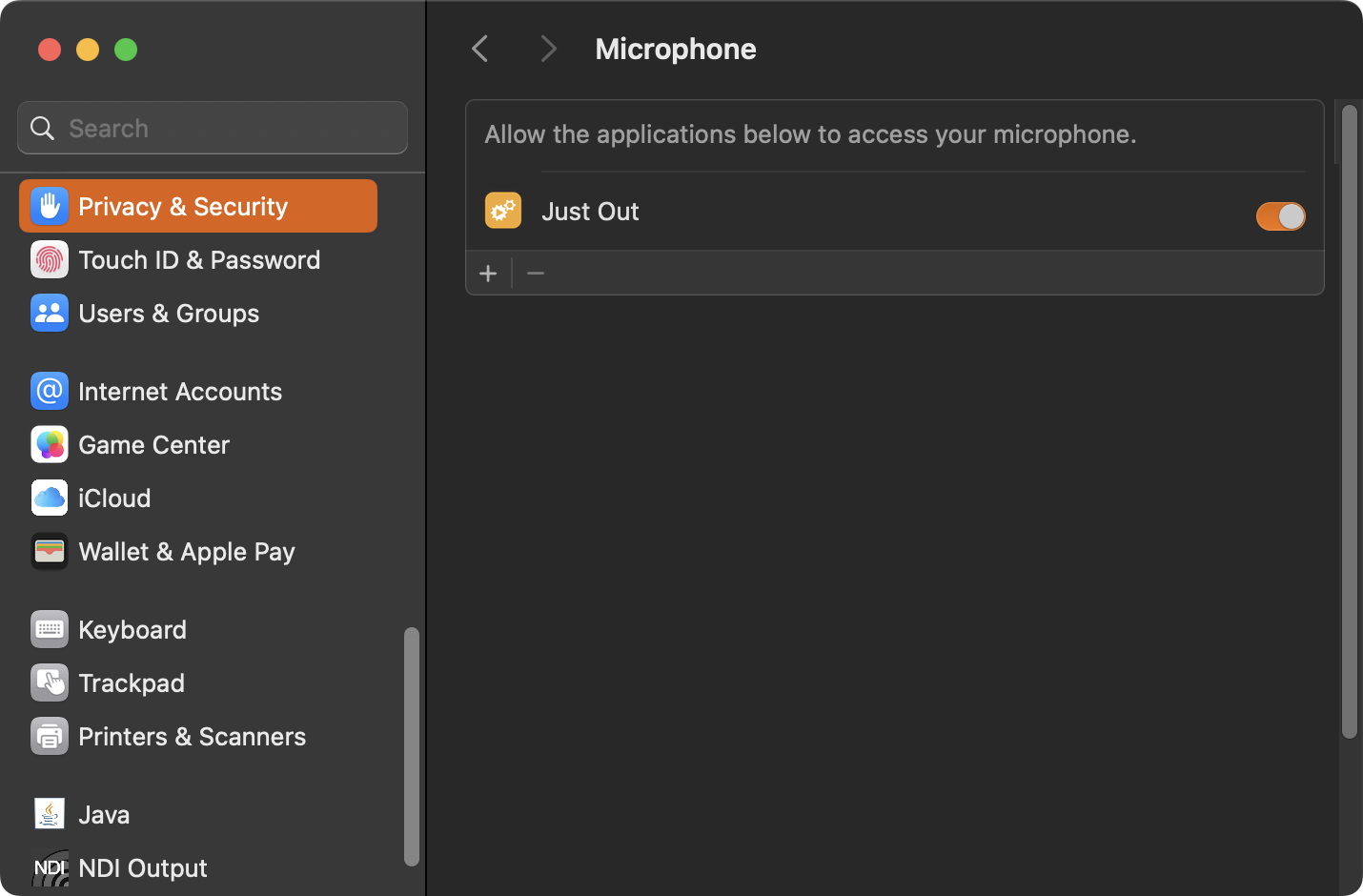 | Microphone: Make sure your playout application is listed under “Microphone”, in case you have Live Input activated for your channel. |
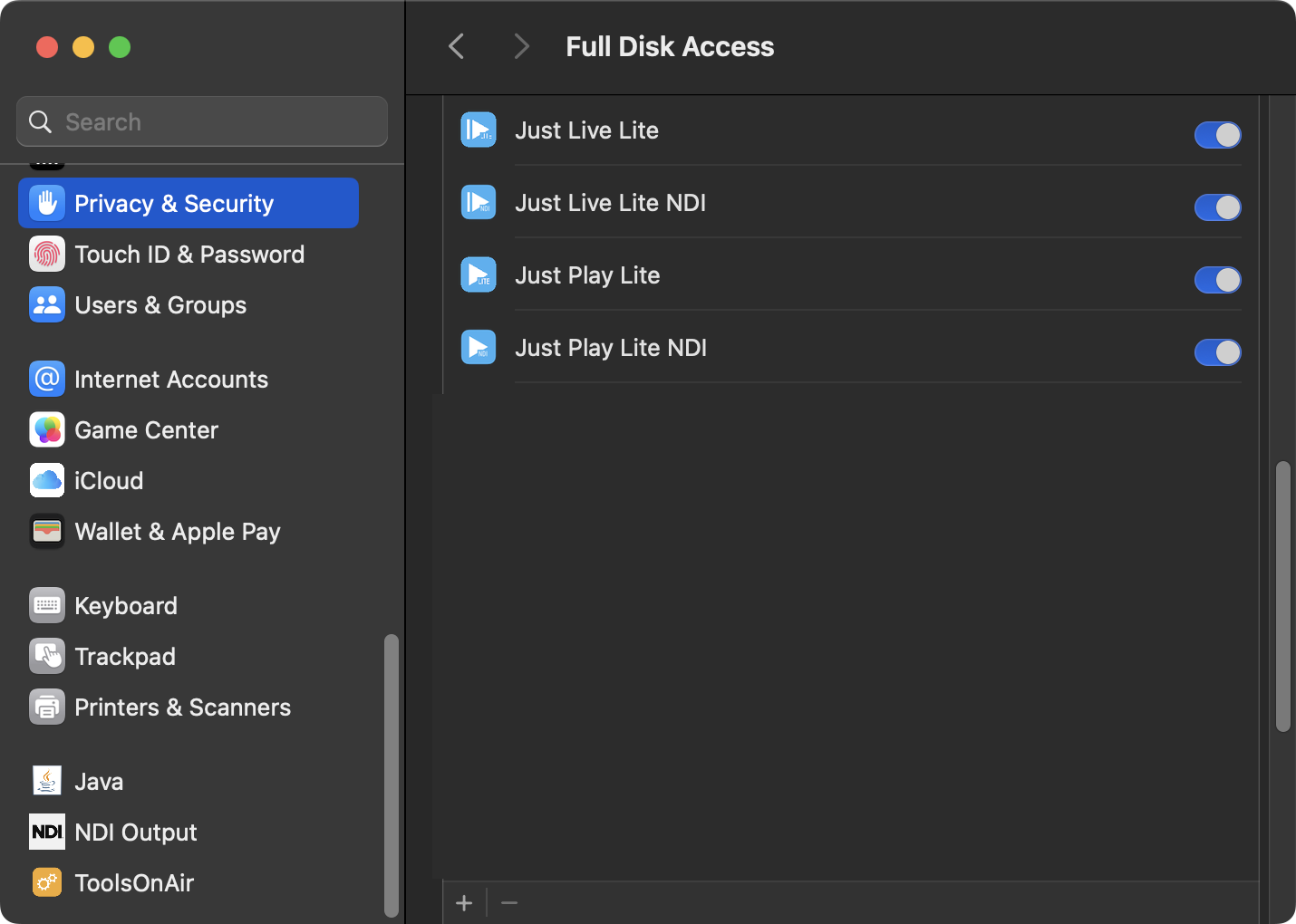 | Full Disk Access: Make sure to activate “Full Disk Access” for the Just Play Lite NDI application. Otherwise, setting changes will not be saved, causing all kinds of unexpected behavior while using the applications. |
Sound
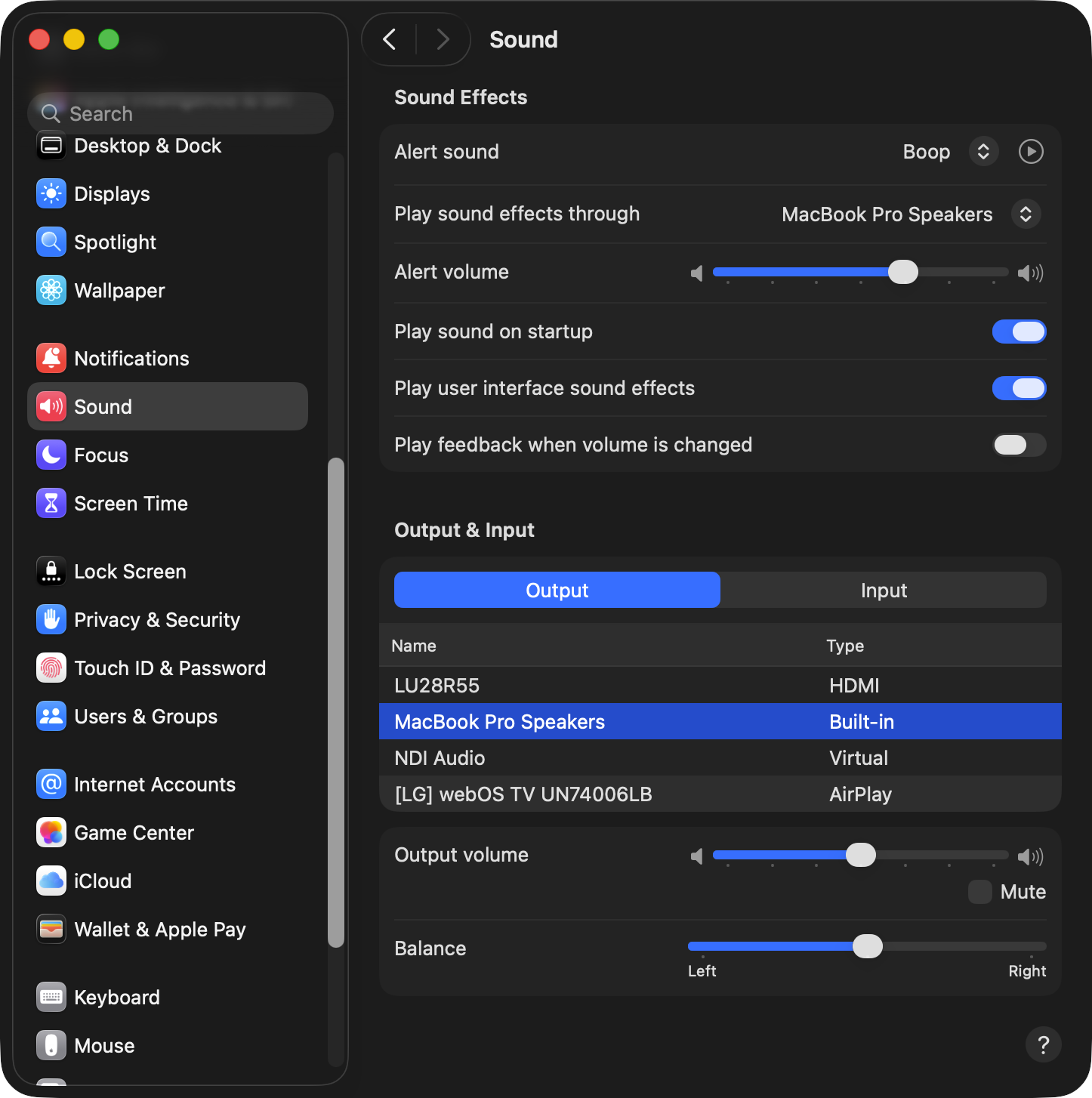 | Sound Effects: Make sure to select the speaker of your Mac (“Mac mini Speakers” in the example below), to play sound effects using this device. The same output is used by the Just Play Lite NDI application when playing videos in the preview windows. |
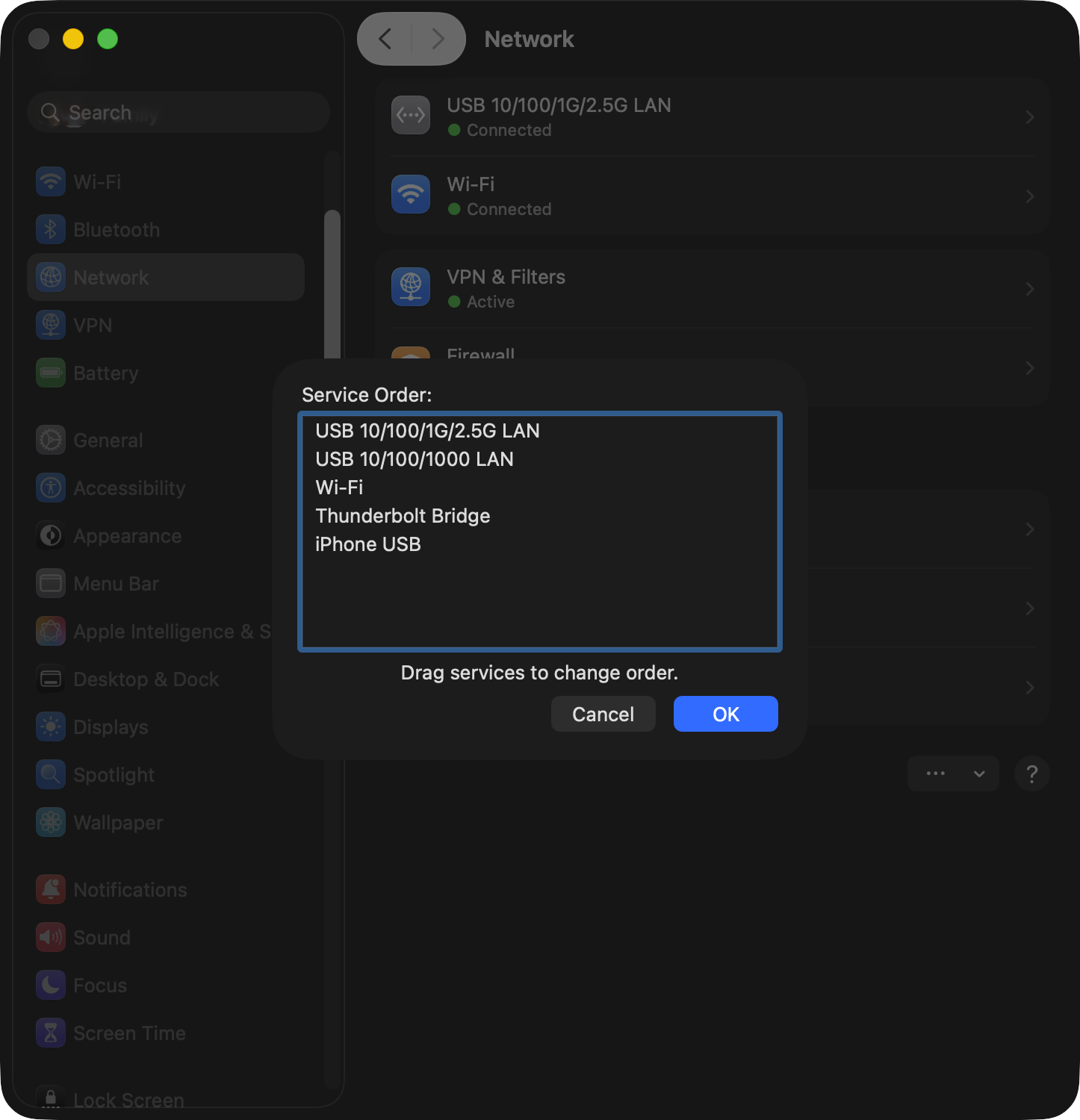
Network
 |
|
General → Startup Disk
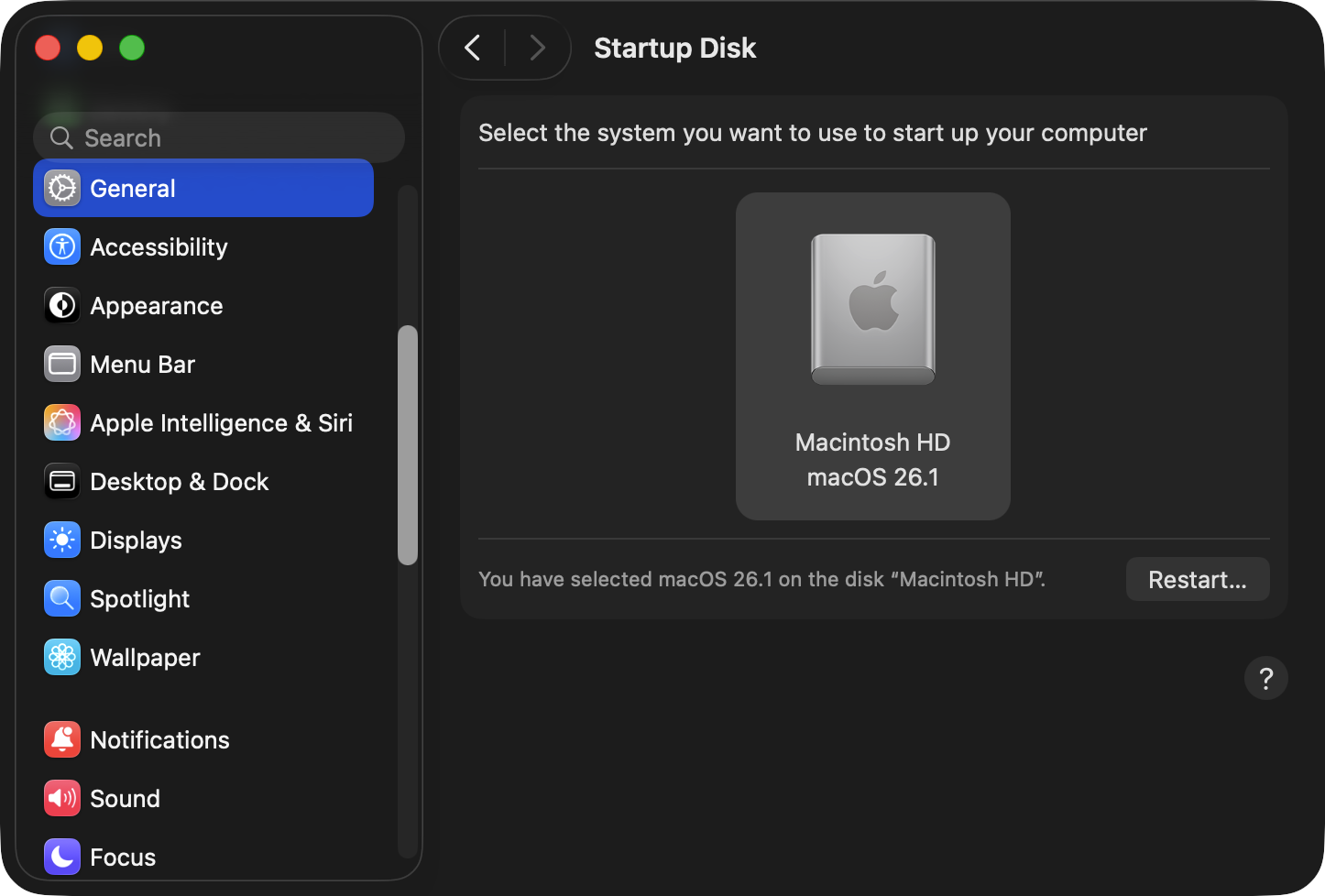 | Make sure that the disk or partition used for the ToolsOnAir applications is selected as the startup disk. |
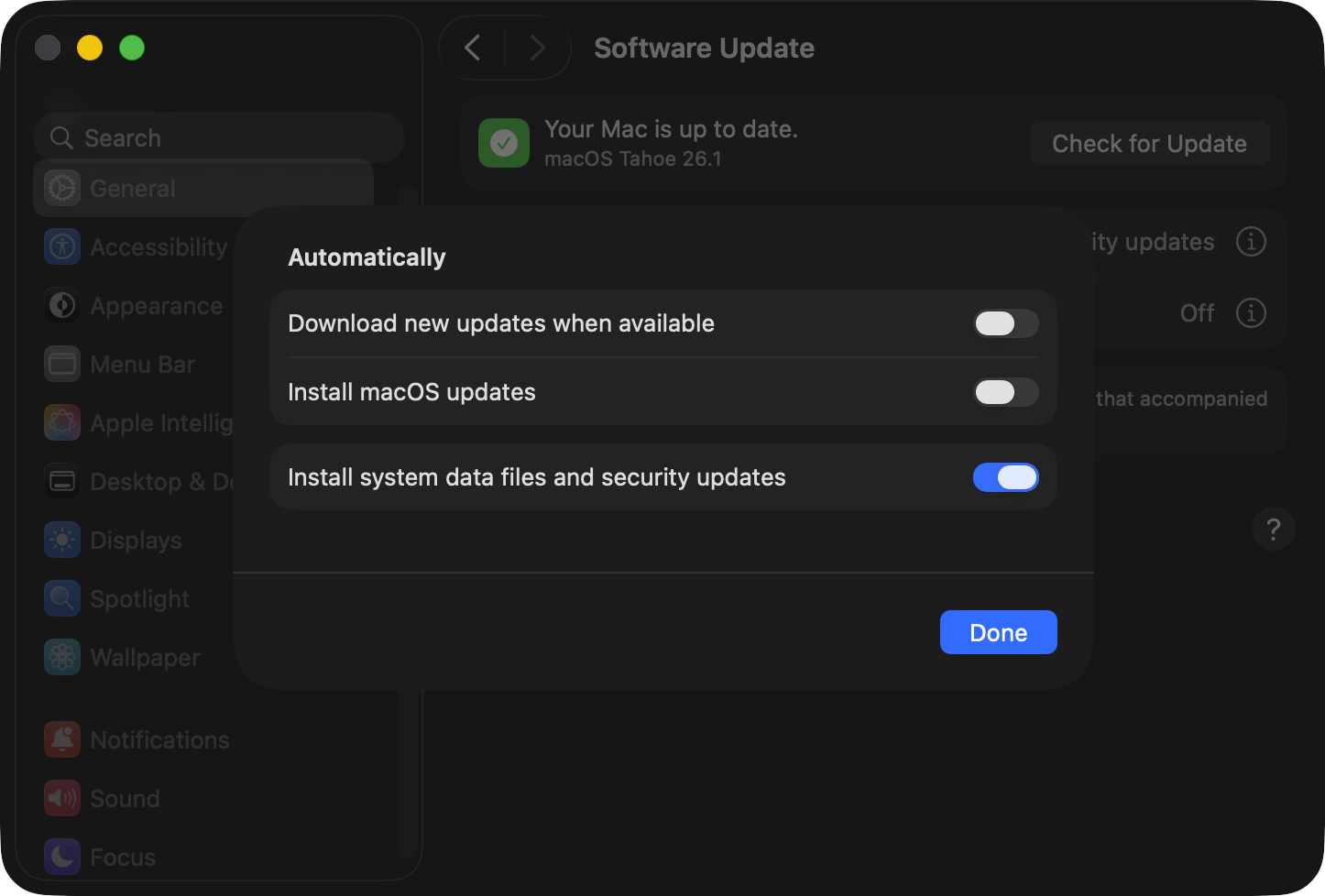
Software Update
 |
|
 |
|
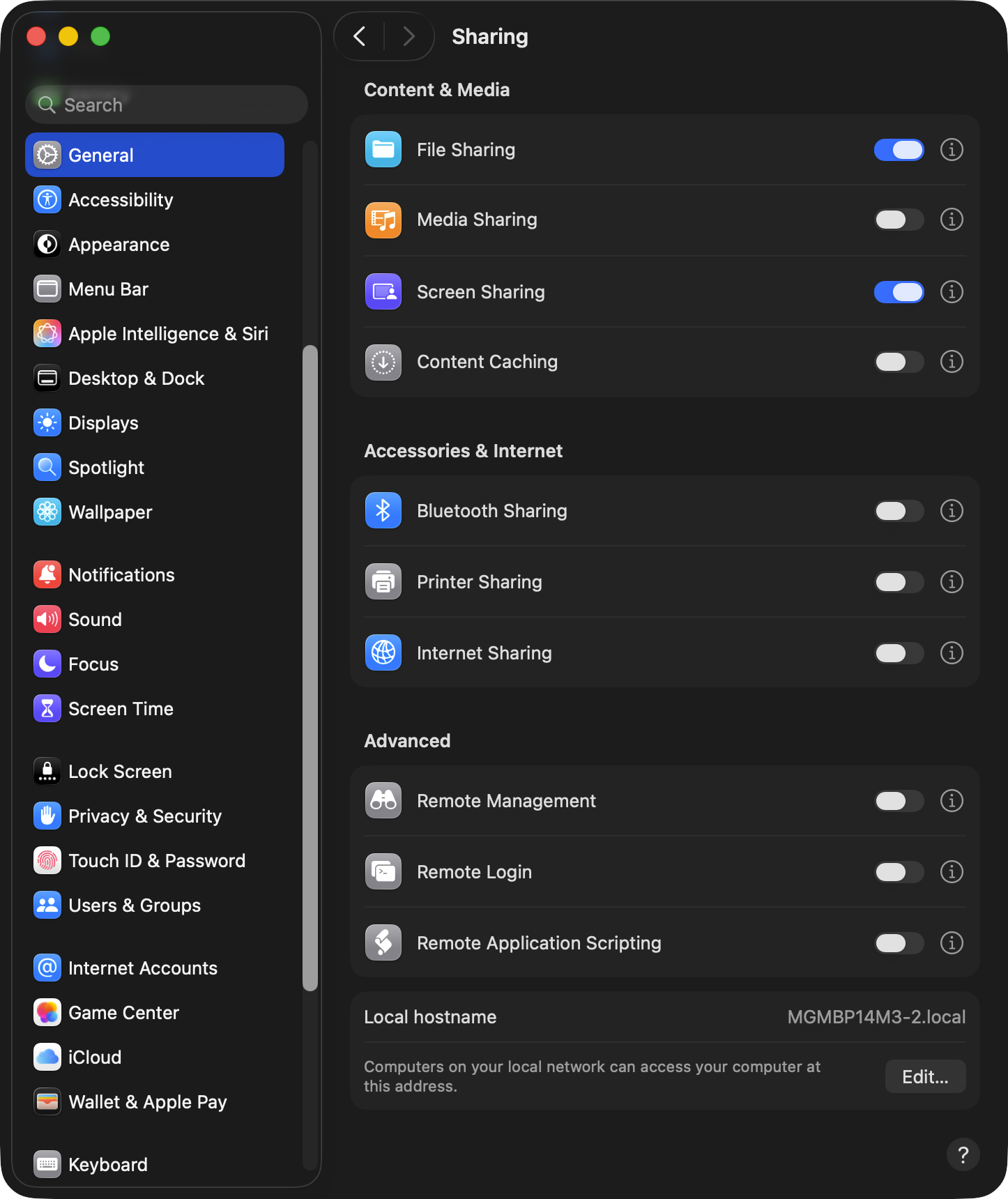
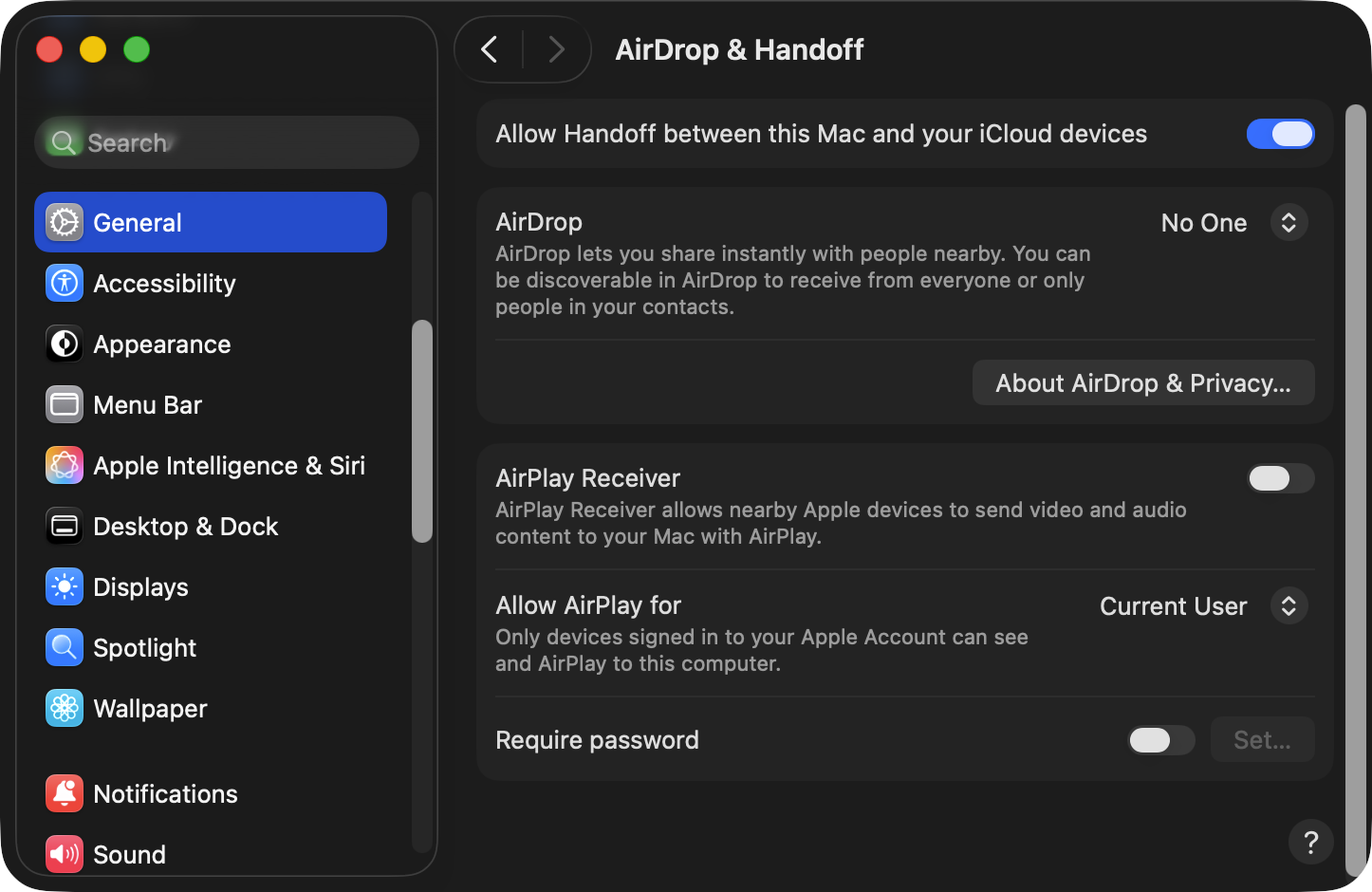
General → Sharing and AirDrop & Handoff
 |
|
 |
|
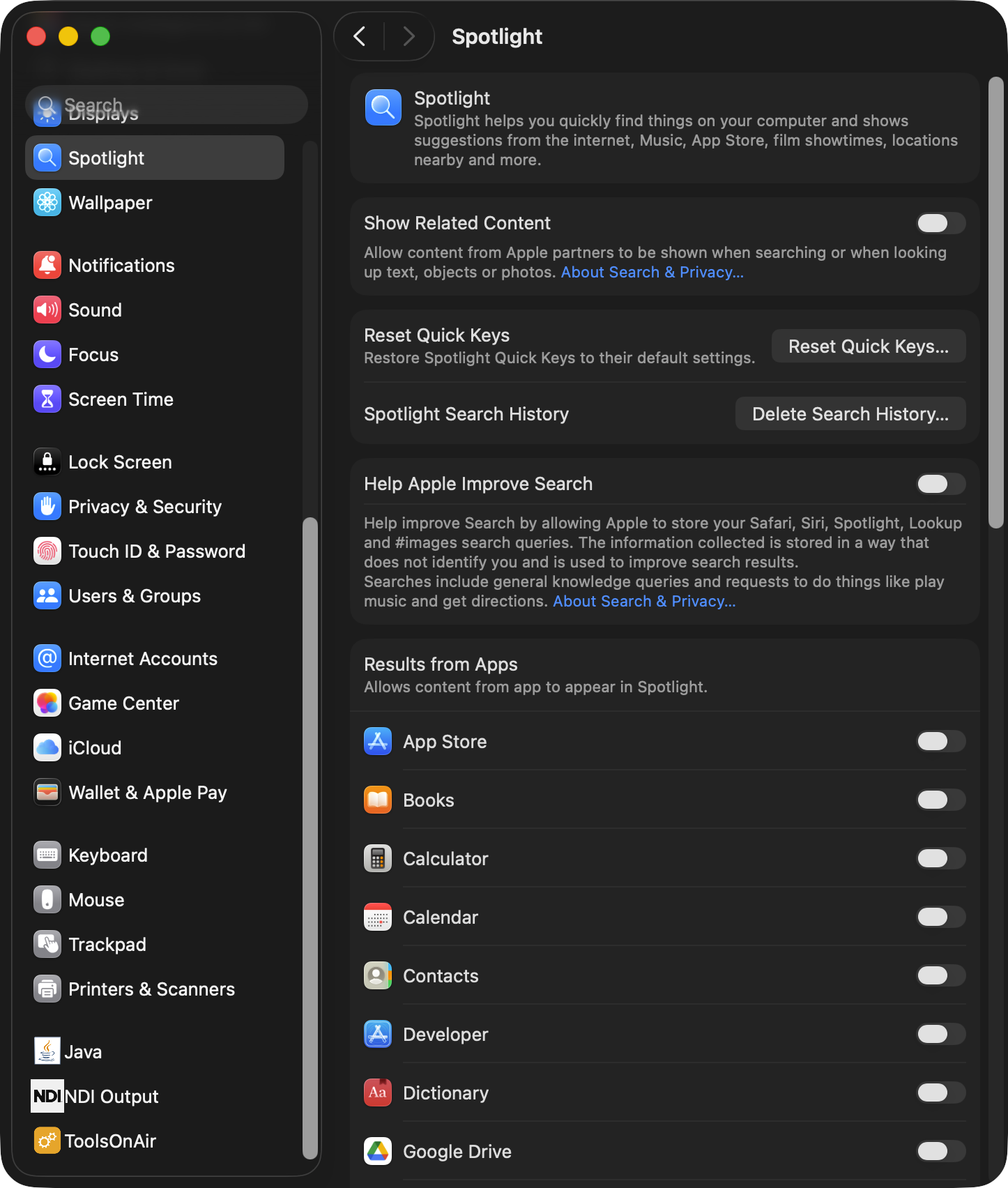
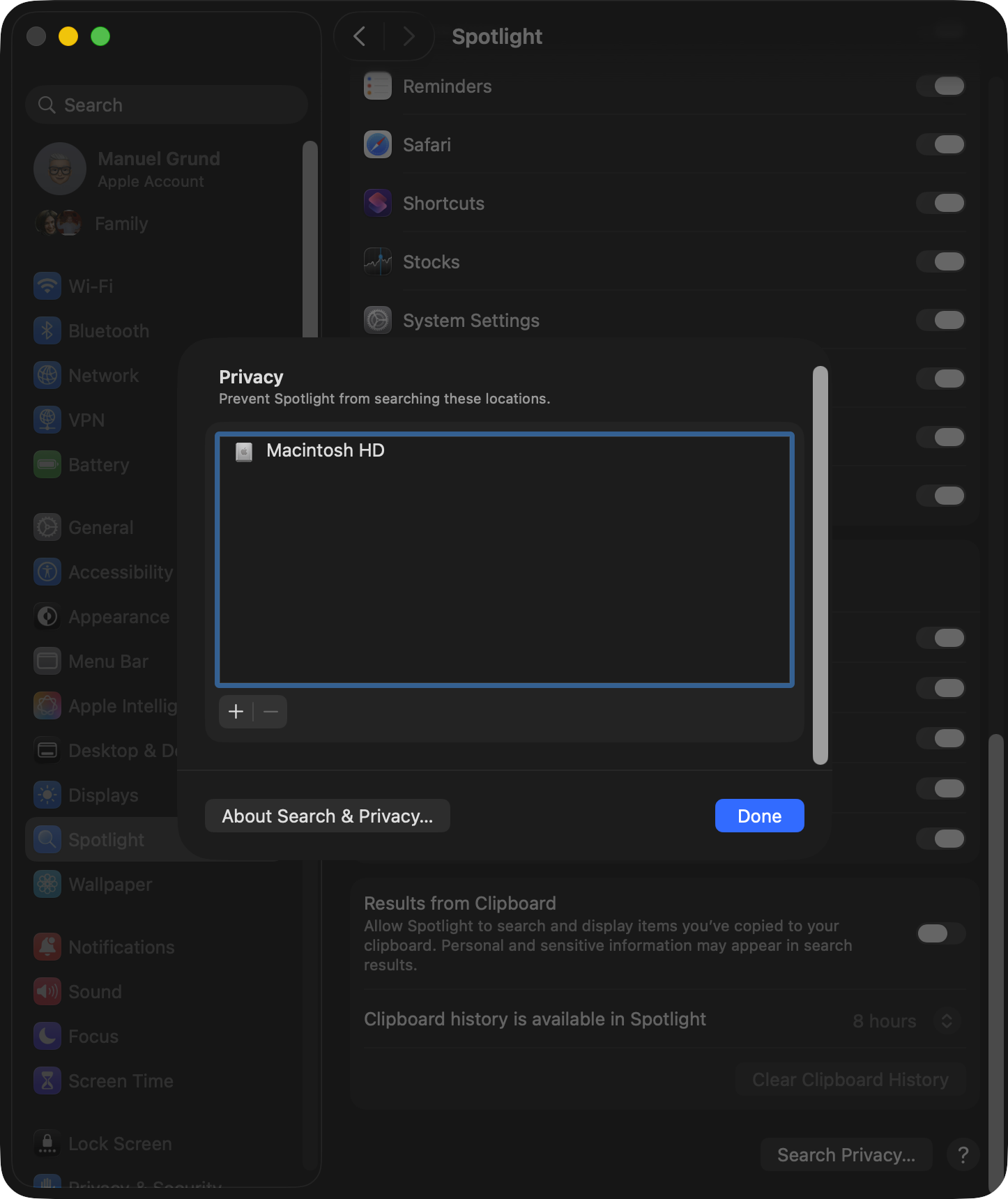
Spotlight Settings
We recommend disabling Spotlight on the machine(s) running the Just Live Lite NDI application.
Add all volumes used to store media files under the “Privacy” tab or “Spotlight Privacy…” window.
 |  |
| |