
- Control Area (v.2026.x)
- Timeline (v.2026.x)
- Library (v.2026.x)
- Workbench (v.2026.x)
- Inspector (v.2026.x)
- Trim Window Overlay (v.2026.x)
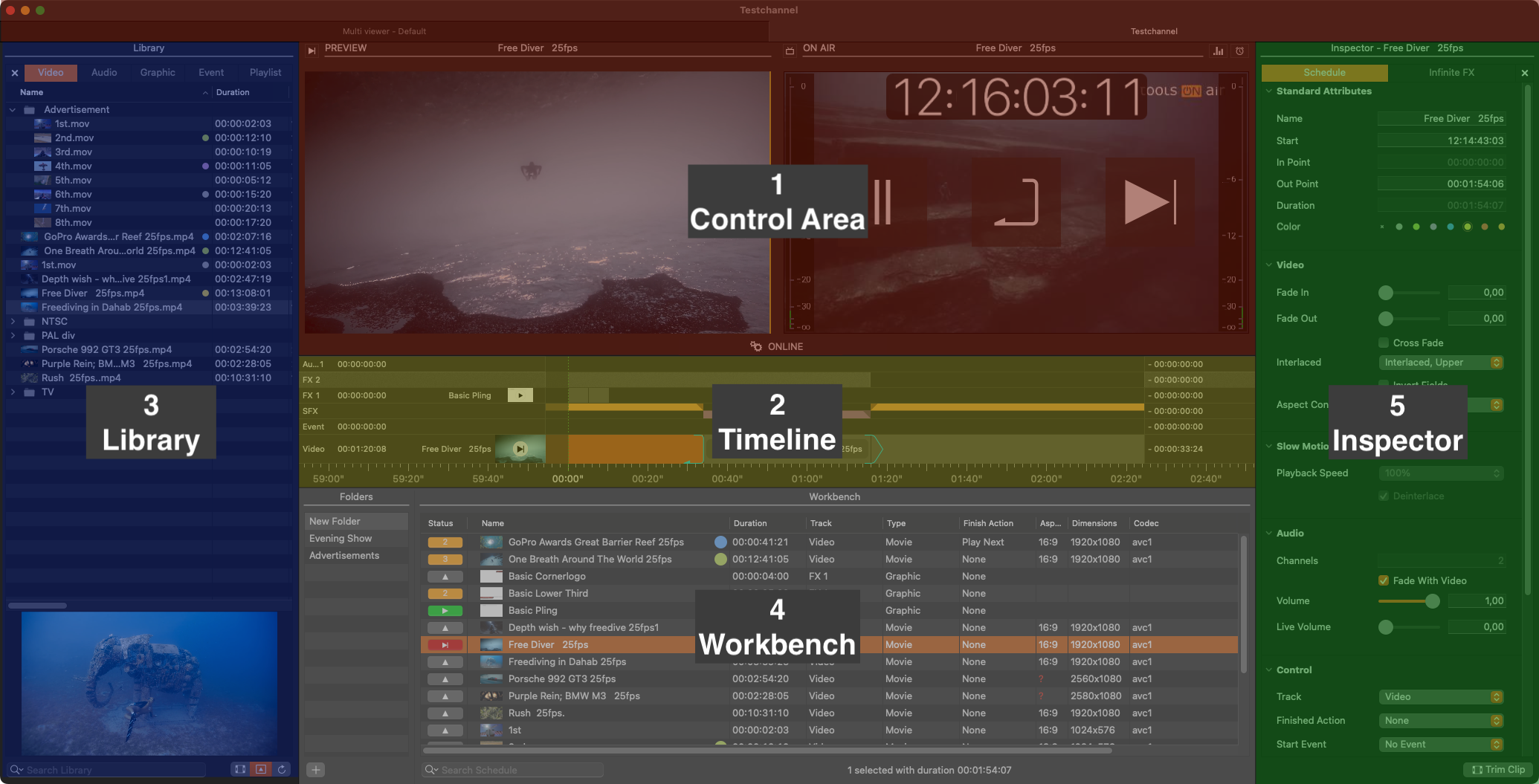
Control Area:
Preview View (left): Preview the selected Video, Audio or (optional) GFX element.
On Air View (right): Shows the current On Air output.
Status of the built-in playout engine (below): Shows the status of the built-in playout engine (ONLINE).
Timeline: Shows all Videos, audio files and (optional) Graphic elements which are loaded or already playing out (including the element names, the elapsed/remaining time info, and the Layers' Play buttons). The visibility of the final output is defined from top to bottom.
Library: Divided into four tabs, the Library shows Videos, Audio, Graphic elements and saved Playlists. Related metadata will also be shown (if available). There's also a search field and a preview at the bottom.
Workbench: This is the place where all the media is collected for the final playout. Folders can help you to organize and manage complex shows.
Inspector: You can modify attributes of one or multiple selected elements. The multiple selection of several items of the same kind is supported. In addition, you can instantly change the Channel settings without restarting of the Just Live Lite NDI application.
The proxy Preview in the On Air window shows a compressed image with a reduced frame rate. In addition, the Preview can stop for a moment if the communication is interrupted, even when the real output is fine. This means that the Preview is not meant to replace a broadcast monitor for the final check of the live playout.