
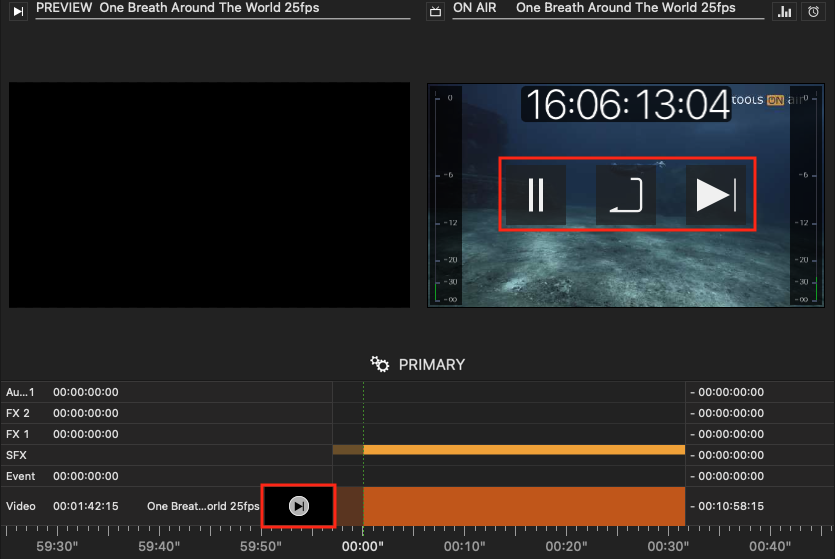
Once the Playout of a Video has been started, it is possible to Pause, Re-Cue and to Finish the Playout using the following method:
Using the On Air control overlays
Press the “Pause”, “ReCue” or the “Cue” button to pause, re-cue and stop the Playout of the movie.
2. Using the play button on the Timeline together with a keyboard shortcut to pause and resume the Playout:
To pause the Playout of a Video, hold down the “Shift” key while clicking on the “Play” button.
To resume the Playout of a Video, click on the “Play” button again.
Icon | Function | Dependency |
|---|---|---|
 | Press this button to pause the currently playing Movie- | A Movie has to be playing. |
 | Press this button to end the currently playing Movie and to load the first frame of it. | A Movie has to be playing. |
 | Press this button to end the currently playing Movie and to execute the selected Finished Action. | A Movie has to be playing. |