The Preview view of the Library and the Control Area allows you to preview video, audio, and graphics.
Video/Audio
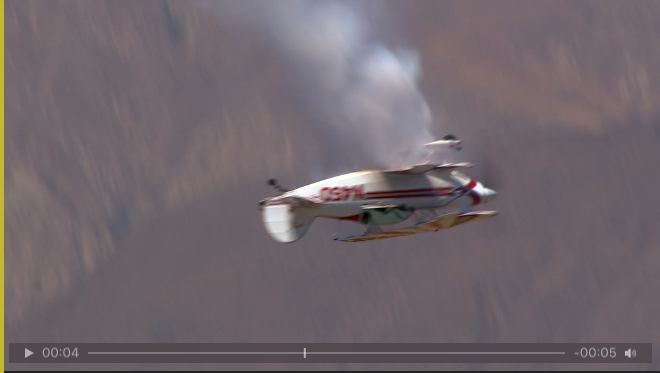
Select the Video or Audio file you want to preview to show it in the Preview view. A yellow line at the left/right side indicates a trimmed in- or outpoint.
Use the mouse or the keyboard to control the Preview.
The Timeline shows the “Play/Pause” button, the elapsed time, the timeline with the CTI, the remaining time, and the audio on/off button.
Graphics (created with Composition Builder)
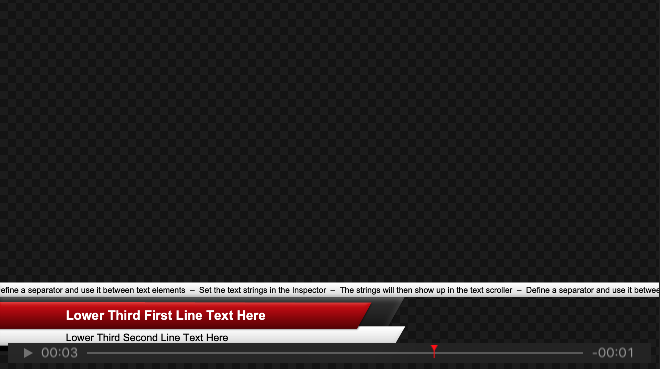
Select the Graphics file you want to preview to show it in the Preview view.
Use the mouse or the keyboard to control the Preview.
In case there are stop frames in a composition, the preview will stop at each Stop Frame, as it would do On Air. Press the “Play” button to release the Stop Frame.
The Timeline shows the “Play/Release/Stop Frame” button, the elapsed time, the timeline with the CTI, the Stop Frames (if available), and the remaining time.
Elapsed and remaining time are paused while staying at a Stop Frame.
Graphics (HTML-based)
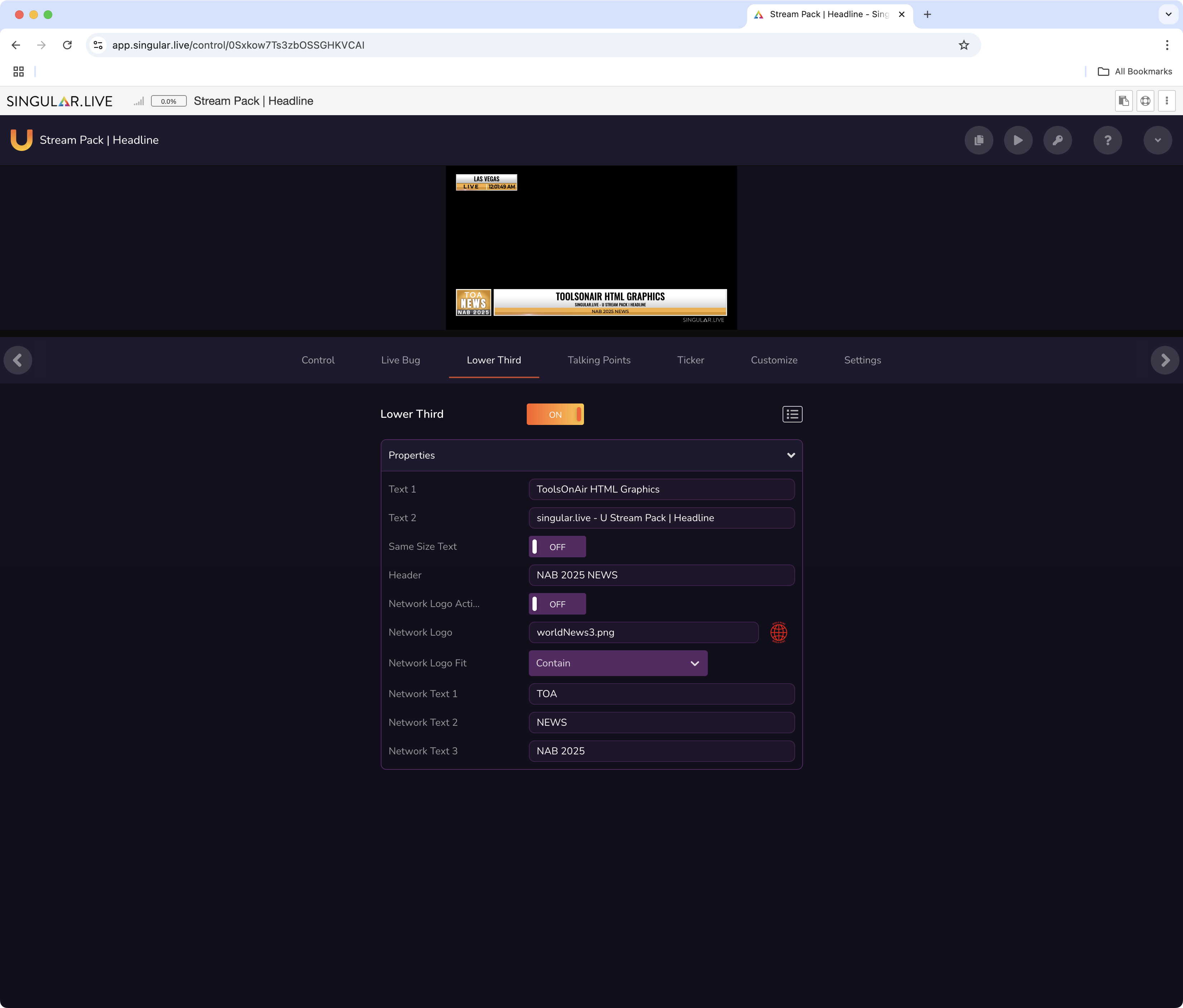
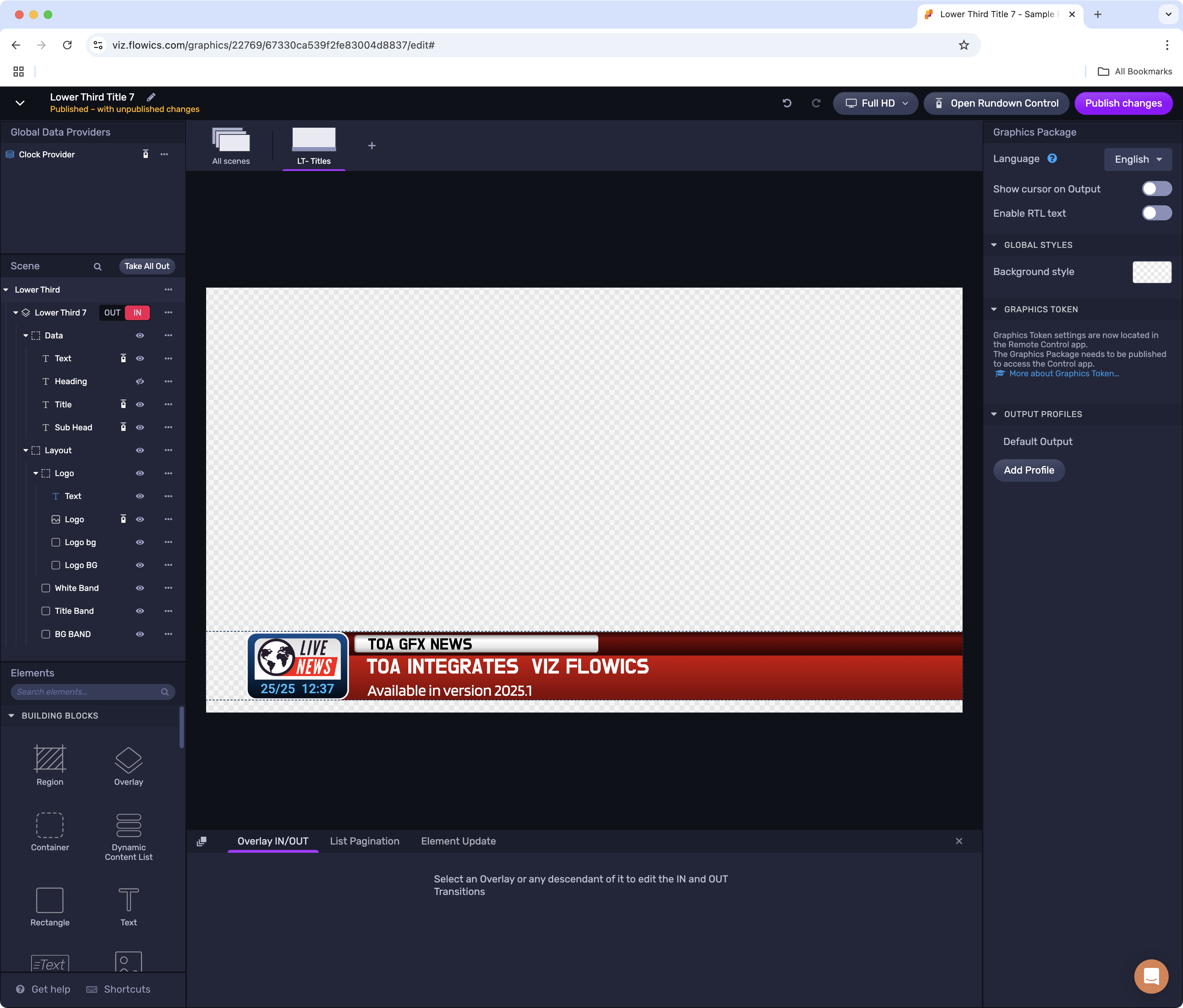
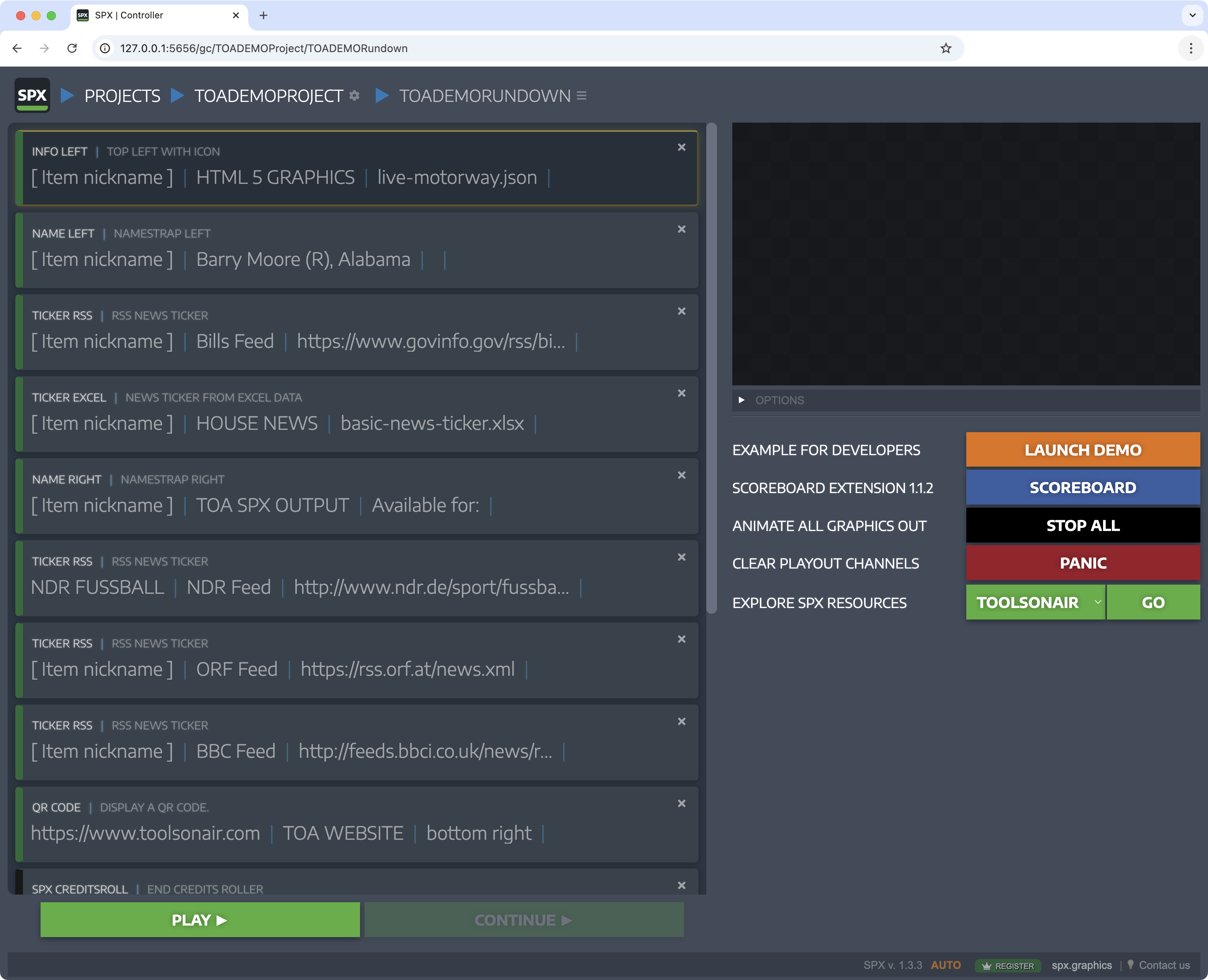
The Preview of HTML graphics template originating from system such as singular.live, Viz Flowics or SPX is performed via the related and web-based Controller of these systems.