
The Library shows a filtered view of the repository folders defined for this Channel. Each tab shows the content of the Repository folders similarly to the Finder's list view (including media-related metadata).
Usage & Notes
Scroll vertically to see all items stored in the Repository folders.
Scroll horizontally to see the media-related metadata.
Move the mouse to the beginning of a column separator, click-hold the mouse button, and move the mouse to the left or right to change the column width.
Click-hold a column header and move the mouse left or right to change the order of the columns.
You cannot remove columns.
Right-clicking a file shows file-level-related options.
Pressing the “Space bar” while a file is selected opens up Apple's Quick Look.
You can hide/show the Library using the corresponding menu options in the View menu.
You can navigate the Library like a Finder window (in list view) by using the arrow keys.
To get additional information about an item, place the mouse over it and wait for the popup message to appear.
In case there are two Videos with the same name in the same folder but with different extensions, setting a new in/out-point and/or poster frame will apply the new settings for both Videos. Move the Videos to different folders to avoid this.
Library Tabs
The picture below shows different states of the Just Live Lite NDI Library and may look different on your system.

Video
Lists all Videos which are available for playout on your system. If a Video clip does not show up in the list but in the Finder, check if the file ends with one of the supported suffixes: “.mov”, “.mpg”, “.mpeg”, “.mp4”, “.m4v”, “.dv” or “.mxf”. Only files with a supported suffix are shown in the Library. Even though the Just Live Lite NDI application displays any “.mp4”, “.mxf” and “.mov” file in the Library it is possible that a Video clip does not play out because the correct codec to decode the file is not installed on the system. Contact your system administrator for more info.
Video clips that do not match the output frame rate are highlighted in YELLOW (🟡) and will be automatically adjusted to the Channel’s frame rate, once added to the rundown. Broken videos are highlighted in RED (🔴) and cannot be selected or added to the Workbench.
Audio
Lists all Audio files from the Repository folder(s) defined in Just Control. “.mp3”, “.m4a” and “.wav” Audio files are currently supported.
Graphic
Lists Graphic files from the Repository folder(s). Only Graphic files with one of the supported suffixes are shown: “.composition”, “.qtz”, “.png” or “.jpg”.
For all channels using .composition templates:
After the installation, please run the Composition Builder application (part of the Just Live Lite NDI bundle) once to ensure, that macOS has properly registered the application under “System Settings → General → Login Items & Extensions”. This will grant that all Template Thumbnails will be shown while working in the Just Live Lite NDI application.
Playlists
Build a Playlist in the Just Play Lite NDI user interface and save it into the Playlist Repository of your Channel. Drag and Drop the Playlist from the Library to the Workbench to add all elements which are part of the Playlist.
Library Columns
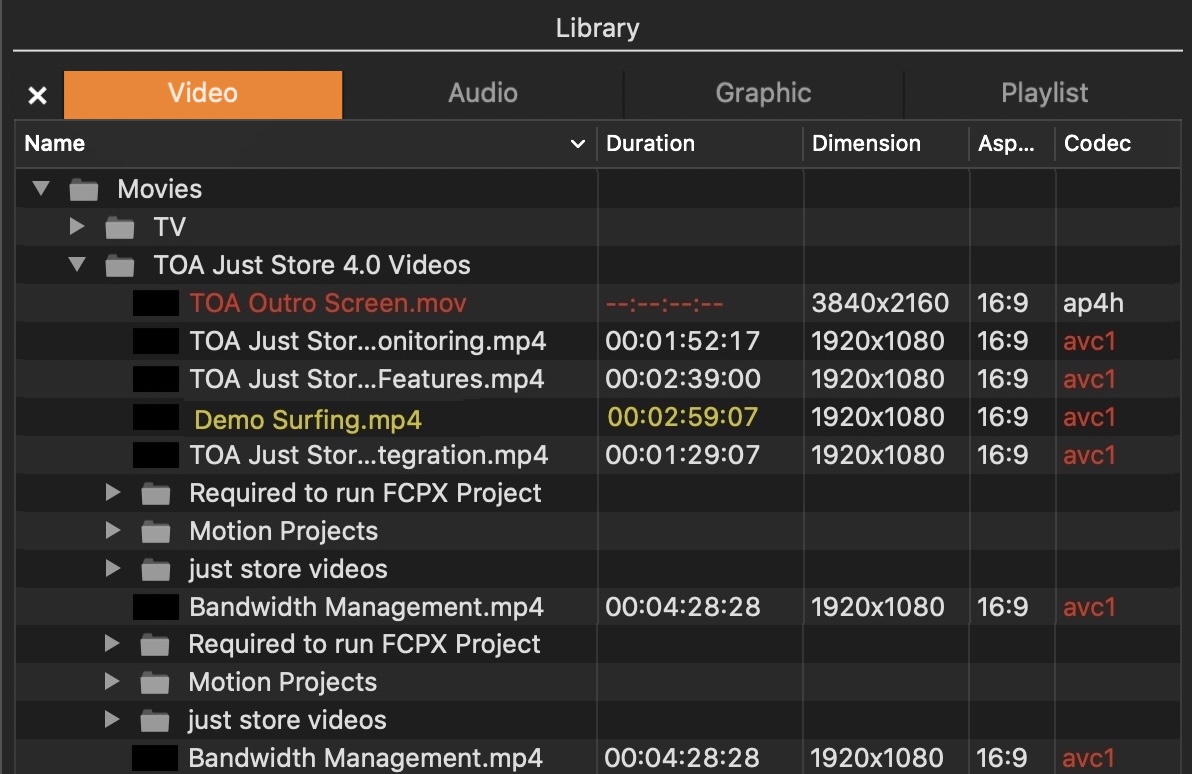
The Library lists all available elements (depending on the selected tab) for playout on your system. The “Metadata Columns” shows the media related metadata – depending on the selected tab. You can rearrange and change the width of the columns by moving the elements in the header area. Video names which are shown in YELLOW (🟡) do not match the current playout frame rate and the frame rate will be adjusted automatically, once added to the rundown. Video Metadata elements that are shown in RED (🔴) do not match the current playout format and will be changed automatically once added to the rundown. RED (🔴) colored aspect ratio information means that the aspect ratio does not match, RED (🔴) colored codec information means that the field order does not match. YELLOW (🟡) colored Name and Duration means that the frame rate of the video does not match the Channel's frame rate and therefore will be converted automatically once added to the rundown.
Red Colored Files
When no Metadata is shown, the element cannot be added to the rundown. This is because the Video uses an unsupported frame rate or codec - or, in case of a real-time graphics element, because it is based on illegal components. You can still make a right mouse click on such a file for available functions.
Library Preview and Control
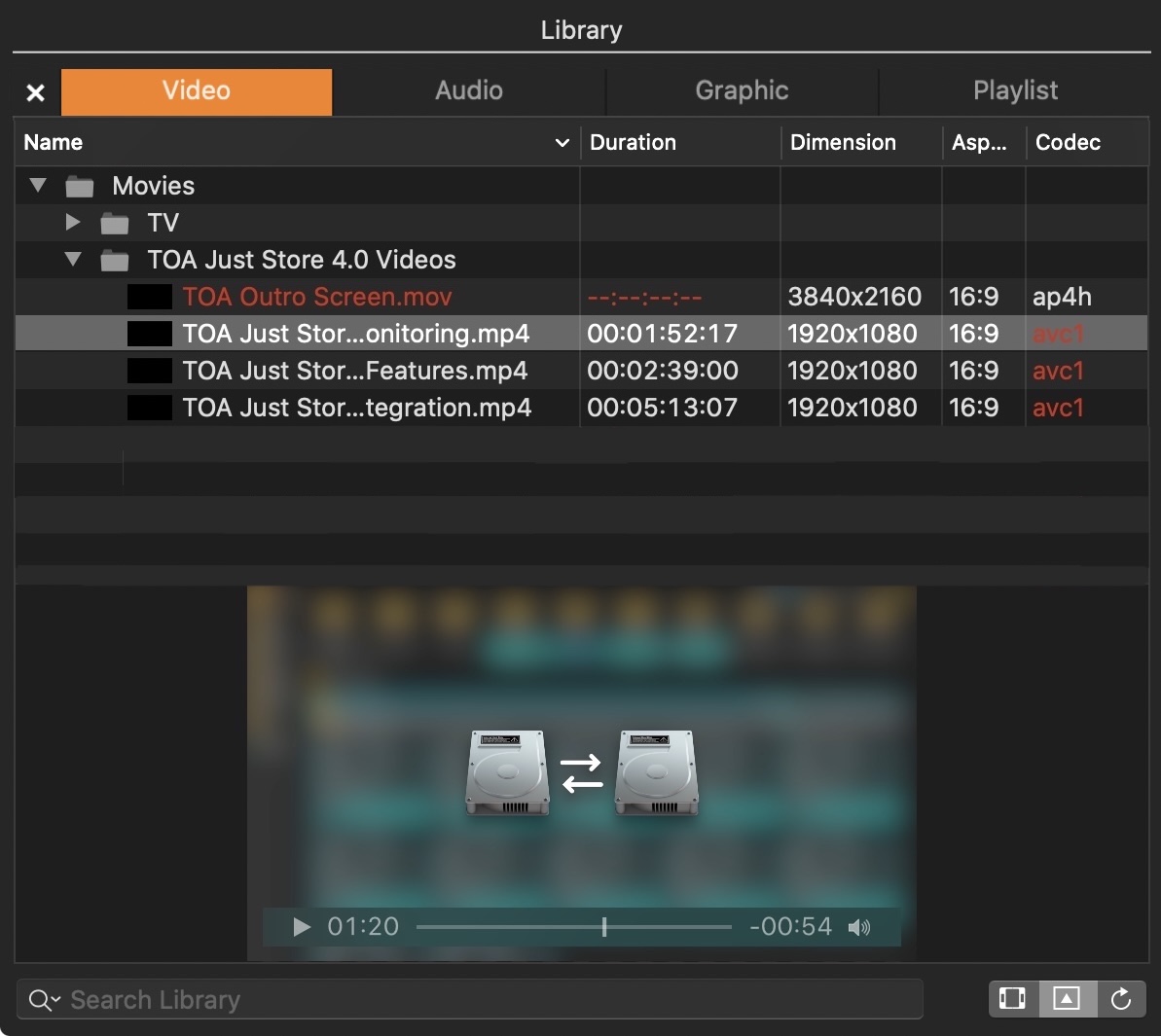
Preview Area: Shows a preview of the currently selected element and allows you to:
Video: Preview the Video (Audio is played out using the System Audio device)
Audio: Listen to the audio file.
Graphic: Preview a Graphics file. In case it has a stop frame, the stop-frame will be handled like On Air.
Playlists: No preview.
Search Field: Allows you to search for files and related metadata in the Repositories. Click on the magnifying glass to select the metadata column you want to use for the search.
Control Buttons:
Trim Window: Select a Video and click this button to open the Trim Editor.
Open/Close Preview: Shows or hides the preview area (if available for the selected element).
Refresh: Refreshes the content of the Library. This is useful in all situations where the content of the Library is not updated automatically. This can be the case when your disk storage does not support file system events or in situations where the metadata sidecar file is not generated correctly. In this case, pressing the “Refresh” button only writes new sidecar files, but does not overwrite already existing sidecar XMLs.