
There are several keyboard shortcuts available which can be used to control the playout, in addition to the methods described below. Please see the chapter Keyboard Shortcuts for more information.
Load and Play an Element Instantly
In case there is currently no Element loaded or playing on the particular layer, the Load and Play function can be executed.
Make sure the destination Layer of the Element is empty.
Select the Element in the Workbench.
Press and release the “Option” key to load and play the Element.
Cue and Play a Video Clip
In some situations, it is necessary to show the first frame of the next Video without starting the playout itself, which is called Cueing.
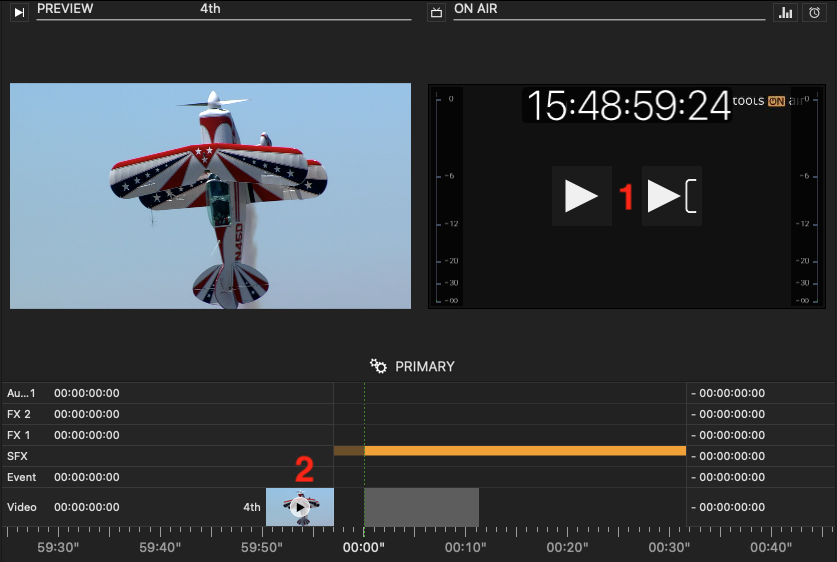
In case a Video clip is already loaded to the Timeline, but the Playout has not started yet, you can cue the first frame of the first Video in the Video Track using one of the following two methods:
Using the On Air control overlays:
Press the “Play” or the “Cue” button to start the Playout of the movie or to cue the first frame.
2. Using the “Play” button of the timeline together with a keyboard shortcut:
Hold down the “Command” key while pressing the “Play” button.
The first frame of the Video is now cued.
To start the Playout, press the “Play” button without holding down any key.
Icon | Function | Dependency |
|---|---|---|
 | Press this button to:
| There has to be at least one movie loaded in the timeline
|
 | Press this button to Cue the first frame of the first Movie in the timeline. | There has to be a at least one movie loaded into the timeline with no Movie currently playing or paused. |
Workbench Double-Click Actions
It is also possible to define a Workbench Double-Click Action in the Preferences of Just Live Lite NDI. By default, this functionality is disabled, but you can choose from one of the following options:
None
Load - loads the element into the timeline in case the timeline is empty
Load and Cue - loads the element into the timeline and shows the first frame, in case the timeline is empty
Load and Play - loads the element into the timeline and starts playing it out, in case the timeline is empty
Clear, Load and Play - stops the playout of the element currently on air, loads the element into the timeline and starts playing it out
Refer to the Chapter Just Live Lite NDI User Interface Settings for more information.
Only Videos can be cued, so if “Load and Cue” is used as the default action, the cue will be ignored for non-Video Elements.
Executing Actions on Multiple Layers
It is possible to execute actions on multiple Layers at the same time by holding the “Command” key while clicking the first Element of each layer. When issuing the Play command in the Timeline, it will then be issued to all selected elements.