
Just Live Lite NDI Settings
The actual setup and configuration of the Settings is done by your system administrator.
You can access the Just Live Lite NDI Settings panel via the menu “Just Live Lite NDI → Settings…”, or by pressing “Command-”, on your keyboard.
The “Reset Warning Alerts” button allows you to re-enable warnings if they have been previously turned off.
General
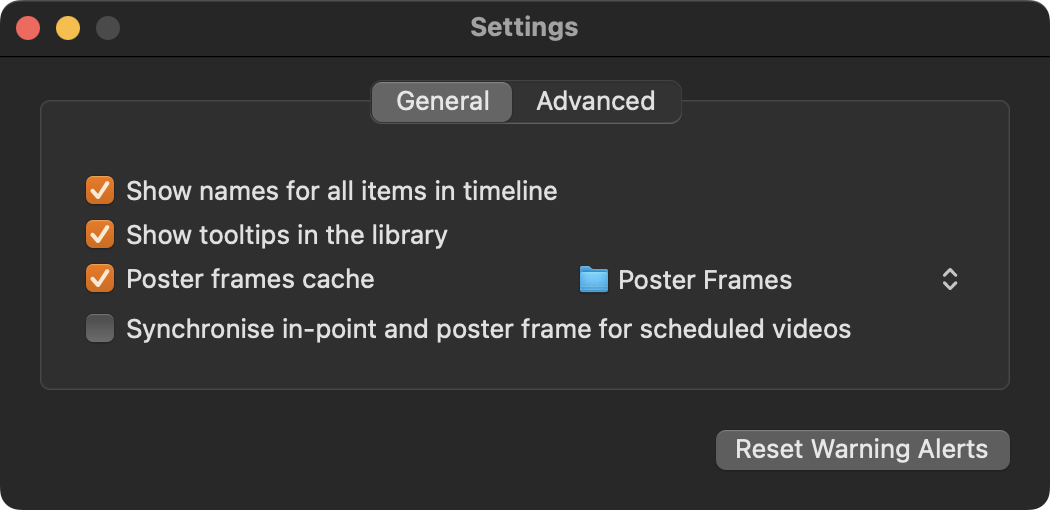
Show names for all items in timeline: Shows the names of all items in the Timeline as an overlay. If this option is deactivated, you can still hover over an item in the Timeline to see its name.
Show tooltips in the library: Deactivate this option to disable tooltips in the Library while moving the mouse pointer over entries. This option is enabled by default.
Poster frame cache: Defines the folder where poster frames will be saved. By default, poster frames are saved in the folder Poster Frames inside the Documents folder of the current macOS User. This option is enabled by default. Disable it to suppress the creation of new poster frames in the Workbench.
Synchronise in-point and poster frame for scheduled videos: Defines if setting a new in-point also changes the poster frame of the video, or not.
Advanced
Changing the “Hold time” value in the Settings, does NOT change the hold time for videos which are already loaded into the Workbench/Timeline, and only newly added videos will take over the new hold time. Select all videos in the Workbench/timeline and choose the “Hold and Cue/Play Next” function again, to take over the new hold time.
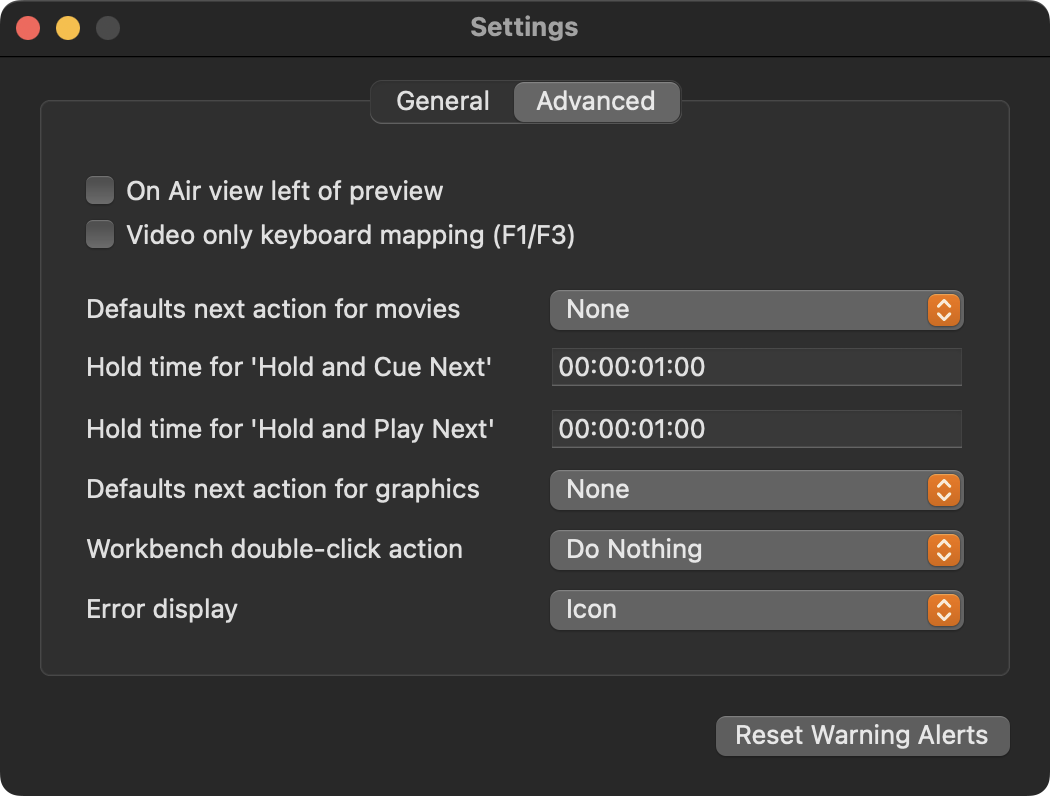
On Air view left of preview: When enabled, the On Air View is located to the left of the Preview View.
Video only keyboard mapping (F1/F3): Activate this checkbox to change the way the “F1/F3” keys should work. By default, pressing the “F1” key starts/stops the playout of the first Layer, the “F2” key starts/stops the playout of the second Layer, and so on. When the checkbox is activated, pressing the “F1” key starts the playout of the first Layer, and pressing the F3 key stops the playout. Pressing the “F1” key while an item is playing has no effect in this case.
Default next action for movies: This option allows you to predefine the default end action for every Video that is dropped into the Workbench. This preset can be overruled later for each Video element using the Inspector.
Hold time for 'Hold and Cue Next': This setting allows you to define how long the last frame of a Video will be “held” before the next clip will be cued.
Hold time for 'Hold and Play Next': This setting allows you to define how long the last frame of a Video will be "held" before the next clip will be played.
Default next action for Graphics (if available): This option allows you to predefine the default end action for Graphic elements that are dropped into the Workbench. This preset can be overruled later for each Graphic element using the Inspector.
Workbench double-click action: This defines the action which is executed when double-clicking an item in the Workbench.
Error display: This option allows you to choose whether error messages are displayed as small icons or as overlays within the On Air Window of the user interface.