The just:out engine as well as the interface clients which are assigned to a channel are looking for videos, graphics and previously saved playlists in the defined repository folders.
- To add, delete or change repository folders used by a channel, select the channel first and then activate the Repositories tab.
- Click the Add Repository button in the corresponding section to add new video, graphic or playlist repositories.
- To remove a repository, select the repository folder and press the backspace-key.
- To change an existing repository folder click on the Choose button beneath an existing repository and select the new repository folder.
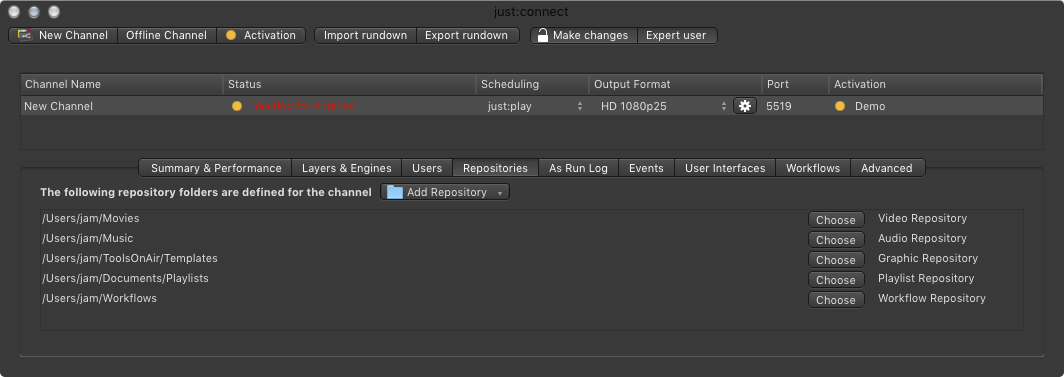
You must restart all active engines and all interface clients which are connected to the channel to reflect the changes.
Please make sure that all engines and all Just Live/Just Play user interfaces that are connecting to this channel do have access to the repository folders defined here, otherwise you will not be able to see all files available for this channel. Failing to give access to the correct paths for engine clients (just:out) and interface clients (Just Live/Just Play) could result in scheduled files not playing out!
The Movies, Audio, Graphic, Event and Playlist tab are visible in the Library does not matter if a repository folder has been configured for the particular media or not. The Workflows tab in the Inspector is only visible in case a Workflow repository folder has been configured here.
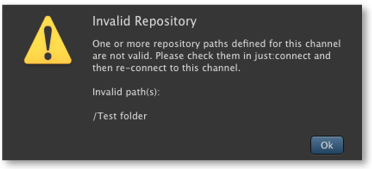
| Invalid RepositoryIn case a defined repository folder is not available, a warning will appear which informs about this issue (after starting the Just Live or Just Play interface client). Drag and Drop a folder or Volume from the Finder into a Terminal window to verify the path of your repository folders. This also works for volumes which are connected via network. |