
The inspector shows the attributes of a selected item. You can click on the individual fields to edit the attributes. Either type the values or use the up/down arrow keys to increase/decrease the values. Use the left/right arrow keys to switch between values. Use the tab key to switch between fields. The following chapters explain the inspector in detail.
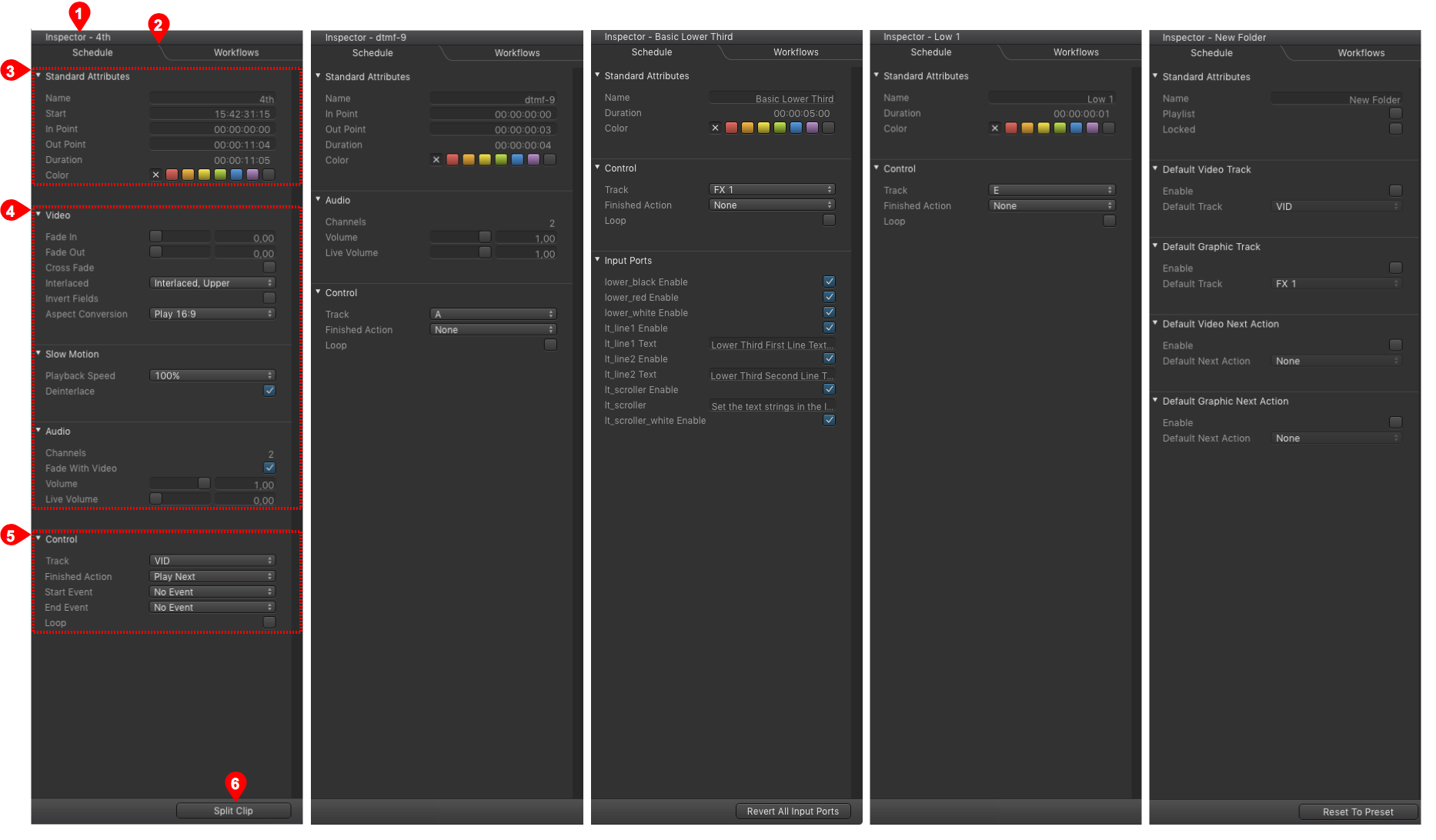
Name Of The Selected Item: Shows the name of the selected item.
Schedule/Workflow Tab:
- Schedule: Use this tab to change the attributes of the selected (scheduled) item.
- Workflows: Use this tab to execute on:core based workflows directly here in the user interface. This tab is only available, if a Workflow repository has been defined by the administrator.
Standard Attributes: Shows all the standard attributes depending on the type of the selected element.
Item Specific Attributes: Shows all the element specific attributes.
Control Items: Allows to define the track the element will use, the finished action and if the element will be looped or played only once.
"Fast Access" Button
Changes in context to the selected element.
- Movie is selected: This button allows you to split the movie.
- Audio is selected: The button is disabled.
- Graphic is selected: This button allows you to reset all input ports (= reset all attributes to their default value).
- Still image is selected: The button is disabled.
- Event is selected: The button is disabled.
- Folder is selected: This button allows you to reset the "Next Actions" ports to the value defined in the Just Live preferences.