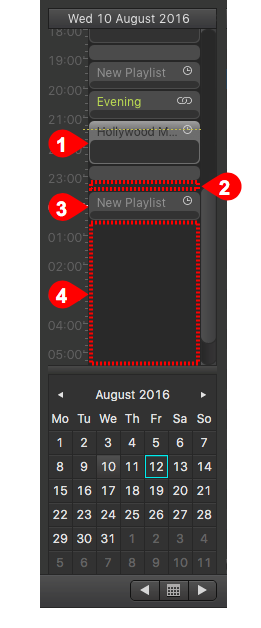
Because the calendar view is the part of the interface which gives you a proportional overview of your rundown, it is the place to add new playlists or delete already scheduled playlists from the channel you are connected to.
| (Un)scheduled time of the rundownn-Hour Playlist: Click and drag the mouse inside the calendar view to create a playlist which increases its length in 15 minute steps. The click time defines the start time of the playlist. Gap Between Playlists: "cmd + shift + double click" fills the whole gap between two playlists with an emtpy playlist. 1-Hour Playlist: Double click an empty area inside the calendar view to create a new, empty playlist with a duration of 1 hour, where the start time is defined by the time the double click has been made. Use "cmd + shift + double click" between two playlists to fill the whole gap automatically. Empty rundown area: Add new playlists to your rundown like described above or by drag and drop like described in the next chapter 7.4 The Calendar View: Drag & Drop (v2.0).
|