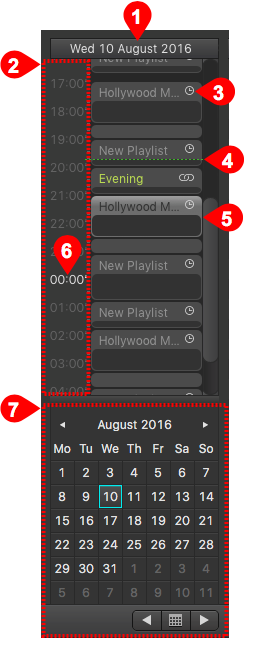
Here you see all playlists which are already scheduled in a vertical timeline. This is also the place where new playlists can be made.
| Day View: Displays the currently selected day. Time Scale: Represents a vertical timeline scale. You can drag the scrollbar to the left/right to rescale the time scale. Start Type: Defines how the playlist will start:
CTI(s): Same as in the timeline. Either you have one CTI ("Master Time Mode") or two CTIs ("Edit Mode"). (Selected) Playlist: Create a playlist by click drag or double click in the calendar view. Move playlists by dragging them, delete them with the backspace/delete key. Double clicking a playlist moves the CTI to the beginning of the playlist. Doing so will immediately activate "Edit Mode". 00:00 Timepoint: Indicates the end of the current day and the start of the next day. Calendar (with previous/next day arrows): Opens a sliding window with a month/day view. This allows you to show/create schedules for different days. Click on the left/right arrow to easily go the a previous or next day. Doing so will immediately activate "Edit Mode". |