
A dashboard is a grid of viewers, players, browsers, and editors. You can choose which widgets it contains, resize them, and arrange them for a specific task such as ingest, playout, or editing. CORE I/O saves the layout for your account as you work.

Opening a dashboard
Click a dashboard in the Dashboard section of the sidebar. To return to your most recent dashboard, click the CORE I/O logo in the app bar. See App Bar and Navigation and Profile and Dashboard Management for information about adding, renaming, reordering, duplicating, and deleting dashboards.
Adding widgets
- Click Add Widgets in the app bar, or press A when no dashboard item has focus.
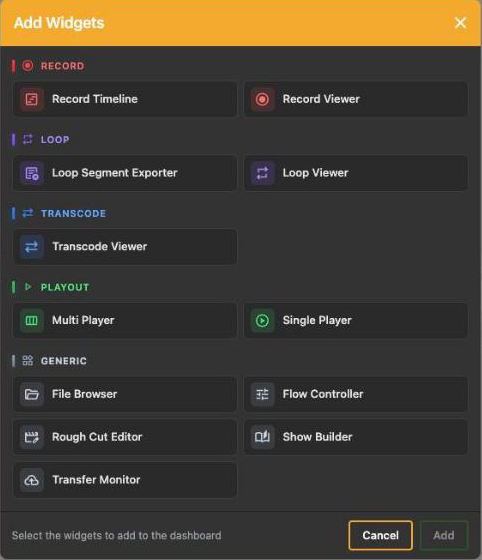
- In the Add Widgets dialog, select one or more widgets. They are grouped by Record, Loop, Transcode, Playout, and Generic and use the color of their flow type. Click a row to select a widget. Use One less and One more to change the number of copies, or click the row again to deselect it.
- Check the selection count in the footer, for example 3 widgets selected. Click Add, or Add 3 when adding several copies. You can also press Enter. To close the dialog without adding widgets, click Cancel, press Escape, or click outside the dialog.
New widgets use their default size and occupy the first available grid position, starting at the top left. The Rough Cut Editor, Loop Segment Exporter, File Browser, and Single Player use their global settings from Defaults. CORE I/O copies these settings when you add the widget; later changes to Defaults do not affect existing widgets.
Assigning a flow to a widget
Record, Loop, Transcode, and Playout widgets require a flow. Until a flow is assigned, the widget displays a placeholder with its name and a table of available flows. The table contains:
| Column | What it shows |
|---|---|
| Host | The host the flow runs on. |
| Flow | The flow name, with a green dot for an active flow (Flow active) or a gray dot for an inactive flow (Flow inactive). You can assign an inactive flow; the widget becomes active when the flow starts. |
| Type | The flow type. If another flow type is currently active but a matching configuration profile exists, the table displays a message such as Playout via "Show profile". Hover over it for details. |
| Actions | Assign (which reads Assigning... while the link is made), or In Use when another widget already holds that flow. |
CORE I/O lists only flows that match the widget type or have a matching profile. The list is sorted by host and flow name. If no compatible flow exists, it displays No matching flows found.
A Record, Loop, Transcode, or Playout flow can be assigned to one corresponding viewer or player widget across all dashboards in the account. Loop Segment Exporters are an exception and can share a Loop flow. If the server rejects an assignment, the widget displays Failed to assign flow.
Parked widgets
A widget remains parked in its placeholder when the assigned flow runs a profile of another type. The placeholder displays the flow name in italics and a hint such as Flow is running configuration "Default" (Record). Switch it to configuration "Playout" to use it here. Use the available buttons to open the flow on the Flows page or remove it from the widget. When you switch to a matching profile on the Flows page or with the Flow Controller, the widget becomes active automatically.
If a profile switch changes the flow type, the server unlinks that flow from all incompatible widgets. The dashboard reloads its widgets to show the change immediately.
Removing a flow from a widget
Open the three-dot menu in the widget header and select Remove Flow. The widget returns to its placeholder, where you can assign another flow. Removing the assignment does not stop the flow.
Arranging widgets
- Move: Drag a widget by an empty area of its header. Buttons and fields are not drag handles.
- Resize: Drag the handle in the lower-right corner. The Record Viewer has a minimum size. Other widgets can be reduced to the smallest size allowed by the grid; most hide details such as audio meters or file information as they become smaller.
Widgets cannot overlap. If you drop a widget onto another widget, the surrounding widgets move down to create space. They move up automatically to close vertical gaps.
The dashboard follows the width of the browser window but has a minimum width. A narrow window therefore displays a horizontal scroll bar.
CORE I/O saves each move and resize immediately for your account. There is no save button or undo command. Drag or resize the widget again to correct a change.
Removing a widget
Open the three-dot menu in the widget header and select Remove Widget. This command is also available when the widget displays a placeholder. CORE I/O removes the widget from the dashboard and server without affecting the assigned flow.
Selecting widgets
You can select Record Viewers, Loop Viewers, Transcode Viewers, and Single Players. Click the picture area of a widget; an orange border identifies the selection. Keyboard shortcuts apply to the selected widget. Click the picture again or click an empty dashboard area to clear the selection. Clicking the dashboard background also closes app bar pop-ups. See Keyboard Shortcuts.
You can select several Record Viewers at the same time. Transport controls in any selected viewer then apply to all selected viewers:
- Record starts each selected flow that is not recording.
- Stop stops each selected flow that is recording.
- Split splits each selected recording.
- A, M, C, N, and E open their respective dialogs for the complete selection.
Shift+Aclears the action sets of all selected flows and displays Actions cleared.
Click the picture in each Record Viewer that you want to select. Press Cmd/Ctrl+A to select every unselected Record Viewer on the dashboard. Use the checkbox at the left side of a Record Viewer header to select or deselect all Record Viewers. Select Loop Viewers, Transcode Viewers, and Single Players by clicking their picture.
Locking a widget
Widgets with transport or editing controls have a lock icon in their header. The Single Player uses Lock transport, the Multi Player and Show Builder use Lock show editing, and Record and Transcode Viewers provide a lock control. A locked widget ignores transport and settings shortcuts and rejects files dragged from the File Browser. This helps prevent accidental changes to a live output. CORE I/O saves the lock state with the widget. Lock Dashboard in the user menu only closes the menu; locking always applies to individual widgets.
Widget headers
Each widget header contains a ? button that opens the relevant manual chapter, controls specific to the widget, and a three-dot menu with widget settings and Remove Widget. Drag the widget by the empty area between its title and buttons.
The widgets
| Widget | Category | Purpose | Chapter |
|---|---|---|---|
| Record Viewer | Record | Live picture, audio meters and record controls of a Record flow, with naming, capture, destination, metadata and action settings. | Record Viewer |
| Record Timeline | Record | Scheduled recordings for several Record flows on a calendar timeline. | Record Timeline |
| Loop Viewer | Loop | Live picture and status of a Loop flow. | Loop Viewer |
| Loop Segment Exporter | Loop | Marks in and out points in the rolling loop and exports the segments as files. | Loop Segment Exporter |
| Transcode Viewer | Transcode | Live picture of a Transcode flow and its stream endpoint selection. | Transcode Viewer |
| Single Player | Playout | Playlist and transport of one Playout flow. | Single Player |
| Multi Player | Playout | Up to four Playout flows driven from one show. | Multi Player |
| File Browser | Generic | Browses mount points and other sources, previews files, and hands them to players and editors. | File Browser |
| Flow Controller | Generic | Switches the configuration profile of every flow that has more than one. | Flow Controller |
| Rough Cut Editor | Generic | A simple editor that assembles clips from the File Browser into a sequence and exports it. | Rough Cut Editor |
| Show Builder | Generic | Builds and edits shows (ordered blocks of clips) for the players without a flow. | Show Builder |
| Transfer Monitor | Generic | Watches uploads and downloads between mount points and cloud storage. | Transfer Monitor |
Good to know
- A dashboard loads its widgets when you open it. A slow load displays the full-screen spinner; a fast load may not display it.
- When a visible flow reports an error, the widget error icon turns red and the Error button in the app bar becomes active. See App Bar and Navigation.
- Each widget stores its own settings, such as overlays, selected presets, and current folder. Two File Browsers on the same dashboard can therefore display different folders.
- The A shortcut opens Add Widgets only when the dashboard has keyboard focus. A selected viewer, a File Browser or editor that you clicked, or an open dialog receives the shortcut instead. Click an empty dashboard area before pressing A.