
The Multi Player controls up to four Playout flows as players A, B, C, and D. Each player tile displays its preview, on-air status, and transport controls. Below the tiles, clips from all players appear in a single running order organized into stories. Use the Multi Player for shows that span several outputs or to play an Octopus newsroom rundown received through MOS.
Shows are saved automatically, as in the Single Player. When the widget is bound to a MOS rundown, the newsroom controls its rundown items and the Multi Player reflects those updates.
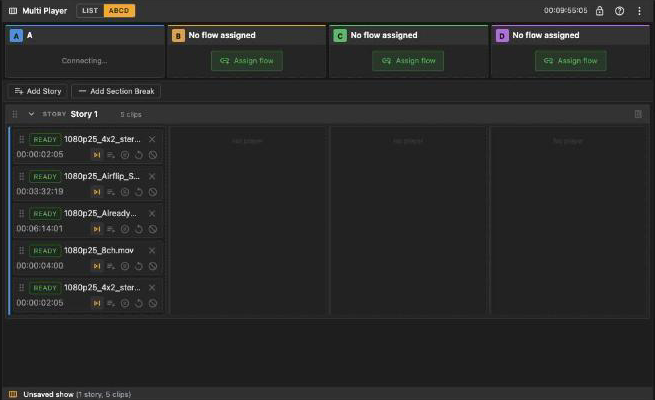
A Multi Player with player A assigned and a story of five clips in the ABCD board
Adding the widget and assigning players
- Open Add Widgets and choose Multi Player from the Playout category.
- In the empty widget, select a Playout flow for Player A. The table shows Host, Flow, Type, and Actions. Click Assign for the required flow. A flow already assigned to a Multi Player is labeled In Use.
- To add another player, click Assign flow in an empty player tile, or open the widget menu and click Assign next to the player letter. Choose Unassign from the same menu to release a player.
Each assigned tile shows its flow name. Until the connection is ready, the tile displays Connecting…
Layout
- Header: The List/ABCD view switch, total show duration, editing lock, help button, and widget menu.
- Player tiles: One tile for each player letter. A tile shows the flow name, clip count, total duration, error notifications, preview-audio control, preview and position timecode, on-air state, active clip name, and transport controls. ON AIR means a clip is on the output, whether playing or paused. BLACK means no clip is on the output.
- Mode strip: The show name, rename control, and save status when a show is loaded, or the rundown status when a MOS rundown is bound.
- Toolbar: Add Story in board view and Add Section Break. When editing is locked, it displays Locked: playback only.
- Show area: The running order in List or ABCD board view.
- Footer: The current state: No player assigned, No show, Unsaved show, the show name with its story and clip counts, or the rundown name.
The per-player transport
Each tile has a compact version of the Single Player transport. It includes the IN/OUT scrubber, Set IN, Go to IN, Play/Pause, Go to OUT, Set OUT, Clear IN/OUT, Loop, and hold-to-eject controls. Marks are locked by default; use the pencil button to unlock or lock them. All controls act directly on the tile's Playout flow.
Board and list view
The view choice is saved with the widget.
ABCD is the default board view. Each story spans four columns, one for each player. A clip card includes a drag handle, status, file name, remove button, duration, and finish actions. Drag a card within its cell to reorder it or into another column to change its player. Drag a complete story row to reorder stories. Each story also has controls to collapse, rename, or delete it. Columns for unassigned players are grayed out and do not accept clips.
List: Displays the complete show as a running order with #, Status, Story/Item, Duration, Player, Finish Action, and remove columns. The Player badge shows the assigned letter. Click it to move the clip to the next assigned player.
You cannot change a clip's player while the clip is cued or on air, or when only one player is assigned. Below the list, each assigned player has its own file drop zone.
Section breaks appear in both views as END OF SECTION rows with their own drag and delete controls.
Building a show
Adding clips: Drag files or subclips from the File Browser onto a player tile, a story cell in board view, or a player's drop zone in list view. Files are added in drop order at the end of the last story. If the show has no stories, the widget creates Story 1. Choosing Send to Playout in the File Browser also appends the clip to the selected flow.
Stories: Click Add Story to append Story N. Use the pencil to rename it and the chevron to collapse or expand it. Deleting a story with clips requires confirmation. You cannot delete a story that contains a cued or on-air clip.
Section breaks: Click Add Section Break to append a break after the last block. A break marks the end of a running-order segment and can be moved like a story.
Changing players: Moving a clip to another player recreates it on that flow with the same marks and finish action. A cued or on-air clip cannot be moved.
Finish actions: Choose Play Next, Cue Next, Hold Last Frame, Re-Cue, or None. None drops the player output to black.
Removing a clip: Click X on its card or row. Removing a cued or on-air clip requires confirmation.
The first edit to an unsaved show creates and loads Untitled Show N. From then on, every edit is saved automatically. The show bar displays Saving…, Saved, Save failed, or Out of sync.
Status and colors
Each clip carries a status button, the same one the Single Player uses, with the Multi Player's wording:
The active clip has a progress strip along its card or row: orange during playback, blue at the current position while paused, and green after the clip reaches its end. A player tile has a green frame while its flow is playing. Player letters use fixed colors so you can identify them quickly: blue for A, amber for B, green for C, and purple for D.
| Label | Meaning | Click |
|---|---|---|
| On Air (red) | The clip is playing, or it is the active clip paused on the output. | While paused, hover to display PLAY in board view or PLAY NOW in list view, then click to resume. The button has no action during playback. |
| Cued (amber) | The engine's next clip, prepared ahead of time. | Hover to display PLAY or PLAY NOW, then click to take the clip to air. |
| Ready (green) | Any other clip. | Hover to display CUE, then click to cue the clip on its first frame. |
| Loading | The entry is still being created. | Nothing. |
| Error | The engine reports the entry as faulty. | Nothing. |
Loading and saving shows
Load show… in the Story section of the widget menu opens the show picker. It contains a search field and one row for each saved show, including mode, clip count, and duration. The current show has a Loaded badge. You can also drag a show from the File Browser's Shows source or choose Load into Multi Player from its context menu.
If the players already contain clips, the widget asks you to confirm Load show? Clips that are not part of the selected show are removed. If this affects an on-air clip, the confirmation warns that the corresponding output will drop to black. Loading the current show again only displays a warning that it is already loaded.
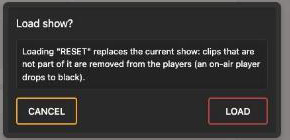
New show creates and loads an empty Untitled Show N. If clips are already loaded, the same replacement confirmation appears.
Detach show (keep clips) removes the link to the saved show but keeps its clips on the players. The footer displays Unsaved show until the next edit creates a new show.
Loading a show while a rundown is bound unbinds the rundown first.
A Single Player can also load a Multi show. It combines the stories into one flat playlist on its flow.
MOS rundowns (Octopus)
A Multi Player can follow a newsroom running order. The backend mirrors each rundown into the playout flows that are named after the rundown's item channels; the widget shows the full rundown and lets you play it.
Binding a rundown
Choose Load MOS rundown… from the Newsroom section of the widget menu. The picker lists each running order with its name, planned duration, and Ready to air state. The current rundown has a Loaded badge.
Before the newsroom sends a rundown, the picker displays No running orders received yet. If the MOS server cannot be reached, it displays Failed to load the running orders (is the MOS server running?).
You can also drag a rundown from the File Browser's MOS Rundowns source onto the widget, or choose Load into Multi Player from its context menu.
If clips are already loaded, the widget asks you to confirm Load rundown? User-added clips are removed from the players, and an existing show is detached before the rundown is loaded.
While a rundown is bound
The rundown bar shows the name, planned duration, Ready to air status when set by the newsroom, and Live from newsroom. During synchronization, it displays Syncing…. Click the sync button to request an immediate refresh from the newsroom.
The widget rebuilds the show whenever the newsroom updates the rundown. It matches stories and items by their MOS IDs, regenerates section breaks, and moves manually added stories or breaks to the end.
A media item appears on the player whose flow name matches the item's channel. The newsroom controls its order and player assignment, so the clip has no drag, reassignment, or remove controls.
Text, live, and graphics elements appear as read-only chips in board view or labeled rows in list view. A video slot without linked media displays awaiting media with an hourglass, then becomes a clip when the newsroom links a file. If an item's channel does not match an assigned player, the item reports the missing or unknown channel.
If the newsroom removes the rundown, the bar displays Deleted in newsroom. A failed synchronization displays Sync failed.
Unbind rundown (keep clips) stops newsroom synchronization and keeps the current clips on the players.
Widget menu
| Section | Entries |
|---|---|
| Players | One row for each player letter with the flow name, or Not assigned, and an Assign or Unassign action. |
| Story | Load show…, New show, and, while a show is bound, Detach show (keep clips). |
| Newsroom | Load MOS rundown… and, while a rundown is bound, Unbind rundown (keep clips). |
| Remove Widget |
Locking
The lock button freezes structural edits: no drops (Show is locked), no reordering, no adding or deleting of stories, breaks or clips, no renaming, no assigning of players. Status buttons and the per-player transports keep working, so a locked show can still be played. The toolbar reads Locked: playback only while locked.
Good to know
A paused player still shows ON AIR in its tile: the frame is on the output. Only an empty player is BLACK.
Removing the active clip, ejecting it, or loading a show over it drops that player to black.
Each player's playlist lives on its flow. Two widgets on the same flows show the same entries; a Single Player on one of the flows shows that player's clips as its playlist.
If the current show is changed or deleted elsewhere, a notification tells you and the widget reloads or closes the show as required.