
A metadata set defines the fields that an operator completes during recording, including text fields, checkboxes, and selection lists such as "Reporter", "Approved", or "Program". It also controls the order in which fields appear and provides an export template for writing the values alongside the recording as JSON, XML, or text.
Metadata fields can additionally be used as tokens in file names (see Naming Presets).
Opening the page
In the sidebar, open Configuration and select Metadata Views, or go to /metadata-views. The header reads "Configure metadata sets, fields, and export templates".
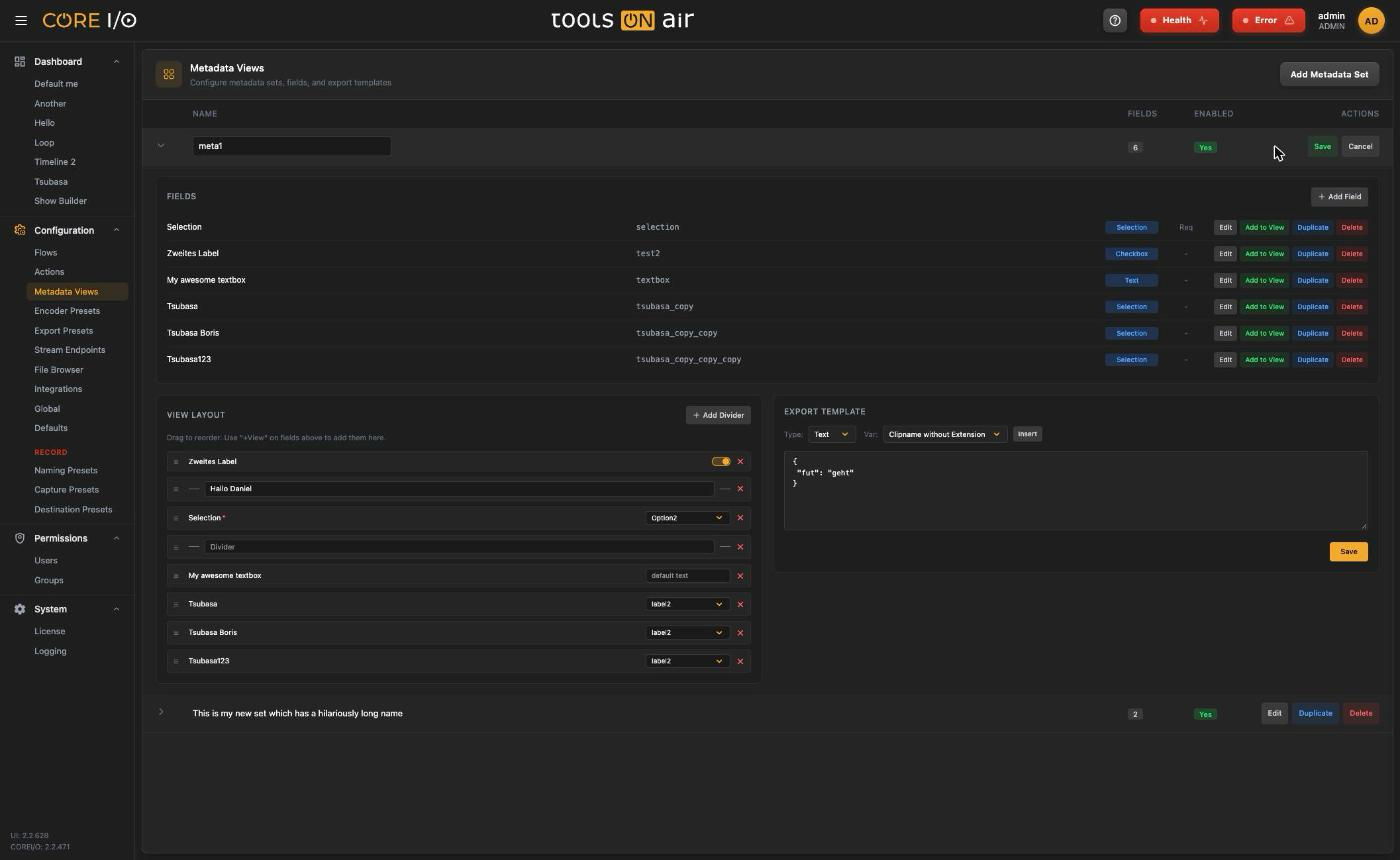
A metadata set in edit mode
Layout
The table lists each set with its Name, the number of Fields and whether it is Enabled (green "Yes" or gray "No"). Click a row or its arrow to expand it. The expanded area has three parts:
- Fields: The controls included in the set.
- View Layout: The order in which operators see the fields, including optional dividers.
- Export Template: The file written alongside each recording.
The Actions column holds Edit, Duplicate and Delete for the set. With no sets the page reads "No metadata sets".
Creating a set
- Click Add Metadata Set. An input ("Enter set name...") appears in a new row.
- Enter a name, then click Create or press Enter. Press Escape or click Cancel to discard it.
A blank name displays "Please enter a set name." A name already in use displays "A set with this name already exists." New sets are enabled by default. A toast confirms "Metadata set created."
Renaming, duplicating and deleting a set
Edit turns the name into an input (and expands the set). Save stores it, Cancel reverts. A duplicate name warns "A set with this name already exists.".
Duplicate creates <name>_copy with copies of all fields, the view layout, and the export template. Further copies use _copy1 and so on.
Delete changes the buttons to Confirm and Cancel. Confirming removes the set and displays the toast "Metadata set deleted."
Fields
Click Add Field in the Fields section to open the inline field form, or Edit on an existing field to change it.
Click Save to store the field, or Cancel to close the form. Validation messages include "Label and Name are required." and "Name must be unique." Toasts confirm "Metadata field created." or "Metadata field updated."
Each saved field row shows its label, name, a blue type badge and "Req" when required, with these buttons:
- Edit: Open the field form. This button is disabled while another field in the set is being edited.
- Add to View: Append the field to the view layout. If the field is already present, nothing changes.
- Duplicate: Copy the field as
<name>_copy. - Delete: Select Confirm to remove the field, including its entry in the view, or Cancel to keep it.
| Field | What it does |
|---|---|
| Label | The text the operator sees. Required. |
| Name | The technical name used in templates and naming tokens. Required, unique within the set; spaces are removed as you type. |
| Type | Text, Selection or Checkbox. |
| Required | Yes or No. Required fields are marked with a red * in the view. |
| Reset | Yes or No: whether the value is cleared after each recording. |
| Default | For Text: the default text. For Checkbox: Off or On. For Selection: one of the options, or None. |
| Selection Options | For Selection: click + Add Option and enter a Label and a Value for each entry; the × removes an entry. Numeric values are stored as numbers. |
View Layout
The Record Viewer renders the view layout in the order shown here.
- Drag an entry by its ☰ handle to reorder it. Changes save immediately.
- Click Add Divider to append a divider, then enter its caption in the field with the placeholder "Divider".
- Click × on an entry to remove it from the view. Removing an entry does not delete the field from the set.
- Each field entry previews its control: a text input, a selection list, or a toggle.
An empty view reads "No fields in view. Add fields from the list above.".
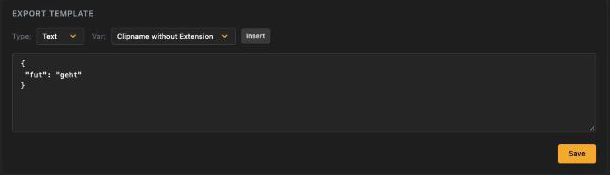
Export Template
The template is written for every recording of a flow that uses this set.
- Choose the Type: JSON, XML, or Text.
- Enter the template in the text area. To insert a value, select it under Var and click Insert. CORE I/O inserts the variable at the cursor.
- Click Save. This also saves the view layout. A toast confirms "Export template saved."
Var includes the recording variables (%coreio_clipname, %coreio_full_clipname, %coreio_timecode_source, %coreio_channel_name, %coreio_container, %coreio_framerate, %coreio_framerate_is_drop, %coreio_aspect_ratio, %coreio_capture_codec, %coreio_audio_channels, %coreio_capture_resolution, %coreio_capture_width, %coreio_capture_height, %coreio_capture_duration, %coreio_capture_inpoint, %coreio_capture_outpoint, %coreio_bitrate, %coreio_custom_date, %coreio_chunk_start_timecode, %coreio_chunk_end_timecode, and %coreio_no_extension_clipname). The list also includes one %<name> entry for each field in the set, labeled with the field's display label.
If the server rejects the template the toast reads "Failed: Invalid format"; any other failure reads "Failed to update metadata set.".
The Export Template area
Where metadata sets are used
Record Viewer: the Metadata Views entry in the settings menu opens Update Metadata View for flow "<flow name>" with a Select Metadata View dropdown. The selected set appears in the widget, and its values are written with each recording. When the iconik integration is enabled, this entry opens the iconik metadata dialog instead. See Record Viewer and Production integrations.
Naming Presets: every field of every set is offered as a metadata token, grouped by set; disabled sets are listed with "(disabled)". See Naming Presets.
Good to know
The Enabled badge reflects the set's state; this page shows it but has no switch for it.
Field types Date, Time and DateTime exist on the server but are not offered here.
Deleting a field that a naming preset uses as a token leaves that token unresolvable; recording on such a preset is blocked until the token is removed or the field recreated with the same name.