
The Transfer Monitor displays file transfers between local storage and configured cloud buckets or FTP servers. It includes uploads to S3, Backblaze B2, FTP, and SFTP destinations, as well as downloads from those destinations to a mount point. Transfer status and progress update in real time, and you can cancel or retry a job. The widget also accepts files dragged from a File Browser to start an upload.
Add the widget from Add Widgets under Generic. It is not assigned to a flow. Configure transfer destinations under Integrations; see Storage Integrations.
A Transfer Monitor listing finished uploads and downloads
What appears here
- Uploads started by dropping files on the Transfer Monitor.
- Uploads started by dropping local files on a File Browser set to a cloud or FTP preset.
- Uploads started by backend file-upload actions (see Actions).
- Downloads started by dragging remote files to a File Browser set to a mount point (see File Browser).
The list holds the backend's transfer history, so transfers started by other users and before you opened the dashboard appear too. It is reloaded whenever the connection to the backend is re-established.
During the initial request, the widget displays Loading transfers… An empty history displays No transfers. If the backend cannot be reached, it displays Failed to load transfer history.
Layout
The header shows Transfer Monitor and, when the list is not empty, the number of active transfers. The three-dot menu contains Clear All whenever completed, failed, or canceled transfers are present, and Remove Widget. The footer shows the total number of listed transfers.
Each transfer is one row:
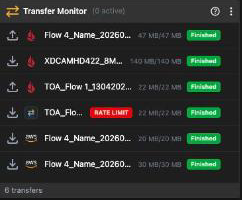
Running transfers show a second line with a progress bar, the percentage and the estimated remaining time (~45s remaining, ~3m 10s remaining). Failed transfers show the backend's error message in red under the row; hover it to read a long message in full.
| Element | Meaning |
|---|---|
| Direction icon | An up arrow for an upload, a down arrow for a download (the tooltip says Upload or Download). |
| Destination icon | The logo of the destination type: FTP, SFTP, AWS S3 or Backblaze B2, a generic server icon otherwise. The tooltip names the protocol. |
| File name · preset | The file and the destination preset. Hovering shows the remote path, the preset and, for downloads, the local destination folder. |
| RATE LIMIT | Red badge on transfers whose preset caps the upload rate; the tooltip shows the limit, for example Rate limited: 8 MBit/s. |
| Bytes | Transferred and total size, for example 1.2 GB/4.5 GB. |
| State badge | See the table below. |
| Cancel | Shown on queued and running transfers. |
| Retry | Shown on failed and canceled transfers. Queues the same transfer again. |
| × (Dismiss) | Appears when you hover over a finished, failed, or canceled row. Removes that row from the history. |
States and colors
The list is sorted by status. Running transfers appear first, with the most advanced job at the top, followed by queued, finished, failed, and canceled transfers. Within each group, the newest transfer appears first.
| Badge | Color | Meaning |
|---|---|---|
| Queued | Gray | Waiting for the backend to pick it up. |
| Uploading | Orange | An upload in progress; the progress bar is orange. |
| Downloading | Blue | A download in progress; the progress bar is blue. |
| Finished | Green | Completed. A File Browser showing the destination folder refreshes on its own. |
| Error | Red | Failed; the reason is shown under the row. Use Retry. |
| Cancelled | Yellow | Stopped on request. Use Retry to run it again. |
| Cancelling... | Shown in place of the state after you click Cancel, together with Cancellation requested..., until the backend confirms. |
Uploading files by drag and drop
- Drag one or more files from a File Browser on a mount point onto the Transfer Monitor. The widget highlights and displays Drop to upload. Files from cloud or FTP sources and non-file rows, such as projects, shows, or rundowns, are not accepted.
- In the panel below the header, review the file names and enabled upload presets. Hover over the summary to view all dropped file names. The panel displays Loading presets... while retrieving the list, or No enabled upload presets when no destination is available.
- Select one or more presets. Each preset creates a separate transfer for every dropped file.
- Click Upload. The button displays Uploading... while the transfers are queued. Click Cancel, press Esc, or click outside the panel to close it without uploading.
If some transfers could not be queued you see n of m uploads failed to queue.; the others run normally.
Managing transfers
Cancel asks the backend to stop a queued or running transfer. The row displays Cancelling... until the backend reports Cancelled. If the request fails, it displays Failed to cancel transfer.
Retry queues a failed or canceled transfer again with the same source, destination, and preset. A failed request displays Failed to retry transfer.
Dismiss, shown as × on a finished, failed, or canceled row, removes that entry from the history.
Clear All removes all finished, failed, and canceled entries. Queued and running transfers remain.
Good to know
Progress and state come from the backend as they change; you do not need to refresh. Every Transfer Monitor on any dashboard shows the same list.
A finished upload or download also refreshes any File Browser that currently shows the source or destination folder.
RATE LIMIT is a property of the preset, not of the transfer: every upload through that preset is capped. Change the limit in the preset under Storage integrations.