
The Single Player controls one Playout flow. It displays the output preview, transport controls, and the IN and OUT points of the current clip. Use it to play a single file or a saved running order.
The player has two modes. In single-file mode, it holds one file at a time. Loading another file replaces it, and the player does not save a playlist. In show mode, it holds a saved playlist with finish actions. Changes are saved automatically, and newly added clips are appended to the end.
A Single Player with a clip loaded in single-file mode
Adding the player
- Open Add Widgets on a dashboard and choose Single Player from the Playout category (see Dashboards).
- In the list of Playout flows, click Assign for the required flow. The table shows Host, Flow, Type, and Actions. A flow assigned to another player is labeled In Use.
- You can also assign a flow that contains a Playout configuration but is currently running another configuration. The player remains inactive until you switch the flow to Playout (see Flows and Flow Controller).
The header shows the flow's name once it is assigned. Remove Flow in the widget menu unlinks the flow again.
Layout
From top to bottom, the widget contains:
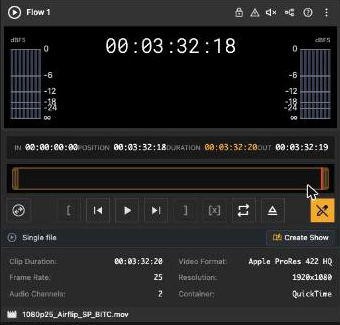
- Header: The flow name, transport lock, error notifications, audio monitor, flow nodes, and the three-dot menu.
- Preview: The flow's live output. The frame is green during playback and orange when the widget is selected. Click the preview to select the player; keyboard shortcuts only affect the selected player. Without a source, the preview prompts you to drop files from the File Browser, or displays No source on air when a playlist exists but no clip is active.
- Timecode row: The IN, Position, Duration, and OUT values of the current clip. To seek to a specific position, click Position or press G, enter a full timecode, and press Enter. Press Esc to cancel.
- Scrubber: Available in single-file mode only. The yellow area represents the IN/OUT range, with a handle at each end, and the red line represents the playhead. The scrubber is locked by default. Click the pencil button to unlock it, then drag the handles to adjust the marks or click and drag the track to seek.
- Transport: Playback and marking controls. Press T or use the control on the left to switch between the marking and jog sets.
- Mode bar: Displays Single file with a Create Show button, Unsaved playlist, N entries, or the current show name and save status.
- Playlist: The show entries, available in show mode and for unsaved playlists. Drag the resize handle between the preview and playlist to adjust their heights.
- Clip metadata: Clip Duration, Video Format, Frame Rate, Resolution, Audio Channels, and Container for the current file. Click the file name in the footer to show or hide these details.
- Footer: The name of the current file. Hover over it to view the full path. The name turns amber when the clip frame rate does not match at least one output node; hover to view the details.
Loading a file
In single-file mode, loading a file replaces the current file. The new file is cued on its first frame and remains paused.
- Drag and drop: Drag a file or subclip from the File Browser onto the player. The overlay displays Drop to load immediately. If you drop several files, only the first file loads in single-file mode.
- Send to Playout: Right-click a file or subclip in the File Browser and choose Send to Playout. When several players are available, the menu contains one Send to entry for each flow. Locked players are not listed.
- Unsaved playlist: If the player still contains several unsaved entries after a show was detached or deleted, dropping a file opens the Replace playlist? confirmation. Click REPLACE to load the file or CANCEL to keep the playlist.
If the backend rejects a file, a notification explains why. If a subclip was deleted before it could be loaded, the player displays Subclip no longer exists.
Transport and marks
The default marking set contains, from left to right: Set IN point, Go to IN, Play/Pause, Go to OUT, Set OUT point, Clear IN/OUT points (D), Loop, and Eject. Unlock the scrubber before setting or clearing marks; these controls are grayed out while it is locked.
The jog set, available with the left toggle or T, contains Fast reverse, Jump 10s backward, Jump 1s backward, Jump 10 frames backward, Step 1 frame backward, Step 1 frame forward, Jump 10 frames forward, Jump 1s forward, Jump 10s forward, and Fast forward. From pause, Fast forward starts at 1x and advances through 2x, 4x, 8x, and 16x with repeated clicks. Fast reverse uses the same speeds in reverse.
The current speed shows as an overlay on the preview (for example 4x) and pausing resets it to 1x.
Stop (Shift+E) re-cues the clip at its IN point and pauses playback. The file remains loaded.
Eject: Press and hold the eject button until its indicator fills. The active entry is removed and the output drops to black. Release the button early to cancel.
Loop (P) repeats the complete playlist. If the last entry uses Hold Last Frame or None, the loop button shows a warning because the playlist cannot wrap. Set the final entry to Play Next or Cue Next to allow looping.
Shows and the playlist
A show is a saved playlist. The Single Player writes every change to the show as you make it.
Creating a show
Click Create Show in the mode bar or widget menu. The current file becomes the first entry, and the show is saved as Untitled Show N. Its name opens for editing so you can rename it immediately. The player switches to show mode, displays the playlist, and appends future drops.
Loading a show
Choose Load Show… from the widget menu to open the show picker. Search by name or select a row that shows the mode, clip count, and duration. The current show has a Loaded badge. If no shows exist, the picker explains that you can create one on a player and that it will be saved automatically.
You can also drag a show from the File Browser's Shows source onto the player, or right-click the show and choose the appropriate Load into entry.
If the player already contains entries, it asks you to confirm Load show? If a clip is on air, the dialog warns that removing it will drop the output to black. Click LOAD to replace the playlist. The show bar displays the loading status, and the first clip is cued when loading completes. If the selected show is already loaded, the player reports that no change is required.
The show bar
The show bar contains the show name, rename control, save status, and Unload Show button. Press Enter to confirm a new name or Esc to cancel. The save status is Saving…, Saved, Save failed, or Out of sync. A new edit retries a failed save or resumes saving after an out-of-sync state. During loading, the bar displays Loading show…; if the show is unavailable, it reports that state. Changes or deletion from another session trigger a notification and an automatic reload or unload.
Leaving show mode
Detach Show (keep playlist) removes the link to the saved show but keeps all entries on the player.
The mode bar then reads Unsaved playlist, N entries: nothing is saved until you click Create Show again.
Unload Show (eject all), available from the widget menu or the Unload Show button, asks you to confirm the action. The show remains saved, but all entries are ejected and the player returns to single-file mode. If a clip is on air, the output drops to black. Shift-click the button to skip the confirmation.
New Show creates and loads an empty Untitled Show N. If the player already contains entries, it uses the same Load show? confirmation.
Adding clips in show mode
Dropped clips are appended to the end of the playlist in drop order. Subclips retain their marked range.
Send to Playout from the File Browser also appends a clip. You can use the drop zone at the bottom of the playlist to add a file to the end. When the first clip is added to an empty show, it is cued automatically.
The playlist table
The header reads Show with the rundown duration on the right (the sum of the effective durations of all entries). The columns are #, Status, File, Duration, Finish Action and a remove button.
# is the drag handle (Drag to reorder). Drag a row to change the running order; the row snaps back to its old place if the engine refuses the move. Reordering is off while the player is locked.
The Status column is interactive:
- On Air (red): The clip is playing. The button has no action.
- Cued (amber): The active clip is paused on the output, or the entry is next to play. Hovering shows PLAY NOW; click to take the clip to air.
- Ready (green): Any other playable entry. Hovering shows CUE NEXT. If nothing is on air, click to cue the entry on its first frame. If a clip is already on air, the selected entry moves directly after it and replaces the previously cued entry.
- Error (red): The engine reports a problem with the entry.
- Loading: The entry is being created.
The active row has a progress strip along its top edge. It grows in orange during playback, shows the current position in blue while paused, and turns fully green when the clip reaches its end. The on-air row has a red background; a cued row has an amber background.
Duration shows the in/out range when marks are set, otherwise the full clip; --:--:--:-- until the file has been discovered.
Finish Action determines what happens when the clip reaches its end. Choose Play Next, Cue Next, Hold Last Frame, Re-Cue, or None to drop to black. A sixth button repeats the current clip until looping is disabled. It is grayed out if the connected engine does not support single-clip looping. The last row displays a warning when its finish action prevents the global playlist loop from wrapping.
Click X to remove an entry. Removing the on-air entry requires confirmation and drops the output to black.
New clips get the finish action from the player's defaults (see below), Play Next when none is set.
Audio monitoring
The speaker button in the header, or M, switches monitoring of all 16 audio channels on or off in your browser. Monitoring turns off when you leave the dashboard and does not resume automatically. The Audio Meter overlay displays level meters on both sides of the preview.
Widget menu
| Entry | What it does |
|---|---|
| Overlays > Timecode > On / Off | Shows the position timecode on the preview. With several widgets selected, applies to all of them. |
| Overlays > Audio Meter > On / Off | Shows audio level meters on the preview. |
| Overlays > Graphics | Web overlay on the flow's preview stream: None, an MXMZ output, a singular.live app or Custom URL…. Only shown while the flow has a GFX node; viewers do not see it. |
| Graphics > node name | The same source list per GFX node of the flow. The current choice is highlighted. Toasts report Web overlay live on N outputs or Web overlay saved - applies when the flow starts. |
| Create Show | Single file mode: saves what is loaded as a show. |
| Load Show… | Opens the show picker. |
| New Show | Show mode: creates and loads an empty show. |
| Detach Show (keep playlist) | Show mode: forgets the show, keeps the entries. |
| Unload Show (eject all) | Show mode: ejects every entry and returns to single file mode (confirmed). |
| Remove Flow | Unlinks the flow from the widget. |
Custom URL… opens the Web Overlay URL dialog. Enter a URL and click SET, or leave the field empty to clear the overlay. See Production Integrations for MXMZ and Singular.
Locking
The lock button in the header freezes the player: transport buttons and shortcuts stop working, drops are refused (Player is locked), the playlist cannot be edited and the File Browser no longer offers the flow as a playout target. A large lock button in the middle of the preview unlocks it again. With several widgets selected, the lock applies to all of them.
Defaults
Administrators can set the default Finish Action for clips added to a new Single Player. Configure it under Single Player Defaults on the Defaults page.
Keyboard shortcuts
The shortcuts work while the player is selected (click its preview), not locked, and a file is loaded. See also Keyboard shortcuts.
| Key | Action |
|---|---|
| Space | Play / Pause |
| J / K / L | Play reverse (faster on every press) / Pause / Play forward (faster on every press) |
Shift+E |
Stop (re-cue on the in point) |
| I / O | Set IN / OUT point (single file mode, scrubber unlocked) |
Shift+I / Shift+O
|
Go to IN / OUT |
| D | Clear IN/OUT points (single file mode) |
| Left / Right | Step one frame |
Shift+Left / Shift+Right
|
Jump 10 frames |
| P | Toggle loop |
| T | Toggle between the marking and the jog transport |
| M | Audio monitoring on / off |
| G | Edit the position timecode |
Good to know
Stop never unloads: the file stays cued. Use eject, Unload Show or a new load to clear the output.
The Cued label means "on the output but paused" as well as "next in line"; only On Air means the clip is playing.
An entry that another user removes disappears from the table right away; an entry another user adds appears when the engine confirms it.
Errors of the flow (the bell in the header) are cleared when you eject or load a new file.
The frame rate warning in the footer does not stop playback; it flags that the clip's rate differs from at least one output node.