
The File Browser is the media hub of a dashboard. Use it to browse files on a mount point, cloud bucket, or FTP server, as well as virtual sources such as saved shows and Rough Cut Editor projects. It displays the metadata scanned for each file and lets you preview clips, set IN and OUT points, create subclips, and send media to other widgets. You can also drag files between local and remote storage.
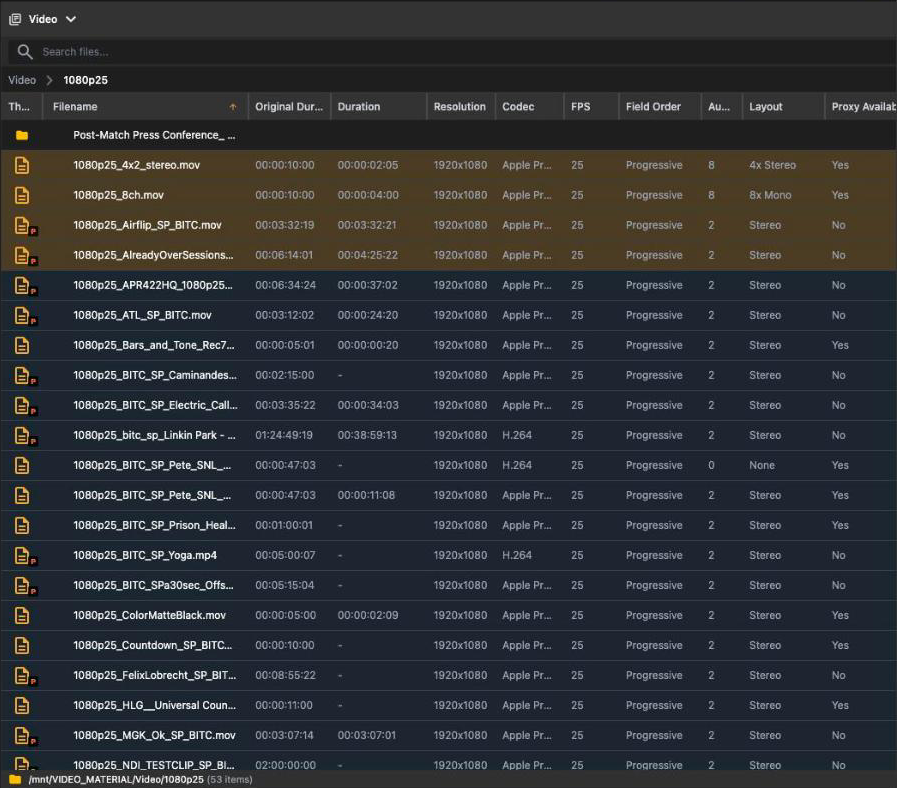
A File Browser showing a folder of clips
Adding the widget and picking a source
Add the widget from Add Widgets under Generic (see Dashboards). A new File Browser opens the mount point configured by an administrator under File Browser Defaults. If no default is configured, it displays Select a source to browse files.
The button on the left side of the header shows the current source, or Select Source until you choose one. Click it to open the source list.
The active entry carries a check mark. The choice is saved with the widget, as is the folder you last opened.
| Group | Entries | Notes |
|---|---|---|
| Mount points | one entry per mount point | A green dot means the mount point has been scanned; the tooltip shows Last scanned: and the time, or Not scanned. |
| LucidLink | mount points that live on a LucidLink filespace | Shown with the LucidLink logo. |
| AWS S3 Buckets, Backblaze B2 Buckets, FTP / SFTP | one entry per enabled upload preset | Configured under Integrations, see Storage integrations. Disabled presets are not listed. |
| Playout | Shows | Saved shows of the Single Player, Multi Player and Show Builder. |
| Rough Cut Editor | RCE Projects | Rough cut projects, see Rough Cut Editor. |
| Octopus Newsroom | MOS Placeholders, MOS Rundowns | Grayed out with The MOS server is not running while the MOS integration is stopped. |
| MXMZ | MXMZ Packages | Grayed out with MXMZ credentials are not configured. |
| Singular.live | Singular Apps | Grayed out with No Singular apps registered. |
Layout
From top to bottom, the widget contains:
- Header: The source button, the ? help button, and the three-dot menu with Show Preview or Hide Preview and Remove Widget. The preview option is unavailable when no source is selected or when you browse Shows, RCE Projects, MOS Placeholders, or MOS Rundowns.
- Search: Filters the current list as you type. It searches the name, all visible column values, and subclip names. The placeholder changes with the source, for example Search files…, Search projects…, or Search stories…
- Breadcrumbs: Shows the mount point followed by the folders in the current path. Click a breadcrumb to move up the hierarchy. On flat sources, the single breadcrumb refreshes the list.
The table lists folders first, followed by files, and uses the selected column for sorting.
The footer shows the current path and item count. For virtual sources, it shows the number of projects, placeholders, rundowns, stories, items, packages, or apps. Before you choose a source, it displays No source selected.
The list refreshes automatically when the open folder changes. This includes the start of a recording, completion of a metadata scan, download or transfer, changes to a subclip, and newsroom rundown updates.
Columns
Click a column header to sort by it; click again to flip the direction (the arrow next to the label shows it).
Drag a header sideways to reorder columns, or drag the separator on its right edge to resize it. Right-click any header to open the column list, then select or clear columns as required. Sorting, order, widths, and hidden columns are saved for each widget.
Cloud and FTP sources hide the media columns (the backend does not scan remote files). Cells without data show -.
| Column | Shows |
|---|---|
| Thumbnail | The poster frame. A struck-through P badge in the corner means No proxy available; an S badge marks a subclip row. Wider thumbnails make the rows taller. |
| Filename | The name. On other sources the header reads Project, Show, Placeholder, Rundown / Story / Item, Package / Version / Graphic or App / Sub-Composition. |
| Original Duration | The full length of the file as scanned. |
| Duration | The marked length (between the saved IN and OUT points), or the original duration when nothing is marked. On projects, shows and rundowns this is their total duration. |
| Resolution, Codec, FPS, Field Order | Scan metadata. Field order renders as Progressive or Interlaced. |
| Audio | Number of audio channels. |
| Layout | The audio layout summary from the scan. |
| Proxy Available | Yes or No. |
| Size | File size. |
| Description | Only on the MOS, show and graphics-cloud sources (status text, story summary, show mode and counts, package descriptions). |
| Modified | Last modification time. |
Selecting rows
Click a row to select it. Clicking a folder opens it.
Ctrl/Cmd+Click adds or removes a row, Shift+Click selects the range from the last clicked row.
Drag on empty space, or start the drag in any column other than the thumbnail and name columns, to rubber-band a selection. Hold Ctrl/Cmd to add to the existing selection.
A plain click on empty space clears the selection.
Double-click a folder to open it, a subclip row to load it in the preview, a rundown or story to drill into it.
A thin amber border around the table indicates that the widget has keyboard focus. With the border visible, Arrow Up and Arrow Down move the selection, Arrow Right expands a file's subclips, and Arrow Left collapses them. Press E to open or close the preview. Press Enter on macOS, or F2 on other systems, to rename the selected row. Esc closes an open context menu. See Keyboard Shortcuts for the complete list.
Rows with a blue background are files that the Octopus newsroom knows as MOS objects; they cannot be deleted while that announcement stands.
Context menu
Right-click a row. When the row is part of a multi-selection, the actions that support it apply to the whole selection and show the count in their label.
| Entry | What it does | Available |
|---|---|---|
| Copy Filename (or Copy Foldername, Copy Project Name, Copy Show Name, Copy Placeholder Name, …) | Copies the name to the clipboard. | Always |
| Copy Full Path | Copies the full path. | Files and folders on mount points and remote sources |
| Download File / Download Files (n) | Saves the files to your computer through the browser's download manager. | Files the backend can serve |
| Send to Playout / Send to | Hands the file to a player on this dashboard. One entry per playout flow when there are several. See below. | Local MOV, MP4, and MXF files; single row |
| Edit… | Opens the file in the preview panel and gives it the keyboard. | Local files with a proxy and scan metadata, single row |
| Refresh Metadata / Refresh Metadata (n) | Re-scans the files. Ends with Metadata refreshed. | Local files |
| Show XML | Shows the MOS wire XML of the file's newsroom object. | Files announced to the newsroom, MOS placeholders |
| Show Rundown XML | Shows the running order XML. | Rundown rows |
| Load into Multi Player / Load into / Open in Show Builder | Loads a show or rundown into a player, or opens a show in a Show Builder. | Shows and rundowns, see below |
| Create Proxy | Encodes a proxy for the file. A busy bar reads Creating proxy for … while the server works; A scan is already running - try again later. appears when another scan is busy. | Admins, local files, single row |
| Rename | Starts inline rename. Enter or clicking elsewhere commits, Esc cancels. For files the extension stays fixed. | Admins on mount points; everyone on RCE Projects and Shows |
| Duplicate / Duplicate (n) | Copies the files. Projects and shows get a (copy) suffix. | Same as Rename |
| Delete / Delete (n) | Asks Delete file? (or folder, project, show) before deleting. Shift+Click the entry to skip the confirmation. Folders are removed with their contents. |
Same as Rename |
Send to Playout
The menu lists every unlocked Single Player and Multi Player flow on the dashboard. If none is available, the option is grayed out. The result depends on the target:
A Single Player without a loaded show operates as a single-file player. The new file replaces the currently loaded file, and the player confirms that it was loaded.
A Multi Player flow, or a Single Player with a show loaded, appends the file to the playlist: Added to playlist. Appended clips take the player's default finished action.
Subclips are sent the same way, bounded to their range. See Single Player and Multi Player.
Drag and drop
Drag a file by its thumbnail or name cell. Dragging a selected file takes the whole selection (the drag label then reads n files); dragging an unselected file takes just that one. Local files show an orange label, remote files a blue one.
Rows from the RCE Projects source open the project when dropped on a Rough Cut Editor; show and rundown rows load into a player when dropped there.
| Drop target | Result |
|---|---|
| Single Player, Multi Player, Show Builder | Adds the file to the player or show. |
| Rough Cut Editor project bin | Adds the file as a bin asset. See Rough Cut Editor. |
| Transfer Monitor | Opens the upload-preset selection. See Transfer Monitor. |
| A File Browser on a cloud or FTP preset | Opens an upload confirmation for the selected preset. Click Upload to to queue the transfer. |
| A File Browser on a mount point, from a remote source | Opens a download confirmation for the current folder. Click Download to to queue the transfer. |
| A row in the MOS Placeholders source | Links one local file to the placeholder. The row shows a dashed outline while you hover over it. Only one local file can be linked at a time. |
Preview panel
The preview panel plays a file's proxy and lets you set IN and OUT points, which are saved with the file. Open it by choosing Edit…, pressing E, selecting Show Preview from the widget menu, or double-clicking a subclip.
The panel follows the current selection. Selecting one file or subclip loads it. For multiple selections, it asks you to select one file. With no selection, it displays Select a file to preview. A file without proxy or scan data displays Not editable - no proxy available or Not editable - file is not scanned. Drag the divider to change the panel width. The open state and width are saved for each widget.
The panel shows the file name, duration, frame rate, IN, Duration, and OUT values, the video, a scrubber with ruler and scrollbar, and the transport bar. Use Ctrl/Cmd+wheel over the scrubber to zoom around the playhead and Shift+wheel to pan. You can also zoom with the handles at either end of the scrollbar. Click the timecode on the ruler, or press G, to enter a position.
| Button | Shortcut | What it does |
|---|---|---|
| Set IN point | I | Marks the IN at the playhead. Saved immediately. |
| Jump to IN | Shift+I |
Seeks to the IN point. |
| Step back 1 frame / Step forward 1 frame | ← / → (Shift steps one second) | Frame stepping. |
| Play reverse | J | Plays backwards; pressing again raises the speed (2x, 4x, 8x, 16x). |
| Play / Pause | Space | Toggles playback. |
| Play forward / faster | L | Plays forward, again for a higher speed. |
| Play IN to OUT | P | Plays the marked range and stops at the OUT point. |
| Clear IN/OUT | Shift+C |
Removes both marks (D clears only IN; F clears only OUT). |
| Jump to OUT | Shift+O |
Seeks to the OUT point. |
| Set OUT point | O | Marks the OUT at the playhead. |
| Mute / unmute | M | Mutes the preview audio. |
| Create subclip from IN/OUT | S | Creates a subclip from the marked range (mount points only). Disabled until both marks exist. |
| Render IN/OUT range to a new file | Cuts the marked range into a new physical file next to the source (MOV, MP4, and MXF sources only). |
K stops, Home and End jump to the start and end, and Esc closes the panel. The IN and OUT markers and the range between them can also be dragged on the ruler. Setting IN behind an existing OUT (or OUT before IN) moves the other mark by one frame so the range stays valid.
Marks are stored on the backend as soon as you set them and the Duration column updates at once.
The marked range is what players use when you send or drop the file, and what the Rough Cut Editor preloads when you drop the file into its bin.
Subclips
A subclip is a named IN/OUT range stored with a file; it does not create new media. To create one, click the subclip button or press S in the preview. The file expands, and a new row appears below it with a name based on the timecode, using dots in place of separators.
Inline rename opens automatically so you can enter a descriptive name. If that name already exists for the file, the app displays A subclip with this name already exists on this file.
Files with subclips show a chevron in the name cell (Show subclips (n) / Hide subclips). Subclip rows show the S thumbnail badge, the name and the in and out timecodes. While a subclip is loaded in the preview, moving its marks updates the subclip's range immediately.
Right-click a subclip row for Copy Name, Send to Playout, Rename and Delete Subclip (no confirmation, the media stays untouched). Dragging a subclip drags its parent file with the subclip's range as marks.
Rendering a subclip to a file
Render IN/OUT range to a new file starts a server-side cut. A progress bar above the table first displays Rendering subclip … n%, then Creating proxy for … while the proxy is encoded. Rendered confirms that the new file is available, and the folder refreshes after its scan finishes. If you loaded a named subclip, the rendered file uses the subclip name. A proxy error does not affect the rendered high-resolution file.
Virtual sources
Shows
Lists saved shows. The Description column shows Single or Multi with the story and clip counts; the Duration column shows the total show duration. Right-click a show to open it in a Show Builder or load it into a player. Unavailable targets are grayed out. You can also drag a show onto a player. All users can rename, duplicate, and delete shows. See Show Builder.
RCE projects
Lists the rough cut projects with their duration and sequence frame rate. Drag a project onto a Rough Cut Editor to open it there. See Rough Cut Editor.
MOS placeholders
Lists the placeholders the newsroom created, with the planned duration and description. Drop a single local file on a row to link it; the linked placeholder then disappears from this list because it is no longer a placeholder. Rows update live as the newsroom creates, edits or deletes placeholders.
MOS rundowns
The source has three levels: rundowns, stories within a rundown, and items within a story. Double-click to open the next level. The default sort preserves newsroom order.
Rundown rows show status and update time; story rows summarize their item labels. An item row shows its label and title, followed by the linked file, Awaiting media for an unlinked video slot, or the type of a non-media item. Non-media items are gray, and only items with linked media can be dragged.
Right-click a rundown to load it into a Multi Player or view its XML. If the newsroom deletes the open rundown, a warning appears and the list returns to the top level. See Multi Player.
MXMZ packages and Singular apps
MXMZ lists released packages, their versions and the graphics of a version; Singular lists the registered apps and their sub-compositions. Selecting a graphic, app or sub-composition shows it in the preview panel instead of the video player. These rows cannot be dragged. See Production integrations.
MOS XML viewer
Show XML and Show Rundown XML open an overlay over the widget titled MOS XML - with the pretty-printed wire XML. Use the copy button (Copy XML) to copy it, and the close button or Esc to dismiss it.
Good to know
Proxies are expected. The P badge only flags files without one. Files without a proxy cannot be previewed, edited or imported into a Rough Cut Editor; an admin can fix that with Create Proxy, or the backend's janitor generates it later.
Send to Playout is available for one local MOV, MP4, or MXF file at a time. The option is not shown for other containers.
Deleting a folder deletes its contents. The confirmation dialog says so; a multi-selection warns Any folders in the selection will be removed with all their contents.
Only admins rename, duplicate and delete files and folders on mount points. Projects and shows are open to every user.
Downloads and uploads queued from here show up in the Transfer Monitor.
Clipboard copies confirm with Copied to Clipboard; on an insecure connection the browser may refuse, which shows Clipboard copy failed.