
A naming preset builds recording file names from tokens such as the flow name, scene, take, date, counter, metadata, and codec. Arrange the tokens, choose a separator, and CORE I/O creates the name when recording starts. Loop flows and the Loop Segment Exporter use the same presets.
The Naming Presets page
Opening the page
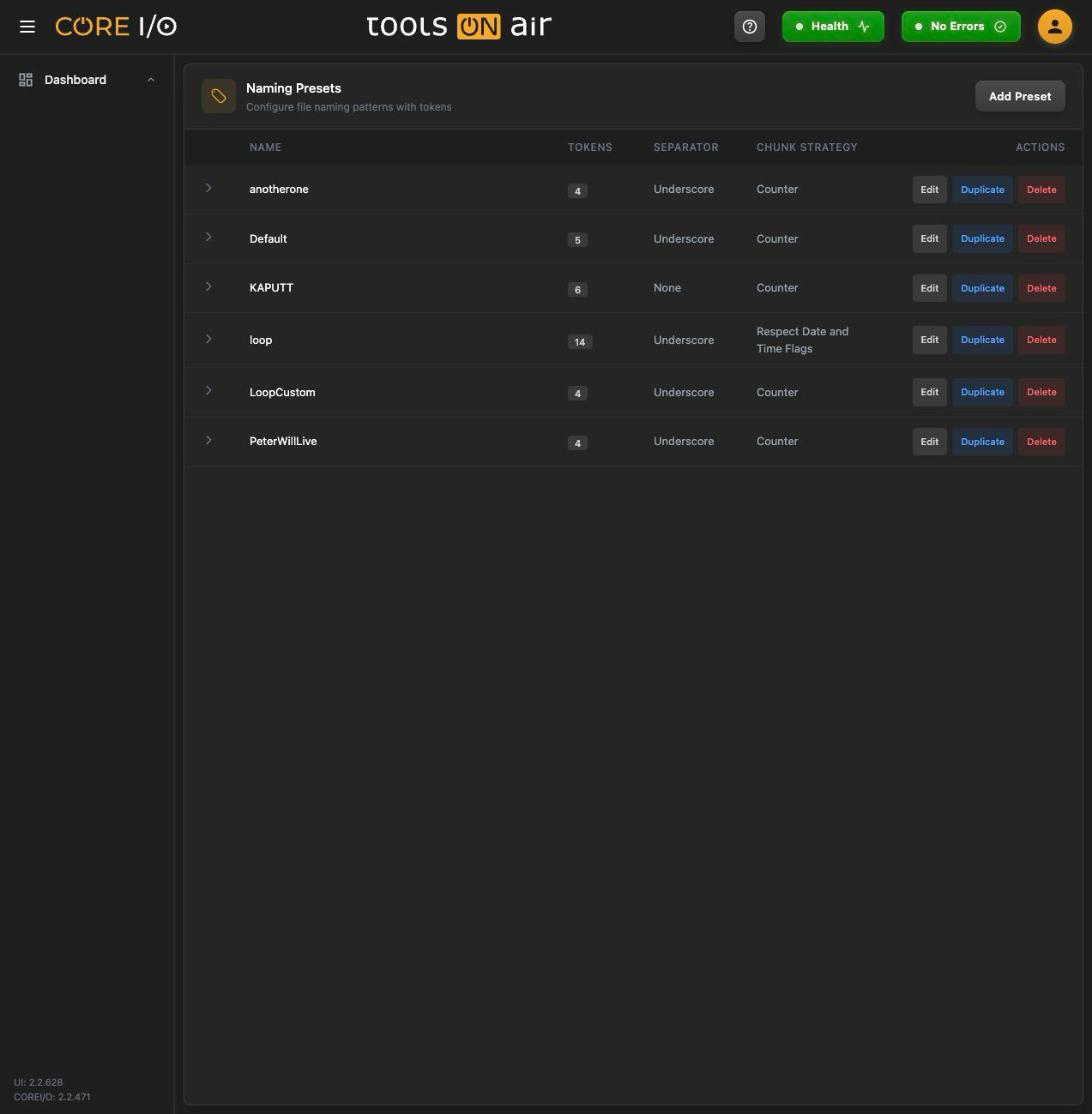
In the sidebar, open Configuration, expand RECORD, and select Naming Presets. The header reads "Configure file naming patterns with tokens".
A naming preset in edit mode
Layout
The table lists the presets with Name, the number of Tokens, the Separator and the Chunk Strategy.
Click a row or its arrow to expand it. The expanded area has four blocks:
- Available Tokens: Built-in tokens and the collapsible Metadata Tokens and Technical Tokens sections.
- Preset Tokens: The tokens that make up the name, in order.
- Preview: An example name built from the current tokens.
- Settings: Separator, Counter Start, and Chunk Strategy.
Each row has Edit, Duplicate and Delete. With no presets the page reads "No naming presets".
Creating a preset
- Click Add Preset. An input ("Enter preset name") appears in a new row.
- Enter a name, then click Create or press Enter. Press Escape or click Cancel to discard it.
An empty name displays "Name is required." A name already in use, regardless of capitalization, displays "A preset with this name already exists." A new preset has no tokens, uses an underscore as its separator, starts its counter at 1, and uses the Counter chunk strategy.
Editing a preset
Click Edit. The preset expands, the name becomes an input, and the token areas become active. There is no Save button; each change is stored shortly after you make it. The row displays "Saving…", then "Saved", or "Save failed" with the server's reason in a toast. Click Done to leave edit mode. If the name is empty or already used, the page displays "Preset name is empty or already in use - fix it before closing." A change that could not be saved keeps the preset in edit mode.
Adding tokens
Drag a pill from Available Tokens (or from the Metadata or Technical section) into the Preset Tokens area, or click the + on the pill to append it.
Tokens with formats (Date, Time, Counter, In-Point, Out-Point, Duration) carry a format dropdown on the pill. Choose the format on the source pill before adding, or change it on the added pill afterwards.
Drag pills inside Preset Tokens by their ☰ handle to reorder them. The × removes a token.
A token can be added more than once, for example a / between two folder levels.
Pill colors identify token types: blue for built-in tokens, orange for static text and variables, purple for selections, green for metadata fields, and sky blue for technical tokens.
Custom tokens
Click Add Custom Token above the Preset Tokens area:
Click Add or press Enter to append the token. Click Cancel or press Escape to close the form. Use the dropdown on a Static or Variable pill to switch between those two types. A Selection pill displays its default value in a dropdown and includes an "Edit selection options" button that reopens the form with an Apply button.
CORE I/O validates selection options before saving and may display "Add at least one option.", "Option labels must not be empty.", "Option values must not be empty.", "Option labels must be unique.", "Option values must be unique.", or "Pick a default value."
| Field | What it does |
|---|---|
| Token Name | The label of the token. Required ("Name is required"). Variable and Selection names must be unique in the preset ("Variable name must be unique." / "Selection name must be unique."); static names may repeat. |
| Type | Static: the name itself is written into the file name. Variable: the operator types the value when the recording starts. Selection: the operator picks one of a fixed list of options. |
| Selection Options | For Selection: + Add Option adds a row with a Label and a Value; pick the Default below. |
Settings
The Preview shows an example name. Date and Time use the current values, Counter shows its starting value padded to the selected number of digits, selections show their defaults, and metadata tokens show the current field values. Other tokens appear as {Name}.
| Setting | What it does |
|---|---|
| Separator | The text placed between tokens: Underscore, Dash, Space, or None. No separator is added before or after a /. |
| Counter Start | The first value of the Counter token (0 or more). |
| Chunk Strategy | How the chunks of one recording are told apart in their names: by a running Counter or by their Date and Time tokens (Respect Date and Time Flags). |
Tokens
Built-in tokens
| Token | Expands to | Formats |
|---|---|---|
| Flow | Resolved by the server from the flow the recording runs on. | |
| StartTimecode | Resolved by the server from the recording's start timecode. | |
| Name | A name the operator enters for the recording. | |
| Scene | The scene the operator enters. | |
| Take | The take the operator enters. | |
| Reel | The reel the operator enters. | |
| Angle | The camera angle the operator enters. | |
| Date | The recording date in the chosen format. | d, dd, EE, EEEE, dd.MM.yy, dd.MM.yyyy, dd.MMM.yy, ddMMyy, ddMMyyyy, M, MM, MMM, MMMM, MM.dd.yy, MMM.dd.yy, MMddyy, MMddyyyy, yy, yyyy, yyyyMMdd, yyyyddMM, yyMMdd |
| Time | The recording time in the chosen format. | HHmmss, HHmm, mmss, HH, mm, ss |
| Counter | A running number starting at Counter Start, zero-padded to the chosen width. | 1 digit to 8 digits |
| In-Point | The in-point timecode of the recording. | HH, MM, SS, FF, HHMMSS, HHMMSSFF, HH_MM_SS_FF |
| Out-Point | The out-point timecode. | same as In-Point |
| Duration | The duration as a timecode. | same as In-Point |
| / | A path separator, written as / into the name so the tokens before it form a folder. No separator string is added around it. |
Name, Scene, Take, Reel, Angle, In-Point, Out-Point and Duration are prompted from the operator; Flow, StartTimecode, Date, Time and Counter are filled in by the server.
Metadata tokens
The Metadata Tokens section lists every field of every metadata set, grouped by set name (a disabled set is marked "(disabled)"). Such a token expands to the field's current value at record time. Recording is blocked while the value cannot be resolved, for example when the field has been deleted. See Metadata Views.
Technical tokens
The Technical Tokens section, labeled "Resolved from the flow's capture presets, per output file", provides values from the channel and its capture presets. A recording can create several files, such as a high-resolution file and a proxy, with different codecs. CORE I/O therefore resolves these values separately for each file. Characters that are not allowed in paths (:, /, and \) are replaced with -.
| Token | Expands to |
|---|---|
| Timecode Source | The flow's timecode source. |
| Container | The container of the output file. |
| Framerate | The capture frame rate. |
| Aspect Ratio | The capture aspect ratio. |
| Capture Codec | The codec of the output file. |
| Audio Channels | The audio channel configuration. |
| Capture Resolution | The capture resolution name (for example HD 1080). |
| Capture Width | The frame width in pixels. |
| Capture Height | The frame height in pixels. |
| Bitrate | The capture bitrate. |
Custom token types
Static, Variable, and Selection tokens resolve as described in the summary table below.
| Kind | Expands to |
|---|---|
| Static | The token's name, written as-is. |
| Variable | The text the operator enters when the recording starts. |
| Selection | The value selected by the operator. The default is preselected. |
Duplicating and deleting
Duplicate creates <name>_copy. Further copies use <name>_copy(2), <name>_copy(3), and so on.
Delete switches to Confirm / Cancel. Confirming removes the preset ("Preset deleted.").
Where naming presets are used
Record Viewer: the Update Naming entry in the settings menu opens Update Naming for flow "<flow name>". The operator selects the preset and completes the prompted tokens, such as Name, Scene, Take, Variables, and Selections. See Record Viewer.
Loop flows: the Naming Preset field on the flow's Type tab. See Flows.
Loop Segment Exporter: names exported segments with a preset and prompts for its variables. See Loop Segment Exporter.
Defaults: the preset preselected for new widgets. See Defaults.
Good to know
The Metadata and Technical sections remember whether you collapsed them, per browser.
Renaming a Selection token keeps its options; changing its type is not possible, remove and recreate it instead.
Presets saved with older versions may have lost the metadata typing of their tokens; re-add such tokens from the Metadata section.