
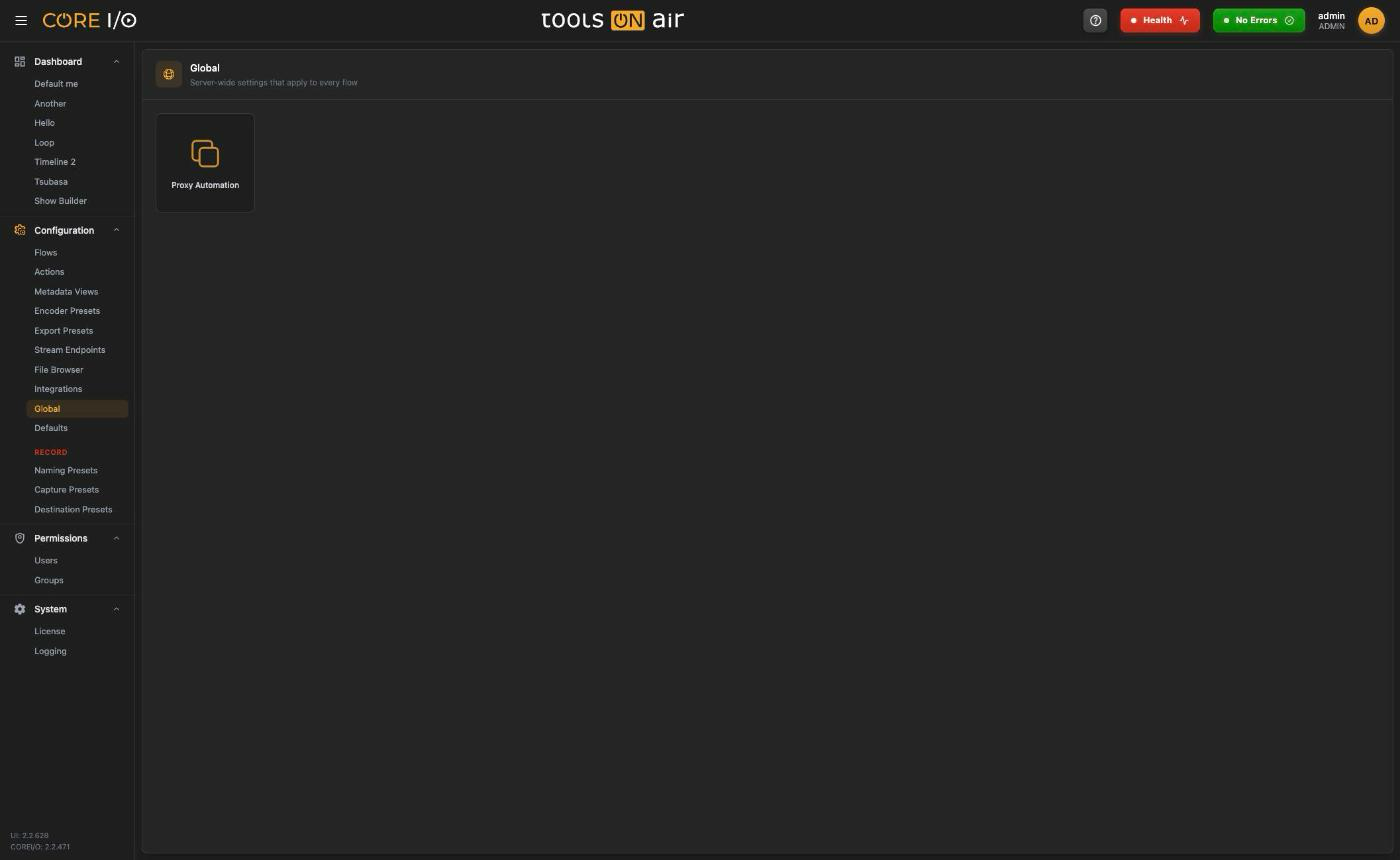
Global contains server-wide settings that apply to every flow, rather than to a single channel or widget.
Open it from the sidebar's Configuration section; only admins see the entry, and a non-admin who opens the address directly is sent back to the start page. The page header reads "Server-wide settings that apply to every flow".
Layout
The page uses the same tile layout as Integrations. It currently contains one tile, Proxy Automation, which opens /global/proxy-automation. Use Back on a detail page to return to the grid.
The Global page
Proxy Automation
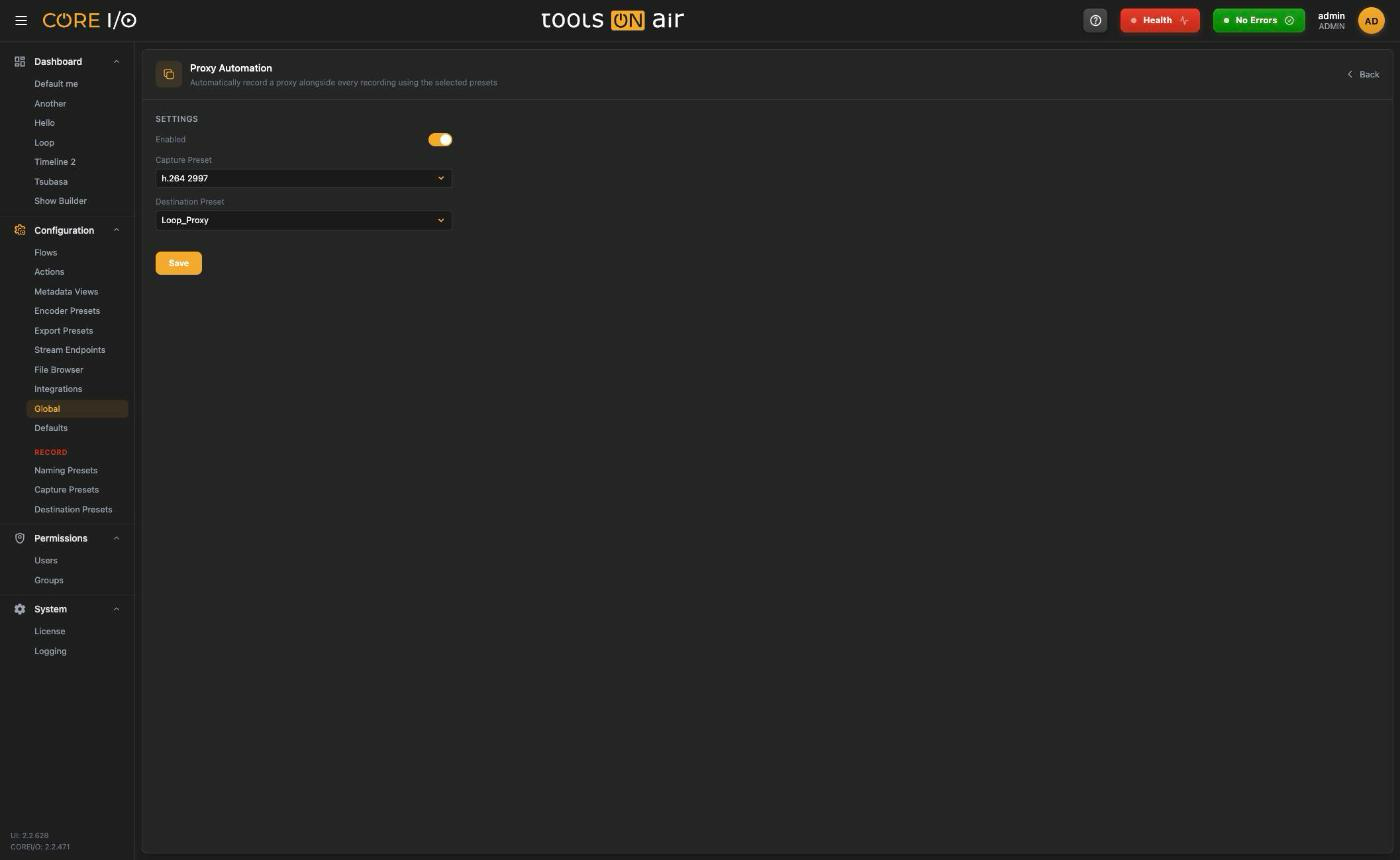
Proxy Automation records a proxy alongside every recording, using one capture preset and one destination preset for the whole server. The header reads "Automatically record a proxy alongside every recording using the selected presets".
Proxy Automation settings
| Setting | What it does |
|---|---|
| Enabled | Toggle. While on, every recording also produces a proxy with the two presets below. |
| Capture Preset | The capture preset that encodes the proxy. The list is sorted by name; Not selected clears it. |
| Destination Preset | The destination preset the proxy is written to. Not selected clears it. |
Saving
- Choose a capture preset and a destination preset.
- Switch Enabled on.
- Click Save. The toast reads "Proxy Automation settings saved".
Saving with Enabled on but a preset missing is refused with "Select a capture preset and a destination preset before enabling". You can save the presets with the toggle off to prepare the setting without activating it.
Where it appears
While Proxy Automation is enabled, the header of every recording widget (Record Viewer, Loop Viewer and the other flow widgets, but not the Record Timeline) shows an amber proxy icon with the tooltip "Proxy Automation enabled". The setting is pushed to all open browsers, so the icon appears and disappears everywhere as soon as an admin saves.
Good to know
The setting is one for the whole server. There is no per-flow override on this page.
Both selects are disabled while a save is running.
A save refused with "Insufficient permissions" means the signed-in account is not an admin on the backend.