
A group contains users and controls which flows they can see and operate. Users without the Admin role can access only flows assigned to at least one of their groups. Widgets for other flows are not available to them.
Open Groups in the Permissions section of the sidebar. This page is available only to administrators; other users are redirected to the start page. Manage accounts on the Users page.
Group Management
Layout
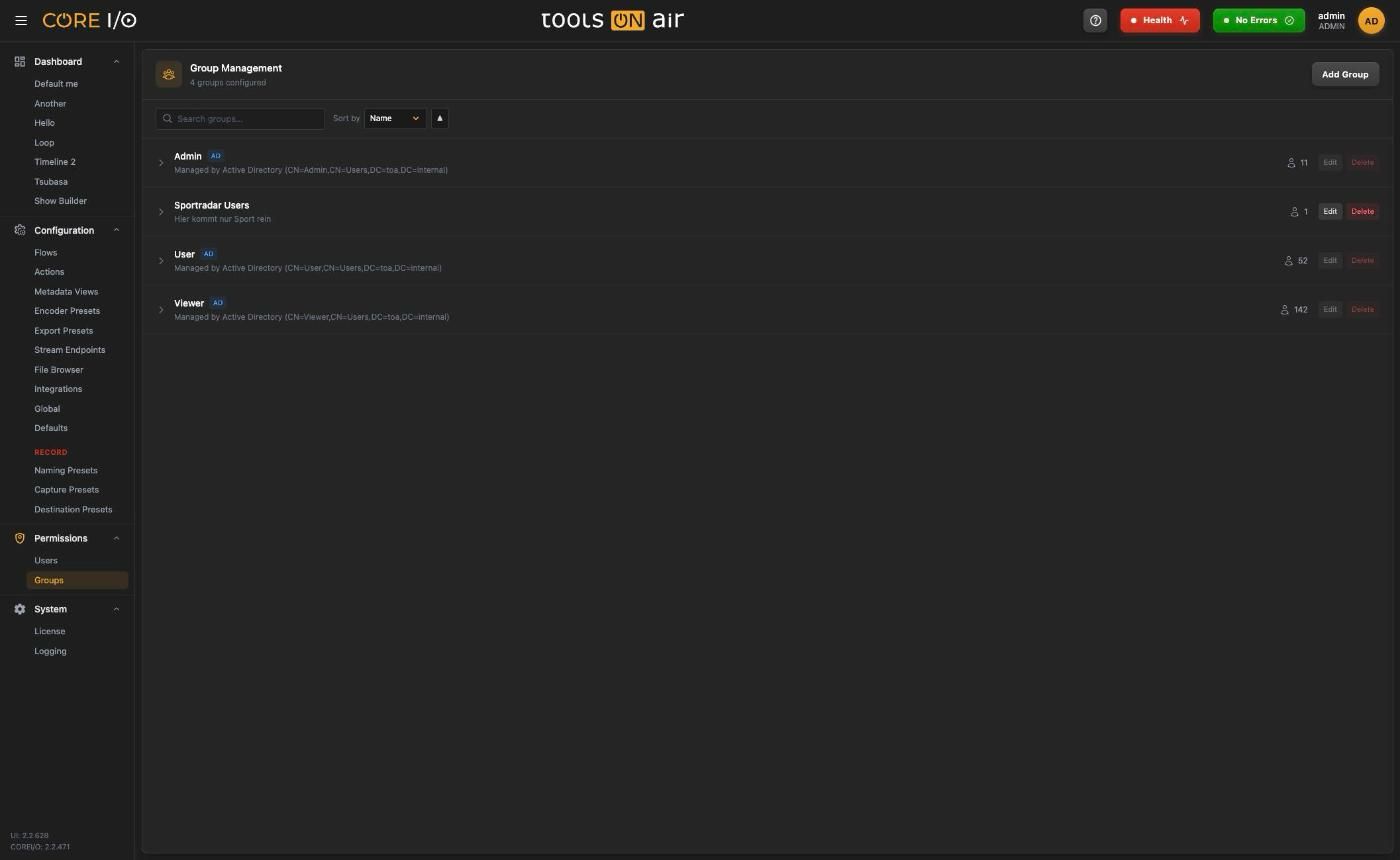
The header reads Group Management with "n groups configured" and an Add Group button. Below it a bar with Search groups… and Sort by (Name, Members or Created) plus an arrow button that flips between ascending and descending. The list holds 50 groups per page with First, Previous, Next and Last in the footer when there are more.
Each group is a collapsible row: a chevron, the name, an AD badge for directory-managed groups, the description, a member count and the Edit and Delete buttons. Click the row to expand it.
Creating, editing and deleting groups
- Click Add Group. In Add New Group, enter a required Name and an optional Description, then click Create Group. An empty name displays "Please enter a group name."
- To change a group, click Edit, update the Name or Description, and click Save Changes.
- To remove a group, click Delete and then Confirm. Click Cancel to keep it. A successful deletion displays "Group deleted successfully."
Users and flows themselves are not affected, only the group's assignments.
When the search matches nothing the list reads "No groups match the current search"; with no groups at all it says "Create a group to organize users and flows".
Membership
The expanded row shows a Users panel on the left with the member count.
To add a member, type into + Add user…. The picker searches by name or email (up to 10 matches, "No matching users" otherwise) and adds the user you click.
Members are listed 25 per page with Previous / Next. A Filter members… field appears when a group has more than 25 members. "No users assigned" is shown for an empty group.
Hover a member and click the x to remove them from the group.
Flows
The Flows panel on the right lists the flows assigned to the group, sorted by name. + Add flow is a select of every flow not yet assigned; picking one assigns it immediately. Hover a flow and click the x to remove it ("No flows assigned" when the list is empty).
Assigning a flow to a group gives every member access to that flow's channel in their widgets. Flows are configured on the Flows page.
AD-managed groups
Groups created by an Active Directory group mapping carry a blue AD badge ("Managed by Active Directory - name and membership sync from the directory"):
Edit and Delete are disabled; the tooltip explains "Managed by Active Directory - remove the group mapping to make this a normal group".
Members whose account comes from Active Directory show a small AD marker instead of the remove x ("Membership synced from Active Directory"). Local users added by hand can still be removed.
Flow assignments work exactly as for normal groups. This is how you scope which channels a directory group's members see.
Removing the mapping on the Active Directory page turns the group into a normal group that keeps its flow assignments.
Good to know
A flow that is not visible to an account shows no widgets and no errors for that account; widgets on such flows are simply not offered.
A user can belong to several groups.
Member and flow changes apply immediately; there is no Save button on this page.
The member count in the group header updates as you add or remove users.