
Use the Users page to manage who can sign in to CORE I/O and which role each account has. The Users tab contains people who sign in through a browser. The API Users tab contains machine accounts that authenticate with bearer tokens.
Open Users in the Permissions section of the sidebar. This page is available only to administrators; other users are redirected to the start page. Manage group membership and flow access on the Groups page.
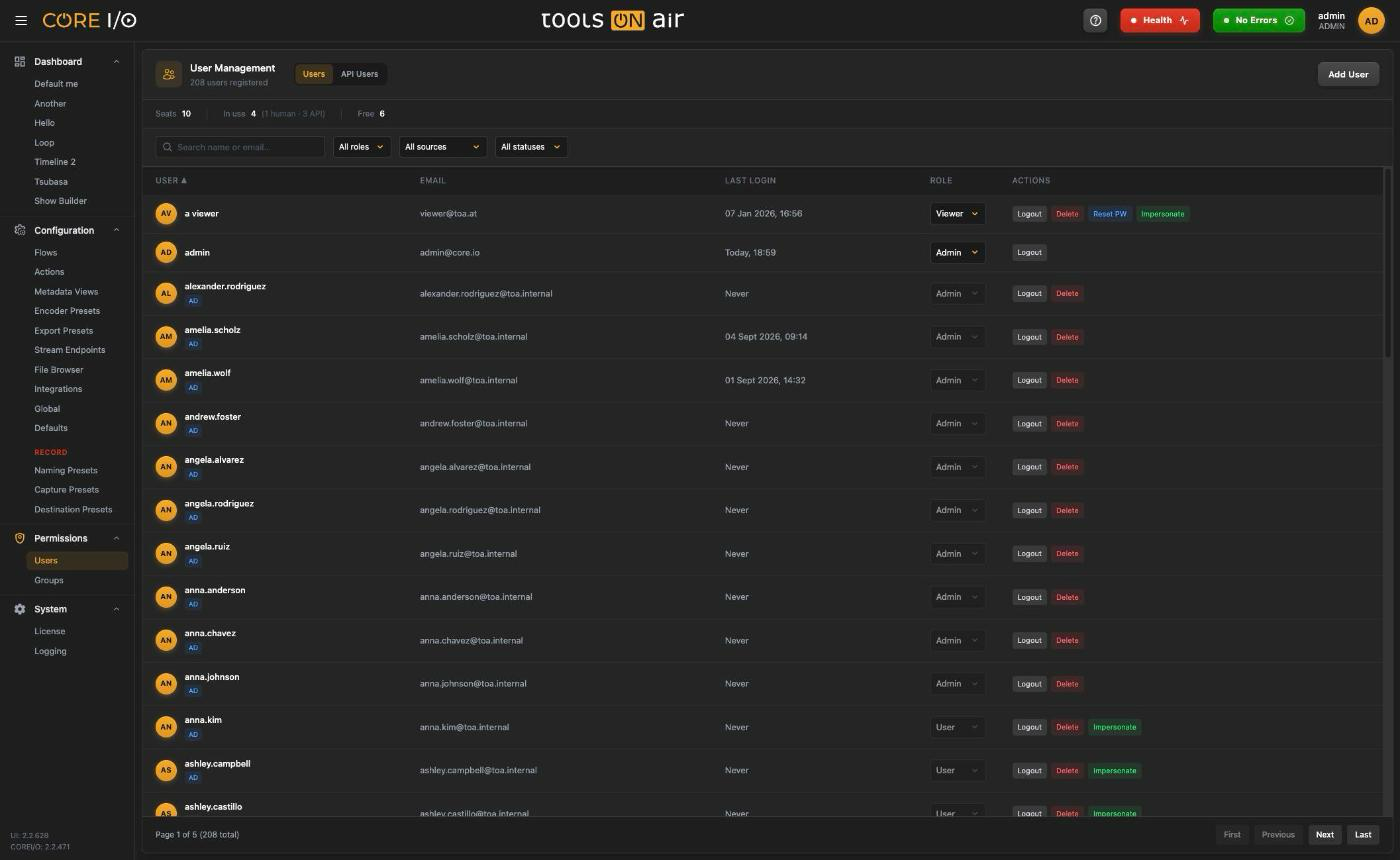
User Management
Layout
The header reads User Management with the count ("n users registered" or "n API users registered"), the Users / API Users tab toggle, and Add User or Add API User on the right.
A seat bar shows the license's concurrent seats: Seats (or Unlimited), In use with the split "(n human · n API)" and Free (amber at 0). See License.
On the Users tab a search and filter bar sits above the table; the API tab has no filters.
Roles
Every account has one of three roles:
| Role | Meaning |
|---|---|
| Admin | Full access, including every Configuration, Permissions and System page in the sidebar. |
| User | Operates dashboards and widgets on the flows their groups allow. |
| Viewer | Watches dashboards. Recording and playout controls, widget settings, the flow editor and configuration switches are hidden or disabled. |
Change a role with the Role select in the row. The toast reads "Role updated successfully." or shows the backend's reason for refusing.
Users tab
Finding users
The list is fetched from the server in pages of 50. Search name or email… filters as you type (after a short pause), and three selects narrow the list: All roles / Admin / User / Viewer, All sources / Local / Active Directory / SAML, and All statuses / Active / Deactivated. Clear appears while any search or filter is active. Click a column header (User, Email, Last Login, Role) to sort by it; click again to reverse. The footer shows "Page x of y (n total)" with First, Previous, Next and Last.
Adding a user
- Click Add User.
- In Add New User fill Name, Email and Password. All three are required ("Please fill in all fields.").
- Click Create User. A toast reads "User created successfully." or displays the backend error, such as a duplicate email.
The user row
Each row shows the avatar and name, badges, the email, Last Login ("Never" until the first login) and the Role select. Badges:
| Badge | Meaning |
|---|---|
| Locked (yellow) | The account is locked. An Unlock button appears in the row. |
| AD or SAML (blue) | "Account managed by the external identity provider". |
| Deactivated (red) | "Removed or disabled at the identity source - cannot log in". The row is dimmed. |
Row actions
| Button | What it does |
|---|---|
| Logout | Force Logout: ends all of the user's sessions ("User logged out successfully.") and frees their seat. |
| Unlock | Only on locked accounts. "User unlocked successfully.". |
| Delete | Asks for Confirm / Cancel in place, then removes the account. Not offered on your own account. |
| Reset PW | Opens the password reset dialog. Not offered on your own account or on AD/SAML accounts. |
| Impersonate | Signs you in as that user. Offered for non-admin accounts other than your own. |
Resetting a password
The Reset Password dialog displays "Set a new password for <user>" and contains New Password and the Log out user from all devices checkbox, which is on by default. The password must contain at least eight characters, including uppercase and lowercase letters and a number. Shorter or simpler passwords are rejected inline. Click Reset Password to confirm; a successful reset displays "Password reset for <user>."
Users change their own password on the Profile page.
Externally managed users
Accounts that come from Active Directory or SAML are created by the AD integration's group mappings.
Their Role select is disabled with the tooltip "Role comes from the group mappings and is overwritten on the next sync", and they have no Reset PW button. They can still be logged out, impersonated or deleted here. Accounts that disappear from the directory are marked Deactivated by the next sync rather than deleted.
Impersonation
Click Impersonate to see the app as that user. CORE I/O opens their first dashboard, or the start page if they have none. A red bar across the top identifies the impersonated user and includes Get out. Click it to end the session and return to the Users page. Administrators cannot be impersonated.
API Users tab
API users are accounts for scripts and other systems. They never log in with a password; instead each holds at most one bearer token.
Adding an API user
- Click Add API User.
- In Add API User, enter the Name and Email, then choose a Role. The default role is Viewer.
- Click Create API User. The button is disabled until Name and Email are complete.
Tokens
The Token column shows "No token", or the token's name (or the start of its id), when it was created and when it was last used ("Never used" otherwise). Actions:
Use the token as Authorization: Bearer <token> on API requests.
| Button | What it does |
|---|---|
| Create Token | Opens Create Token with a Token Name (default "Access Token"). The token is shown once in Token Created: "This token will only be shown once! Copy it now and store it securely." Use the copy button, then click I've copied the token. |
| Rotate Token | Replaces the existing token. The dialog warns "The existing token will be invalidated immediately." and the result dialog Token Rotated repeats that the previous token is invalid. |
| Revoke Token | Asks Confirm Revoke / Cancel, then deletes the token ("Token revoked successfully.") and frees the API user's seat. |
| Delete User | Asks Confirm / Cancel, then removes the API user. |
Good to know
Search, filters and sorting apply to the Users tab only; the API Users tab always lists every API user.
The seat bar updates itself whenever someone logs in or out or a token changes.
Deleting the last user on a page moves you back to the previous page automatically.
Your own account has no Delete or Reset PW button; use the Profile page for your own password.