
Email, Slack, SNMP, Active Directory, and SAML connect CORE I/O to notification, monitoring, and identity services. Email and Slack deliver operational notifications. SNMP provides read-only monitoring for an SNMP manager or Zabbix. Active Directory allows domain users to sign in with their Windows credentials and synchronizes group membership. SAML SSO adds single sign-on through an identity provider.
Open each service from the Integrations grid. AP ENPS newsroom integration through MOS 2.8.5 is documented under Integrations: Production. Use Back on any integration page to return to the grid.
Email notifications
CORE I/O supports email notifications for operational events, warnings, and errors. Configure the mail server and recipient addresses for the installation, then enable the event categories that should be delivered by email. Email and Slack notifications can be used at the same time.
Use distribution lists or monitored service addresses for production systems so that notifications do not depend on a single recipient. Mail delivery requires network access from the CORE I/O Core to the configured mail server.
Slack
Open /integrations/slack to configure notifications through a Slack incoming webhook.
| Field | What it does |
|---|---|
| Enabled | Turns notification delivery on or off. |
| Webhook URL | The incoming webhook. It must start with https://hooks.slack.com/services/. The field is empty when the page loads; the hint reads "Leave empty to keep the existing webhook unchanged". |
| Dedupe Window (seconds) | Sends identical notifications only once within this period. Enter a whole number greater than or equal to 0. The default is 60. |
Save validates the URL prefix and the deduplication window. Invalid values display "Webhook URL must start with https://hooks.slack.com/services/" or "Dedupe window must be an integer >= 0". A successful save displays "Slack settings saved". Click Send Test Message to post a test to the stored webhook. The result reads "Test message sent successfully" or shows the error.
The Status section shows Webhook Configured with a green check or a red cross and, once a delivery was attempted, Last Delivery: OK or Last Delivery: in red.
SNMP
CORE I/O supports SNMP v1 and v2 (v2c) in read-only mode. An SNMP manager can read the values published by CORE I/O, but it cannot change the system configuration or control a flow through SNMP. Open /integrations/snmp to download the monitoring definitions. This page has no editable settings.
| Card | Content |
|---|---|
| MIB File | SNMP Management Information Base definition file for use with all SNMP managers. Downloads coreio.mib. |
| Zabbix Template | XML template for Zabbix monitoring. Import it through Data collection → Templates → Import. Downloads coreio-zabbix-template.xml. |
Each card has a Download button that reads "Downloading…" while the file is fetched.
Active Directory
Open /integrations/active-directory to configure LDAPS authentication and group synchronization. Domain users sign in through the standard login page. Their role and group membership come from the mappings configured here. While the integration is enabled, the login page displays an "Active Directory" line with the domain name.
The page saves changes automatically. Standard fields save about half a second after you stop typing. The Connection heading displays Saving…, Saved, or Save failed. If the backend rejects a change, such as enabling an incomplete configuration, the form returns to its stored values and a toast explains the problem.
Connection
The Active Directory login card contains the enable toggle. It remains disabled until all required connection settings are present and displays "Complete the connection settings below to enable". Once configured, the card reads "Domain users authenticate through the normal login form".
| Field | What it does |
|---|---|
| Server Discovery | Use DNS, based on the domain's SRV records, or a Static server list. |
| Domain (DNS mode) | The AD domain, for example corp.example.com. Domain controllers are discovered through DNS SRV lookups. |
| LDAPS Port (DNS mode) | Applied to the discovered hosts. The default is 636, and the connection always uses LDAPS. |
| Servers (ordered failover) (static mode) | One ldaps:// URL per row, tried in order. Click + Add server to add a row or x to remove one. A row saves when you leave its field. |
| Base DN | The search base, for example DC=corp,DC=example,DC=com. |
| Bind DN (service account) | The account used for directory lookups and synchronization. |
| Bind Password | Write-only. The password saves when you leave the field and displays "•••••••• (configured)" once stored. Leave the field empty to keep the stored password, or click Clear to remove it. |
| TLS Certificate Verification | System trust store, Custom CA certificate, or Trust all (no verification). Trust all displays "Certificate verification is disabled - lab use only". |
| CA Certificate (PEM) (custom CA) | Paste the PEM certificate. Like the password, it is write-only and includes a Clear button. The hint reads "Certificate installed - leave empty to keep it". |
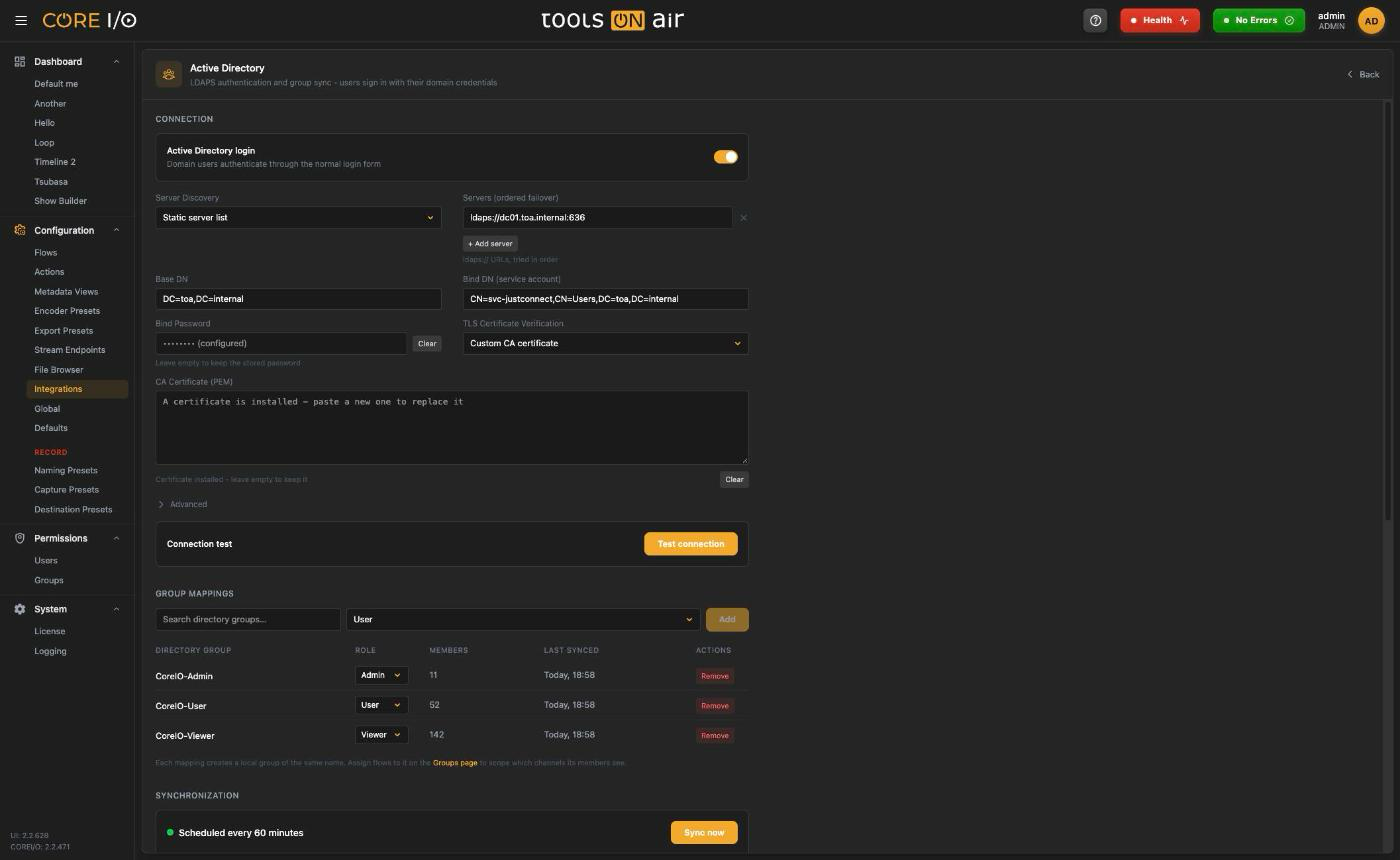
Advanced is collapsed by default. It contains Sync Interval (minutes), default 60; Page Size, default 1000; Nested Group Resolution, either Server-side (Active Directory) or Client-side (other directories); Connect Timeout (ms), default 5000; Login Timeout (ms), default 10000; and Sync Timeout (ms), default 120000.
Click Test connection in the Connection test card after completing the settings. Until then, the button is disabled and reads "Complete the connection settings first". The result lists each domain controller with a green or red status dot and either its latency in milliseconds or an error. If discovery finds none, it displays "No domain controllers resolved".
Group mappings
A mapping links a directory group to a CORE I/O role. Members of a mapped group are provisioned with that role on login and on every sync, and each mapping creates a local group of the same name (marked AD on the Groups page).
- Enter a value in Search directory groups…. The picker searches by name, DN, and description. Click Load more… to retrieve more results.
- Select Viewer, User, or Admin.
- Click Add. A successful mapping displays the mapped group name.
The table lists Directory Group, Role, Members, Last Synced, and Remove. Changing the Role selection saves immediately. Last Synced reads "Never" until the first synchronization.
Remove opens the Remove Group Mapping dialog. The local group remains, keeps its flow assignments, and becomes a standard group, but no longer synchronizes with the directory. Select Deactivate and log out AD users whose only mapped group this was to deactivate those accounts as well, then click Remove Mapping.
Assign flows to the resulting local group on the Groups page to control which channels its members can access.
Synchronization
The card displays Sync running… in amber, Scheduled every n minutes in green, or Integration disabled in gray. Click Sync now to start a run; a toast reads "Directory sync started".
The history table lists Started, Trigger, Status, Users +/~/−, and Memberships +/−. Trigger is Manual or Scheduled. Status is RUNNING, SUCCESS, PARTIAL in yellow, or FAILED in red with its error below. Users shows the numbers created, updated, and deactivated, plus "(n skipped)" when a local account with the same name already exists. The page refreshes when synchronization starts and finishes.
SAML single sign-on
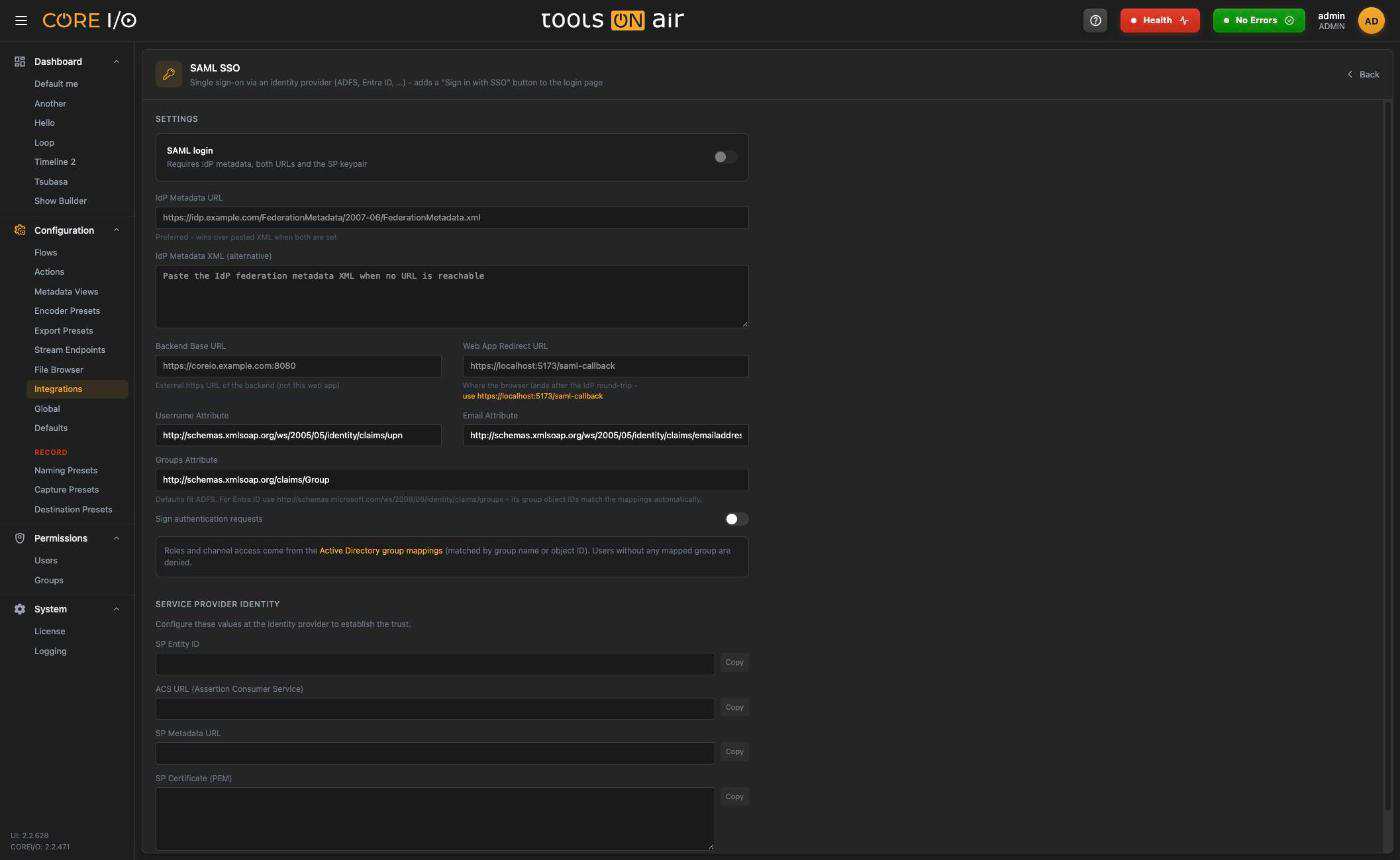
Open /integrations/saml to configure single sign-on through an identity provider such as ADFS or Entra ID. When enabled, SAML adds a Sign in with SSO button to the login page. The page saves automatically and displays Saving…, Saved, or Save failed next to Settings. URL and XML fields save when you leave them so that the backend can validate the values.
SAML settings
The SAML login card contains the enable toggle. It remains disabled until the setup includes IdP metadata, both URLs, and the SP keypair. Once configured, it reads "The login page offers "Sign in with SSO"".
Roles and channel access come from Active Directory group mappings matched by group name or object ID. Users who do not belong to a mapped group are denied access.
| Field | What it does |
|---|---|
| IdP Metadata URL | Federation metadata URL of the identity provider. This value takes precedence over pasted XML when both are set. |
| IdP Metadata XML (alternative) | Paste the metadata XML when no URL is reachable. |
| Backend Base URL | The external HTTPS URL of the backend, not the web app. |
| Web App Redirect URL | Where the browser returns after the IdP round trip. While empty, a link offers "use <this app's origin>/saml-callback". |
| Username Attribute, Email Attribute | The assertion attributes to read. |
| Groups Attribute | The defaults support ADFS. For Entra ID, use http://schemas.microsoft.com/ws/2008/06/identity/claims/groups; its group object IDs match the mappings automatically. |
| Sign authentication requests | Toggle. |
Service provider identity
Configure the service provider values at the identity provider to establish trust. The page shows four read-only fields with Copy buttons: SP Entity ID, ACS URL (Assertion Consumer Service), SP Metadata URL, and SP Certificate (PEM). A copy button reads Copied for two seconds. Copying requires an HTTPS page.
When no keypair exists, the status reads "No SP keypair yet - generate one to complete the setup" and provides Generate certificate. An existing keypair displays "SP keypair configured" and provides Replace certificate. Replacing opens Replace SP Certificate and warns that existing trust will break until you import the new certificate at the identity provider. Click Replace Certificate to confirm.
Where these integrations show up
The login page gets a Sign in with SSO button while SAML is enabled, and an "Active Directory · " line while AD is enabled.
On the Users page, accounts from AD or SAML carry an AD or SAML badge; their role select is disabled ("Role comes from the group mappings and is overwritten on the next sync") and they have no password reset.
On the Groups page, groups created by a mapping carry an AD badge; they cannot be renamed or deleted and synced members cannot be removed by hand.
Good to know
Write-only secrets: the Slack webhook, the AD bind password and the CA certificate are never sent back to the browser. An empty field keeps the stored value; only Clear (AD) or a new value replaces it.
The AD and SAML enable toggles refuse to switch on while the setup is incomplete; the backend's message appears as a toast and the toggle snaps back.
SAML relies on the AD group mappings for roles. Configure at least one mapping before enabling SSO, or every SSO user is denied.
Users provisioned through AD or SAML get a default dashboard on their first login.