
Use the Show Builder to prepare and edit saved shows without assigning a Playout flow. You can create or open a show, arrange its clips, stories, and section breaks, and then load the completed show on a Single Player or Multi Player. Changes are saved as you work.
Each show stores its own mode. A Single show contains one flat playlist for a Single Player. A Multi show contains stories and assignments for up to four Multi Player outputs. The Show Builder adapts its layout to the selected show mode.
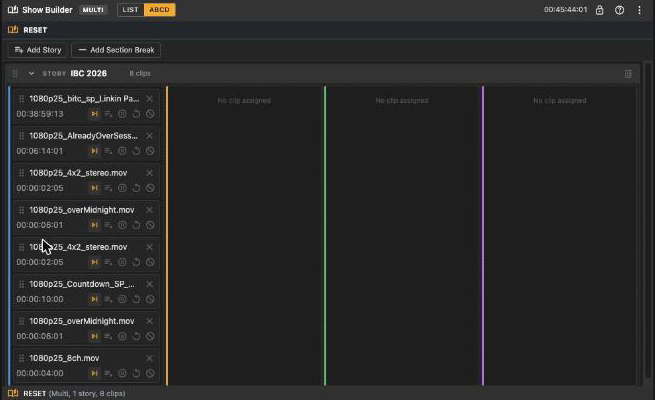
A Show Builder with a multi show open in the ABCD board
Adding the widget
Open Add Widgets and choose Show Builder from the Generic category. The widget does not require a flow. When no show is open, you can create a Single show, create a Multi show, open an existing show, or drag a show from the File Browser.
Layout
- Header: The show mode, List/ABCD view switch for Multi shows, total duration for Multi shows, editing lock, help button, and widget menu.
- Show bar: The show name, rename control, and save status.
- Toolbar: For Multi shows, Add Story in board view and Add Section Break. It displays Locked when editing is disabled.
- Body: The Single table, Multi list, or ABCD board.
- Footer: The show name and its clip or story counts, or No show open.
Creating and opening shows
Choose New single show or New multi show from the widget menu or empty-state buttons. The widget creates and opens Untitled Show N. Use the pencil in the show bar to rename it.
Choose Open show… to open the show picker. Search by name or select a row that shows the mode, clip count, and duration. The current show has a Loaded badge. If no shows exist, the picker explains that you can create one on a player and that it will be saved automatically.
Drag a show from the File Browser's Shows source onto the widget, or right-click it and choose Open in Show Builder. If the dashboard contains several Show Builders, the menu identifies each target.
Opening another show does not require confirmation because pending changes are saved first. If you select the show that is already open, the widget displays an already open warning.
Duplicate show creates a copy with (copy) appended to its name and opens the copy.
Close show saves and closes the current show, then returns the widget to No show open.
Delete show… opens a confirmation dialog. Click DELETE to remove the show.
Adding clips
Clips come from the File Browser. Drag files or subclips onto the widget while a show is open:
- Single show: Drop files anywhere on the table. An empty show prompts you to build it from File Browser files; an existing show provides a drop zone at the end.
- Multi show, list view: Drop files on one of the four player drop zones below the list. All four players are available because the Show Builder is not assigned to a flow.
- Multi show, board view: Drop files into a story cell to assign them to that story and player.
Files are added in drop order at the end of the last story. If the show has no stories, the widget creates Story 1. A subclip uses its parent file with the subclip range as IN and OUT points; a regular file has no marks. New clips use Play Next as their finish action.
A file cannot be dropped until a show is open. A locked Show Builder also rejects file drops.
Durations
Each clip shows its marked duration when IN and OUT points are stored, or the full duration reported by the File Browser when the clip was added. Clips without a known duration are excluded from the totals. The header for Multi shows and the Rundown duration value for Single shows add the known durations.
The views
Single show
The table matches the Single Player playlist without the Status column. It contains #, File, Duration, Finish Action, and Remove. Drag a row by its number to reorder it.
Multi show, list view
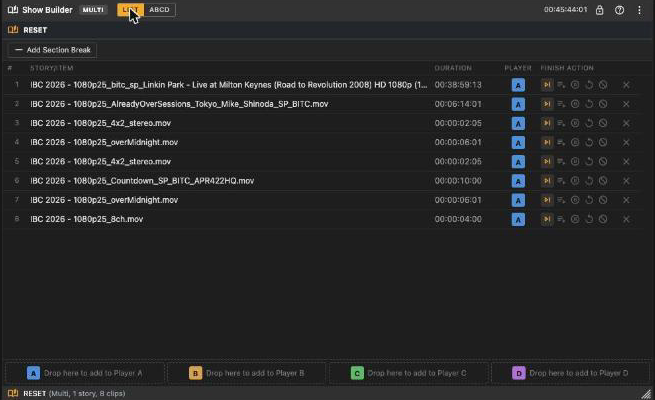
The columns are #, Story/Item, Duration, Player, Finish Action, and remove. Click a Player badge to move the clip to the next player in sequence: A, B, C, D, then back to A. Drag rows and section breaks by their handles.
Multi show, ABCD view
Each story spans four player columns. A clip appears as a card in its assigned column with a drag handle, file name, remove button, duration, and finish actions.
Drag a card within its cell to reorder it, or into another column to assign it to another player. Drag a story row to move the complete story. Use the chevron to collapse it, the pencil to rename it, and the bin to delete it. Deleting a story that contains clips requires confirmation; an empty story is deleted immediately.
Section breaks appear in both views as END OF SECTION rows with their own drag and delete controls.
Finish actions
Choose Play Next, Cue Next, Hold Last Frame, Re-Cue, or None for each clip. None drops the player output to black. The selected action is highlighted. The Show Builder does not provide single-clip looping or IN/OUT editing; it preserves the stored marks.
Saving
There is no save button. Every edit is saved automatically, and the show bar displays Saving…, Saved, Save failed, or Out of sync. A later edit retries a failed save. If another Show Builder or player changes the show, this widget adopts the newer version and notifies you. If the show is deleted elsewhere, the widget closes it.
Sending a show to a player
The Show Builder does not play anything. To put the show on air:
- In the File Browser's Shows source, right-click the show and choose Load into Multi Player or the appropriate Single Player entry. You can also drag the show onto the player.
- Choose Load Show… from the player's own menu.
A Single show loads as a Single Player playlist. A Multi show assigns its clips to the Multi Player outputs by player letter.
Players confirm before they replace clips they hold (see the player chapters).
Widget menu
| Entry | What it does |
|---|---|
| New single show | Creates and opens an empty Single show. |
| New multi show | Creates and opens an empty Multi show. |
| Open show… | Opens the show picker. |
| Duplicate show | Saves a copy and opens it. |
| Close show | Saves and closes the current show. |
| Delete show… | Deletes the current show after confirmation. |
| Remove Widget | Removes the widget from the dashboard. |
Locking
The lock button disables file drops, reordering, additions, deletions, renaming, finish-action changes, and show commands in the menu. Use it to protect a completed show from accidental changes. The widget saves the lock state and selected view.
Good to know
The mode is stored with the show, not the widget. A show created on a Single Player opens as Single; a show created on a Multi Player opens as Multi.
The Show Builder is not connected to a player, so it cannot cue or play clips. Playback status appears only after the show is loaded on a player.
Shows are shared across dashboards. Any Show Builder or player can open the same show. The most recent edit takes precedence, and other open widgets update to match it.