
Use the profile pages to manage your name, email address, locale, password, active sessions, and dashboards. Click your avatar in the app bar and select Edit Profile. The sidebar then displays a Profile section with Account and Dashboards. Click Back in the app bar to return to your most recent dashboard.
Account
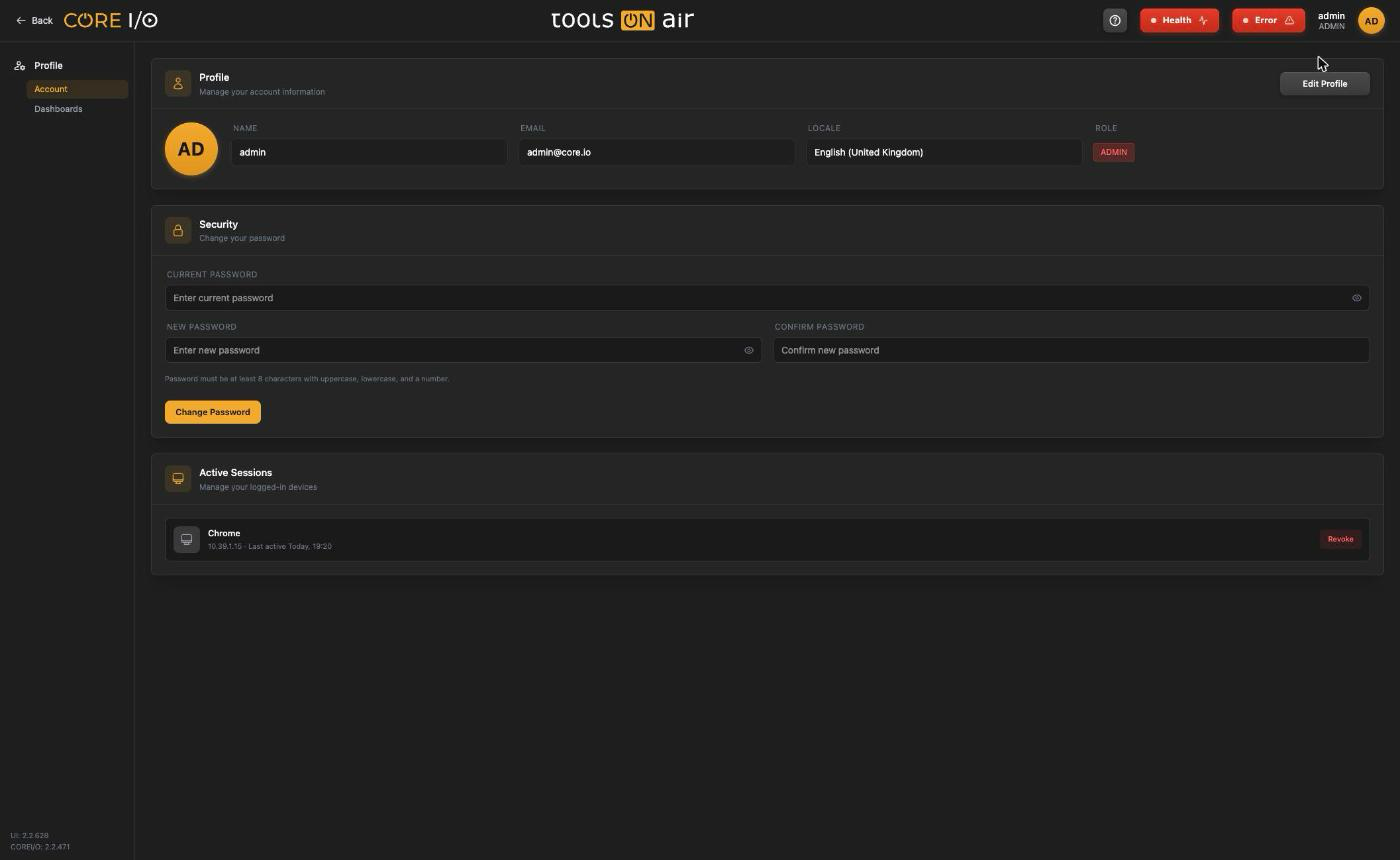
The Account page contains Profile, Security, and Active Sessions cards.
Profile
The Profile card displays your avatar and the Name, Email, Locale, and Role fields. The Role badge is red for Admin, blue for User, and gray for Viewer. You cannot change the role on this page. An Active Directory or SAML account displays an additional badge with the provider name.
To change your details:
- Click Edit Profile in the card header.
- Edit Name and Email, and select a Locale. The locale determines how CORE I/O formats dates and times.
- Click Save Changes to save, or click Cancel to discard your changes. The save button reads Saving... while the request is processed.
A Profile updated successfully notification confirms the change. CORE I/O rejects an empty name with Name is required, an empty or malformed email address with Email is required or Invalid email format, and an address assigned to another account with Email is already in use.
Security
Use the Security card to change the password of a local account:
- Enter your Current Password.
- Enter the New Password and repeat it under Confirm Password. Click the eye icons to show or hide the entered text.
- Click Change Password. The button reads Changing... while the request is processed.
The new password must contain at least eight characters, including an uppercase letter, a lowercase letter, and a number. Validation messages include Current password is required, Password must be at least 8 characters, Password must contain uppercase, lowercase, and a number, Passwords do not match, Current password is incorrect, and Password does not meet requirements. After a successful change, CORE I/O displays Password changed successfully and clears the fields.
For an Active Directory or SAML account, the card displays Your password is managed by Active Directory and cannot be changed here. or the corresponding SAML message.
Active sessions
The Active Sessions card lists every session for your account. Each entry identifies the browser (Chrome, Firefox, Safari, Edge, Opera, or Unknown Browser), IP address, and time of last activity. Your current session is highlighted and marked Current. Click Revoke on another session to sign out that device. The button reads Revoking... while the request is processed, and a Session revoked notification confirms the action.
No active sessions found appears when the list is empty.
Managing dashboards
The Dashboards page lists your dashboards in the same order as the sidebar. If no dashboards exist, it displays No dashboards and Add a dashboard to get started.
| Control | What it does |
|---|---|
| Add Dashboard | Opens an inline row with a name field. Click Create or press Enter to create the dashboard. Click Cancel or press Escape to close the row. An empty name displays Name is required. A duplicate name, regardless of capitalization, displays A dashboard with this name already exists. Dashboard created confirms success. |
| Grip handle | Drag a row up or down to change its position. CORE I/O saves the new order and updates the sidebar. |
| Dashboard name | Click the name to open that dashboard. |
| Open | Opens the dashboard. |
| Edit | Turns the name into a text field. Click Save or press Enter to store the new name. Dashboard saved. confirms the change. Click Cancel or press Escape to discard it. An empty name is ignored. |
| Duplicate | Creates an empty dashboard named <name>_copy. Additional copies are numbered, for example <name>_copy(2). Dashboard duplicated confirms the action. Widgets are not copied. |
| Delete | Requests confirmation in the row. Click Confirm to delete the dashboard or Cancel to keep it. Dashboard deleted. confirms the deletion. |
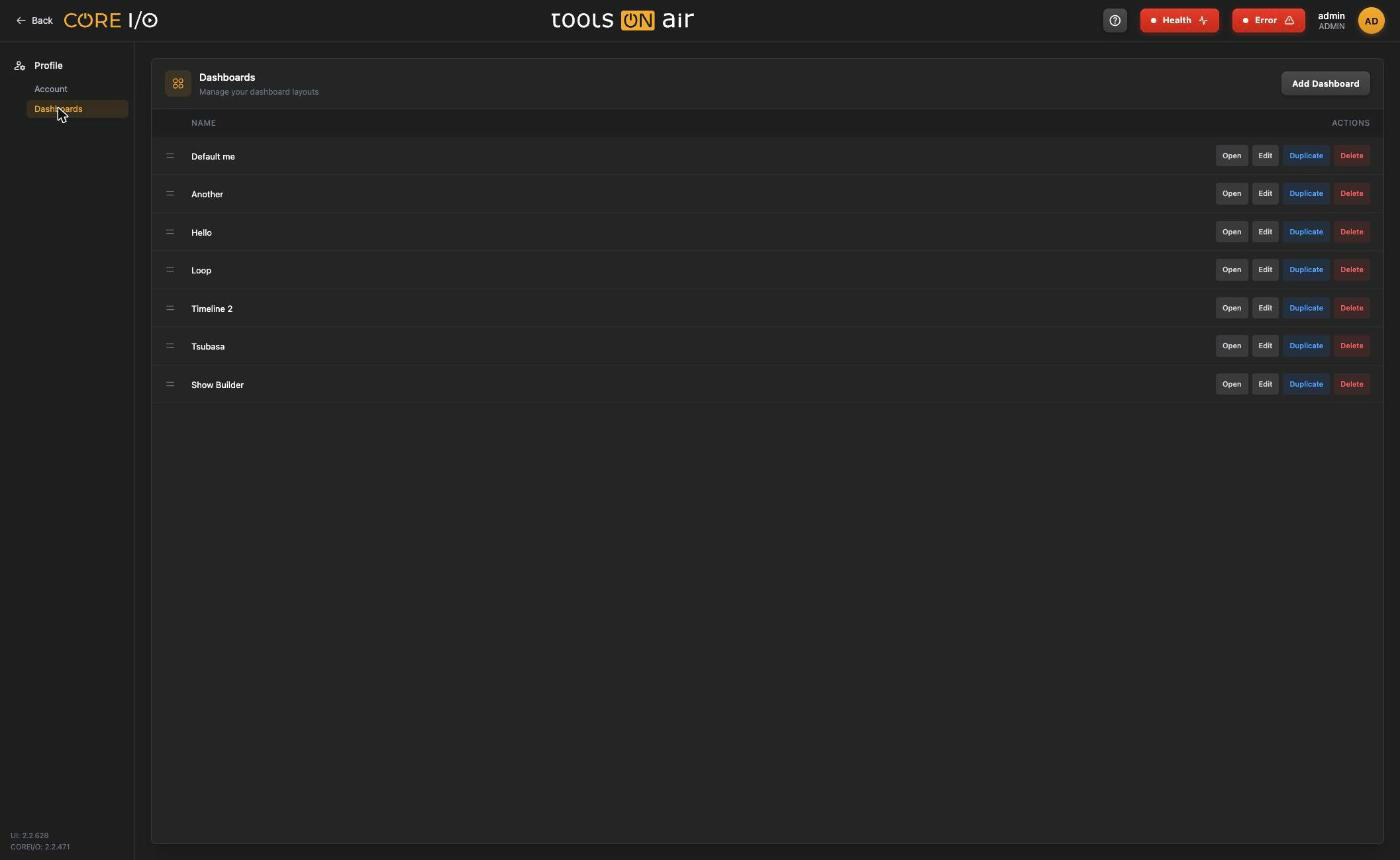
The license determines how many dashboards can exist, as shown under Dashboards on the License page. You can also add and rename dashboards from the sidebar. See App Bar and Navigation.
Good to know
- The browser remembers the dashboard you open and returns to it after your next sign-in.
- If that dashboard has been deleted, the first dashboard in your list opens instead.
- The Record Timeline uses the server time zone, not a profile setting. See Concepts.