
The Loop Viewer displays the live picture and audio from a Loop flow, which records continuously into a rolling buffer. Use the viewer to monitor the signal and check errors. To create files from the rolling recording, add a Loop Segment Exporter for the same flow.
Add a Loop Viewer to a dashboard (see Dashboards), then assign a Loop flow.
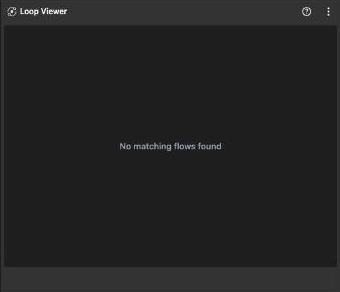
A Loop Viewer before a flow is assigned
Layout
Header
The header contains the following controls:
- The loop icon and flow name.
- The speaker button, which opens the Audio Monitor. Enable any of channels Ch01 through Ch16 to include it in the preview mix and unmute the widget. Closing the dialog mutes the preview again.
- The notifications icon, which changes to an error icon when the flow reports errors or warnings. Click it to open the flow's Errors and Warnings table. Click CLEAR to remove all entries, or CANCEL to close the dialog. Shift-click the icon, or select the viewer and press
Shift+W, to clear the entries without opening the dialog. - The flow nodes icon, which lists the flow's inputs and outputs. Each node shows its name or type and relevant details such as SDI port, video mode, encoder preset, streaming endpoint, or NDI source. An empty flow displays No nodes configured.
- The ? button, which opens this chapter.
- The ⋮ settings menu.
Picture
The picture shows the flow's preview. Without a signal the area reads No Signal. While the loop records, the widget frame turns red and a LOOP RECORD badge appears at the bottom of the picture. Click the picture to select the viewer (orange frame); click again to deselect.
Overlays
The overlays shrink as the widget gets smaller. The timecode disappears below about 240 px in either direction, the meters below about 353 px wide or 240 px high.
| Overlay | What it shows |
|---|---|
| Timecode | A black box at the top with the stream's timecode. |
| Audio Meter | dBFS meters on the left and right edges, with eight bars on each side and marks at 0, -6, -12, -18, and -24 dB. The bars change from green to yellow and red toward the top. |
Settings menu
| Entry | What it does |
|---|---|
| Overlays | Opens a submenu for the Timecode and Audio Meter overlays. Set each overlay to On or Off. The selection is saved with the widget. If several Record Viewers are selected, the change also applies to them. |
| Remove Flow | Unlinks the flow and returns the widget to the flow picker. |
Good to know
The Loop Viewer has no record controls: a Loop flow records as long as it is active. Start and stop the flow on the Flows page.
If the assigned flow is running another configuration type, the viewer remains inactive and identifies the required configuration. See Flows.