
An encoder preset defines how CORE I/O compresses a live stream. It contains the video codec and constraints, resolution, frame rate, field order, bit depth, chroma subsampling, audio codec, channel count, sample rate, and audio format. Encoder presets are used by SRT, UDP, RTP, RTMP, and HLS output nodes, stream endpoints with the Output role, and H.264 capture presets in Custom mode.
Opening the page
In the sidebar, open Configuration and select Encoder Presets, or go to /encoders. The header reads "Configure video and audio encoding settings". A link from a capture preset opens /encoders?id=<preset id>.
Layout
The table lists the presets by Name. Click a row or its arrow to expand it into two panels, Video Settings and Audio Settings. Each row has Edit, Duplicate and Delete. With no presets the page reads "No encoder presets".
Creating a preset
- Click Add Preset. An input ("Enter preset name") appears in a new row.
- Enter a name, then click Create or press Enter. Press Escape or click Cancel to discard it.
An empty name displays "Name is required." A name already in use, regardless of capitalization, displays "A preset with this name already exists." The new preset uses the following defaults and can be edited immediately:
| Setting | Default |
|---|---|
| Video encoder | libx264 |
| Video constraints | preset=medium |
| Resolution | 1920 x 1080 |
| Frame rate | 25 |
| Field mode | Progressive |
| Bit depth | 8 |
| Chroma subsampling | 4:2:0 |
| Audio encoder | aac |
| Audio constraints | bitrate=192k |
| Audio channels | 2 (Stereo) |
| Audio sample rate | 48000 |
| Audio format | Signed Integer 24-Bit Little Endian |
Editing a preset
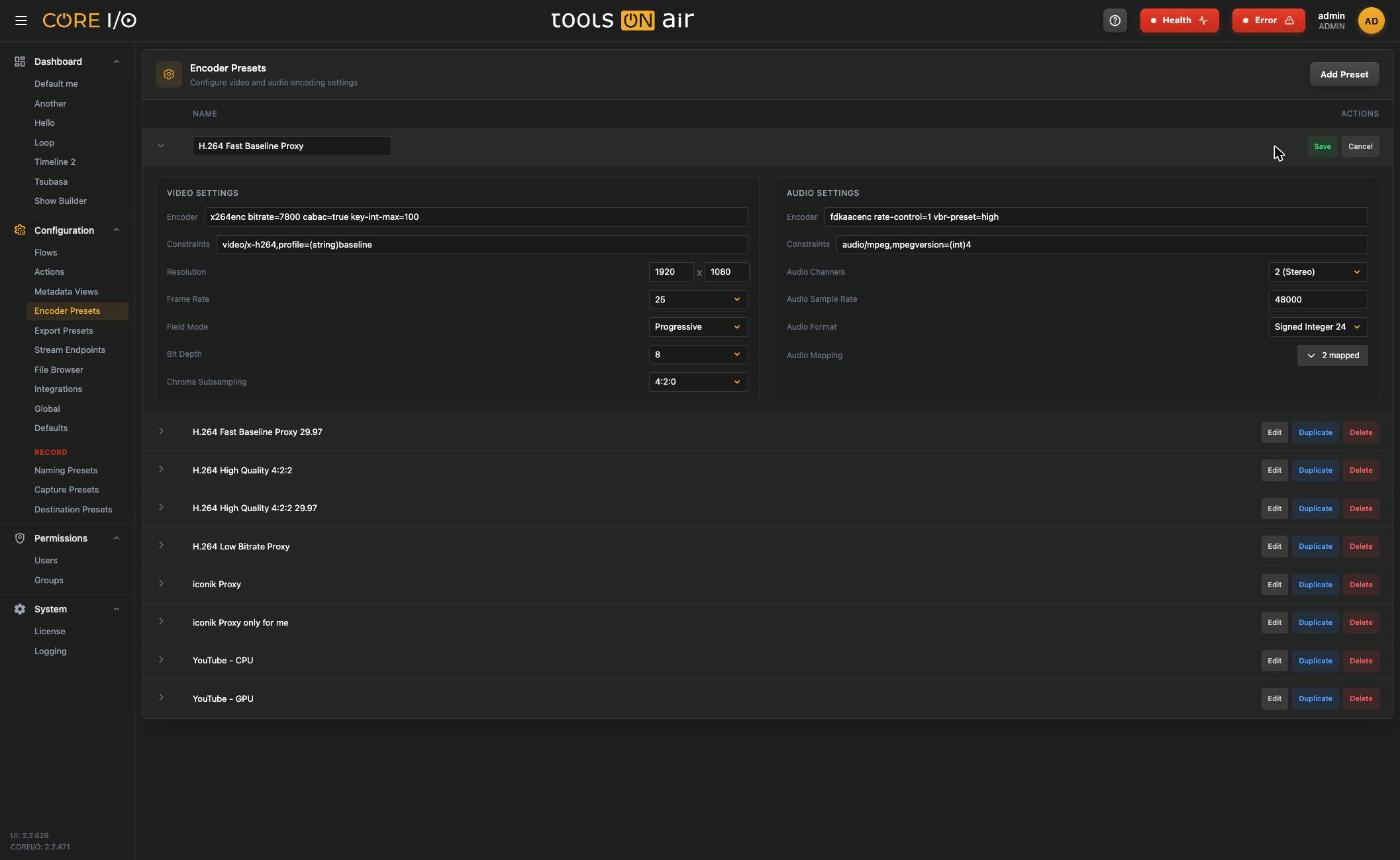
Click Edit. The row expands and every value becomes editable; the name is an input in the row. Save stores the preset ("Preset updated."), Cancel discards the changes. Saving with a name already used by another preset warns "A preset with this name already exists.".
An encoder preset in edit mode
Video settings
| Field | What it does |
|---|---|
| Encoder | The video encoder name, for example libx264. This is a free-text field. |
| Constraints | Encoder parameters as key=value pairs, for example preset=medium. This is a free-text field. |
| Resolution | Width x height in pixels. |
| Frame Rate | 23.976, 24, 25, 29.97, 30, 50, 59.94 or 60. |
| Field Mode | Progressive, Upper First, Lower First or psf. |
| Bit Depth | 8, 10, 12 or 14. |
| Chroma Subsampling | 4:2:0, 4:2:2 or 4:4:4. |
Audio settings
The audio fields other than Encoder and Constraints come from the server, so their exact list may differ on other backend versions.
| Field | What it does |
|---|---|
| Encoder | The audio encoder name, for example aac. This is a free-text field. |
| Constraints | Encoder parameters, for example bitrate=192k. This is a free-text field. |
| Audio Channels | 2, 4, 8 or 16 channels, each as Mono or Stereo. |
| Audio Sample Rate | Sample rate in Hz, for example 48000. |
| Audio Format | Signed Integer 24-Bit Little Endian or Signed Integer 16-Bit Little Endian. |
| Audio Mapping | Which input channel feeds each output channel. Displays "Default" when no mapping exists, or "<n> channel(s) mapped". |
Audio mapping
In edit mode, the Audio Mapping row shows Configure, or the mapped channel count when a mapping exists.
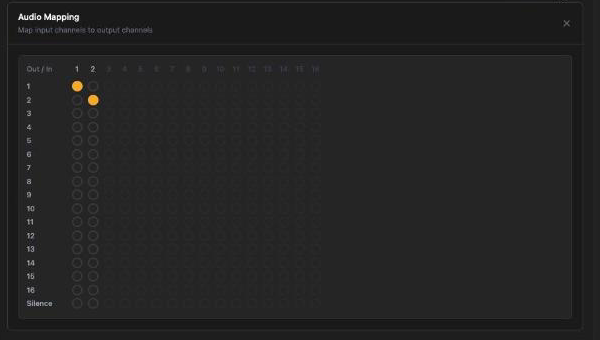
Click it to open the Audio Mapping panel, "Map input channels to output channels":
Columns are input channels 1 to 16; rows are output channels 1 to 16 plus a Silence row.
Click a dot to route that input to that output. An input can go to one output only: choosing a new output for a column clears its previous dot. Clicking a selected dot removes the route.
Columns beyond the preset's Audio Channels count are disabled.
Click × to close the panel. The mapping is stored when you save the preset.
The Audio Mapping panel
Duplicating and deleting
Duplicate creates <name>_copy. Further copies use <name>_copy(2), <name>_copy(3), and so on. A toast confirms "Preset duplicated."
Delete changes the buttons to Confirm and Cancel. Confirming removes the preset and displays "Preset deleted."
Where encoder presets are used
Flows: the Encoder Preset field of SRT, UDP, RTP, RTMP and HLS output nodes. See Flows.
Stream Endpoints: an endpoint with the Output role selects an encoder preset in its Encoder column. See Stream Endpoints.
Capture Presets: an H.264 capture preset in Custom mode uses an encoder preset instead of profile, speed and bitrate; the preset's Codec column then shows a Custom link that opens this page. See Capture Presets.
Good to know
Encoder and constraint strings are passed to the media engine as typed; there is no validation on this page.
Numeric fields clamp to the range the server reports for them as you type.