
Widget Defaults lets an administrator preselect settings for widgets that users add to their dashboards. Examples include the mount point opened by a new File Browser and the naming preset used by a new Loop Segment Exporter. Existing widgets are not affected.
Open Defaults in the Configuration section of the sidebar. This page is available only to administrators; other users are redirected to the start page. The header reads "Preselected settings for newly added widgets - existing widgets are not affected".
Layout
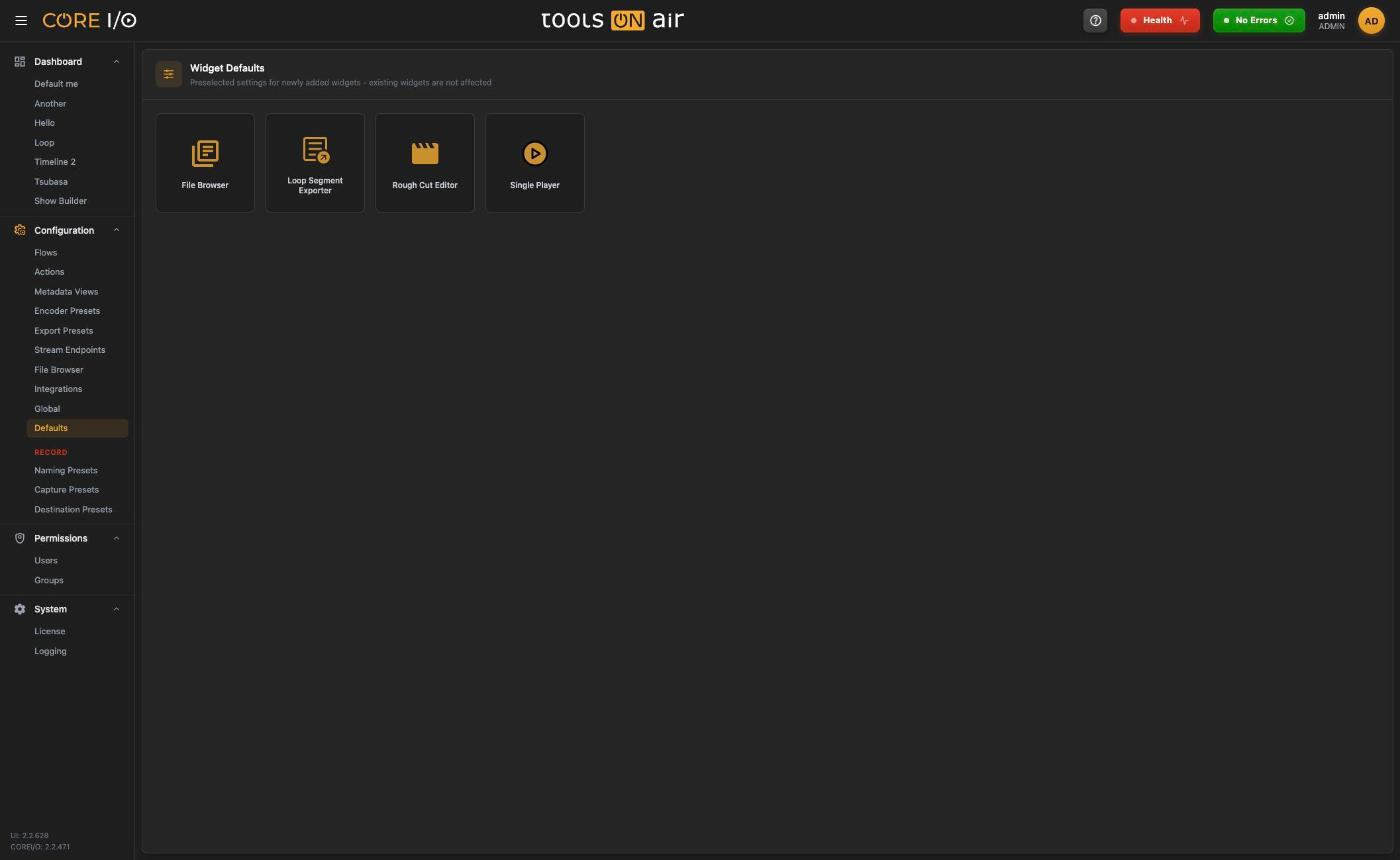
The overview contains one tile for each supported widget type: File Browser, Loop Segment Exporter, Rough Cut Editor, and Single Player. The tiles are arranged alphabetically. Each tile opens a detail page with the widget icon, a Back link, and a short form.
The Widget Defaults overview
How saving works
There is no Save button. Each change is stored immediately. The header displays Saving… and then Saved for two seconds. If the backend rejects a change, the header displays Save failed, a toast shows "Insufficient permissions" or "Failed to save the default", and the control returns to its last stored value.
Each selection list starts with No default, which removes the stored value. The widget then behaves as if no default were configured. If a stored preset or mount point has been deleted, the selection displays (unknown) until you choose another value.
If the backend does not support this feature, each detail page displays "Widget defaults are not supported by this backend version." A failed load displays "Failed to load the defaults." with a Retry button.
Defaults per widget type
File Browser
| Default | What it does |
|---|---|
| Mount Point | The mount point opened by a newly added File Browser. |
Loop Segment Exporter
| Default | What it does |
|---|---|
| Naming Preset | The naming preset selected in a new Loop Segment Exporter. |
| Mount Point | The export mount point selected in a new exporter. |
| Live Audio | On or Off. This setting is a live policy rather than a one-time default. When an exporter enters live mode without its own audio channel selection, On unmutes and enables channels 1 and 2. Off behaves like No default. |
Rough Cut Editor
| Default | What it does |
|---|---|
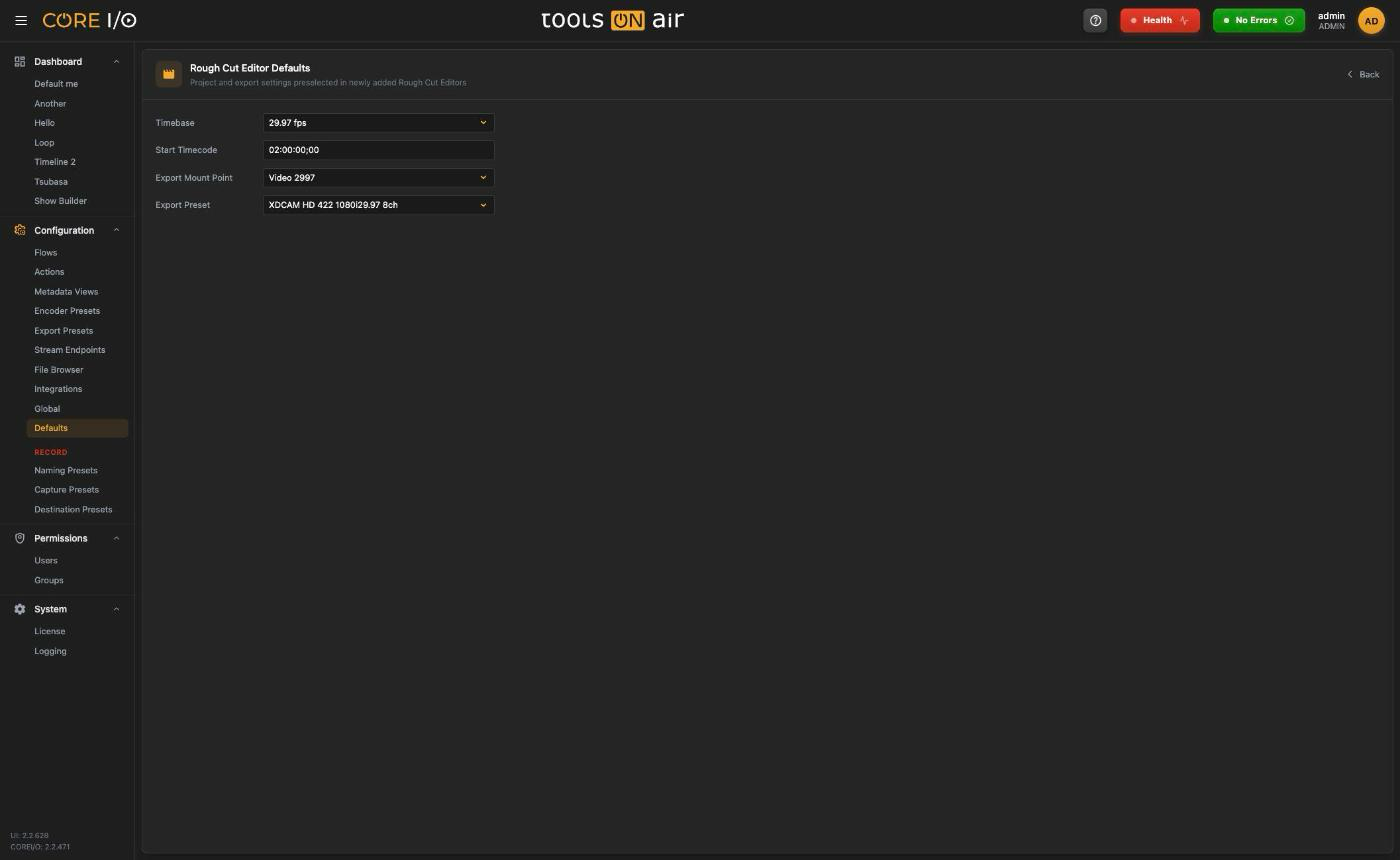
| Timebase | Frame rate of a new project: 23.976, 24, 25, 29.97, 30, 50, 59.94, or 60 fps. |
| Start Timecode | Start timecode of a new project. Enter the value, then leave the field or press Enter to save it. Press Escape to restore the saved value. The placeholder shows the value used without a default, including drop-frame notation where applicable. An invalid entry displays "<value> is not a valid timecode for the selected timebase". |
| Export Mount Point | The mount point selected for exports. |
| Export Preset | The export preset selected for exports. |
The Rough Cut Editor applies these defaults once, when a new widget creates its project.
Single Player
| Default | What it does |
|---|---|
| Finished Action | Controls what a clip does when it reaches its end and applies to every clip added to a show: Play Next, Cue Next, Hold Last Frame, Re-Cue, or None (drop to black). Play Next is the built-in behavior and is stored as No default. |
See Single Player for details about each on-air action.
Good to know
Defaults are copied into a widget when it is created. Changing a default later does not affect existing widgets; users can change those settings directly in the widget.
The only exception is the Loop Segment Exporter's Live Audio setting, which is read every time an exporter goes live.
Deleting a preset or mount point does not clear a default that points to it. The row displays (unknown) until you choose a new value or No default.