
A flow is a media pipeline that runs on one host. It consists of an input (SDI card, SRT, UDP, NDI, RTP, or HLS), a master node that defines its purpose (Record, Transcode, Playout, or Loop), and optional outputs (SRT, UDP, RTMP, RTP, NDI, HLS, or SDI) and actions (GFX overlay or Transcribe). Use the Flows page to create pipelines, connect nodes, edit settings, manage saved configurations, start or stop flows, and inspect the host hardware.
Dashboard widgets connect to flows. For example, a Record Viewer requires a Record flow, and a Single Player requires a Playout flow. Create the flow first, then assign it to a widget. For details, see Dashboards and Concepts.
Opening the page
In the sidebar, open Configuration and select Flows, or go to /flows. Selecting a flow changes the URL to /flows/<flow id>, so you can bookmark a specific flow. The System and Certificates tabs add ?tab=system&host=<hostname> to the URL.
While you are on this page the app bar shows an Add Flows button (see App bar).
The following example shows a Playout flow on the canvas.
Layout
The page stacks four tab rows above the work area:
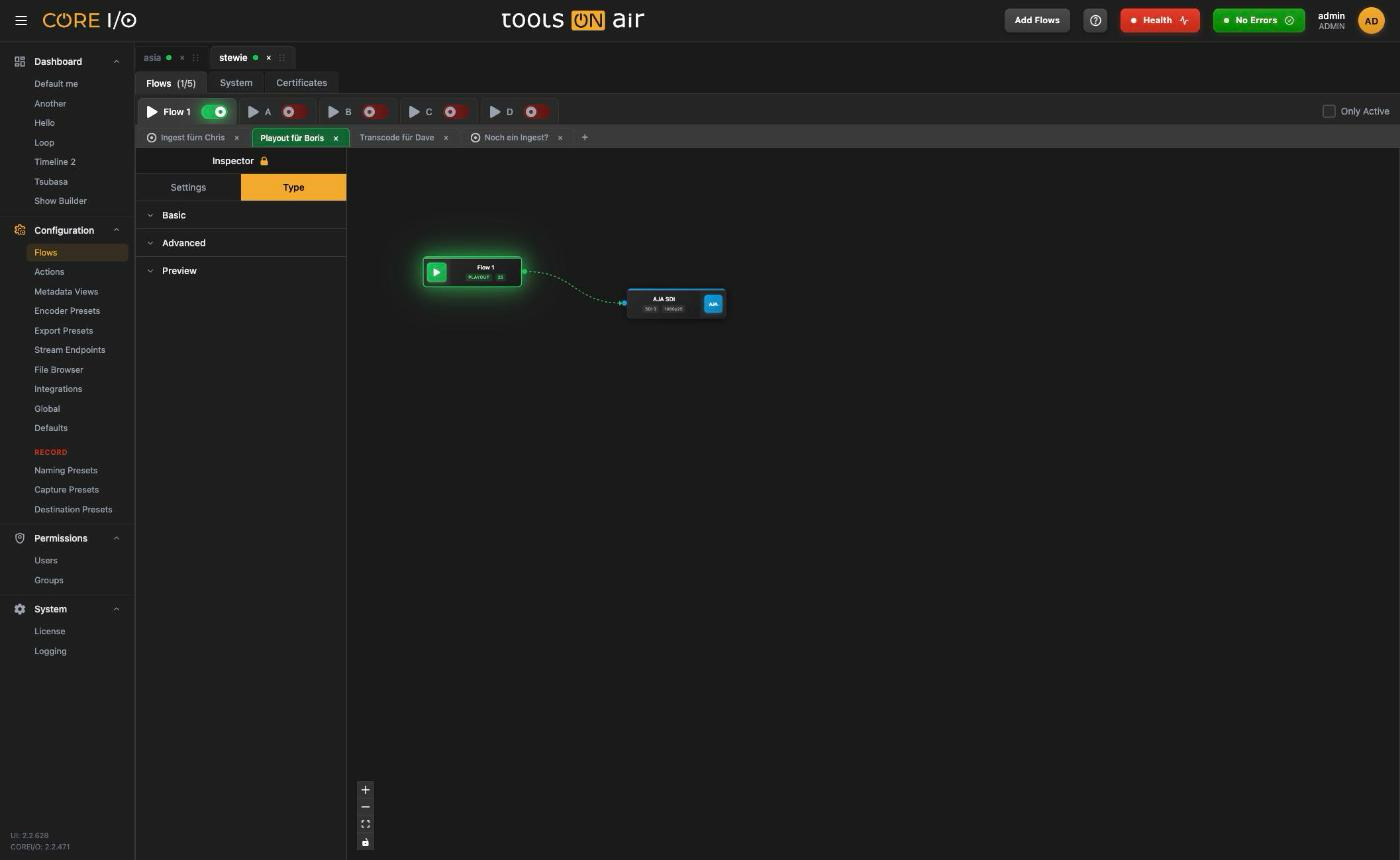
- Hosts: One tab per media engine host. Drag a tab by its ⋮⋮ handle to reorder the hosts; CORE I/O saves the order for your account. Double-click a host name to rename it. This also renames the host on every flow it owns. The status dot is green for Media Engine Connected, pulses red for Media Engine Disconnected, and is gray for Media Engine Status Unknown. If more than one host exists, click × to remove a host and all its flows. See Removing hosts and flows.
- Main menu: Flows, with an
(active/total)counter, System, and Certificates. - Flow tabs: One tab per flow on the selected host. Each tab shows the flow type icon, the name, and the activation switch. Long names are shortened at the beginning with an ellipsis. Select Only Active to hide inactive flows.
- Configurations: The configuration profiles for the selected flow. See Configurations.
Below the tabs the Inspector panel sits on the left and the canvas fills the rest.
Adding flows
- Click Add Flows in the app bar.
- Enter the Host Name, Host IP Address, and Flow Name. Host and flow names accept letters, digits, underscores, and hyphens. The IP address accepts letters, digits, periods, and hyphens. All three fields are required. An empty field displays "Host Name is required", "Host IP Address is required", or "Flow Name is required".
- Under Flow(s), choose how many flows to create (1 to 8), then select the Flow Type: Record, Transcode, Playout, or Loop.
- Click ADD. If you create more than one flow, CORE I/O adds a two-digit suffix to each name, such as
ingest01andingest02.
Each flow is created on host port 5570 and gets its own WebRTC port, starting at 8554 (or two above the highest port already used on that host) and stepping by 2. A toast reports "Flow(s) added".
Starting and stopping a flow
The switch on a flow tab activates or deactivates the flow:
- Green: The flow is active.
- Red: The flow is stopped.
- Amber and pulsing: The flow is changing state, and the switch is locked.
Click a stopped flow to start it right away.
Click an active flow to stop it. The Stopping flow - dialog asks for confirmation. Select Remove flow connection for Dashboard widgets to unlink widgets assigned to the flow, then click YES or press Enter. Click CANCEL or press Escape to keep the flow running.
Shift+Click stops a flow without the confirmation dialog.
Alt+Click toggles every flow of the host that is in the same state as the one you clicked (start all stopped flows, or stop all active flows). The tabs pulse while the flows change state.
The switch is disabled with the tooltip "Media Engine disconnected" while the host's media engine is not connected.
If the backend refuses the request, a toast displays its error message or "Failed to active flow".
The canvas
The canvas shows the flow as a graph. Edges use the flow type's color (Record red, Transcode blue, Playout green, Loop purple) and animate while the flow is active; on a stopped flow they are white. The pan and zoom position is saved per flow, so each flow reopens where you left it.
Node types
The graph can contain a master node, one input node, output nodes, and action nodes. The table in The inspector describes their roles and available connections.
Editing the graph
- Click Add Nodes in the lower-right corner of the canvas, then choose an entry under Input Ports, Output Ports, or Actions. The node appears near the center of the view.
- Drag from a node's round handle to a handle on another node to connect them. The left handle of the master node accepts one connection.
- Select a node or edge and press Backspace to delete it. The master node cannot be deleted. Drag a node to a new position to save its location.
- Click an empty area of the canvas to clear the selection.
The inspector
The inspector shows the properties of the selected node. If no node is selected, it reads "Select a node to view its properties". The master node has Settings and Type tabs; other nodes show their fields directly. Dropdowns save as soon as you change them. Text fields save when you press Enter or leave the field, except on the master node's Type tab, where they save as you type. All fields are read-only while the flow is active.
| Node | What it is |
|---|---|
| Master node | The flow itself. It shows the flow name, a type badge (RECORD, TRANSCODE, PLAYOUT, LOOP) and the preview framerate. Record, Transcode and Loop flows accept one incoming connection on the left; every type has an outgoing handle on the right. |
| Input Ports | AJA/SDI, SRT, UDP, NDI, RTP, HLS. A flow holds one input node; adding a second one is refused with "Configuration Error". The node shows its name plus the input channel, video format or NDI source once known. |
| Output Ports | AJA/SDI, SRT, UDP, NDI, RTP, HLS, RTMP. The node shows the encoder preset and streaming endpoint it uses. |
| Actions | GFX (a web overlay) and Transcribe. Amber nodes with a handle on each side. |
Settings tab (master node)
Admins also see Remove Flow at the bottom of the Settings tab (see Removing hosts and flows).
| Section | Field | Notes |
|---|---|---|
| General | Name | Letters, numbers, underscores and spaces only ("Only letters, numbers, underscores, and spaces allowed"). |
| Type | Record, Transcode, Playout or Loop. Changing the type changes which widgets can bind to the flow. | |
| External ID | Free text without spaces ("Spaces are not allowed"). | |
| Host | Address | The host's IP address. |
| Port | 1 to 65535 ("Port must be between 1 and 65535"). | |
| WebRTC Port | 1 to 65535. |
Type tab (master node)
The sections and fields come from the backend and depend on the flow type. On the current backend they are:
Timecode fields must use the format HH:MM:SS:FF. Otherwise, the inspector displays "Chunk Size must be in format HH:MM:SS:FF - where HH (00-12), MM (00-59), SS (00-59) and FF (00-59)." The Naming Preset and Capture Preset lists for Loop flows come from the Naming Presets and Capture Presets pages.
| Flow type | Section | Fields |
|---|---|---|
| Record | Basic | Chunk Size ( HH:MM:SS:FF ), VDCP Control, VDCP Port, Start Timecode, Timecode |
| File | File Overwrite Strategy (Append Counter, Replace), File Buffer Queue (128 MB to 4 GB) | |
| Signal | On Color Space Change (Stop Recording, New Container), Action on No Signal (Continue with gaps, Close Container and Stop, Close Container, Write New) | |
| Loop | Basic | Timecode Source, Naming Preset, Capture Preset, Capture Preset Proxy, Keep Files For (1 Minute to 2 Months) |
| Transcode | Basic | Timecode Source |
| Playout | Basic | Default Playback Rate (0.25x to 2x), Loop Mode, Auto Play on Load |
| all | Advanced | CPU Affinity |
| all | Preview | Resolution, Framerate, Minimum Bitrate, Maximum Bitrate, Min RTP Port, Max RTP Port, STUN Server, TURN Servers |
Input node fields
Choosing a Device on an AJA/SDI node reloads the channel, mode and format lists for that card.
Streaming Endpoint lists the endpoints of the matching type from Stream Endpoints. On Signal Loss offers Add Black Frames or Write Last Valid Frame.
| Input | Fields |
|---|---|
| AJA/SDI | Node Name, Device, Input Mode, Input Channel, Audio Input, Video Format, Frame Buffer, Capture Thread, RP188 Timecode, Reference Source, On Signal Loss |
| SRT | Node Name, Video Format, Allow Input Conversion, Receive Buffer Size, Maximum Latency (ms), Streaming Endpoint, On Signal Loss |
| UDP, RTP | Node Name, Video Format, Allow Input Conversion, Receive Buffer Size, Streaming Endpoint, On Signal Loss |
| NDI | Node Name, NDI Source, Video Format, Allow Input Conversion, On Signal Loss |
| HLS | Node Name, Video Format, Allow Input Conversion, Assume Discontinuity, Disable Strict SSL, Max Retries, Retry Backoff Factor, Retry Backoff Max, Live Edge Offset (segments), Streaming Endpoint, On Signal Loss |
Output node fields
Encoder Preset lists the presets from Encoders.
| Output | Fields |
|---|---|
| SRT | Node Name, Send Buffer Size, Maximum Latency (ms), Encoder Preset, Streaming Endpoint |
| UDP, RTP | Node Name, Send Buffer Size, Encoder Preset, Streaming Endpoint |
| RTMP | Node Name, Encoder Preset, Streaming Endpoint |
| HLS | Node Name, Encoder Preset, Segment Duration (1 to 60), Max Segments (0 to 10000) |
| NDI | Node Name, NDI Stream Name, Video Format |
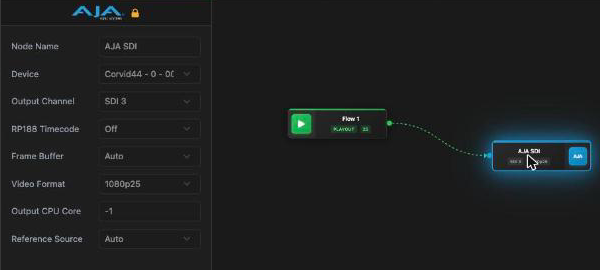
| AJA/SDI | Node Name, Device, Output Channel, RP188 Timecode, Frame Buffer, Video Format, Output CPU Core, Reference Source |
The following example shows the inspector with an AJA/SDI output node selected.
Action node fields
A GFX node has Node Name and URL: the web page rendered as an overlay. The URL can also be set from a playout widget's Graphics submenu, which offers MXMZ outputs, singular.live apps or a custom URL when those integrations are configured (see Single Player and Production integrations). A Transcribe node has no settings yet; the inspector reads "Settings for transcribe node coming soon".
Configurations
A flow can contain several named configurations. Each configuration stores the complete graph and its settings, and one configuration is always current. Switch configurations to change a flow from one setup to another, such as from Record to Playout, without rebuilding it. Every flow starts with a configuration named Default.
The configuration tabs sit directly under the flow tabs. The current one has a green background and the tooltip "Current configuration". A configuration whose type differs from the flow's live type shows that type's icon in front of its name.
The configuration tabs appear below the flow tabs.
Switching configurations
Click any tab that is not current. On a stopped flow, the switch happens immediately. On an active flow, the Switch configuration? dialog explains that the flow stops and restarts with the selected configuration. If the type changes, it adds the warning "The flow type changes from <current type> to <new type>. Dashboard widgets linked to this flow will be unlinked." Click SWITCH to proceed. The tab pulses while the switch runs. Viewers see the row but cannot switch.
After a switch the page reloads the flow list and the graph. The graph gets new node ids and possibly a new type, so the inspector selection is cleared. An active flow briefly reports as stopped while the media engine restarts it; the page re-reads the list a few seconds later. A switch made in another browser is picked up the same way.
The Flow Controller widget offers the same switching from a dashboard for every flow with two or more configurations.
What happens to widgets
When the switch changes the flow type, every dashboard widget that cannot show the new type is unlinked from the flow (a Record Viewer on a flow that became Playout, for example). Widgets that fit the new type stay bound. Widget pickers also list flows that have a configuration of the wanted type, even if a different one is current; such a widget stays parked until you switch the flow, then goes live.
Adding, renaming, and deleting configurations
Only administrators can create, rename, or delete configurations.
- Add: Click + at the end of the row. Its tooltip reads "New configuration (copy of the live configuration)". Enter a name in the New configuration dialog, then click CREATE. CORE I/O saves a copy of the current live graph under that name. Configuration names must be unique within a flow and are not case-sensitive.
- Rename: Double-click the name, edit it, then press Enter or click elsewhere to save. Press Escape to cancel. An unchanged or empty name is not saved.
- Delete: Click × on a tab. This button is available only when the flow has more than one configuration. Deleting a configuration that is not current opens the Delete configuration? dialog. Deleting the current configuration opens Delete current configuration? CORE I/O first switches to the oldest remaining configuration, restarts the flow if it is active, and then deletes the selected configuration. If the new configuration uses another flow type, the same widget warning shown during a manual switch appears.
Failures show the backend's message in a toast. On a backend that predates configurations the row is hidden entirely.
Removing hosts and flows
Remove Flow (inspector, Settings tab, admins) is disabled while the flow is active ("Stop the flow before removing it"). It opens a Delete flow? dialog with the warning "Dashboard widgets linked to this flow will be unlinked."; Shift+Click skips the dialog. After deletion the page selects the next flow of the host.
Click × on a host tab to open the Removing dialog: "Removing will delete all widget connections to flows hosted by it. Are you sure you want to proceed?" Click YES to unlink the widgets and delete every flow on the host.
System tab
System shows live hardware data of the selected host, updated as the host reports it. If no host is selected it reads "No host selected"; a failed fetch shows the error with a Retry button.
| Card | Contents |
|---|---|
| Chassis | Manufacturer and product with a brand mark, Product and Mainboard details, IPMI address and a Web UI link. |
| CPU | Model, Sockets, Cores, Threads, a Usage bar and per-sensor Temperatures. |
| GPU | Model, Power, Temp, Encoder, and Decoder utilization bars. Shown only when the host has a GPU. |
| M264 Codec Card | One card per Matrox M264 card: model and variant, Temp, Fan and Memory, Details (Hardware Model, Serial, Firmware, EEPROM, PCIe Link, Production Date) and every temperature sensor. The temperature turns amber at 75 °C and red at 80 °C; a fan that is not OK is red. |
| Memory | Usage bar, Total, Used, Free. |
| Disks | Usage, Total, Used and Free for the System Disk and the Internal RAID. |
| Network | Per interface: link speed, IP address and live RX and TX rates. |
| Thermal & Fans | System temperature and fan speeds. |
| Hardware | Chassis intrusion (Ok or ALARM) and power supply status. |
The same data feeds the health indicator in the app bar: CPU, GPU encoder and decoder, memory, system disk and RAID at 80 % count as a warning and at 90 % as critical, a codec card follows the thresholds above, and a disconnected media engine is always critical (see App bar).
Certificates tab
Certificates lists the TLS certificates of the selected host, one card per service: System Service, Web Server, Media Engine and API Server. Each card shows a badge (Valid, Expiring soon or Expired with the remaining days, or years above one year), Subject, Issuer, Valid from, Valid until, the Subject Alternative Names, the last replacement date and any error reported by the host.
Download Certificate saves the certificate as <host ip>-<target>.pem.
Replace… (per card) or Upload certificate (header) opens Replace certificate: pick the Target, choose the Certificate (PEM) and Private key (PEM) files and click Replace. The host reloads the service on success and a toast confirms "Certificate for replaced".
Refresh re-reads the list. A host that cannot be reached shows a red "Host unreachable" banner; a host without certificates reads "No certificates reported for this host."
Good to know
Flows that your account may not see (group-based access) are skipped silently.
Adding a node, connecting nodes or saving a setting that the backend refuses shows a toast ("Failed to add node", "Failed to connect node", or the backend's message for flow settings).
The (active/total) count in the Flows tab applies only to the selected host.
The page remembers the last selected flow. Opening /flows without an ID returns to that flow.