
An export preset defines the format of a rendered file: container, video codec, dimensions, frame rate, field order, pixel format, bitrate, audio codec, and track layout. Select an export preset in the Rough Cut Editor when rendering a sequence.
Opening the page
In the sidebar, open Configuration and select Export Presets, or go to /export-presets. The header reads "Configure container, video and audio settings for file exports".
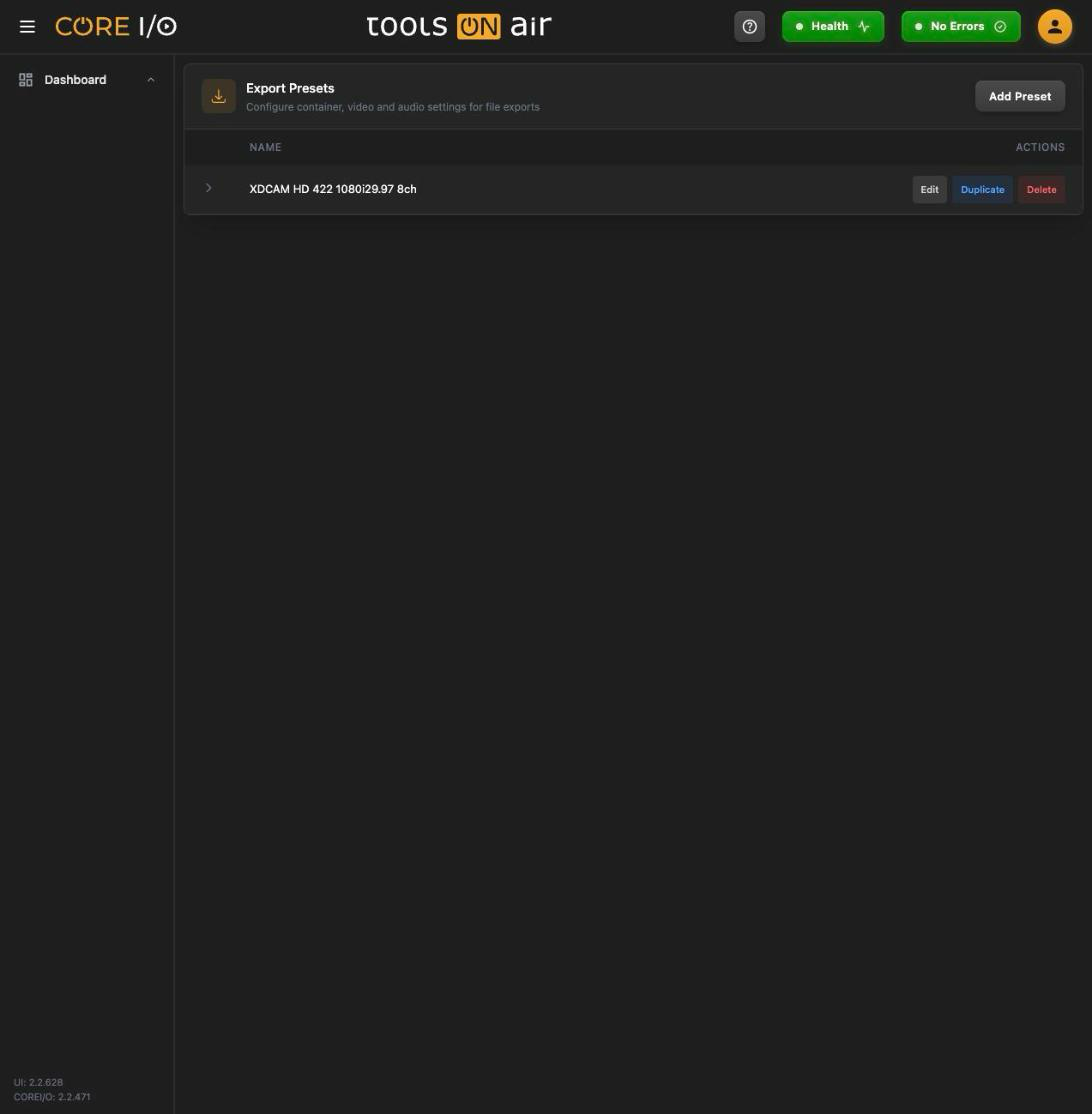
The Export Presets page lists all available output profiles.
Layout
The table lists the presets by Name. Click a row or its arrow to expand it into two panels, Format & Video and Audio. Each row has Edit, Duplicate and Delete. With no presets the page reads "No export presets".
Creating a preset
- Click Add Preset. An input ("Enter preset name") appears in a new row.
- Enter a name, then click Create or press Enter. Press Escape or click Cancel to discard it.
An empty name displays "Name is required." A name already in use, regardless of capitalization, displays "A preset with this name already exists." New presets use an XDCAM HD 422 profile by default: MXF, XDCAM HD 422, 1920 x 1080, 25 fps, Upper First, 8-bit 4:2:2, 50M video bitrate, PCM 24-bit audio, and eight mono tracks at 48000 Hz.
Editing a preset
Click Edit. The row expands, the name becomes an input and every field becomes a dropdown or an input. Save stores the preset ("Preset updated."), Cancel discards the changes. An empty name warns "Name is required."; a name used by another preset warns "A preset with this name already exists.".
Format & video
Set the output container and video properties in the Format & Video section.
| Field | Options |
|---|---|
| Container | MXF, QuickTime, MP4, MPEG TS |
| Video Codec | XDCAM HD 422, Apple ProRes 422, Apple ProRes 422 HQ, Apple ProRes 422 LT, Apple ProRes 422 Proxy, DNxHD, DNxHR, H.264 |
| Video Width | Pixels, for example 1920 |
| Video Height | Pixels, for example 1080 |
| Video Frame Rate | 23.976, 24, 25, 29.97, 30, 50, 59.94, 60 |
| Video Field Order | Progressive, Upper First, Lower First, psf |
| Pixel Format | 8-bit 4:2:0, 8-bit 4:2:2, 10-bit 4:2:2, 10-bit 4:4:4 |
| Video Bitrate | Free text, for example 50M |
Audio
Set the audio codec, track layout, and sample rate in the Audio section.
| Field | Options |
|---|---|
| Audio Codec | PCM 24-bit, PCM 16-bit, AAC |
| Audio Tracks | 1, 2, 4, 8, 16 |
| Channels per Track | Mono, Stereo |
| Audio Sample Rate | Hz, for example 48000 |
The option lists and labels come from the server, so other backend versions may offer more or fewer choices.
Duplicating and deleting
Duplicate creates <name>_copy. Further copies use <name>_copy(2), <name>_copy(3), and so on. A toast confirms "Preset duplicated."
Delete changes the buttons to Confirm and Cancel. Confirming removes the preset and displays "Preset deleted."
Where export presets are used
The Export dialog of the Rough Cut Editor lists these presets next to the target mount point; the chosen preset decides the format of the rendered file. The widget's default preset can be set under Defaults.
Good to know
CORE I/O saves the selected container, codec, and pixel format without validating whether the combination is supported.
Numeric fields clamp to the range the server reports for them as you type.