
A destination preset defines where CORE I/O writes a recording. It contains one or more folders on the media engine host, a write buffer size for each file path, an overwrite setting, and a maximum chunk duration. Each capture slot in a Record flow combines a capture preset for the format with a destination preset for the storage location.
The Destination Presets page
Opening the page
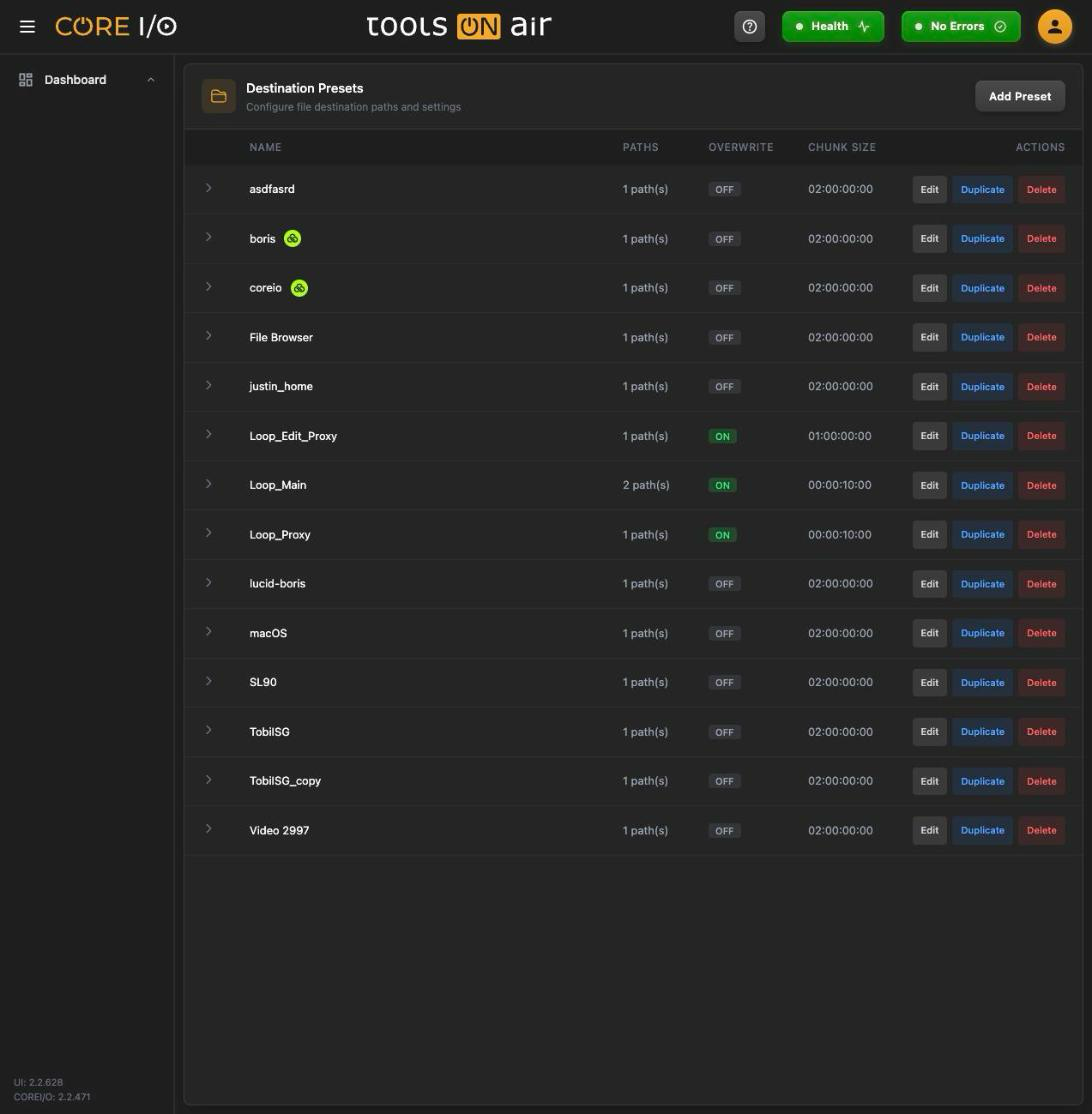
In the sidebar, open Configuration, expand RECORD, and select Destination Presets, or go to /destination-presets. The header reads "Configure file destination paths and settings".
A destination preset in edit mode
Layout
The table lists the presets with Name, the number of Paths ("2 path(s)"), Overwrite (green ON or gray OFF) and Chunk Size. Click a row or its arrow to expand it into the Destination Paths list and the Settings block. Each row has Edit, Duplicate and Delete. A preset with a path on a LucidLink volume shows the LucidLink mark next to its name and next to that path (see Storage integrations). With no presets the page reads "No destination presets".
Creating a preset
- Click Add Preset. An input ("Enter preset name") appears in a new row.
- Enter a name, then click Create or press Enter. Press Escape or click Cancel to discard it.
An empty name displays "Name is required." A name already in use, regardless of capitalization, displays "A preset with this name already exists." The new preset has no paths, Overwrite is OFF, and Chunk Size is 02:00:00:00.
Expand it and click Edit to add paths.
Editing a preset
Click Edit. The name becomes an input, the paths become editable and an Add Path button appears.
Save stores the preset ("Preset updated."), Cancel discards the changes. A name used by another preset warns "A preset with this name already exists.".
Destination paths
Click Add Path to open the Add Path panel ("Configure a new destination path"):
Click Add Path in the panel to append the path and close the panel. Each path remains editable in the list. Change its container, path, or buffer size, or click × to remove it.
Each File path also provides a shortcut to the File Browser. Create File Browser Preset creates a mount point for the path, using the preset name. If that name already exists, CORE I/O adds (2), (3), and so on. Recordings then appear in the File Browser. A path that is already a mount point displays In File Browser. This button is also available in view mode.
| Field | What it does |
|---|---|
| Container | File writes the recording to this path. Metadata writes the metadata export file to this path. See Metadata Views. |
| Path | The folder on the host, for example /mnt/internal_raid/recordings. |
| Buffer Size | File paths only: the write buffer, 4MB, 8MB, 16MB, 56MB, 102MB, 128MB, 256MB, 512MB, or 1024MB. |
Settings
Use Overwrite to control whether existing files may be replaced, and Chunk Size to set the maximum chunk duration.
| Setting | What it does |
|---|---|
| Overwrite | ON or OFF: whether files at the destination may be overwritten. |
| Chunk Size | A timecode in HH:MM:SS:FF format. The placeholder is HH:MM:SS:FF, and the default is 02:00:00:00. This field can be edited only while Overwrite is ON. |
Duplicating and deleting
Duplicate creates <name>_copy with the same paths and settings. Further copies use <name>_copy(2), <name>_copy(3), and so on. A toast confirms "Preset duplicated."
Delete switches to Confirm / Cancel. Confirming removes the preset ("Preset deleted."). Files already recorded are not affected.
Where destination presets are used
The Capture IDs entry in the Record Viewer's settings menu opens Update CaptureIDs for flow "<flow name>". For each capture slot, select a capture preset and a destination preset. CORE I/O writes the recording to the destination preset's File paths and its metadata export to the Metadata paths. With several Record Viewers selected, the dialog updates all of them. See Record Viewer.
Good to know
This page does not check that a path exists or is writable when you save.
The chunk size on the destination preset and the Chunk Size on the Record flow's Type tab are separate settings (see Flows).
Trailing slashes are ignored when a path is compared with the mount points.