
Production integrations connect CORE I/O to NDI discovery servers, iconik media asset management, Octopus and AP ENPS newsroom systems through MOS 2.8.5, MXMZ and singular.live graphics services, and Suite cloud drives. AP ENPS support uses the same MOS 2.8.5 newsroom workflow described in the MOS newsroom integration section below. Open each integration from the tile grid described in Integrations: Storage and Transfer. Use Back on any integration page to return to the grid.
NDI
Open /integrations/ndi to configure NDI Discovery Server connections. The Discovery Servers list accepts an optional port. If you omit it, CORE I/O uses port 5959.
- Type a server address into a row (placeholder "e.g. 192.168.1.100").
- Click Add server to add more rows. Use the x button to remove any row except the last one.
- Click Apply. Empty rows are removed. A successful update displays "NDI Discovery Servers updated". If a host does not accept the list, the toast identifies it after "NDI sync failed on:".
iconik
Open /integrations/iconik to connect CORE I/O to an iconik domain. Recordings can then be registered as assets, uploaded to iconik storage, and tagged with iconik metadata views.
Signing in
Until the integration is connected the page shows a sign-in card with two ways in:
Sign in with email: Email, Password and App Name (prefilled "ToolsOnAir - CoreIO"). Connect creates an application in iconik under that name. Both email and password are required. If the account belongs to several iconik domains, the card switches to Select your iconik domain with one button per domain; pick one to finish (or Back to login).
Enter credentials manually opens a form with App ID and Auth Token for an application you created in iconik yourself. Sign in with email instead returns to the first form.
Success shows "Connected to iconik" and the tab bar appears.
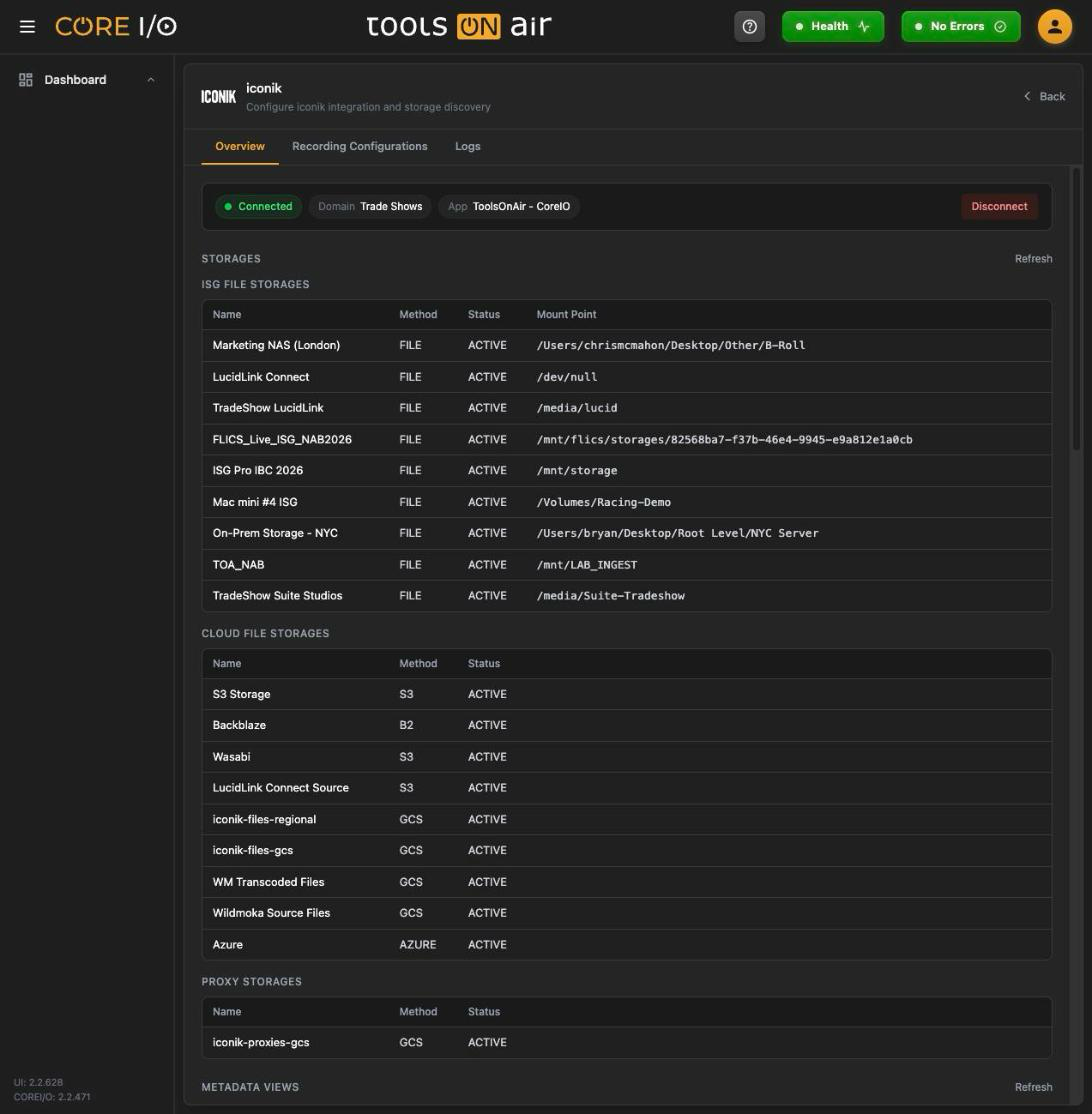
The iconik Overview tab of a connected account
Overview tab
A status banner shows a green Connected pill, the Domain name and the App name, plus a Disconnect button ("Disconnected from iconik" removes the stored credentials). Below it, three sections each with a Refresh link:
| Section | Content |
|---|---|
| Storages | Three tables, ISG File Storages (with a Mount Point column), Cloud File Storages and Proxy Storages, each listing Name, Method and Status. "No storages found." when empty. |
| Metadata Views | Name, Description and Updated of the views defined in iconik. The iconik metadata dialog in the widget settings offers these views. |
| Asset Flows | One row per asset being processed: Asset Name, State, Last Updated, Error. A row with an error gets a Retry button ("Retry initiated"). |
Recording Configurations tab
A recording configuration tells the widgets which capture and destination presets to record with and which iconik storages receive the results. The toolbar shows the count, Refresh and Add Configuration; clicking a row expands it for editing, Delete asks for Confirm / Cancel. The table lists Name, Captures (count), Created, Updated and Actions.
The form has a Name (prefilled "Default" for a new configuration) and one block per capture:
| Capture | Fields |
|---|---|
| 1: High Resolution | Capture Preset, Destination Preset, Iconik Storage (file storages), Scan Directory (only offered when the chosen storage has scanning enabled; otherwise "N/A"). |
| 2: Web Proxy | The same fields, but the storage list shows proxy storages. It also includes a Delete after upload checkbox. |
| Enable Editing Proxy (capture 3) | Optional. Iconik Storages is a multi-select; each selected storage gets its own Scan Directories row. |
| Enable HLS Live Proxy (capture 4) | Optional. Encoder Preset and Iconik Storage (proxy storages). |
Create or Update saves ("Configuration created" / "Configuration updated"); a missing name is refused with "Name is required".
Logs tab
Every request CORE I/O sends to iconik is logged. The toolbar shows the entry count, an All / Errors Only filter, Refresh and Clear Logs. Columns: Date/Time (click the header to flip the sort order), Method, Path, Status (green for 2xx, red otherwise), Duration and Result (check or cross). Clicking a row expands the request and response headers and bodies, each body with a copy button; failed rows are expanded automatically. Pages hold 50 entries with First, Previous, Next and Last buttons.
Where iconik appears
Once the integration is connected and valid, recording widgets get an iconik logo button in their header ("Enable iconik" / "Disable iconik") and, when enabled, a select of the recording configurations. The Record Timeline shows the logo while iconik is on. The metadata dialog reached from widget settings edits iconik metadata views.
MOS newsroom integration
Open /integrations/octopus to configure the MOS 2.8.5 integration for Octopus or AP ENPS. CORE I/O acts as a MOS server: it announces media from selected mount points to the newsroom and receives running orders, or rundowns. These appear as MOS Rundowns and MOS Placeholders sources in the File Browser and can be assigned to the Multi Player.
MOS server
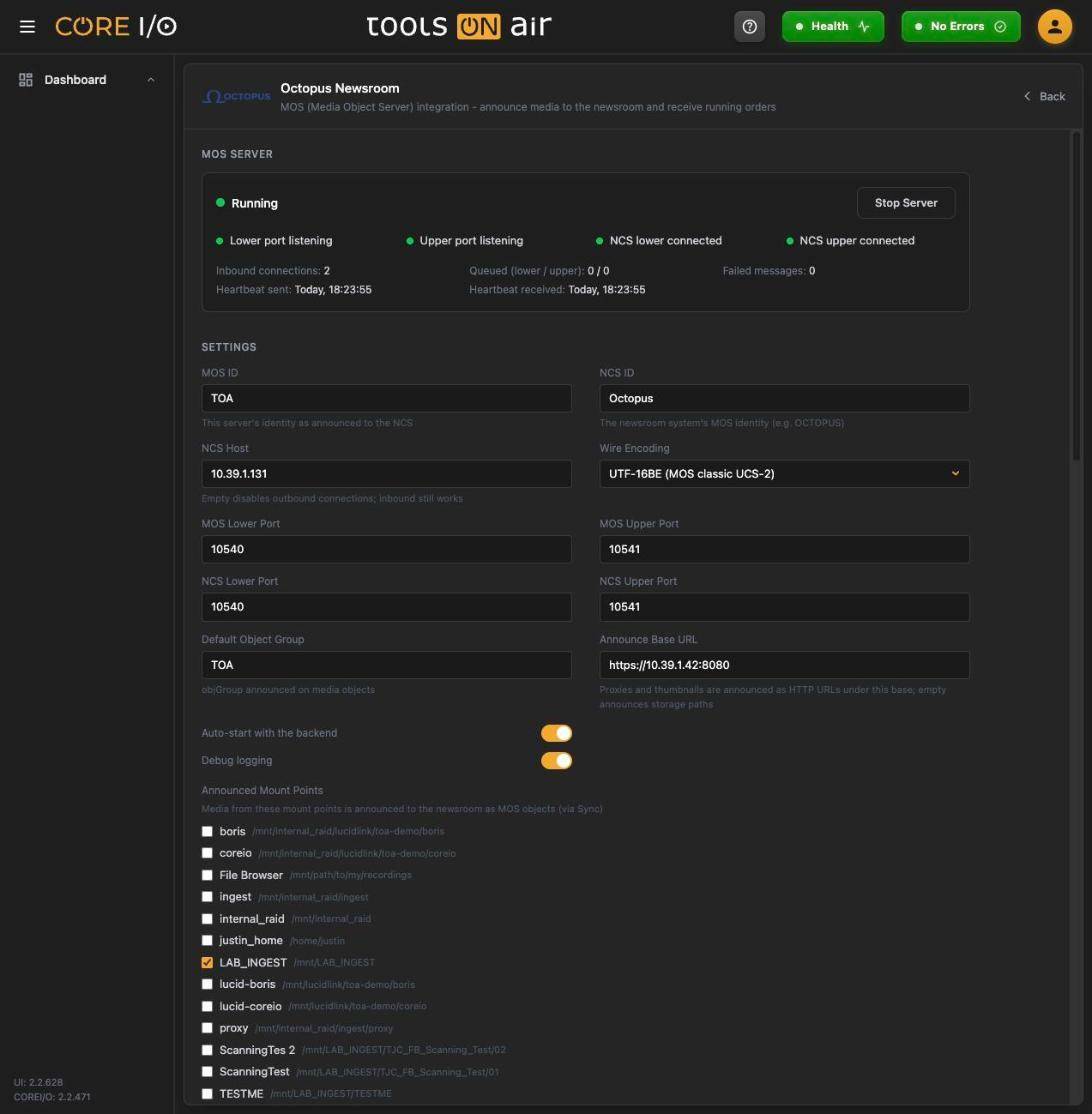
The first card shows Running (green dot) or Stopped with a Start Server / Stop Server button ("Working..." while busy). A start that fails with a port conflict reports "Could not start the MOS server - is a port already in use?". When settings were saved while the server runs, an amber line says "Settings changed while the server is running - restart the MOS server for them to take effect." Below, four indicators (Lower port listening, Upper port listening, NCS lower connected, NCS upper connected) and the counters Inbound connections, Queued (lower / upper), Failed messages (red when above zero), Heartbeat sent and Heartbeat received. The card refreshes itself when the backend pushes a status change.
MOS settings
Save Settings validates the ports and the two IDs and reports "MOS settings saved".
| Field | What it does |
|---|---|
| MOS ID | "This server's identity as announced to the NCS". Required. |
| NCS ID | "The newsroom system's MOS identity (e.g. OCTOPUS)". Required. |
| NCS Host | Hostname or IP address of the Octopus or AP ENPS server. "Empty disables outbound connections; inbound still works". |
| Wire Encoding | UTF-16BE (MOS classic UCS-2) or UTF-8. |
| MOS Lower Port, MOS Upper Port, NCS Lower Port, NCS Upper Port | Port numbers 1 to 65535 (defaults 10540 / 10541). |
| Default Object Group | "objGroup announced on media objects". |
| Announce Base URL | "Proxies and thumbnails are announced as HTTP URLs under this base; empty announces storage paths". Must be an http(s) URL or empty. |
| Auto-start with the backend | Start the MOS server whenever the backend starts. |
| Debug logging | Verbose MOS logging. |
| Announced Mount Points | Checkboxes, one per mount point: "Media from these mount points is announced to the newsroom as MOS objects (via Sync)". |
Octopus MOS settings
MOS objects
The list of announced objects with a status filter (All statuses, NEW, UPDATED, DELETED) and a Sync Now button that scans the announced mount points and reports "Sync complete: n new, n updated, n deleted". Columns: Slug (with a placeholder badge for objects the newsroom created without media), Object ID, Status, Type, Duration, Rev, File, Changed. Pages hold 50 objects with Previous / Next.
A placeholder row includes Link file…, which opens the Link media file dialog for the selected object. Enter the File Path and click Link. The field expects the full path of a cataloged media file; the object is announced as UPDATED with the file paths and duration. An unknown path is rejected with "Not linkable: unknown object, not a placeholder, or the file is not cataloged".
Running orders
Every rundown received from the newsroom, with Refresh. A row shows the slug, the channel, a green ready to air badge when applicable, the status and the last update time. Click a row to expand its stories and items (item slug, channel, object id and duration). When nothing has arrived yet: "No running orders received yet - they appear when the newsroom sends a rundown".
Maintenance
Reset MOS Database "Stops the MOS server and deletes all announced objects, received running orders and queued messages". The confirmation dialog Delete MOS database? warns that the newsroom will no longer see previously announced media until the next sync; DELETE confirms, CANCEL aborts.
MXMZ
Open /integrations/mxmz to browse released graphics packages and control playout outputs in the Maximize graphics cloud. When credentials are configured, MXMZ Packages appears as a source in the File Browser. MXMZ outputs also appear in the Graphics menus of playout widgets and previews.
Control connection
The card shows the connection state (Disconnected, Connecting…, Connected, Session active or Error; green while connected, amber while connecting, red on error) and a Connect / Disconnect button. Without credentials the button is disabled with the hint "Configure credentials first". Below:
Credentials (API key, User login or Not configured), Workspace and Claimed output (by name), and the last error in red if there is one.
MXMZ settings
This section saves automatically about half a second after each change; the heading shows Saving…, Saved or Save failed.
| Field | What it does |
|---|---|
| API Key | "Machine credential for the MXMZ cloud". |
| API Secret | Write-only. Displays "•••••••• (configured)" once stored and "Leave empty to keep the stored secret" when editing. |
| Output | The output claimed by the control connection. Automatic - first available output stores the first listed output when saved. A stored output missing from the current list displays " (not in the current listing)". |
| Force claim (take over an output held by another session) | Toggle. On by default. |
| Auto-connect with the backend | Opens the control connection when the backend starts. |
singular.live
Open /integrations/singular to register control apps by token and control cloud overlay graphics. Registered apps appear as the Singular Apps source in the File Browser. Their output URLs also appear in the Graphics menus of playout widgets and previews.
singular.live settings
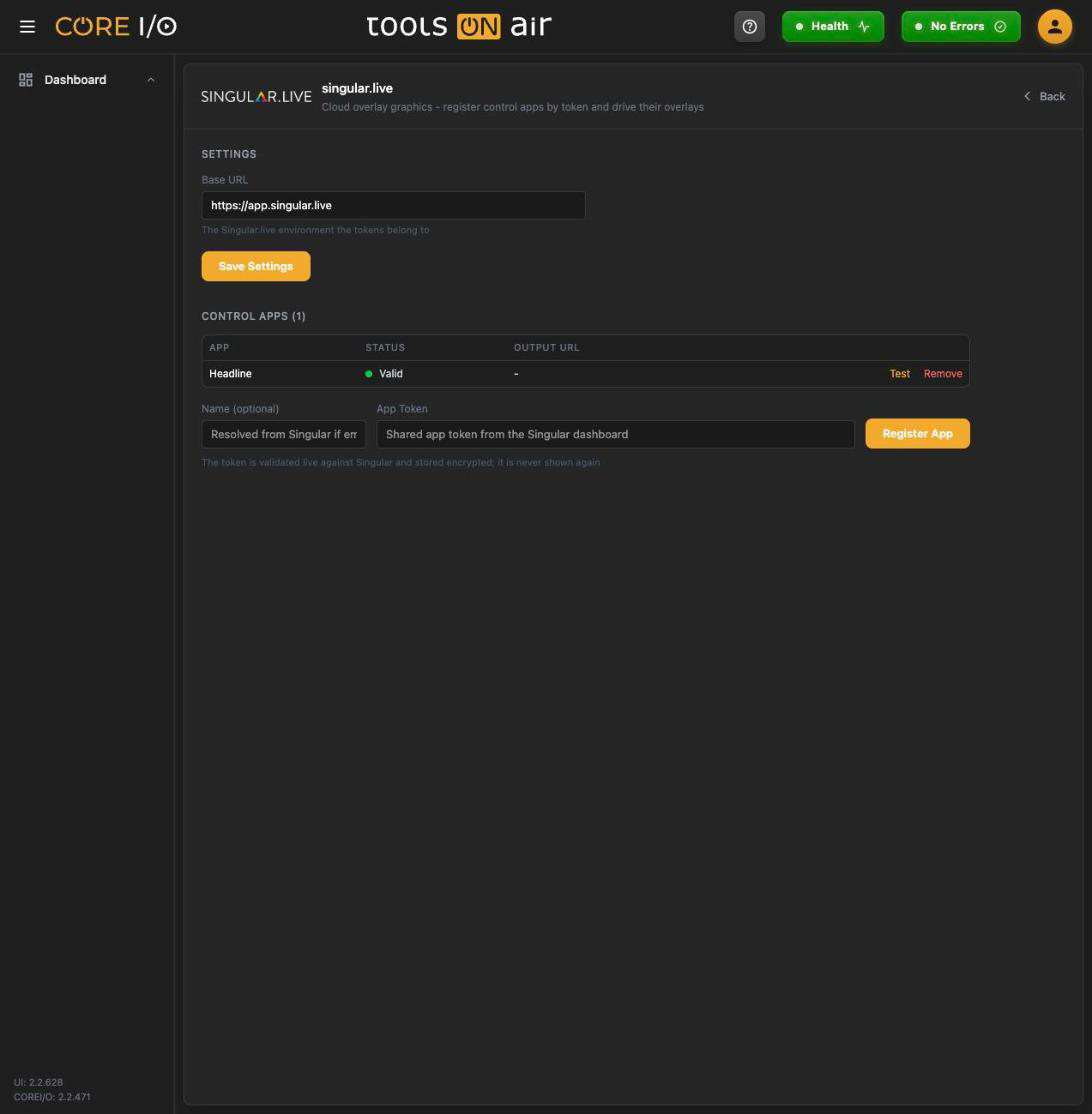
Enter the Base URL of the singular.live environment associated with the tokens. The placeholder is https://app.singular.live. Save Settings accepts only an HTTP or HTTPS URL; otherwise, it displays "Base URL must be an http(s) URL".
Control apps
The table lists App, Status, and Output URL. A valid app has a green Valid status; an error appears in red. The Output URL opens in a new tab. Use Test to validate a token, or Remove to unregister it. Remove opens Delete app registration? and explains "The app token is removed from this server; the Singular app itself is not touched."
To register an app, enter an optional Name and the App Token, then click Register App. Pressing Enter in the token field also submits the form. If Name is empty, CORE I/O resolves it from Singular. The App Token is the shared app token from the Singular dashboard. It is validated live, stored encrypted, and never displayed again.
singular.live control apps
Suite
Open /integrations/suite to configure Suite credentials, drives, and client settings. The Suite client mounts Suite cloud drives on the CORE I/O hosts.
Login
Until credentials are stored, the page shows the required Username and Password fields with a Login button. A successful login displays "Suite login successful". If a host cannot be synchronized, the toast identifies it after "Suite sync failed on:".
Drives and client settings
After login, the Drives table lists every drive in the account. Click Mount to mount a drive; the button changes to Unmount when the mount is active. A toast identifies the drive as mounted or unmounted. Save Configuration stores the following settings and displays "Suite settings updated":
| Section | Fields |
|---|---|
| Authentication | Username, Password, Enabled toggle (turns the Suite client on or off). |
| Connection | Port. |
| Cache Settings | Max Memory Cache Size (GB), L1 Disk Cache Location, L1 Disk Cache Size (GB) (minimum 10), L2 Disk Cache Location, L2 Disk Cache Preferred Manager toggle. |
| Bandwidth | Max Upload (Mbps) (10 to 10000), Max Download (Mbps) (50 to 10000). |
| Mount | Base Mount Point: the folder under which drives are mounted. |
| Other | Growing Files Enabled toggle, Log Level (Trace, Debug, Information, Warning, Error, Critical). |
Good to know
The MOS Placeholders and MOS Rundowns entries in the File Browser source picker are only selectable while the MOS server is running; MXMZ Packages requires configured MXMZ credentials.
MXMZ, Active Directory and SAML save on every change; the other production pages have explicit Save buttons.
Secrets (the MXMZ API secret, Singular app tokens, the iconik auth token) are never displayed again after saving.